Users with proper permissions can edit existing documents, but adding new documents is not available.
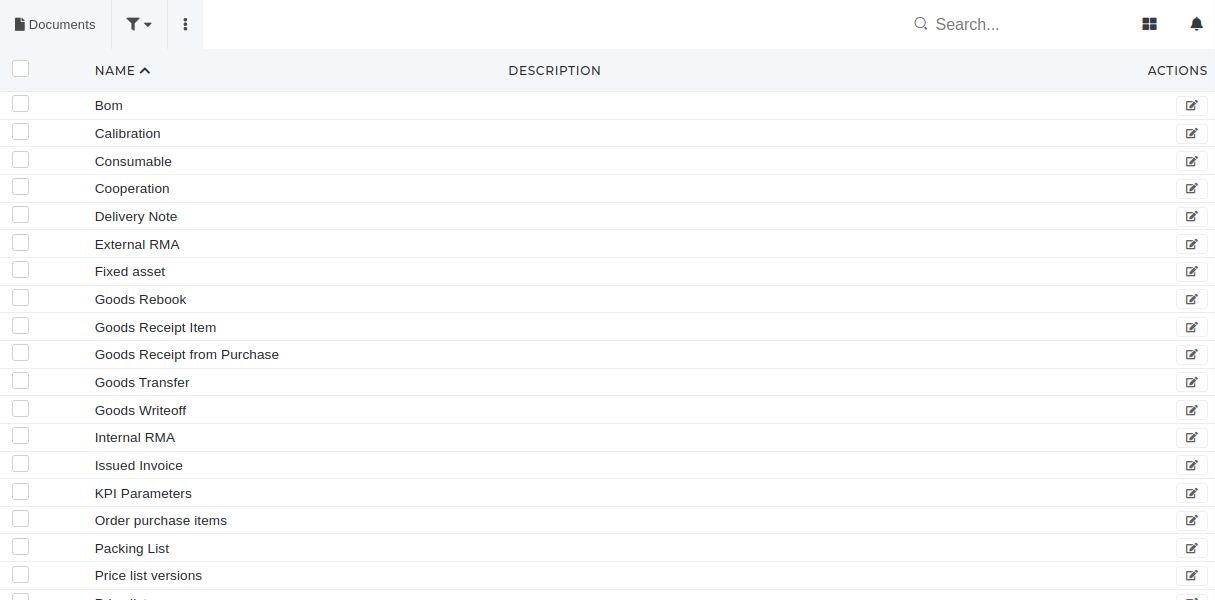 # Update existing documentThis action requires the "**update documents"** permission.
On the edit page, document's name and description can be edited, while the table name is not. 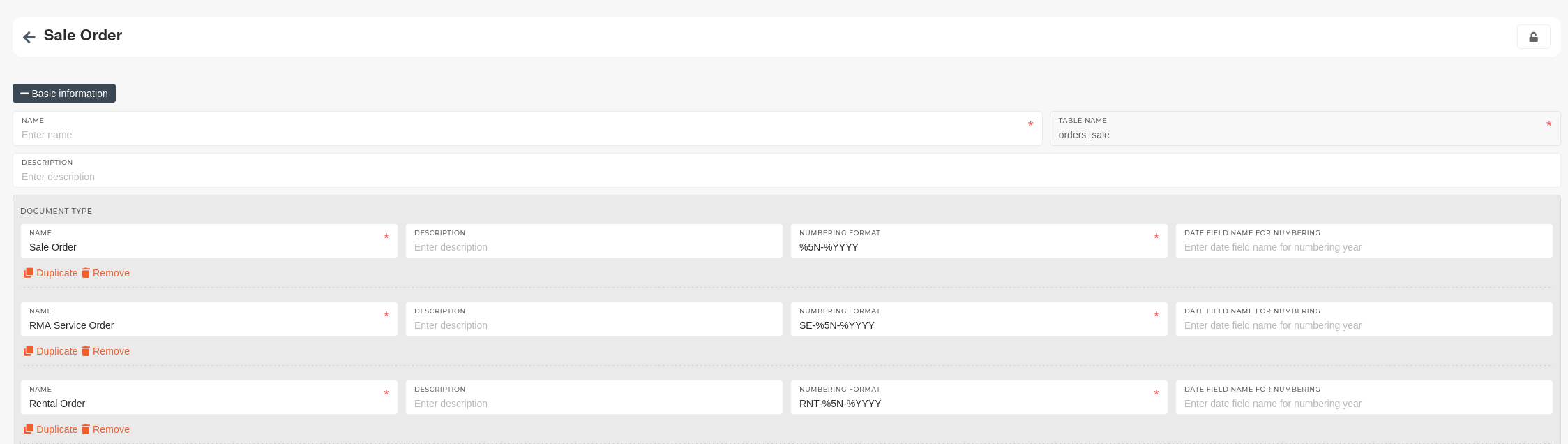 Users can add new and remove existing document types and edit the document type's description and numbering format, which defines the document number format (eg. **SE-%5N-%YYYY** -> **SE-00001-2024** ). Users an also add, edit or remove status categories and define category's default name, background color and font style.  # Create new documentTo add a new document into the ERP, contact your ERP's administrator.
# Delete documentThis action requires the **"delete document"** permission.
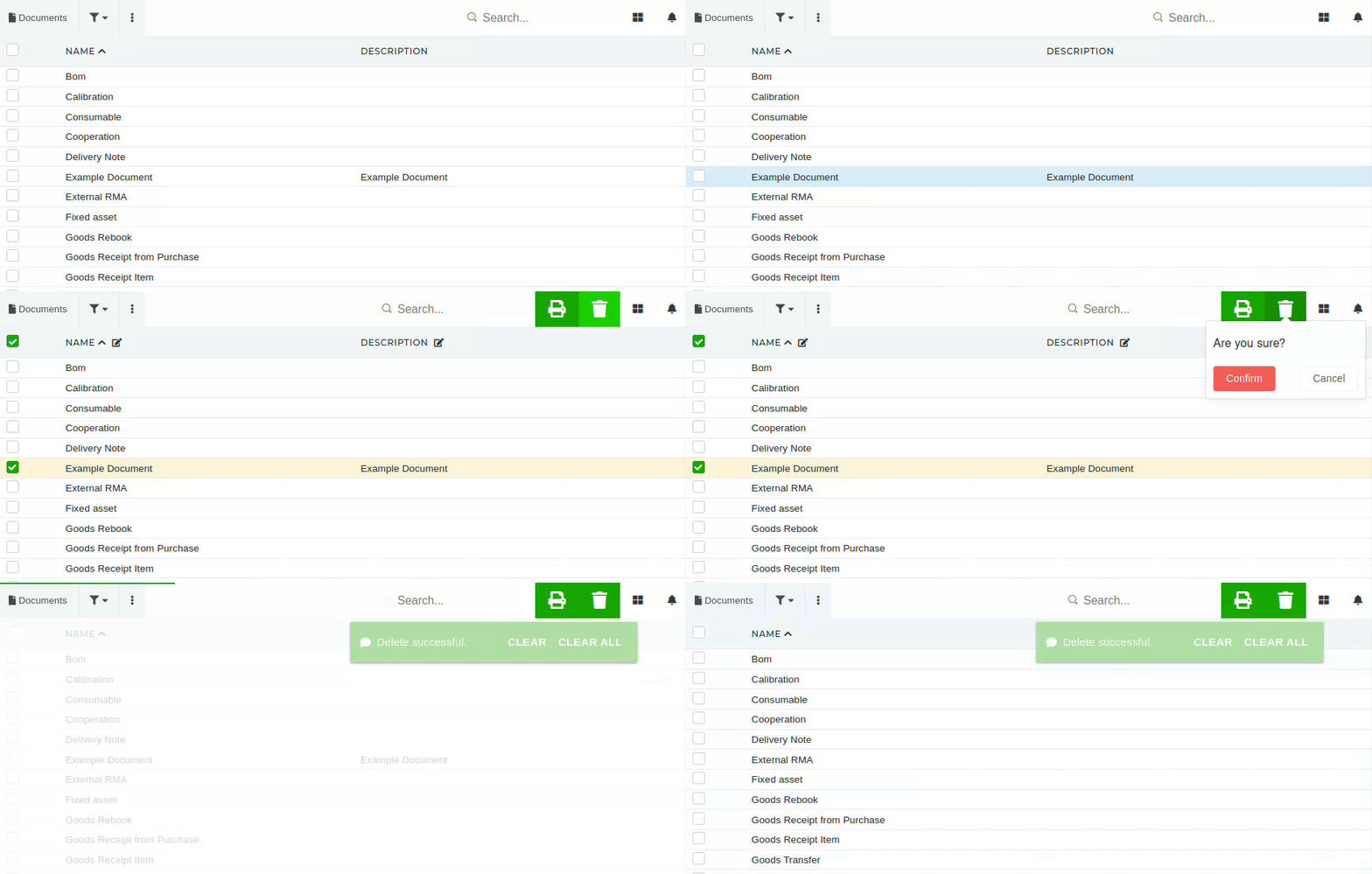
To delete a document, select it with the checkbox. Once the "trash" icon appears, click it and confirm the deletion. Tee document will then be deleted.Be careful, while deleting documents, as currently, adding documents is not supported for users.
[](https://how-to-erp.dewesoft.com/uploads/images/gallery/2024-05/ozroutput.gif) # Manage create and duplicate functionalitiesThis action requires the "**update documents"** permission.
On the document's page, it is possible to define "**rules**", that determine what values are written into what fields. (eg. *a date field is, by default, set to today's date on the 'create' form*). #### #### Create Defined in the **"Create rules"** field. - Here, you can define what values fields are given, when the **"create"** form is loaded - eg. the **date fields** (date\_vat, date\_paid...) can be set to have the default value of "**new\_date**" when the form loads. At current, the **rules** need to be **defined** in the **JSON format:** { "field\_name": "field\_value" }.
#### Update Defined in the **"Duplicate rules"** field. - The duplicate rules are used, when duplicating a row (eg. products, serials...). - These rules define which values are copied from the "original" into the **"duplicate"** form. 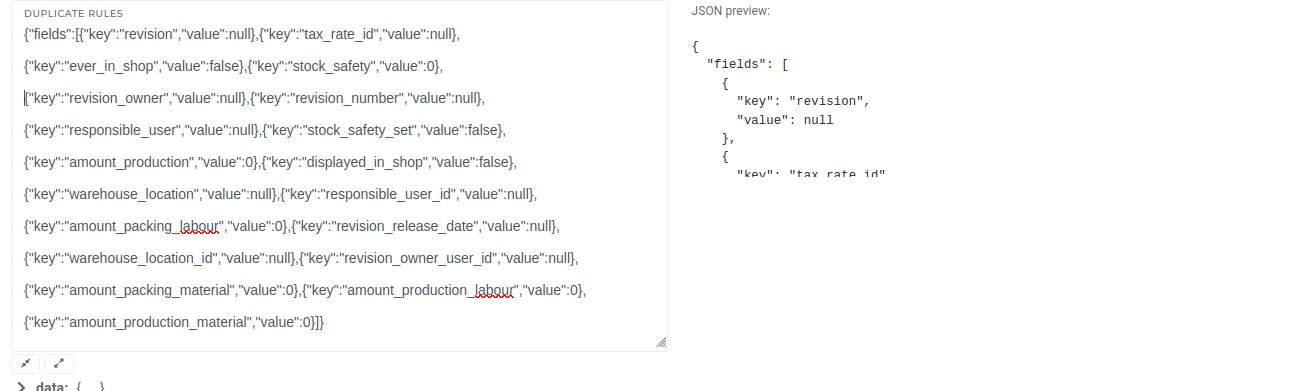At current, the **rules** need to be **defined** in the **JSON format:** { "fields": \[ {"field\_name": "field\_value"},... \]}