Promo and Work Equipment
Process of MO orders, requesting promo or requesting work equipment
- Requirements
- Receive new MO order
- Request promo
- Request missing work equipment
- Reservation and rebook
- Pickup products
Requirements
Merch order
- If promotional product is not in stock, it needs an active Rebook BOM with reselling material and technology rebook.
- The rebook BOm should contain the promotional product's reselling counterpart.
Receive new MO order
Request promo
To access this page, the "request promo" permission is required.
On this page, users can create promotional material orders for themselves or other users.

This page only lists products of types Prints and Promotional products with attached shop tags.
To add items to the order, click the "Add" button next to the product, the items and their set quantity will be added and displayed in the cart. The item quantity can then be changed from the cart, if needed.
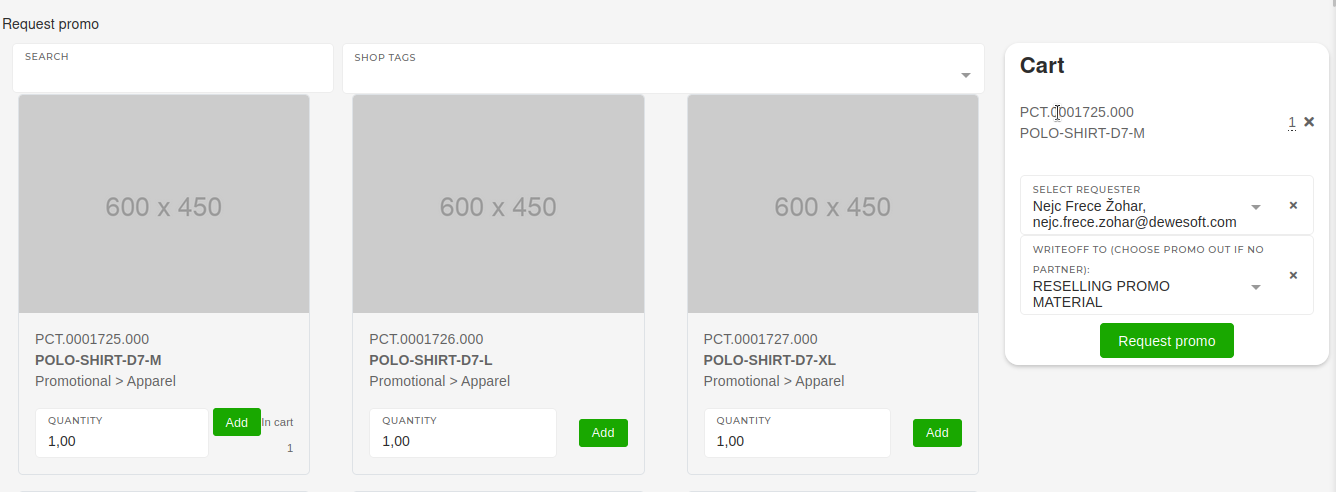
Once all items are in the cart, select the requester user and the right promo warehouse. Once all that is selected, clicking the "Request promo" button will create a promo order, which will then get processed in the warehouse.
Request missing work equipment
This action can only be performed by department heads.
To request work equipment, open the "workflow approval" page and and select the "Missing work equipment" button in the "Actions" section.
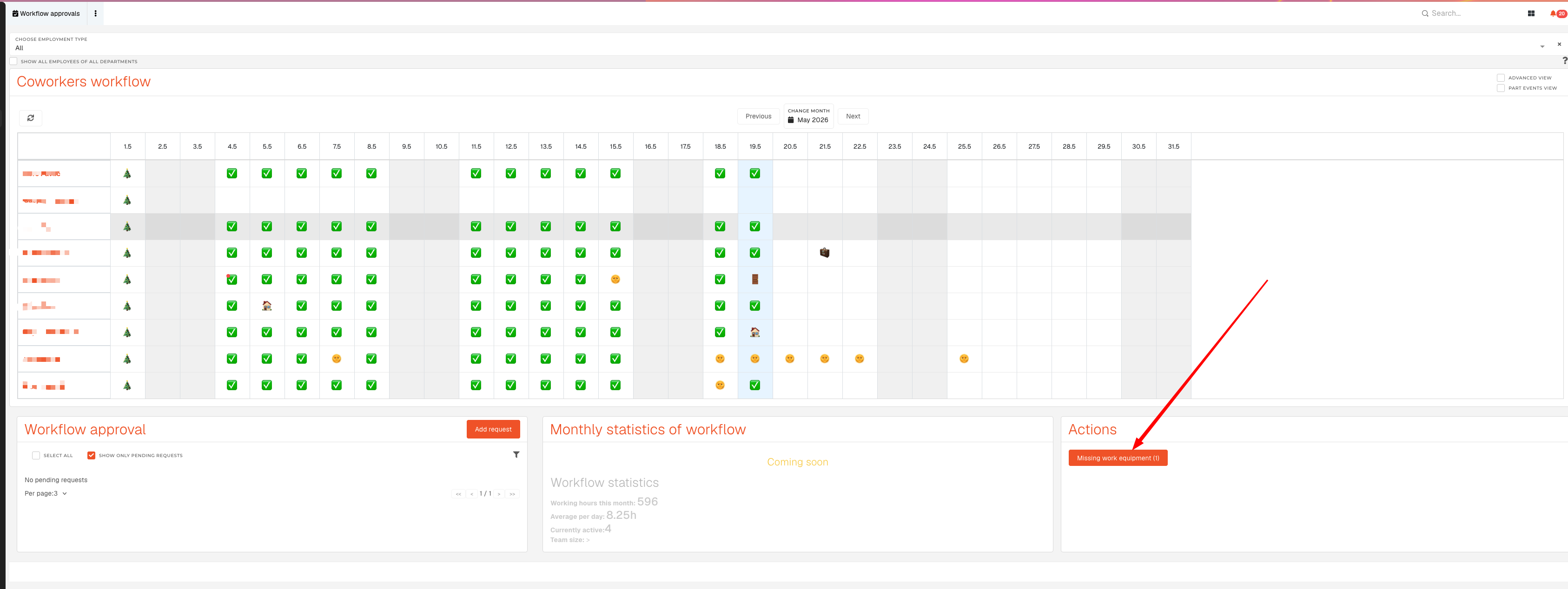
You will see a list of required work equipment, where you can select work equipment for each employee:
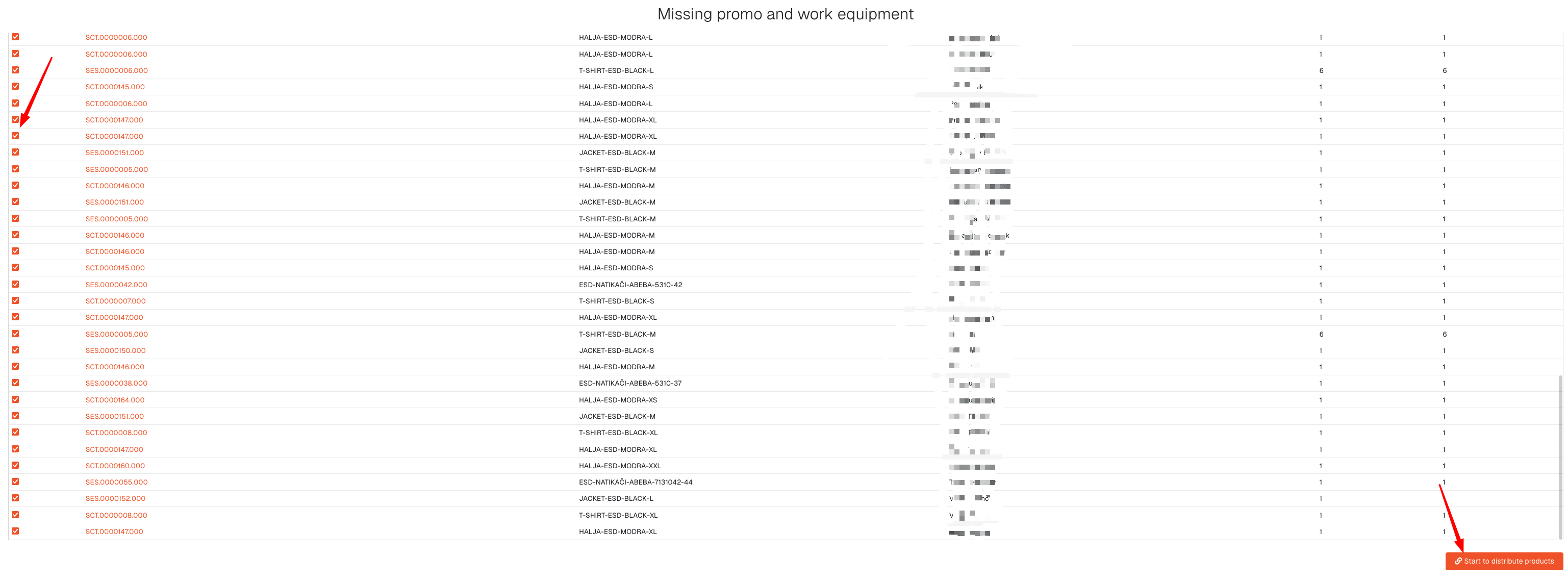
After clicking the "Start to distribute" button, the work equipment distribution process will be started.
Check page: https://how-to-erp.dewesoft.com/books/admin/chapter/promo-and-work-equipment
Reservation and rebook
The process of requesting promo or work equipment, the system performs several steps in the following order.
- 1. Work orders are created for rebooking
- These work orders are used to get required material for purchasing
- 2. System hourly check for available stock
- The system performs automatic stock checks. Once stock is available, the next step is triggered.
- 3. When stock is available, a task for Rebook is created
- These tasks get created automatically, and are assigned to warehouse manipulators.
- 4. Warehouse manipulators perform the Rebooking task
- Within the task, warehouse manipulators take items from available locations.
- On task completion, material is rebooked.

- If necessary, the system automatically rebooks reselling products to promo or protective gear products
- This is usually done, when no promo product stock is available, but reselling product stock exists.
After the task if finished, the process continues.
Check here: https://how-to-erp.dewesoft.com/books/admin/chapter/promo-and-work-equipment
Pickup products
After reservation and rebook tasks are completed, the assigned user receives a task to pickup products. This can be done at the warehouse window.
Promo order pickup
If the order is for promotional products, the task is assigned to the requester.

Once products have been collected by the assigned user, the order's "end customer" can be notified to collect items by clicking the "Notify user" button.
If the "pick-up" task is from a merch order, closing it will will trigger a material write-off, create invoice and delivery note. The created invoice will then be automatically sent to the "end customer".
After promotional items are "picked-up", the requester should click the "Write-off products and complete task" button. This will finish and close the task.
Work equipment pickup
If the order is for work equipment, the task is assigned to the head of the department.
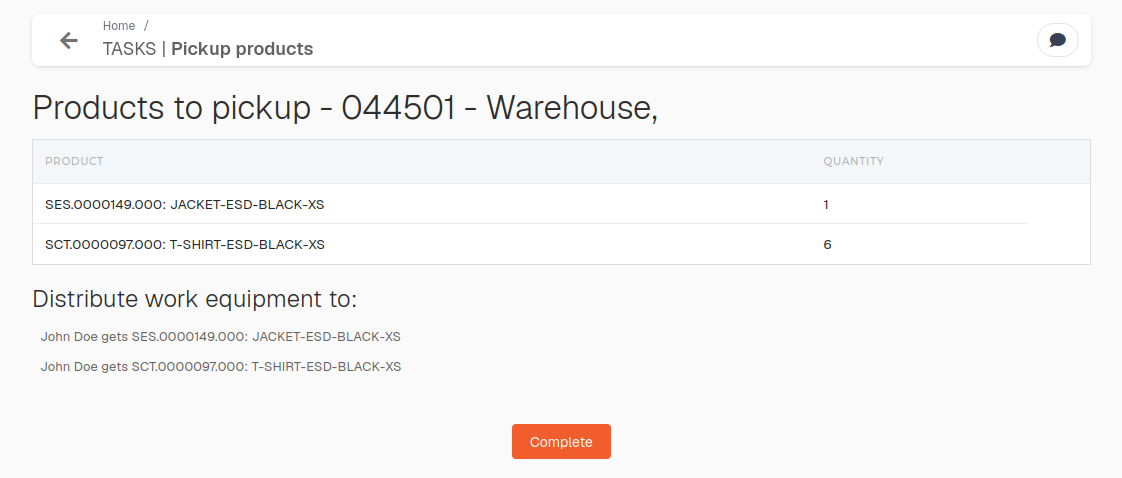
After items are "picked-up" , the head of the department should click "Complete" to finish and close the task.