These options should only be managed by people, who understand their purpose and context, as changing a key option could lead to severe issues within the ERP, if done wrong.
These settings can range from the primary color of the web site to a predefined greeting on auto-generated documents. 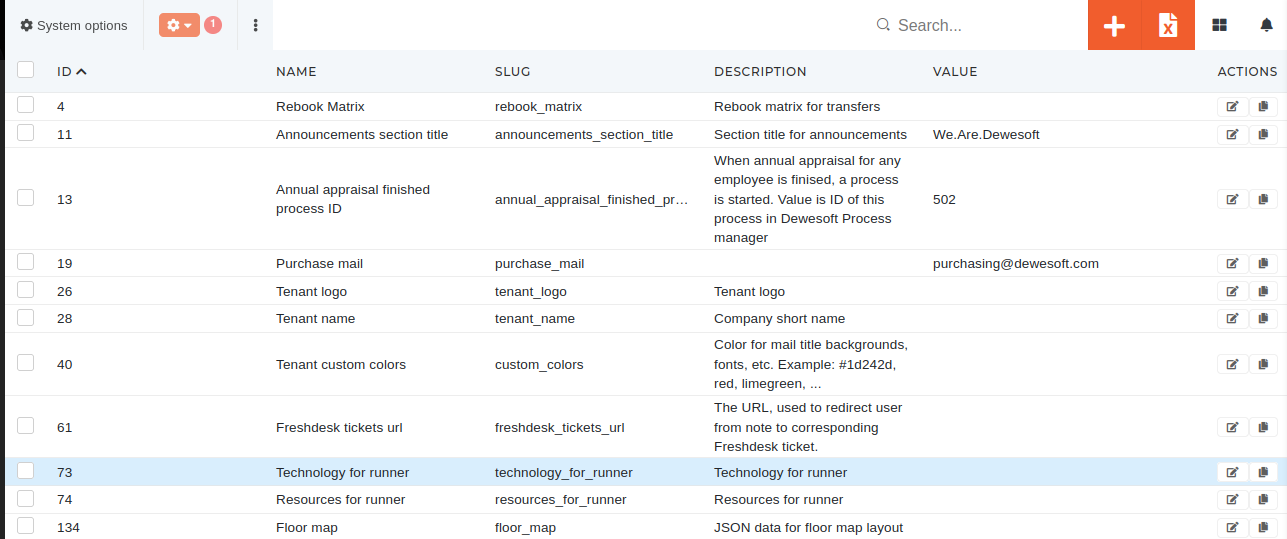 # Create new system optionThis action requires the **"create system option"** permission.
A new option can be created by accessing the creation form on the [system options page](https://how-to-erp.dewesoft.com/options) through the "Create new" button.  You get redirected to the [creation form page](https://erp.dewesoft.com/options/create), where you can input required information to add a new system option.All required form fields are marked with a red asterisk.
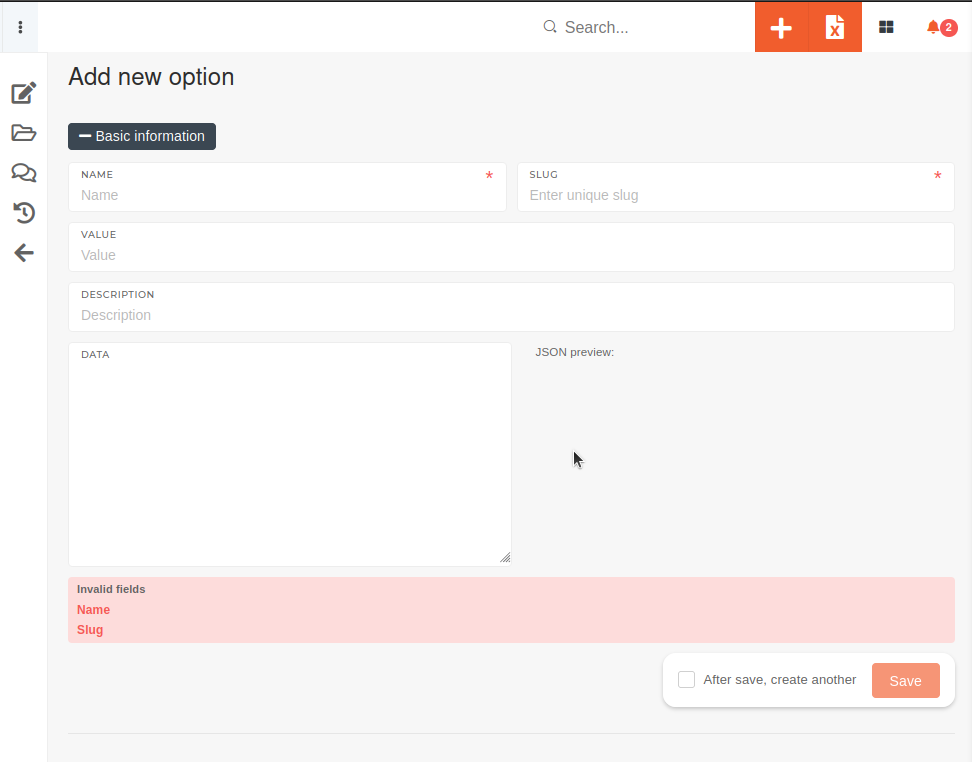Be careful, as you should define only either value or data. If both are defined, only value will be used.
# Update existing system optionThis action requires the **"update system option"** permission.
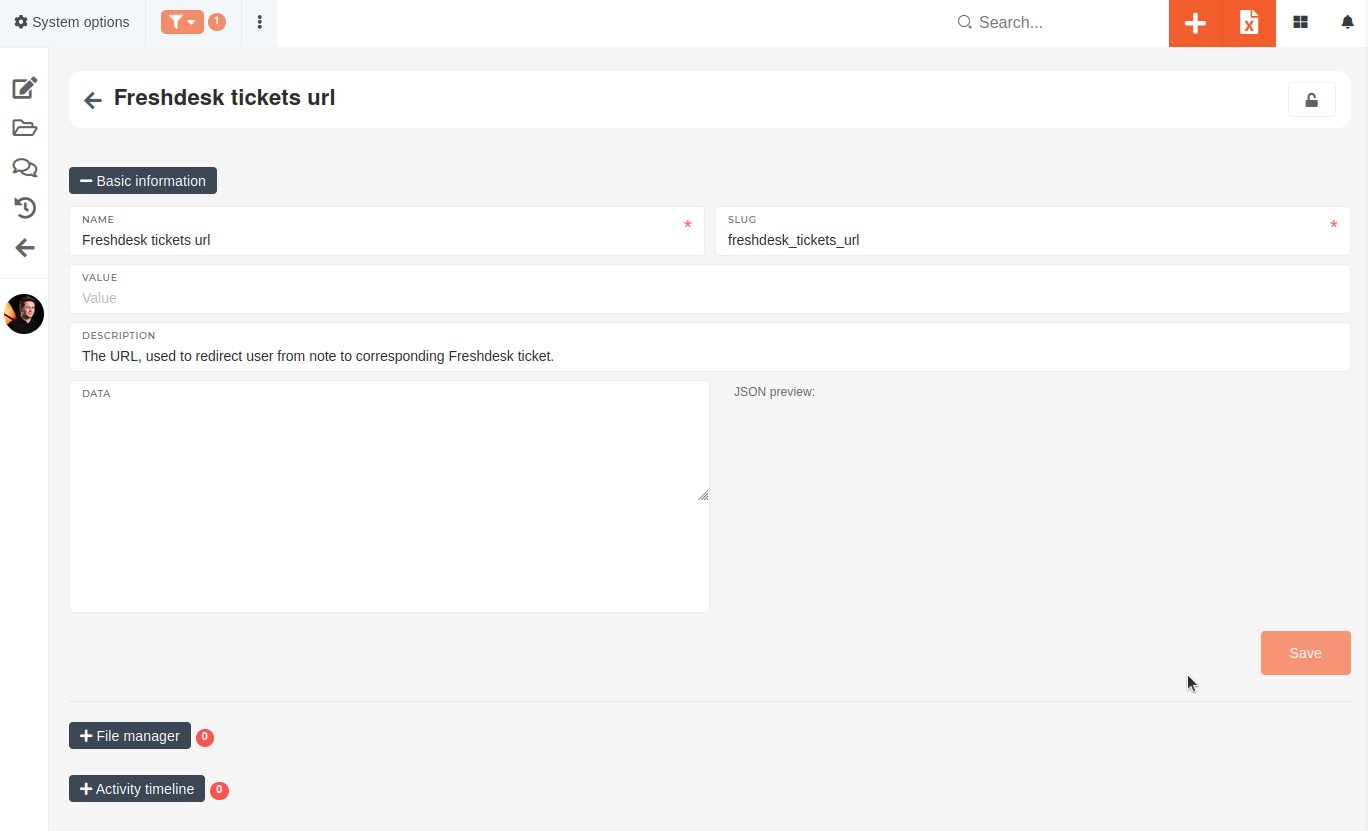
To update an existing system option, find it in the table, and click the **"edit"** button at the end of it's row. 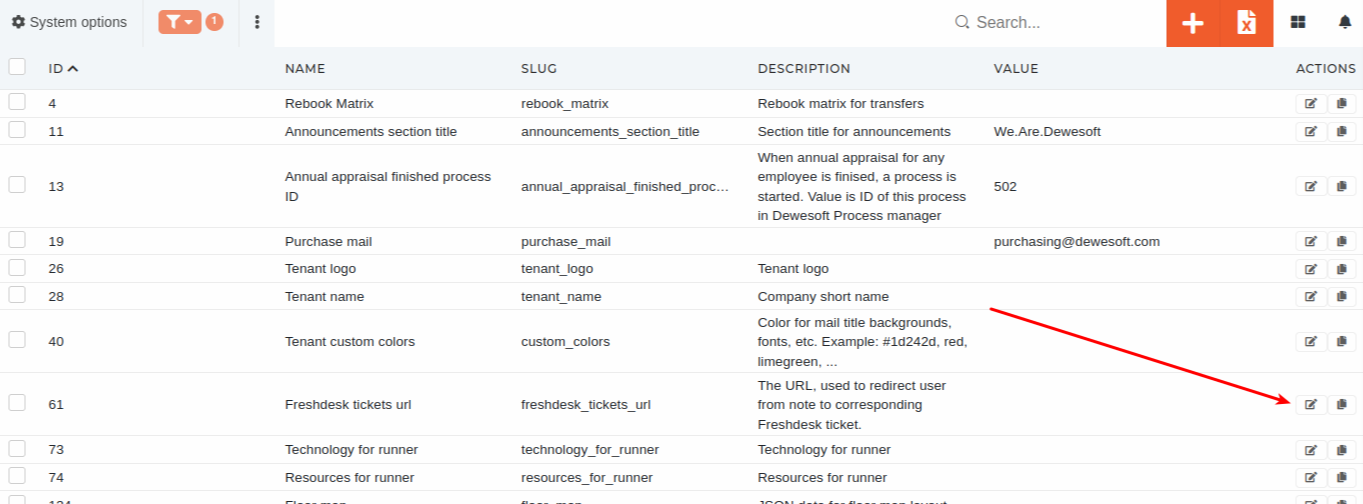 This takes you to the editing form, where you can update the option's name, slug, description and value/data.**TIP:** Data is required to be in the JSON format. When editing it here, a preview is shown on the right, and you are notified if errors are present in the JSON structure itself.
 # Delete system optionThis action requires the **"delete system option"** permission.
To delete a system option, use the checkbox to select it, and then click on the "trash" icon, that appears in the top right corner of the page. You will be asked to confirm you want to delete the system option. 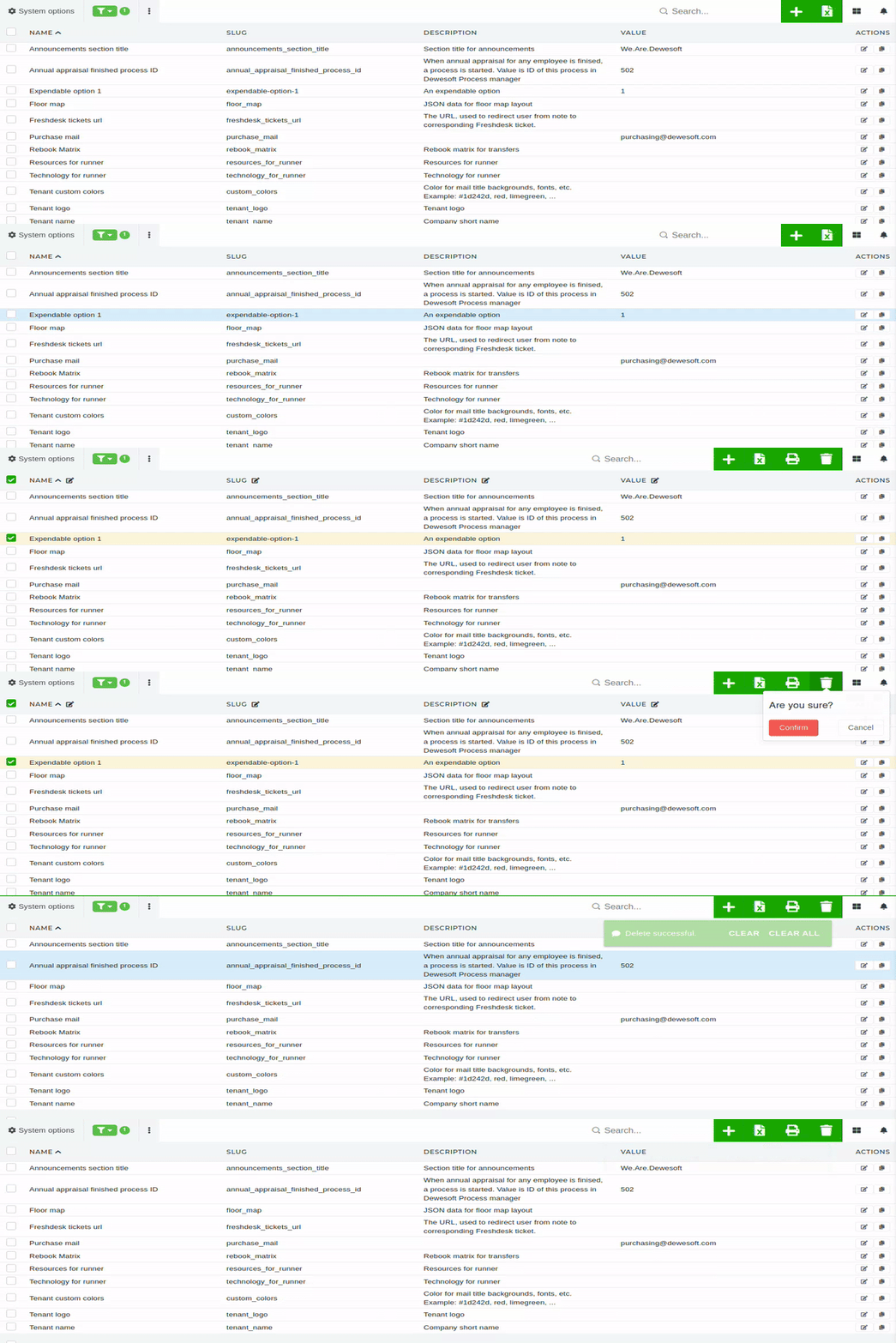**NOTICE:** Deletion of system options should only be done, when the option is no longer used, and should be done only after consulting with someone, who understands ERP's utilization of options.