This action requires the **"Create attendance requests"** permission.
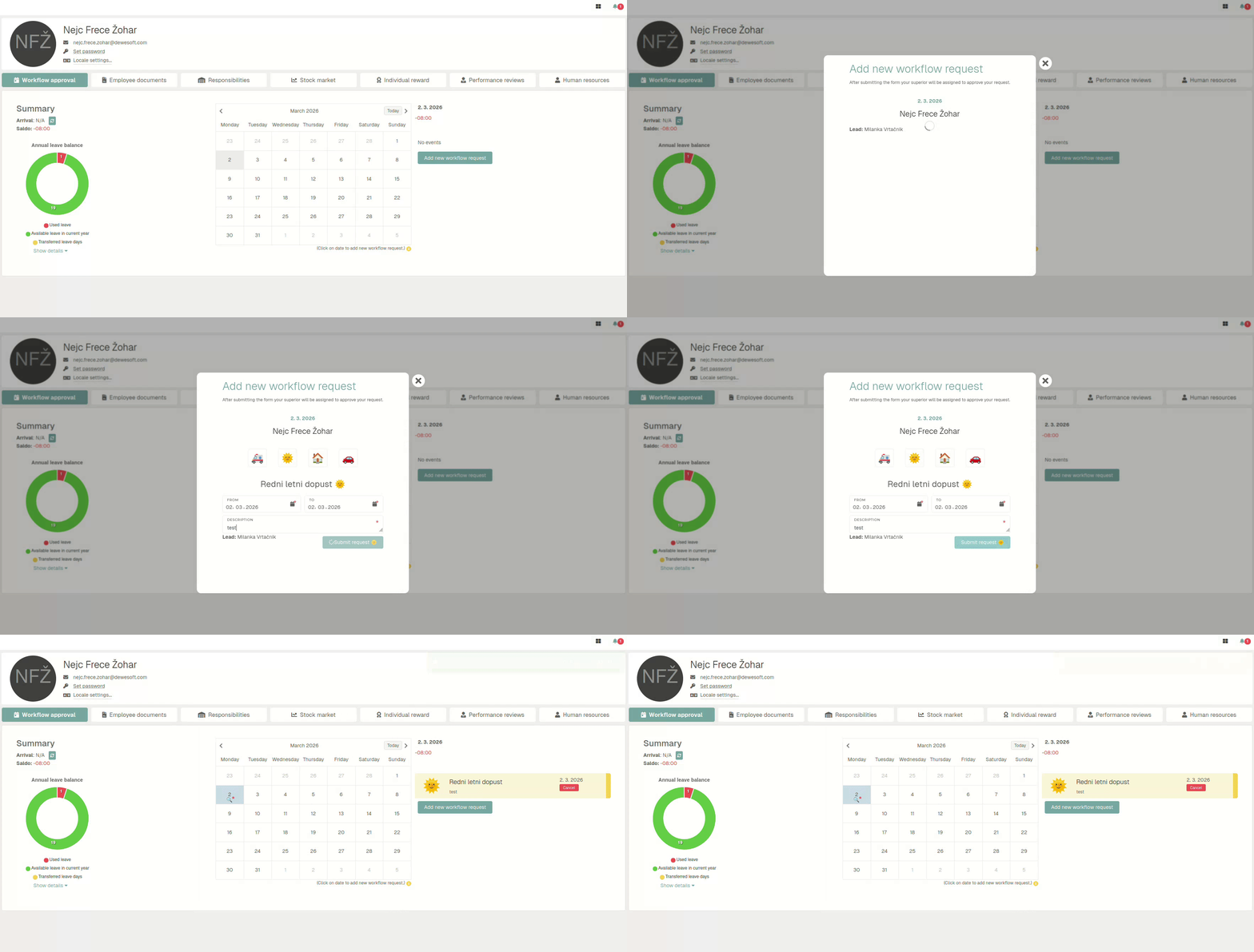
Attendance requests can be created in more than one way. #### #### Create new attendance request through the create form To create a new attendance request, click the "**+**" button, this will redirect you to the "[Create new attendance request](https://placeholder.erp/attendance-requests/create)" form. 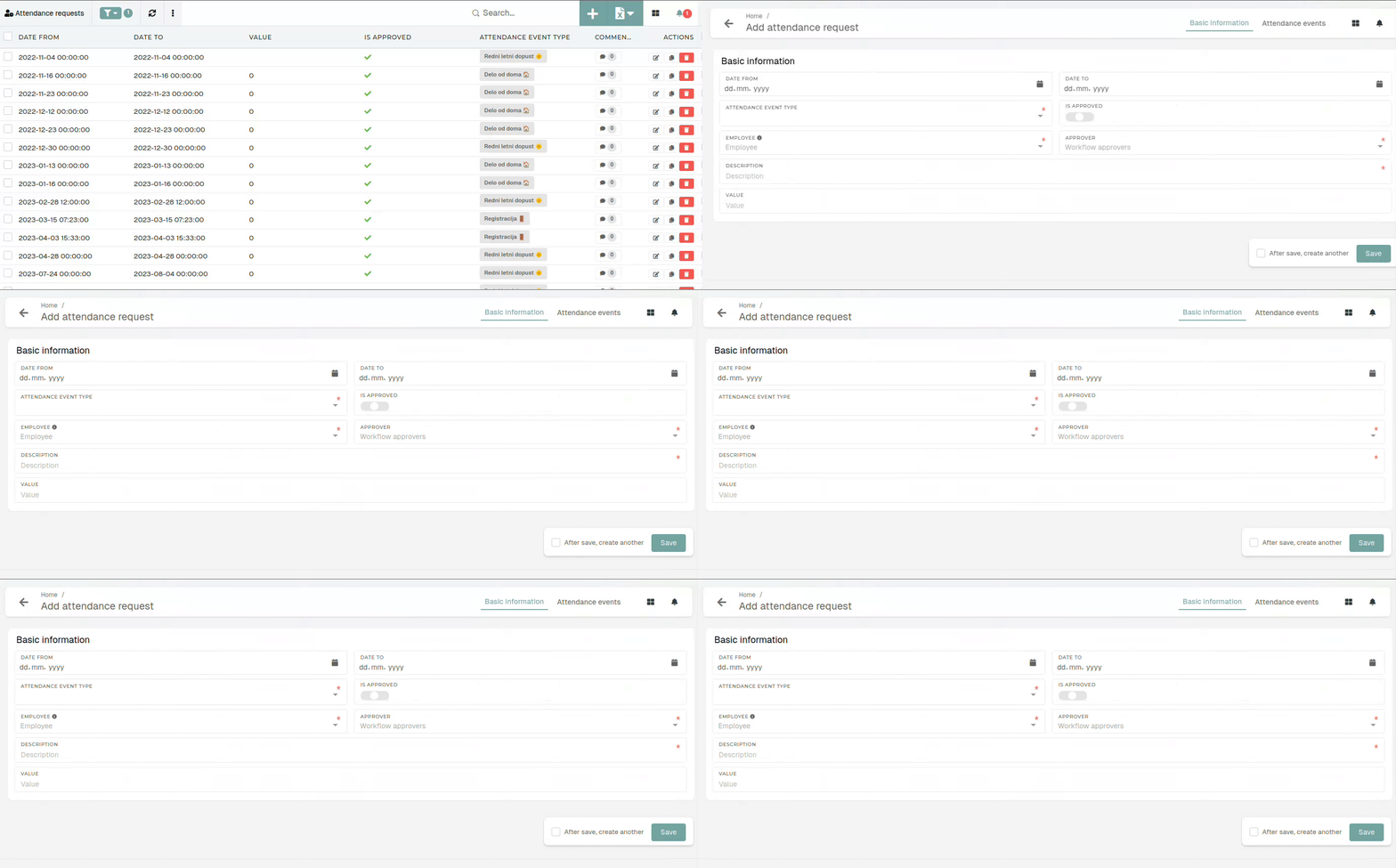 To create a new attendance request, you need to define the **"from"** and **"to"** dates, select an attendance event type, select **the** **employee** (for who the request is being create), **the approver** (who will approve/decline the request) as well as a mandatory **description**. #### Create a new attendance request from your profile Click on a day in the calendar, click the "**Add new workflow request**" button and fill out the new request form.Submitting an attendance request from this page will sent an email to your lead, who will then approve/decline it.
Department leads can also create attendance requests for their employees on the "[Workflow approvals](https://placeholder.erp/workflow-approvals)" page.