Partners are used to represent customers, suppliers, logistics providers, or company subsidiaries.
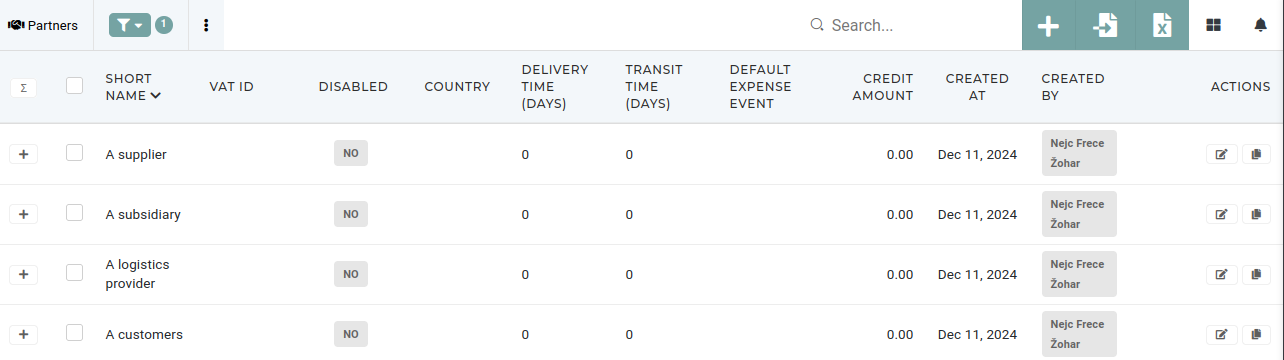 Partners are managed in the [partners](https://placeholder.erp/partners) section. Each partner entry includes essential details such as full, short and native names, contact information, tax data, payment terms, and roles, enabling seamless integration and streamlined operations across the organization. # Create new partner - # Update existing partnerPartners should only be updated by authorized users.
- # Delete partnerThis action requires the **"delete partner"** permission.
Partners should never be deleted, unless they are a duplicate partner with no history (no linked order, invoices...). Before any partner is deleted, the accounting department should be contacted for conformation. [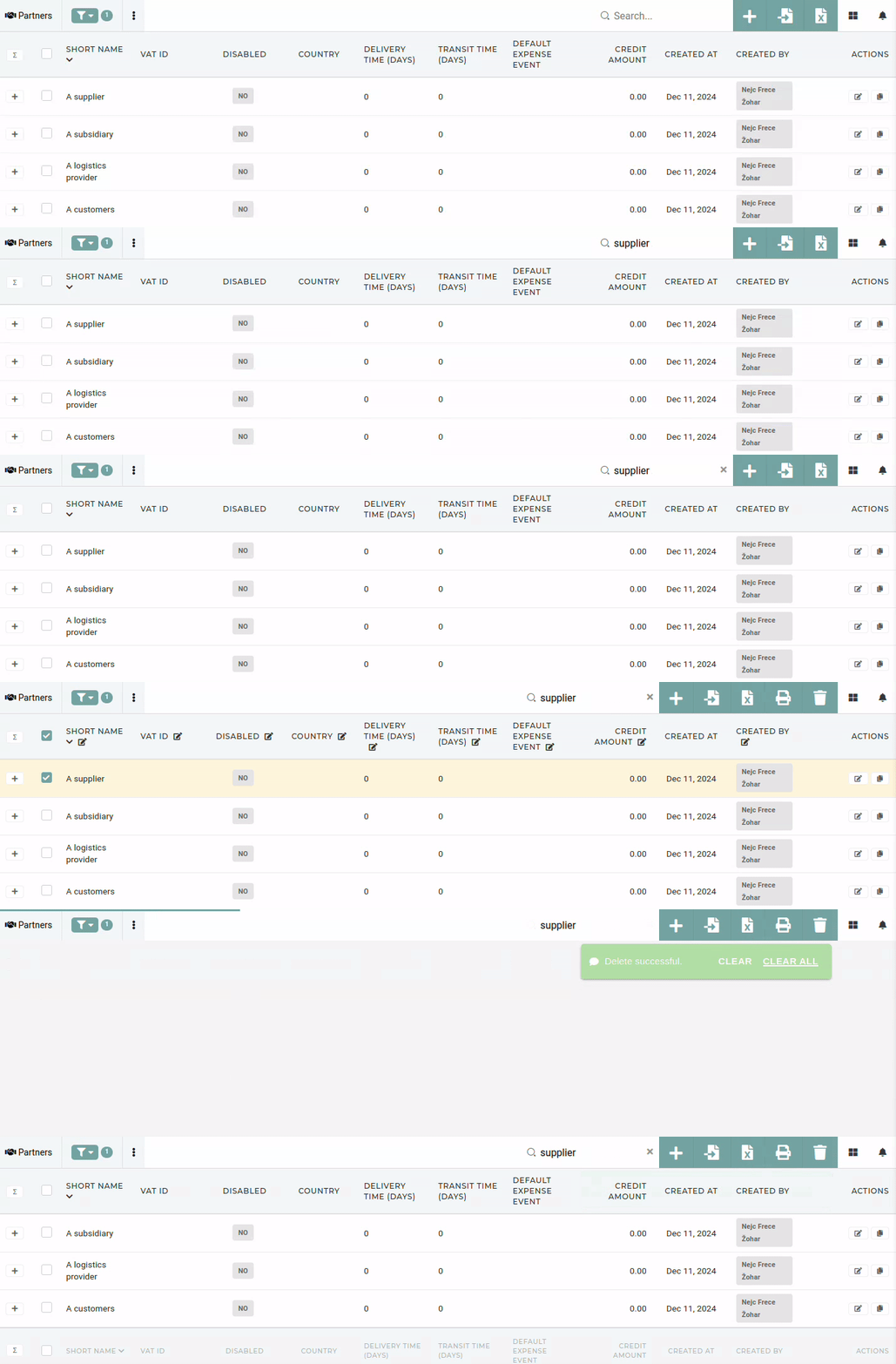](https://how-to-erp.dewesoft.com/uploads/images/gallery/2024-12/0ogoutput.gif) To delete a partner, find it in the table and tick its checkbox. Then click and confirm the "delete button". # Production facilities # Work resources # Work resource types # Templates # Template types # Technology # Technology steps # Work skills # Product types # Product stock types # Product classifications # Export control classification numbers # Tax types # Expense events # Tariff codes # Cost centers # Batch serials # Create batch serials via API A **batch serial** groups several individual serial numbers under one batch (parent) serial number. Batch serials are created through the ERP API — send one batch serial together with all the serials that belong to it in a single request.Only creating is exposed through the API. There are no API endpoints for listing, updating or deleting batch serials.
## 1. Authentication All requests must be authenticated with an OAuth2 access token. Get the token by logging in with your username and password, as described in the [API documentation, section **OAuth2 → Login (Password Grant)**](https://erpapi-central.dewesoft.com/private/documentation/#api-OAuth2-LoginPasswordGrant). The login call returns an `access_token`, which you send with every request: ```bash Authorization: BearerThe account you log in with needs the **Create batch Serial** permission (`create-batch-serials`). The *admin* and *super-admin* roles have it by default.
## 2. Endpoint ```bash POST https://erpapi-| **Field** | **Required** | **Description** |
| `serial_number` | yes | Serial number of the batch (parent). Must be unique — a batch serial with the same number cannot be created twice. |
| `related_serials` | no | List of serial items that belong to this batch. Each entry is one item. |
| `related_serials[].serial_1.sn` | yes | First serial number of the item. |
| `related_serials[].serial_2.sn` | no | Second serial number (alias) of the same item. Use `null` when the item has only one serial number. |
| `production_date` | no | Production date of that serial, format `YYYY-MM-DD HH:MM:SS`. |
`production_date` is kept for reference on the batch serial record only — it is not written onto the individual serial.
## 5. How serial numbers are matched For every item in `related_serials` the system looks for an existing serial before creating a new one: - All serial numbers are converted to **UPPERCASE**, so lower case input is fine. - An existing serial is matched by its serial number *or* its alias, in either order — `serial_1` and `serial_2` can be swapped. - If a serial with only one number exists, the second number from the request is saved as its **alias**. - If no matching serial exists, a new one is created: `serial_1` becomes the serial number and `serial_2` the alias. - All matched and newly created serials are then linked to the batch serial.If any of the serial numbers in the request already belongs to a **lot on stock**, the whole request is rejected with the message *"Same serials on stock already exists. Exiting."* and nothing is saved.
## 6. Trying it out To send a test request, use any API client (Postman, Insomnia, or your own integration): set the method and address from step **2. Endpoint**, add the three headers listed there, and paste the JSON from step **3. Request body**. A successful request returns the created batch serial together with its linked serials. ## 7. Common errors| **Message** | **Cause** |
| Unauthenticated / 401 | Missing, wrong or expired `access_token`. |
| This action is unauthorized / 403 | The user does not have the `create-batch-serials` permission. |
| The serial number field is required | `serial_number` is missing from the request body. |
| Create resource failed | A batch serial with this `serial_number` already exists. |
| Same serials on stock already exists. Exiting. | One of the listed serials is already assigned to a lot on stock. |
Countries **cannot** be **added** or **deleted** by users.
They are used to define tax rules, such as VAT and to ensure transactions align with local legal requirements. Countries standardize address data for users, customers, vendors, and internal locations, facilitating smooth shipping and billing processes. 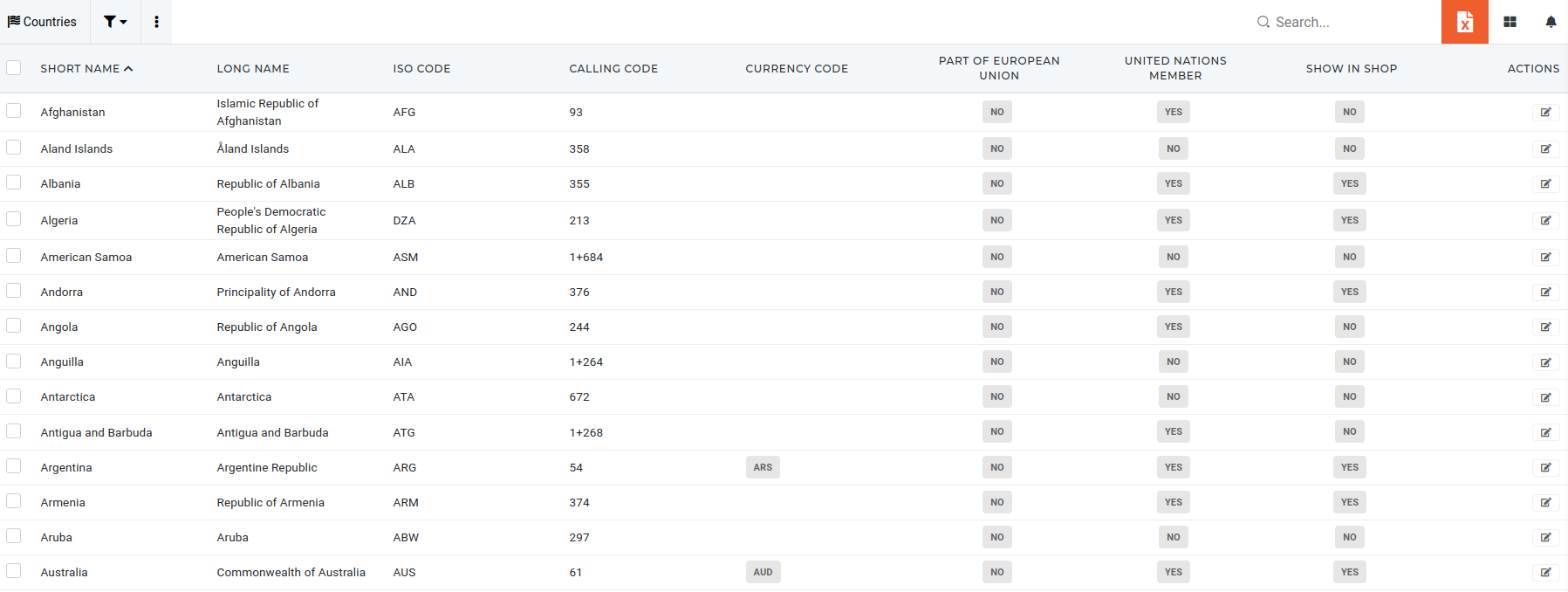 Countries are linked with currencies for multi-currency financial operations. Additionally, they are used in global reporting, helping organizations analyze and manage performance across regions effectively. # Update existing countryThis action requires the "Update countries" permission.
Countries are automatically added, when a new ERP instance is created. All of this information, however, can be updated later if necessary. 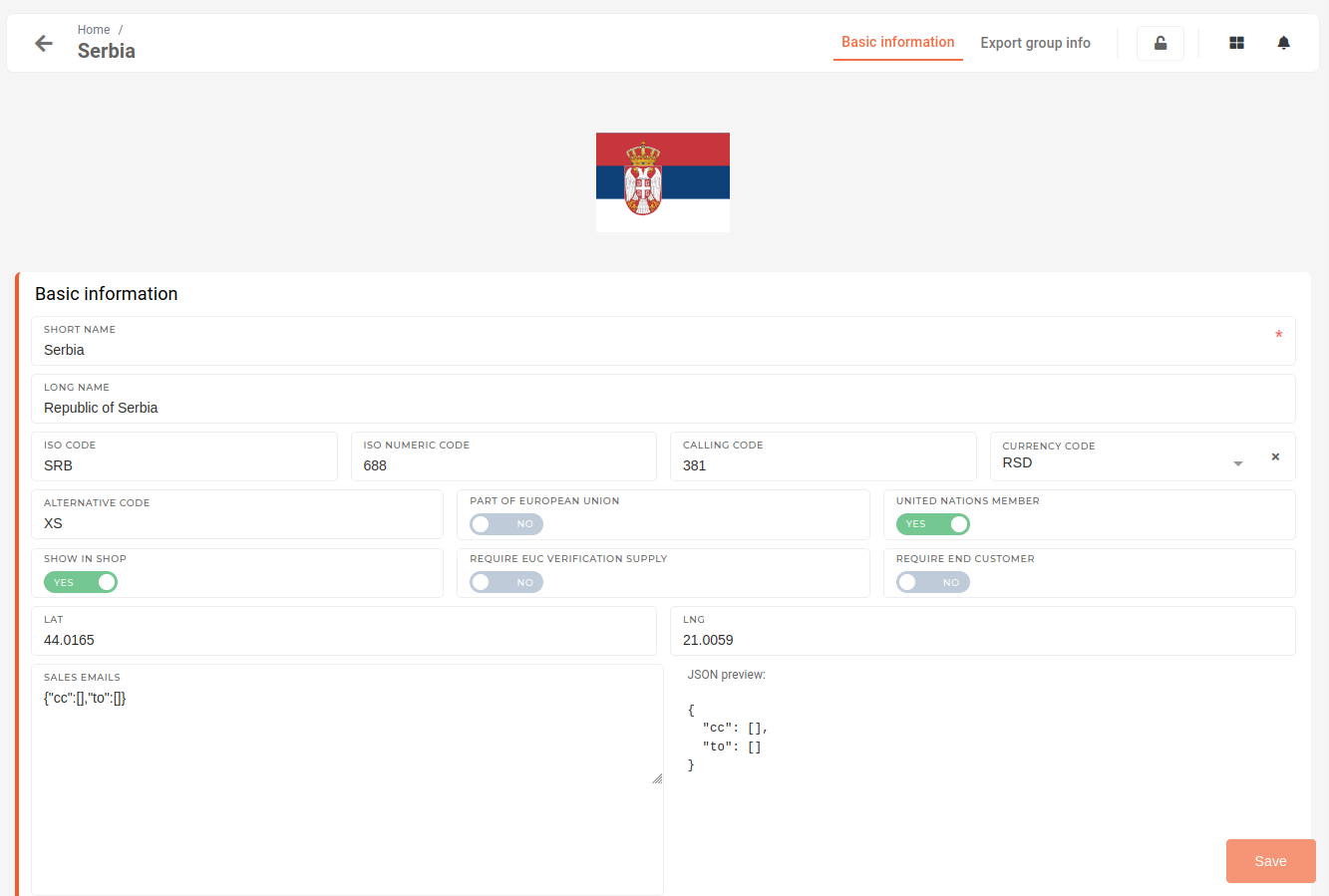 Information of countries in ERP include: - Short country name (eg*. Slovenia*) - Full country name (eg*. Republic of Slovenia*) - Country ISO - Currency information - Country's latitude and longitude. # Currencies # Holidays # Overview **Holidays** in an ERP’s HR module serve as a centralized reference for public, regional, and company-specific holidays, ensuring consistency and compliance in workforce management. 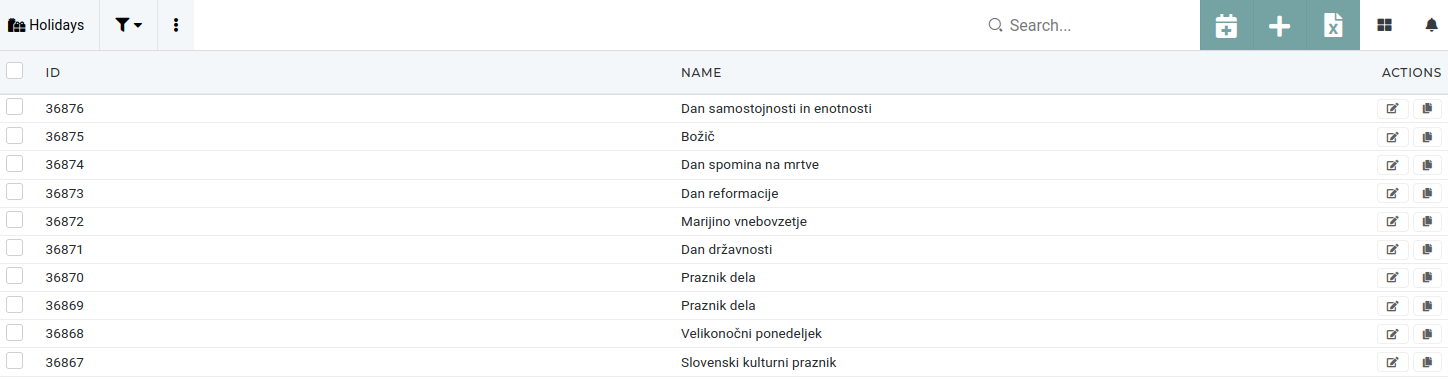Holidays are marked on the HR dashboards with the "🎄" icon.
Holidays are used to calculate holiday pay and overtime accurately, aligns attendance and leave records by excluding holidays from leave balances, and supports staff planning during holidays. It also ensures compliance with regional labor laws and enhances transparency by allowing employees to view upcoming holidays through the calendar on their [profile page](https://placeholder.erp/user-profile). 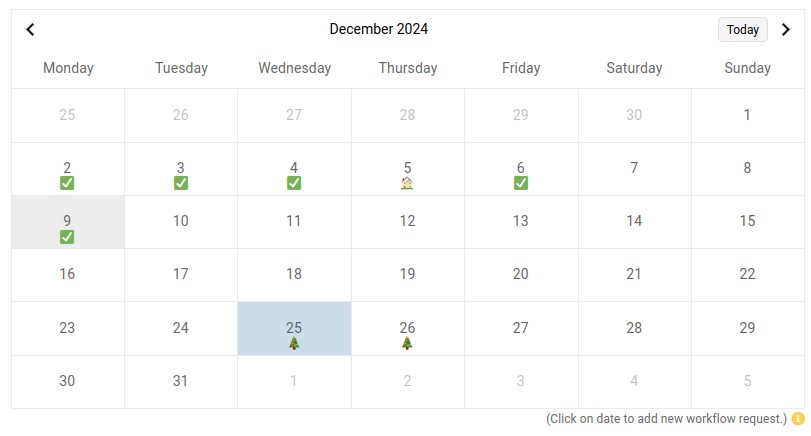 Every holiday, eg. "New Year’s Day" consists of a date and full holiday name, streamlining holiday-related processes across HR functions. # Create new holidayThis action requires the **"create holiday"** permission.
New holiday entries can be added through the "**Create new holiday**" form, which can be found above the "**holidays**" table or directly "[here](https://placeholder.erp/holidays/create)". 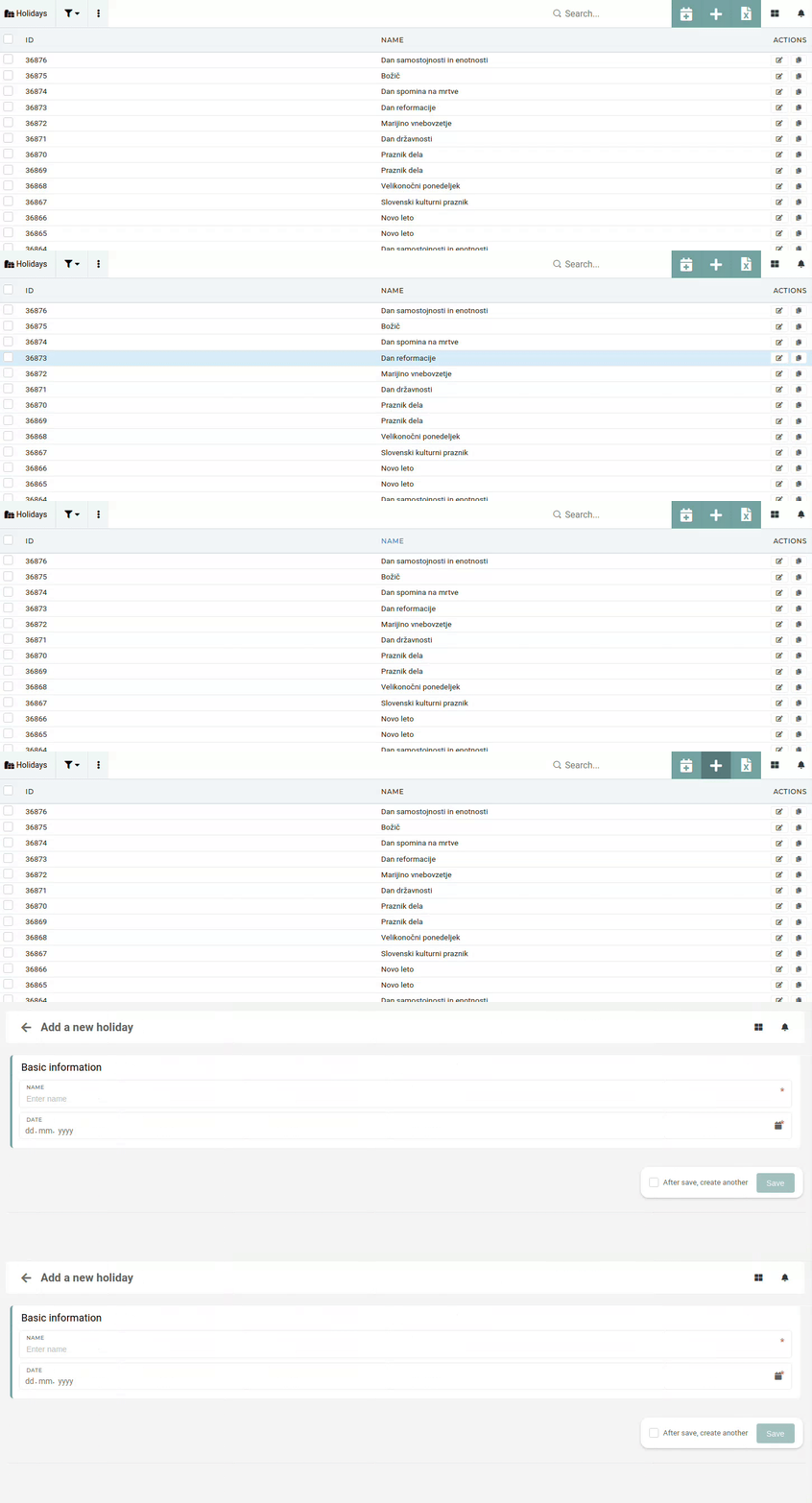 When adding a new holiday, the only information needed are the holiday's name and the date it falls on in a given year. # Update existing holidayThis action requires the **"update holiday"** permission.
Holidays should not be updated due to their use within the HR module. Dates of existing holiday entries should not be updated, as changing the dates could impact planned employee vacations or workdays. However, holidays can be updated, if necessary. [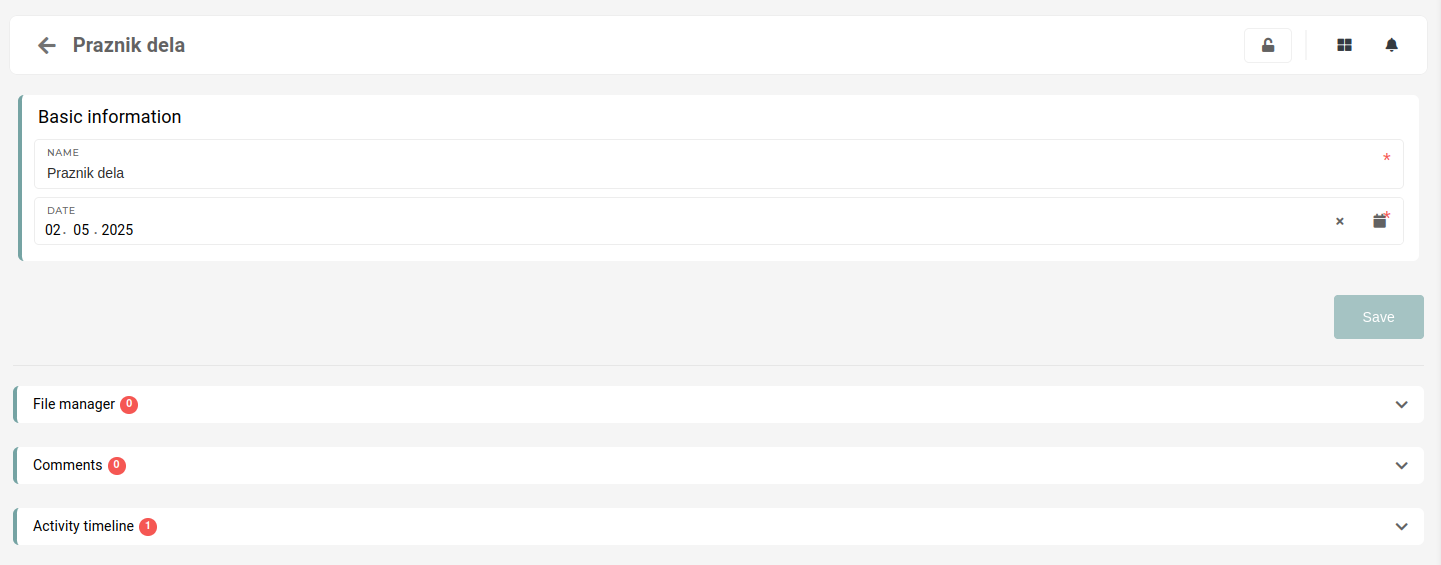](https://how-to-erp.dewesoft.com/uploads/images/gallery/2024-12/bdjimage.png) # Delete holidayThis action requires the **"delete holiday"** permission
While holidays can be deleted if necessary, it is strongly recommended to avoid deletion to maintain data integrity and prevent disruptions in processes such as payroll, attendance, and compliance tracking, as well as keep accurate history of past holidays, that impacts used employee leave. 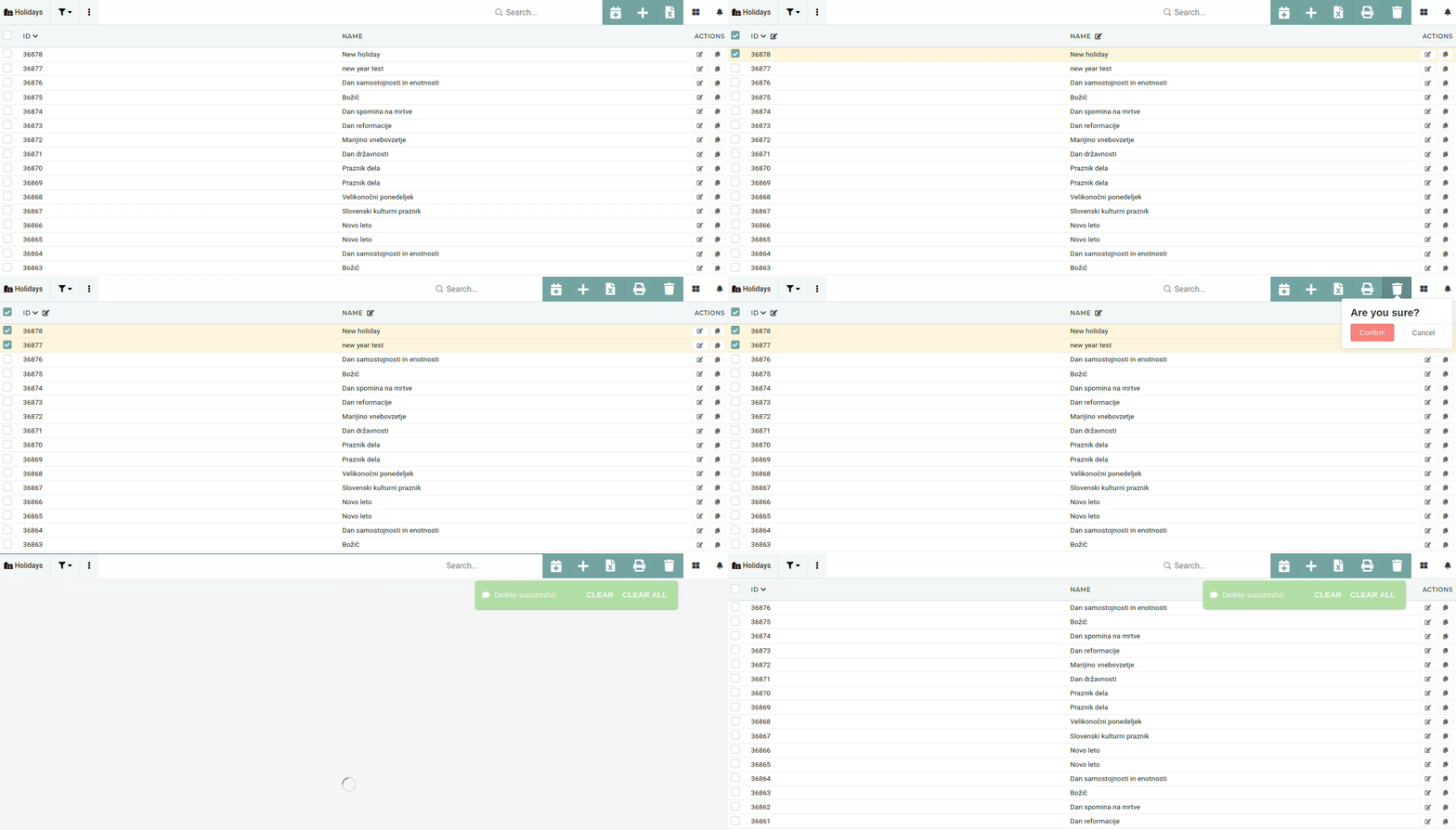 To delete a holiday, tick its checkbox in the table, then click and confirm the "delete button". # Generate holidays for yearThis action requires the "create holiday" permission.
Holidays can be added one at a time through the "Create new" form or they can be generated for the entire year through the "**[Add holidays for year](https://placeholder.erp/holidays/generate)**" form. 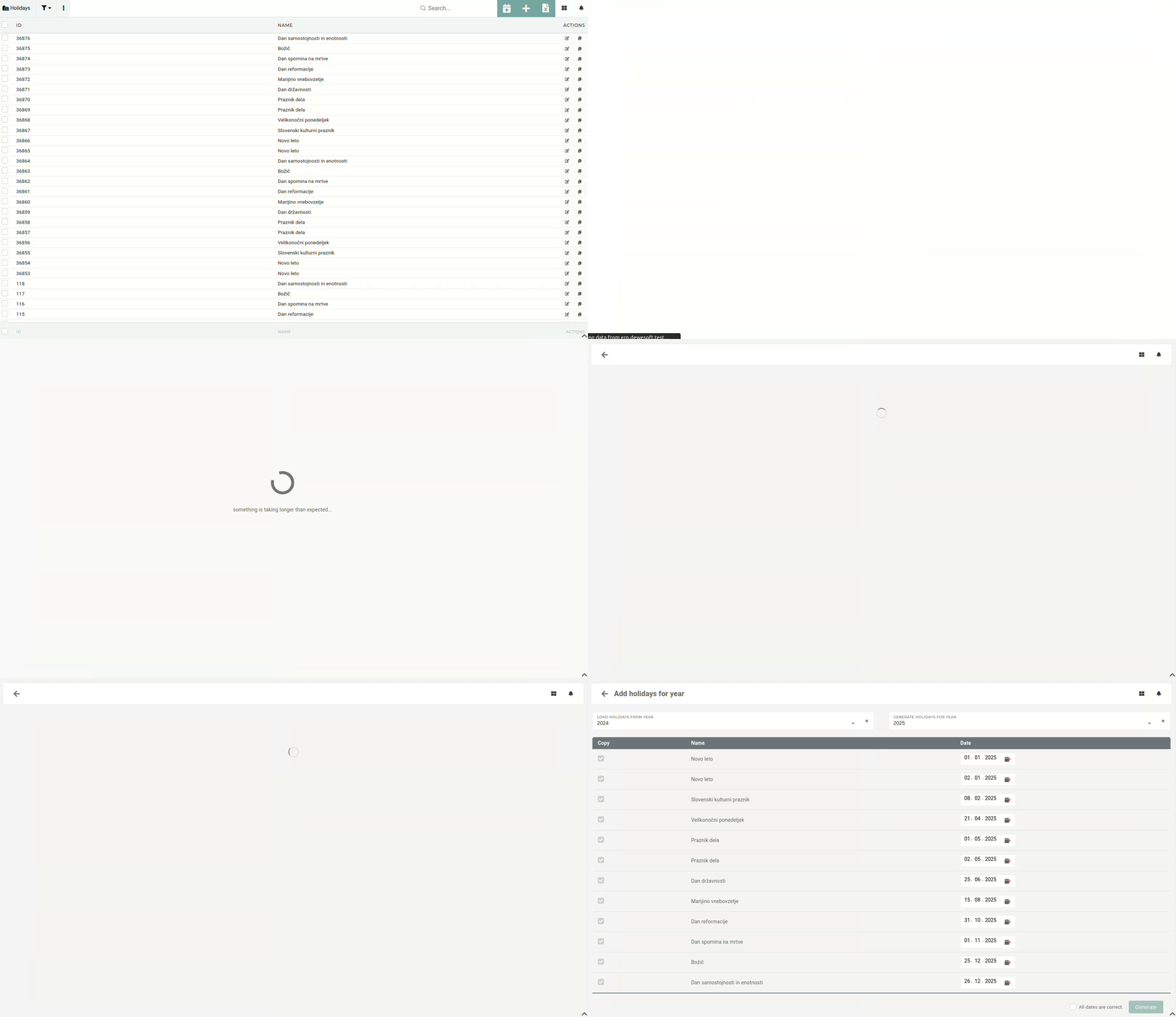 To generate holidays for a select year, first we have to **select the year, from which we will copy the holidays**, eg. 2024. We then **select the year that we want to generate the holidays for**, eg. 2025. Once both years are selected, a list of all holidays will appear with dates for the new year generated. You can now uncheck holidays that you don't want to generate. 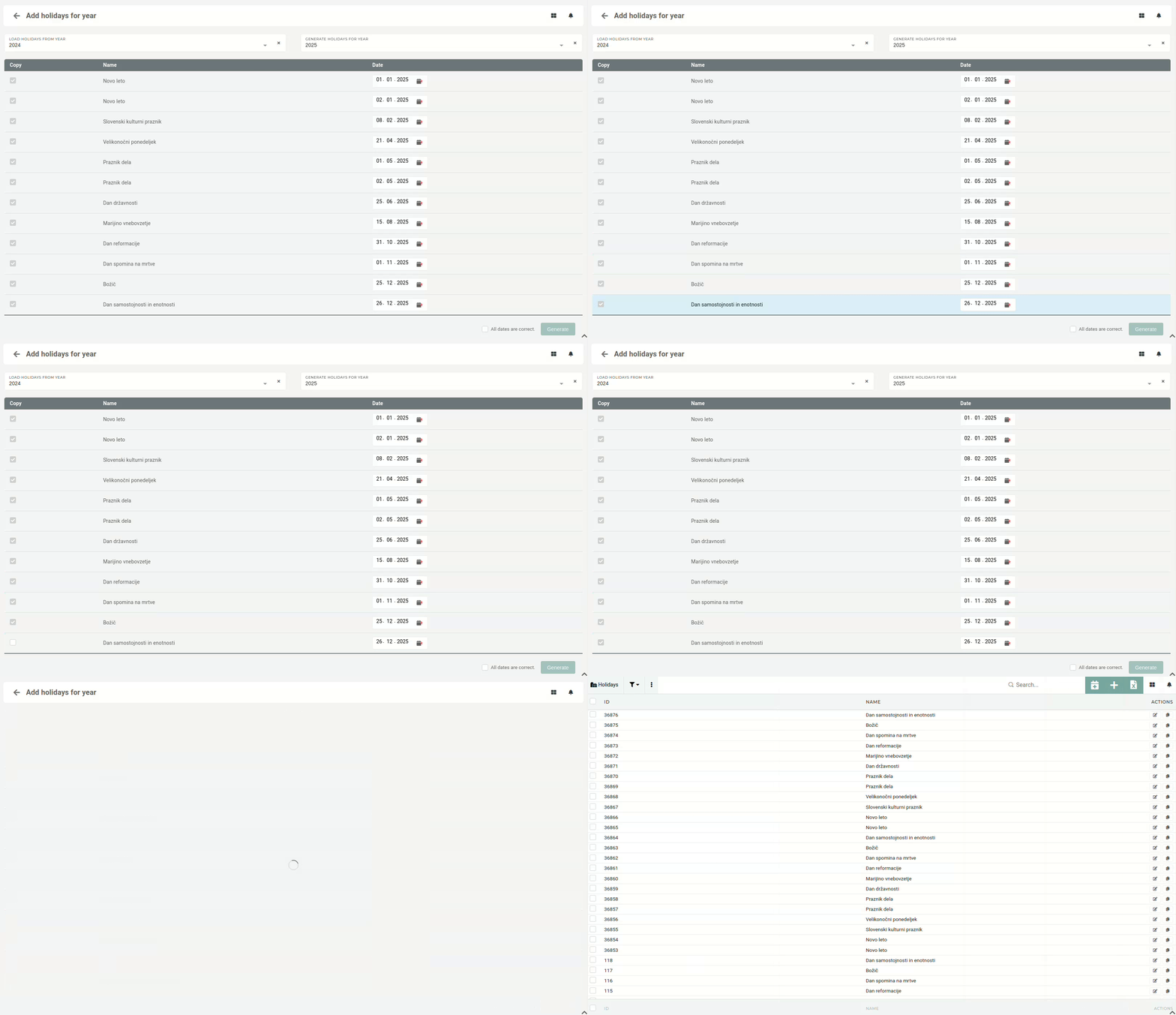 Once you have made sure, that all the (checked) dates are correct, press the "Generate" button. This will create a list of new holidays for the selected year.New holidays must be added for every year, as they are required for handling vacations within the HR module.
# Tags # OverviewTags are used within the ERP to mark entries or to "tag" them as a certain thing for informational purposes.
Tags are used to categorize announcements, mark EOL products, setup product hierarchies, shown in price lists... 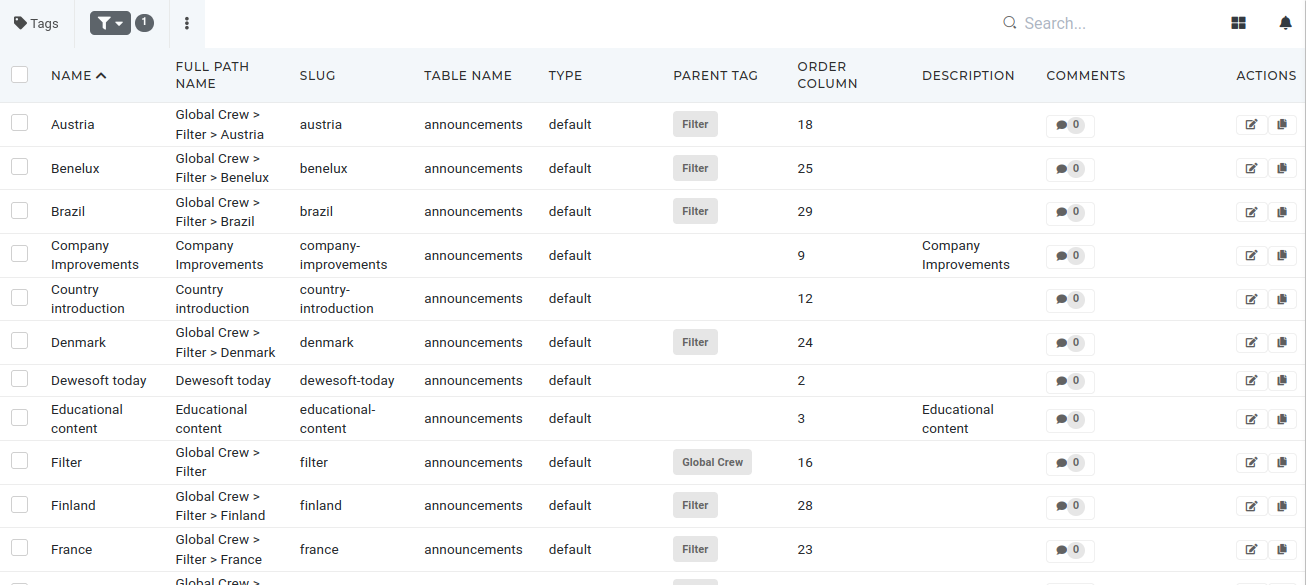 Tags can be managed through the "[Tags table](https://placeholder.erp/tags)" or with the "[Tag editor](https://placeholder.erp/tag-sorter)". # Create a new tagNew tags can be added through the "[Create new tag](https://placeholder.erp/tags/create)" form or with the "[Tag editor](https://placeholder.erp/tag-sorter)" tool.
#### Create form Above the "Tags" table, the "**+**" button redirects to the "Create new tag" form . 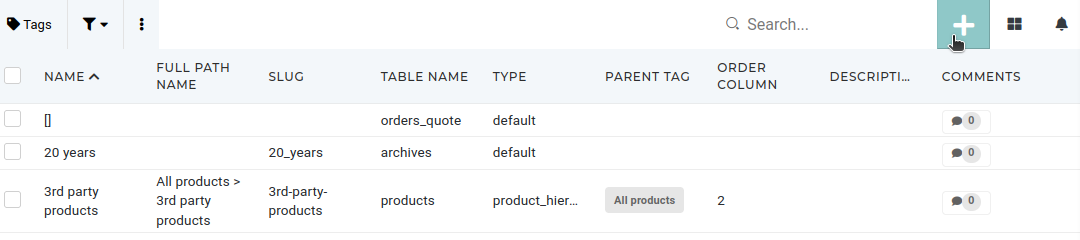 On this form, the only necessary information are **name** (the actual display name of the tag), **slug** (a unique value that represents the new tag), **table name** (the table this tag belongs to (products,orders...)) and **type** (group of tags, like default, other...). [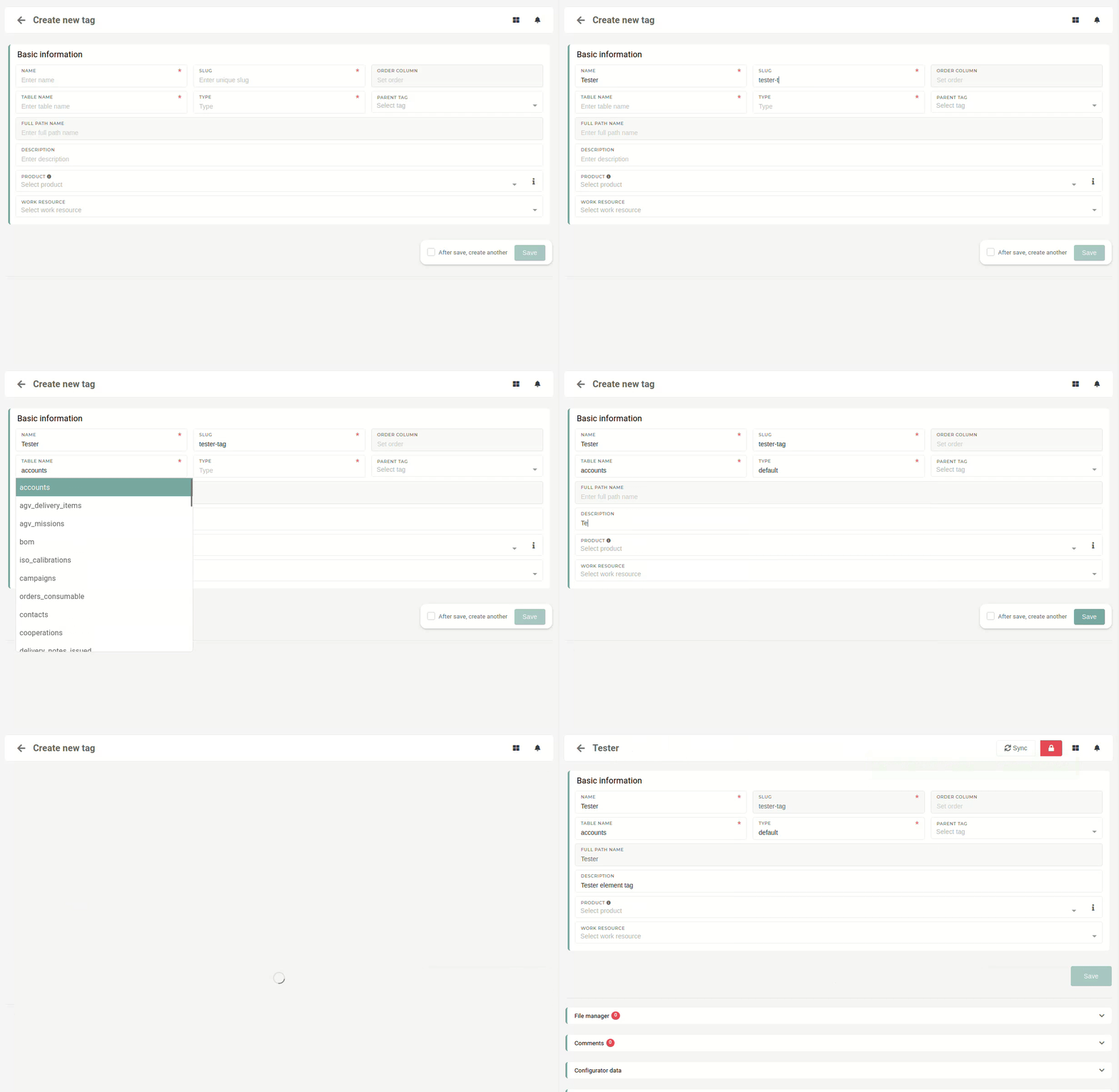](https://how-to-erp.dewesoft.com/uploads/images/gallery/2024-12/jb0output.gif)When a new category for tags is required, a new tag with that category can be crated with the "create" form.
#### Tag editor In the tag editor, all tags are grouped into categories. To add a new tag into a category, open the category section and press the **"Add tag"** button at the bottom of the list. 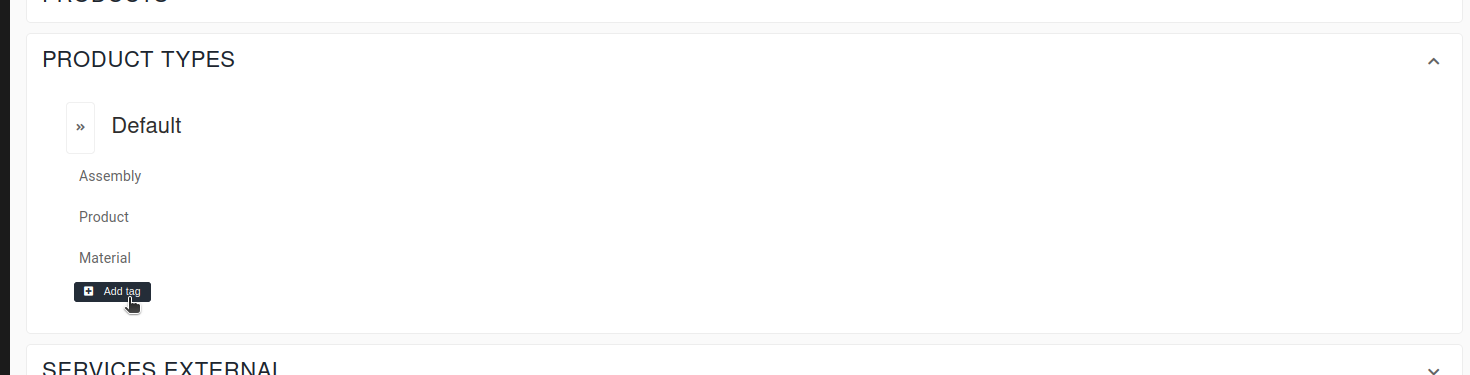 Clicking the button displays a tool-tip, where you can enter the new tag name. By pressing "**Enter**", a new tag is added at the bottom of the tag list. 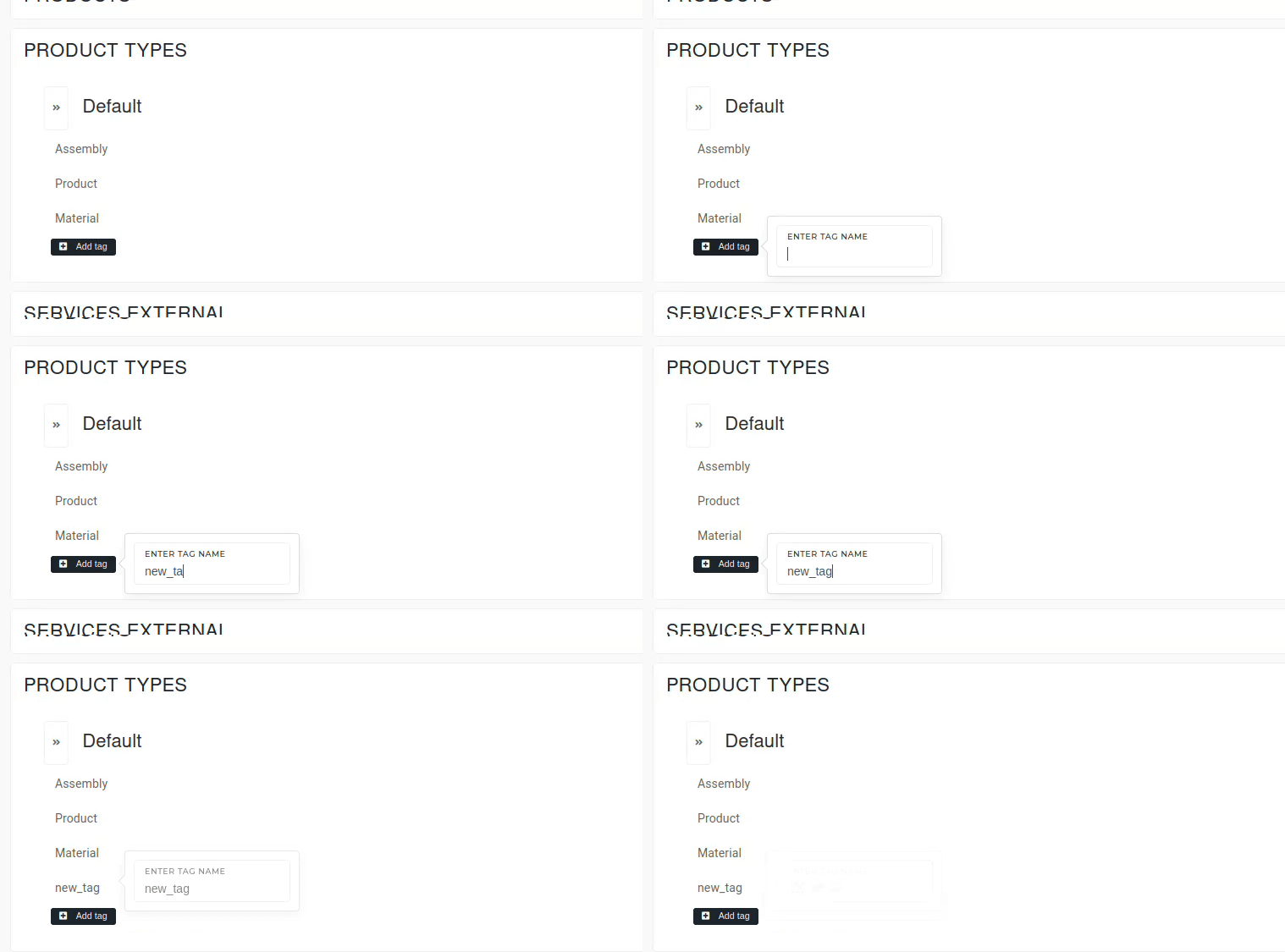New tags can only be created for existing categories in the "Tag editor".
# Update an existing tagTags can be updated either with tag editor or from their own details pages.
#### Editing in tag editor In the tag editor, you can create new tags, edit their names, clone or delete them. You can also add sub-tags to existing tags. 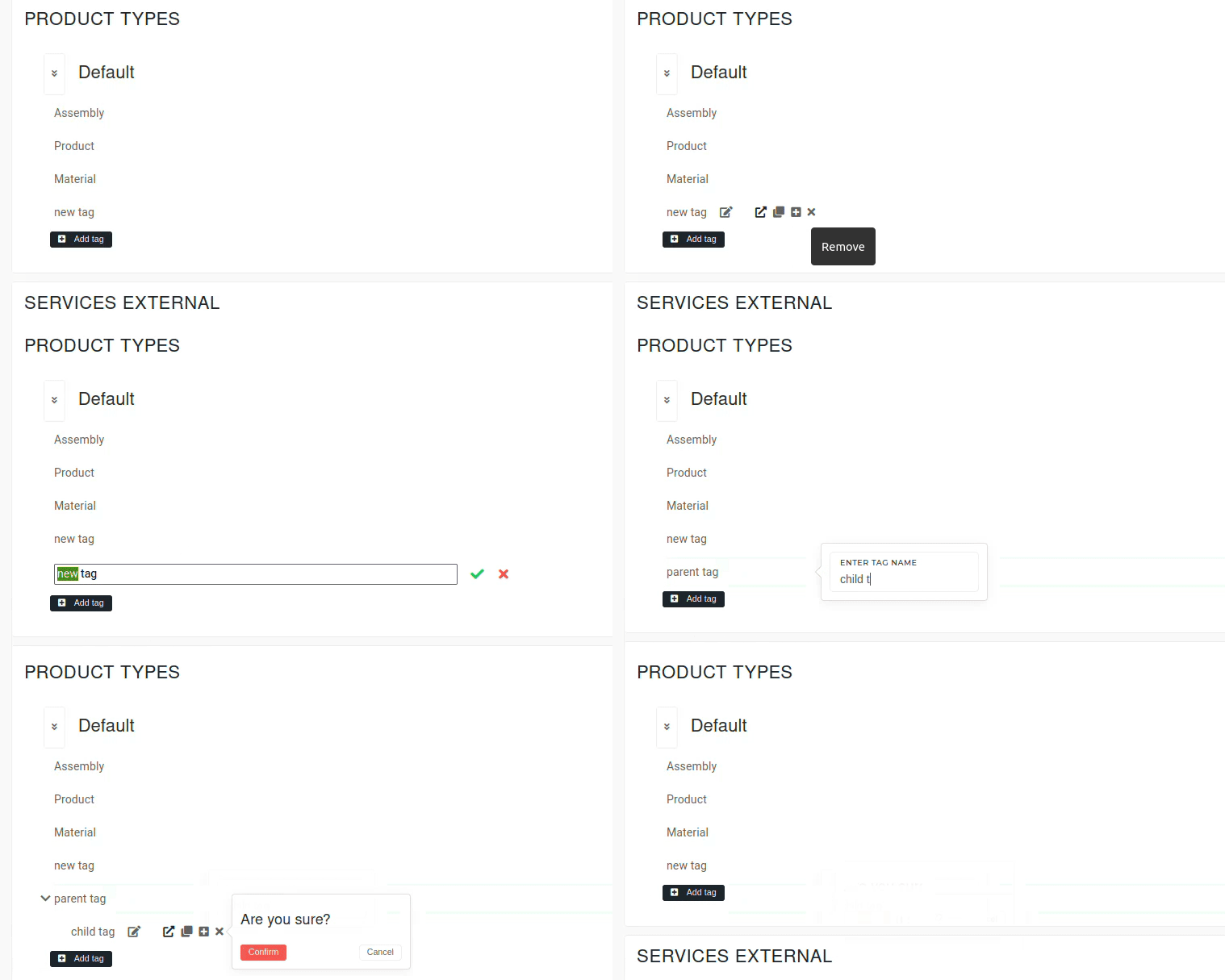Any further editing has to be done from the tag details page.
#### Editing on details page On the details page, all of a tag's data can be edited, from its name and description, to its type. A tag can also be nested from this page under any selected parent tag. 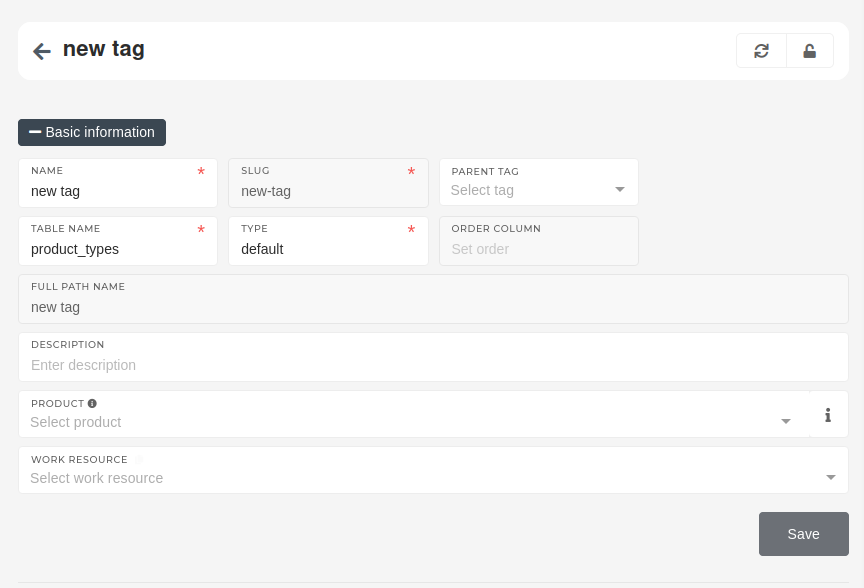The details page also provides an editable list of all products and work resources, that have been tagged with this particular tag.
##### Tag configurator data If a tag is associated with a product, that is part of a price list, then its Configurator data can also be edited in the details page, in the **"configurator** **data**" section. [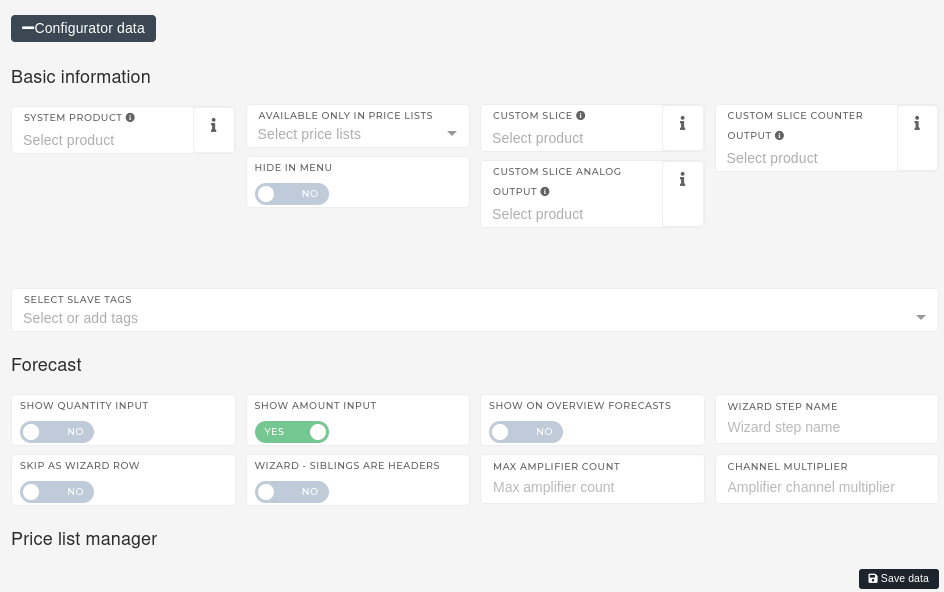](https://how-to-erp.dewesoft.com/uploads/images/gallery/2024-07/z6limage.png) # Delete tag(s)Tags can be deleted in the tag editor or from the table view by users with proper permissions.
In the tag editor, the "**x"** symbol next to the tag name can be used to delete it.Tags with existing sub-tags cannot be deleted in the tag editor.
 To delete a tag via the table view, search for it, tick its checkbox, then click and confirm the trash button. 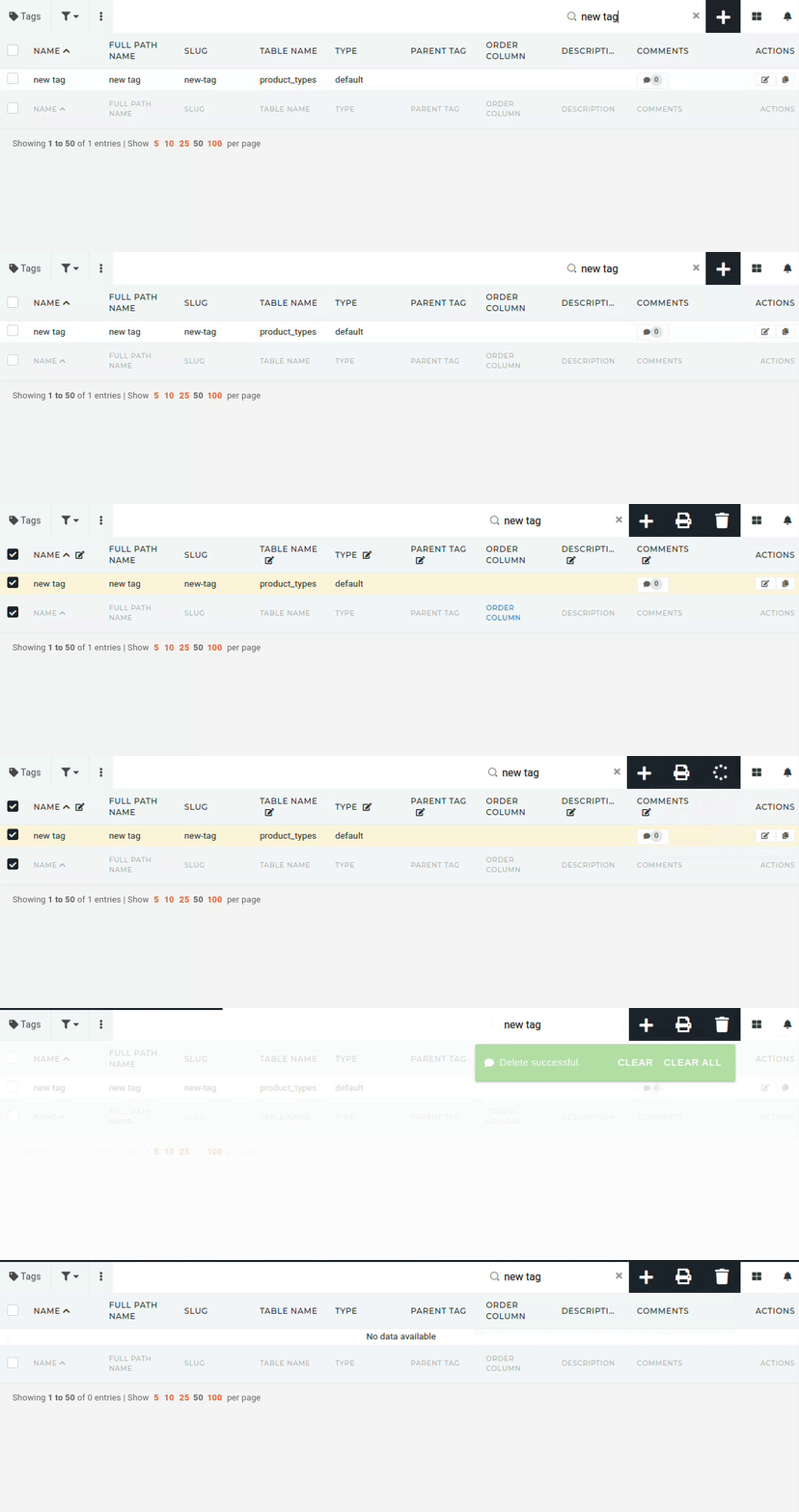 # Using tagsTags are, in most cases, meant to inform, meaning they can be assigned to entries. Once assigned, they can also be used for filtering.
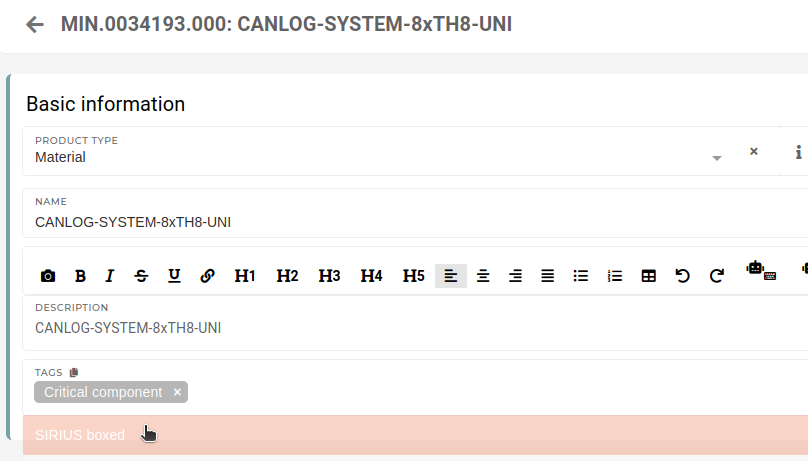
Once tags are created, they can be assigned to entries through the "**Tags**" input. 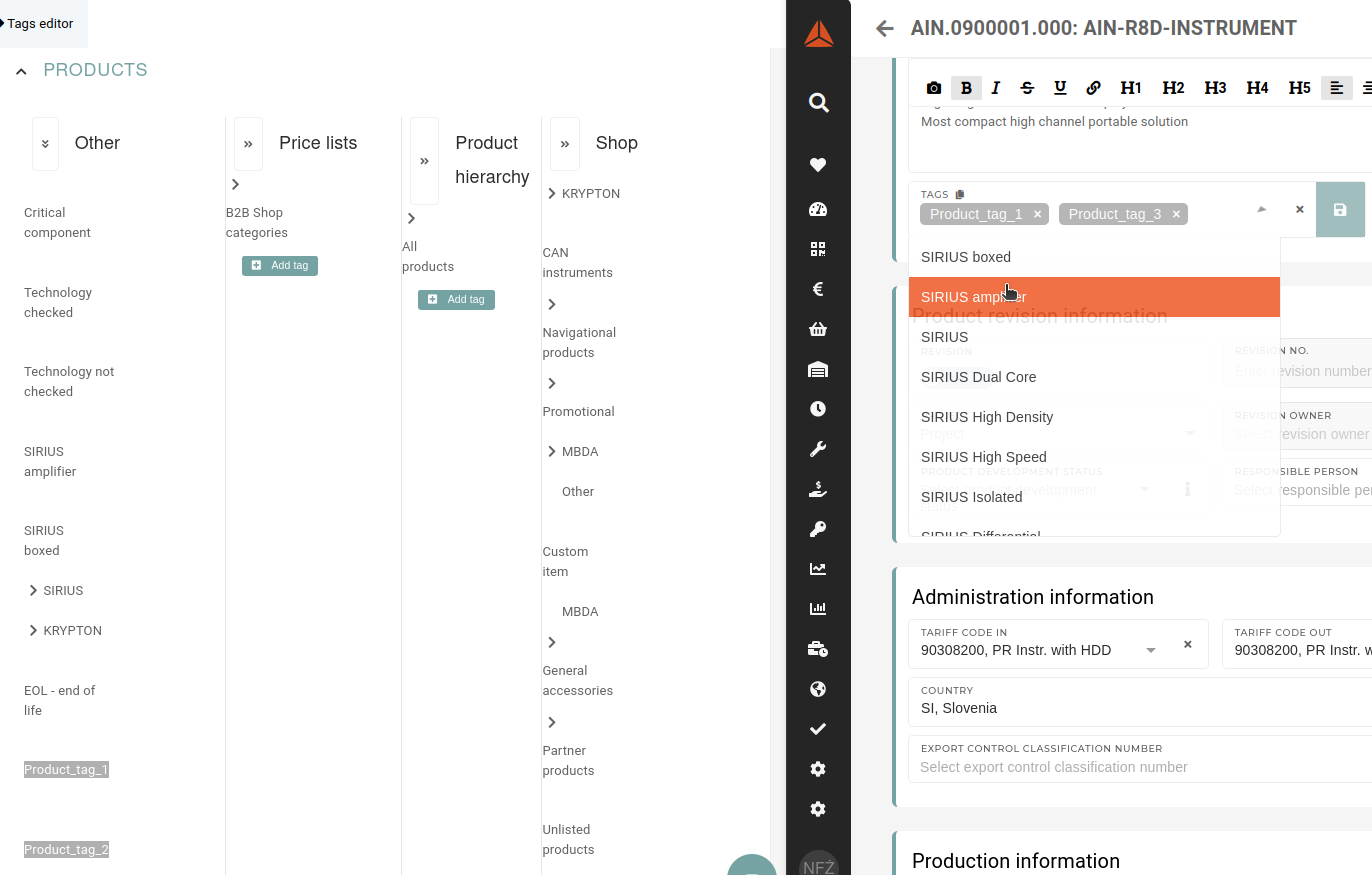 The selection only includes tags, that are of a certain type (products can be tagged only with "product" tags...).Tags that can be assigned here must have their type set to **"other".**
 # Document form templates # Departments # Floor map # Work equipment # Overview **[Work equipment](https://placeholder.erp/work-equipment "Go to work equipment")** represents products/materials that are required by a certain work position. 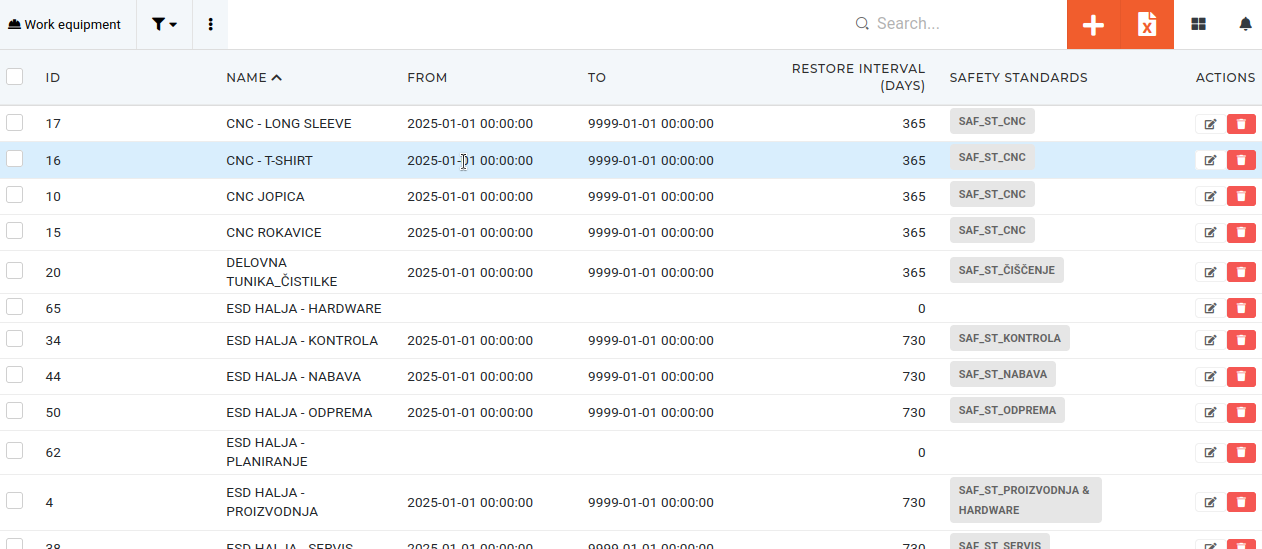One **work equipment** can hold multiple versions of the same **product** (eg. shirts with different confection numbers: M, S, L, XL...).
# Create work equipmentThis action requires the **"create work equipment"** permission.
New work equipment can be created through the "[**Create new work equipment**](https://placeholder.erp/work-equipment/create)" form. 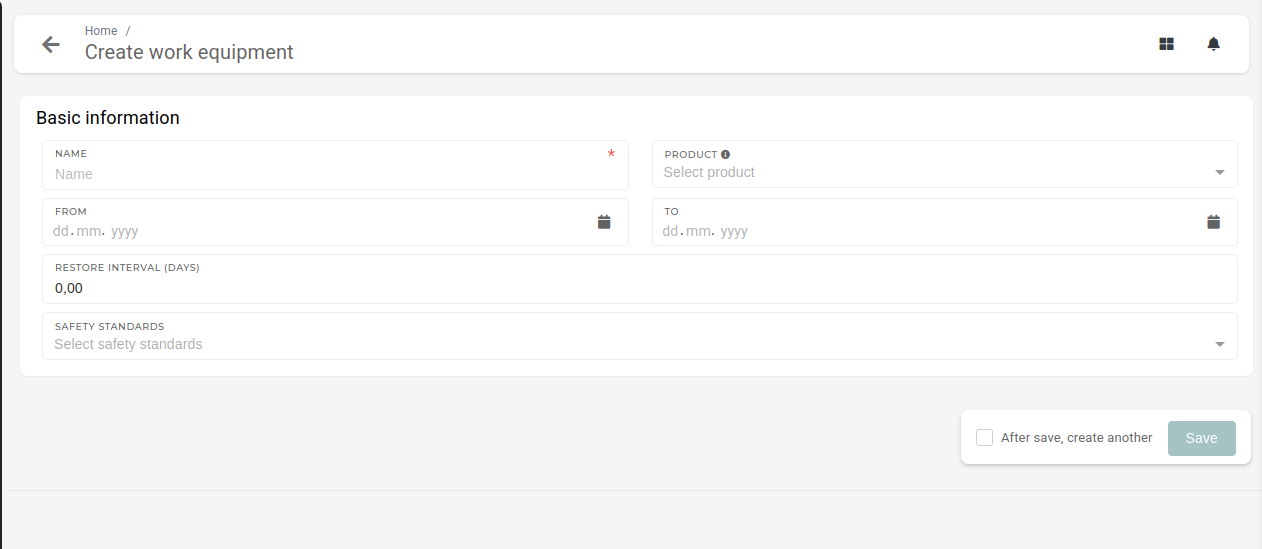When creating a work equipment, at least its name is required.
- **Name**: - The name should be descriptive, to avoid confusion with other work equipment. - **Products**: - On or more products, that are used as this work equipment (safety goggles or shoes with different sizes...) - Only **products that have define confection size**, will appear here. - **From:** - The date, when this work equipment becomes active (starts being used) - **To:** - The date, when this work equipment becomes obsolete (stops being used) - **Restore** **interval (days):** - Define the renewal period for employee equipment (they will get new equipment every **X** days). - **Safety** **standards:** - Select which safety standards include this work equipment. - One work equipment can be used by multiple safety standards # Update work equipmentThis action requires the **"update work equipment"** permission.
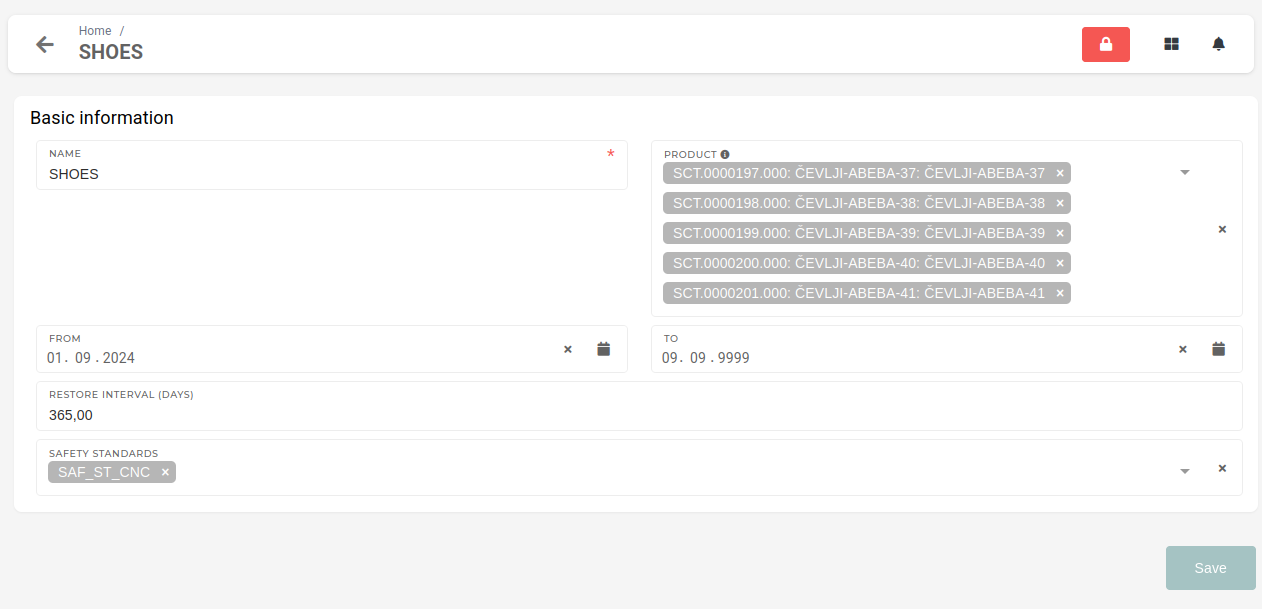 Through the update form, you can update: - **Name** of the work equipment - **Products,** that are used as this work equipment - How long the work equipment is valid **(From** and **To)** - **Restore interval** (employees receive new work equipment every X days) - **Safety standards,** that this work equipment is used bySafety standards for work equipment can also be set from the safety standard update form.
# Delete work equipmentThis action requires the **"delete work equipment"** permission.
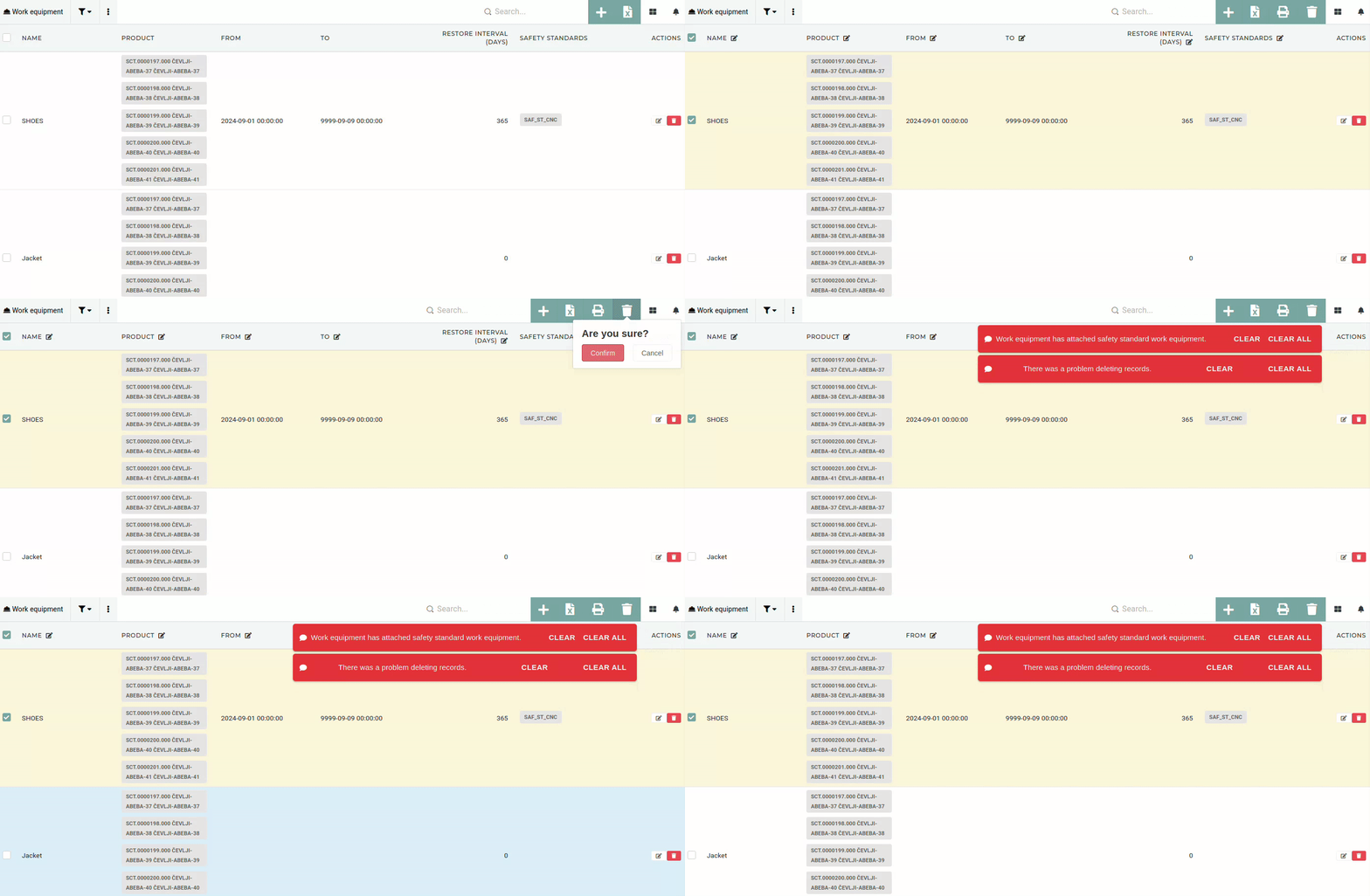
Work equipment can be deleted by toggling their checkbox when viewing in table or by clicking the "trashcan" button on the right.You **can** only **delete** **work equipment** that is **not attached to any safety standards or work positions**.
[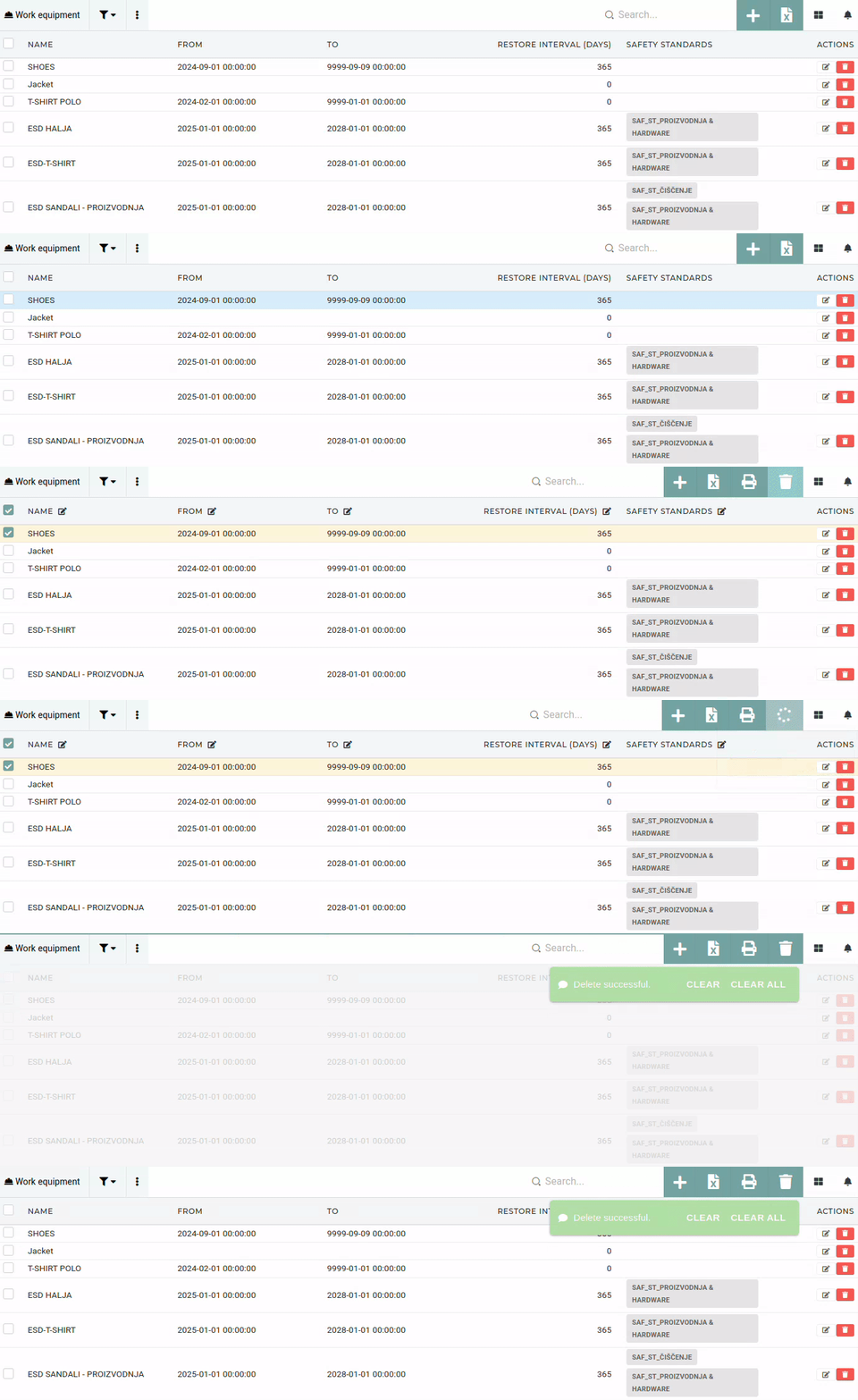](https://how-to-erp.dewesoft.com/uploads/images/gallery/2025-05/rZcoutput.gif)If the work equipment is **attached** **to any** **safety** **standards** or **is set on any work positions**, deleting will **not** **be** **allowed**.
 # Safety standards # Overview [Safety standards](https://placeholder.erp/safety-standards "Go to Safety standards") are used to set which work equipment is required/available for a certain work position. 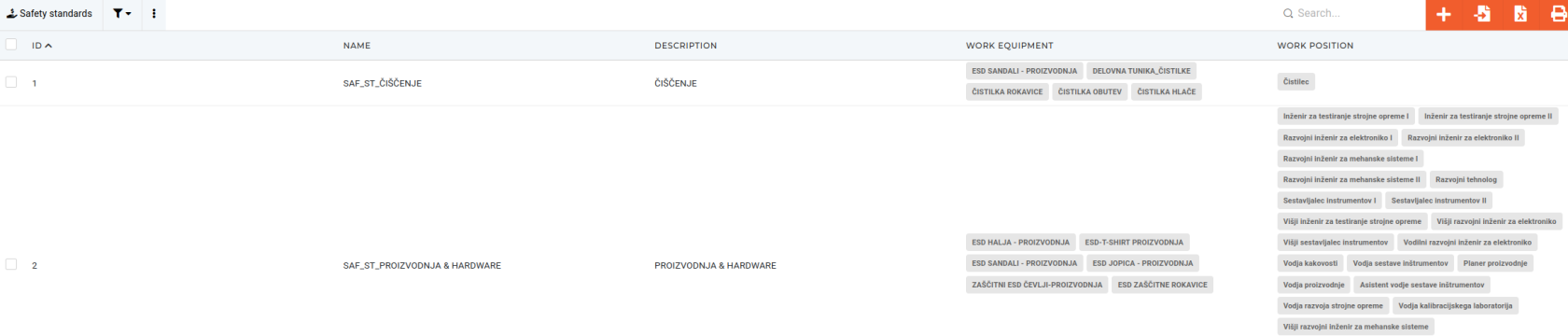**Example**: Work position **construction worker** would need work equipment **Hardhat, safety vest...**
# Create new safety standardThis action requires the **"create safety standard"** permission.
A new safety standard can be created through the **"[Create safety standard](https://placeholder.erp/safety-standards/create)"** form. 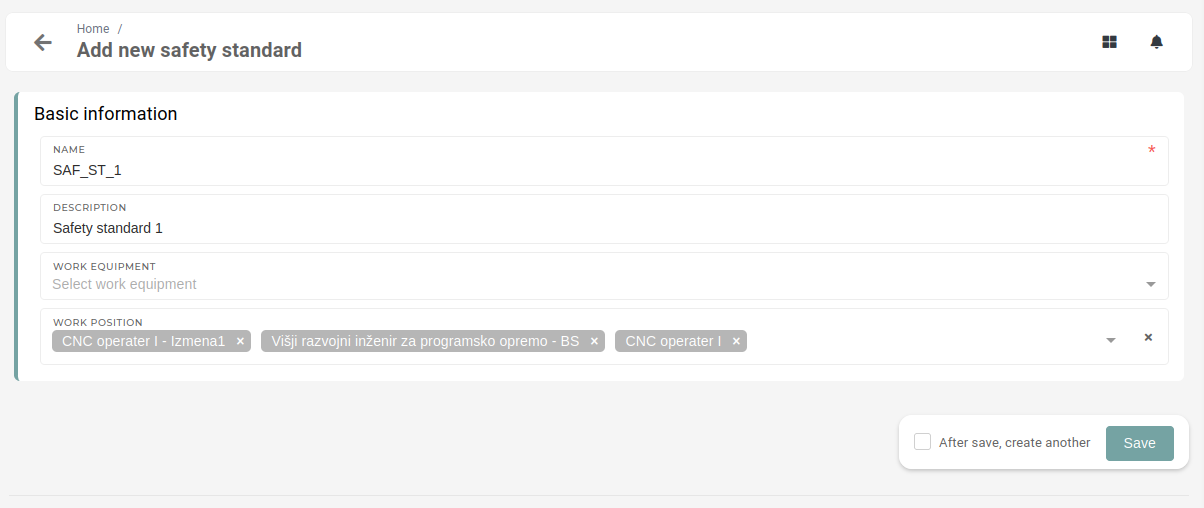 When creating a new safety standard, at least the safety standard's name is needed. All other information can be entered later.Safety standards do not have a naming convention, the **SAF\_ST\_** prefix is merely a suggestion.
When creating a new safety standard, you can define, for which work positions it applies.**Example**: The **Kitchen** safety standard would apply work positions **chef, cook, dish washer.**..
# Update safety standardThis action requires the **"update safety standard"** permission.
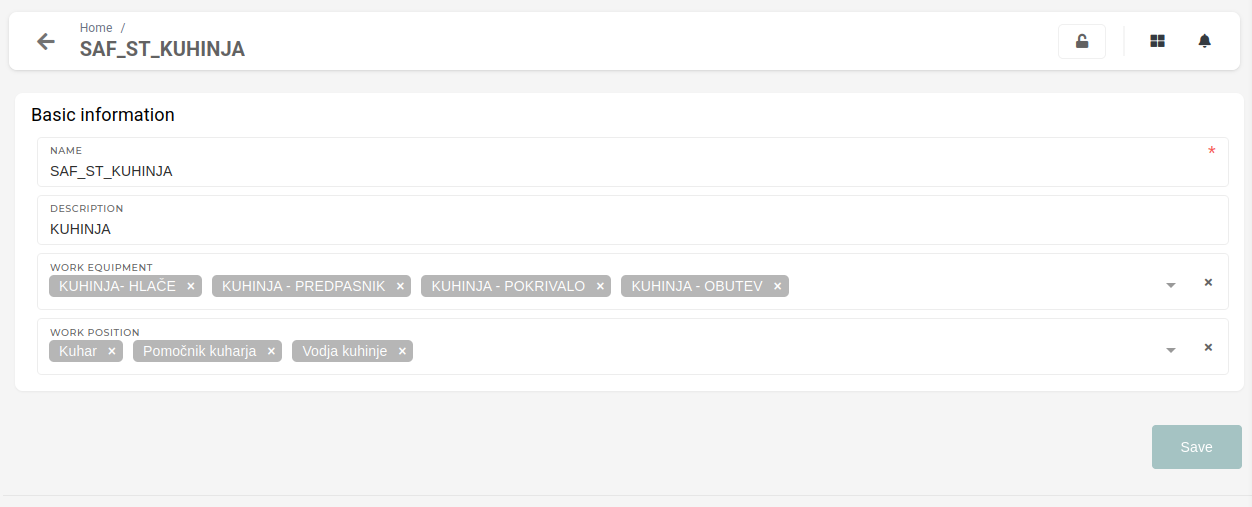 Through the update form, you can manage: - **Name** and **description** of the Safety standard - **Work equipment,** that is part of the safety standard - **Work positions,** to which it appliesBoth work positions and work equipment can also be connected to the safety standard from their own update forms.
# Delete safety standardThis action requires the **"delete safety standard"** permission.
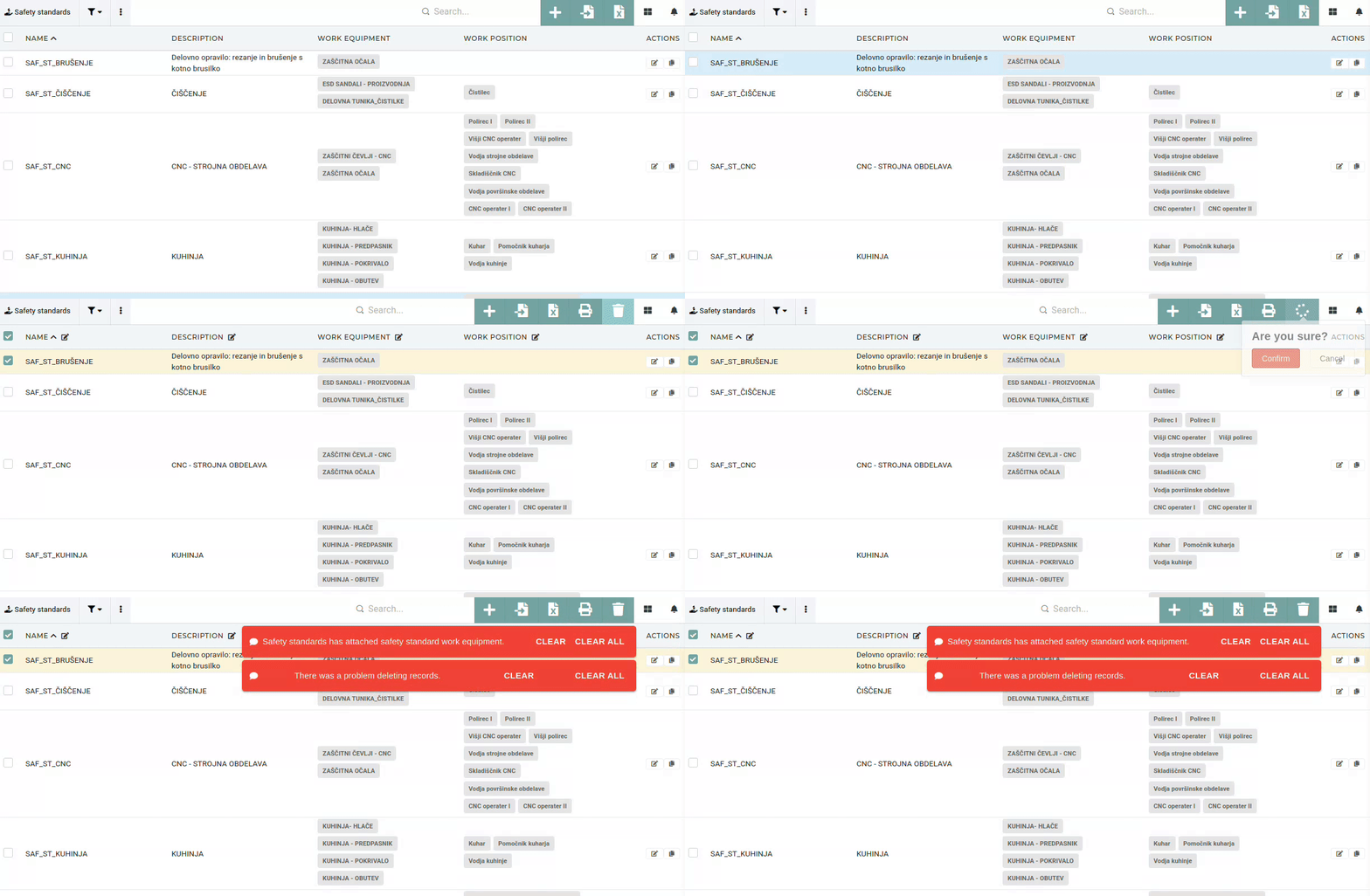
Safety standards can be deleted by toggling their checkbox when viewing in table.You **can** only **delete** **safety** **standards** that do **not have any work equipment or work positions** assigned.
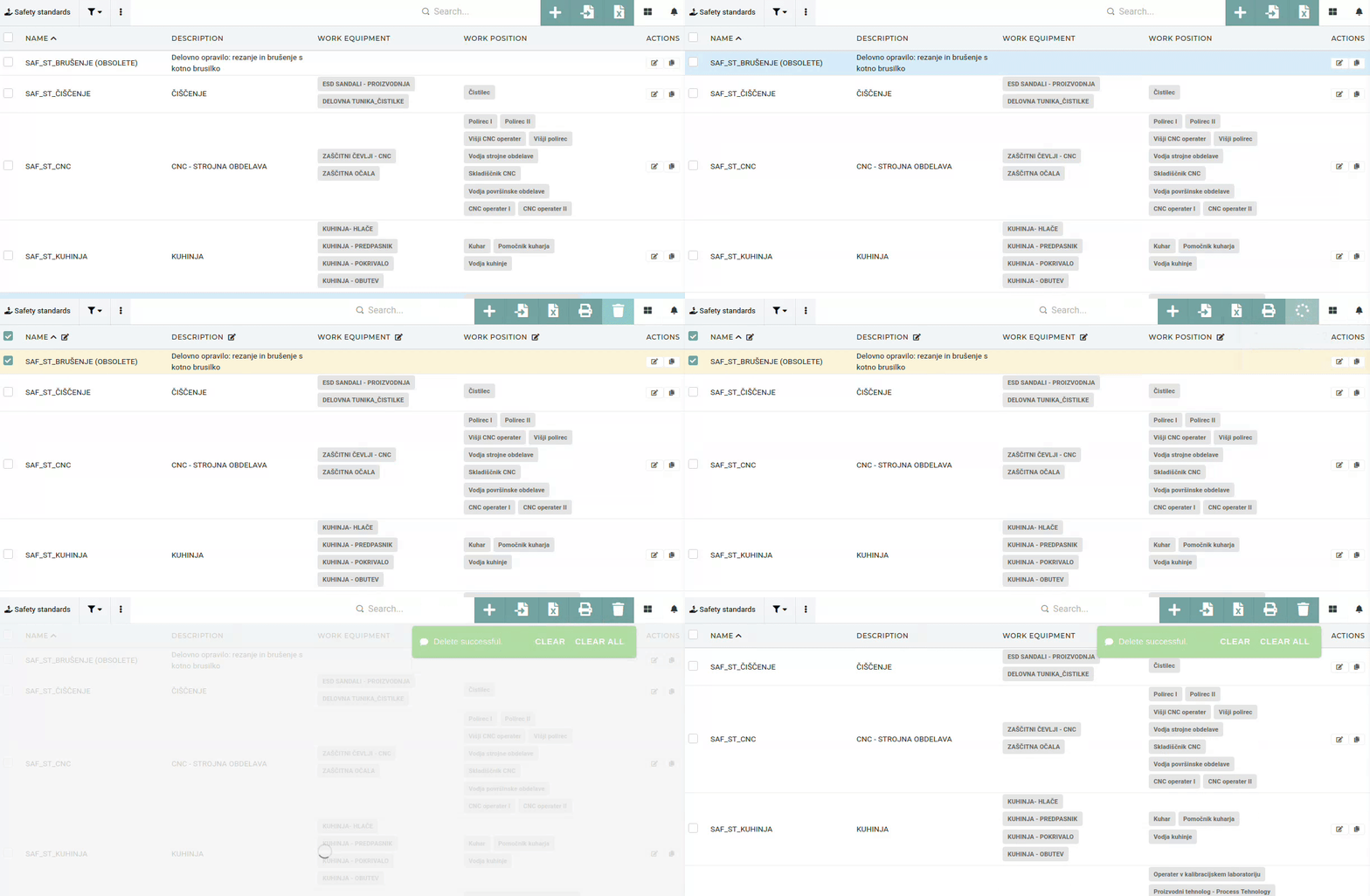If the safety standard has **either any work positions or any work equipment attached**, deleting will **not** **be** **allowed**.
[](https://how-to-erp.dewesoft.com/uploads/images/gallery/2025-05/output1.gif) # Printers # Overview Printers table in the ERP is used to define printers, that can then print documents directly from ERP to paper.To use these printers, the **ERP Printer application** is required.
[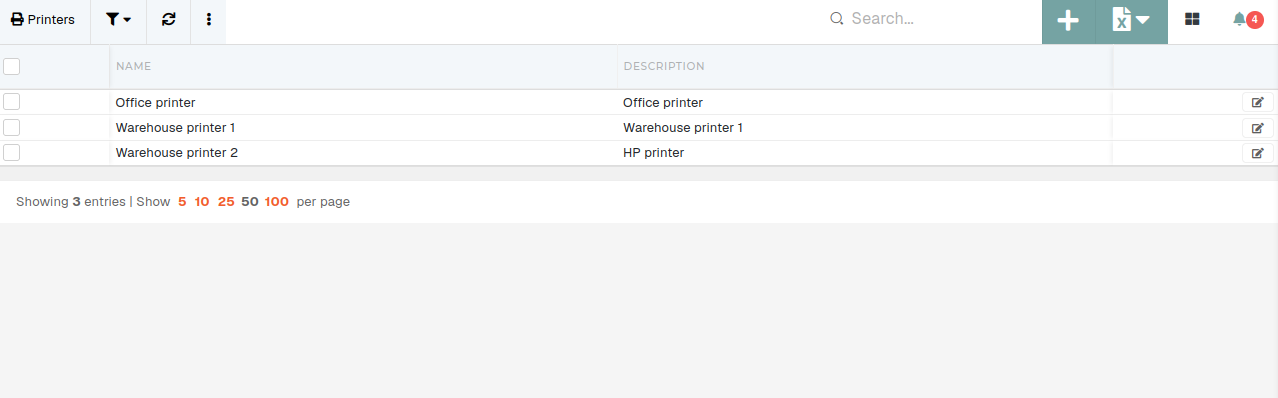](https://how-to-erp.dewesoft.com/uploads/images/gallery/2026-08/cI8image.png) # Create new printerThis action requires the **"create printers"** permission.
A new printer can be created by accessing the create form on the [printers](https://placeholder.erp/printers) table through the **"Create new"** button. 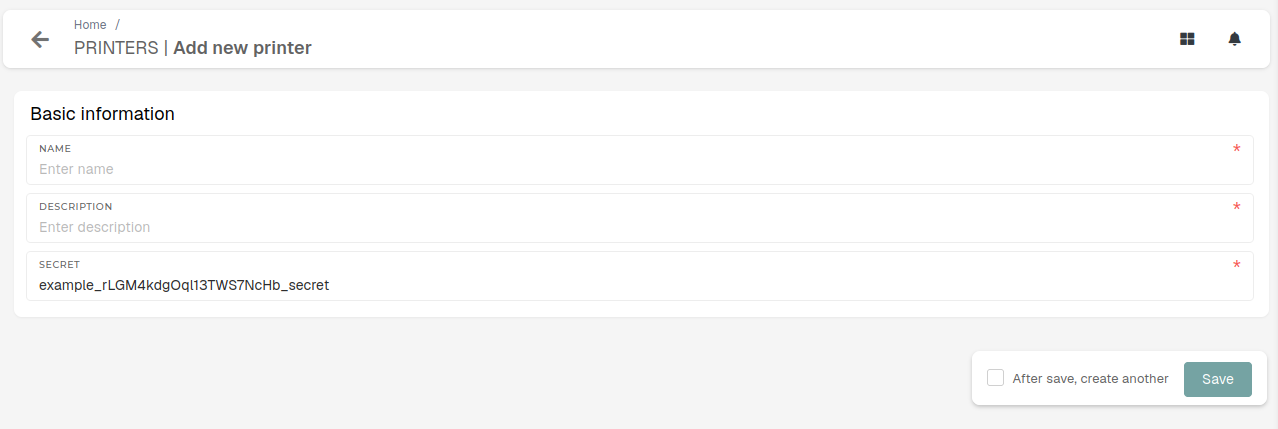 To create a new printer, enter a unique **name** for your printer and its **description**. The printer "**secret**" is generated automatically.It is recommended that the new printer's description should contain information about the printer, to which it corresponds (manufacturer, model, ...) for easier identification in the future.
# Setting up new printerTo **setup** a new printer, the **ERP** **Printer** **application** is **required**. For **first-time setup**, you will have to **contact Web team** **for** assistance with acquiring **ERP** **Printer** **application** and setting up of the application ERP authentication.
The first thing to do is to create a new printer entry in the "[printers](https://placeholder.erp/printers)" table create form..**Once** the **ERP** Printer application is acquired and **authentication setup is finished,** setting up new printers can **skip this step.**
Connect the printer to the computer, where it will be located and perform the printers setup, including installing correct drivers...The printer's computer will need (at least) Python 3 installed for the ERP Printer application to work.
- Locate the **"ERP Printer"** application folder and open it. There should be the 3 files in directory: - A **"main"** software file - A PDFtoPrinter program - The environment file. If it does not exist, create a new file named, **".env"** 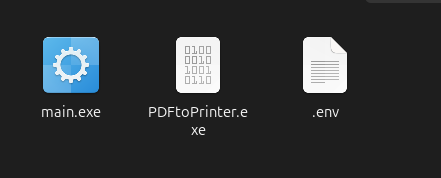 Open the environment file and copy into it the generated **"secret"** of the new printer, which was created earlier. The contents of the file should be: ``` ERP_PRINTER_SECRET=your-new-printer-secret-goes-here ``` After the environment file has been created/updated, start the "**main**" printer software. After the command line window opens, a list of available registered printers will be show. [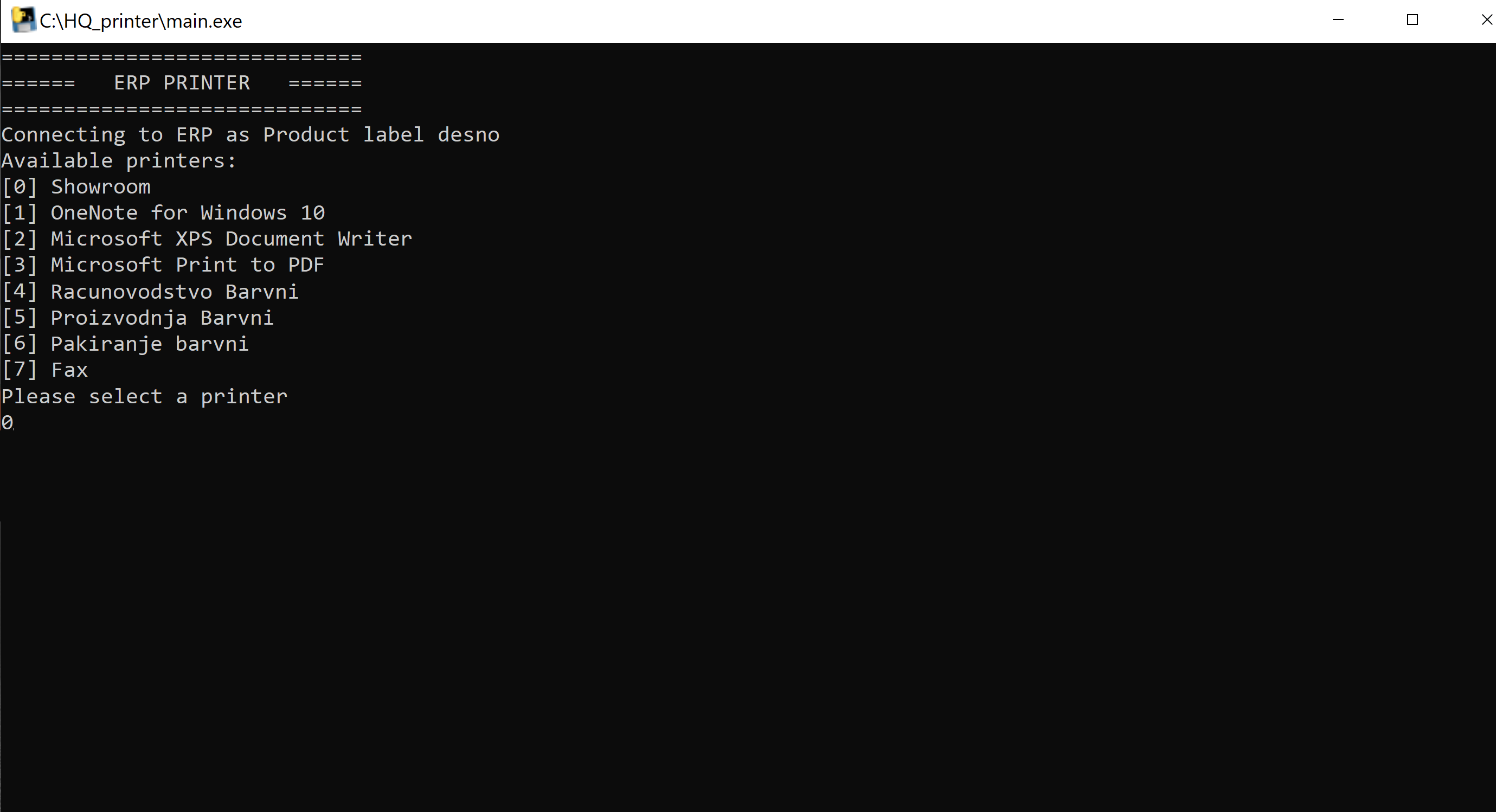](https://how-to-erp.dewesoft.com/uploads/images/gallery/2026-08/mODscreenshot-1.png)Make sure that your new printer is listed, otherwise troubleshooting of drivers will be required.
Once you find your printer on the list, enter its corresponding number (e.g. 0) when prompted. This will select the printer (e.g. Showroom) and connect to it. A successful connection attempt will generate a **"Websocket connected"** response, like on the image below. 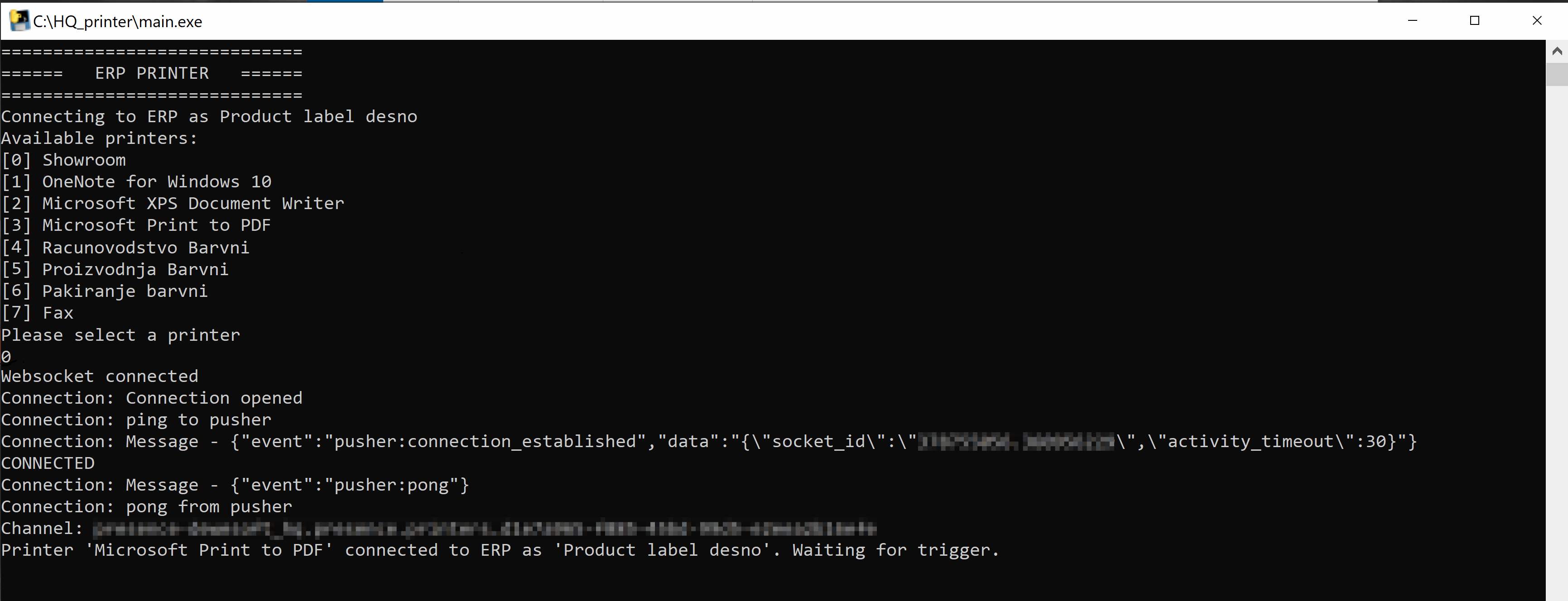 When the **printer - ERP** connection is established, the printer's use can be defined in the options table, in the "**printer\_buttons**" option. Configure the new printer (for labels or normal prints) in the **"data"** field. ```json { "printProductLabel": { "title": "Printer desno", "layout": "no-margin-label-printer", "template": "label", "printer_id": 1, "background-color": "#FFFF00" } } ``` You can edit the environment file so that the **"Available printers"** selection gets skipped and a select printer is chosen automatically. to do this, add the following line into the environment file and save it. ``` PRINTER_NAME="printer name" ``` If restarted, the main program should now automatically select the pre-configured printer and attempt connection to the ERP.