This action requires the **"create announcement"** permission.
To create a new announcement, you have to click on the "**+**" button on the right, above the announcements table. This redirects you to the "[**Add new announcement form**](https://placeholder.erp/announcements/create)". 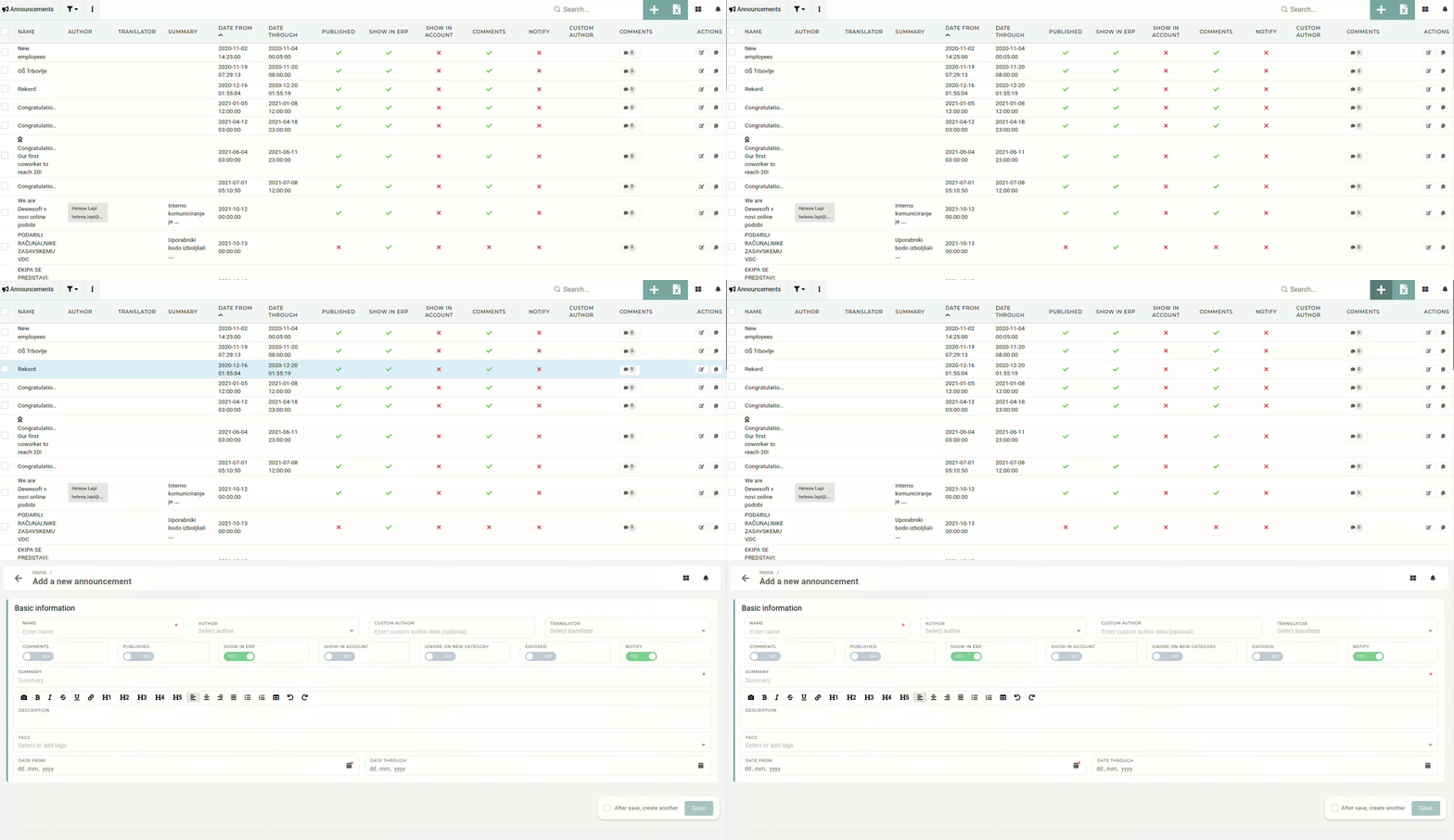The actual body of the announcement is added in the **"Description"** field, which can be edited with the integrated text editor.
When creating a new announcement, the first required thing to add is the announcement's title.  ##### Author Usually, the author of an announcement is someone in the company (someone with an ERP account). An author with an account can be selected in the "Author" drop-down manu.The "author" fields are not required. If neither "Author" pr "Custom author" are not added, the name of the person who created the announcement will be shown instead.
 In rare cases, when the announcement author does not have an account, the author's full name can be written into the **"Custom author"** field.If both **"Author"** and **"Custom** **author"** are added, the "**Custom** **author"** field will be show. Custom author takes priority over the author field.
If the announcement is translated, the translator should be credited. The translator can be selected from the drop-down menu.  ##### Set visibility and publish Once the announcement is finished, it will only appear, when "**Published**" is switched to **"Yes".** To show the announcement on the ERP dashboard, the **"Show in ERP"** toggle must also be set to **"Yes"**.  When **"Ignore on new category"** toggle is set to **"Yes",** the new announcement will not appear in the **"NEW"** category on ERP dashboard. When "**Exposed**" toggle is set to **"Yes",** a published announcement will appear in the **NEW** category as the big, centered announcement. If you want to notify users about the new announcement, switch **"Notify"** to **"Yes".**
Lastly, a date has to be defined, from which forward the announcement will be visible. At least the "**Date from"** field must be added. If the **"Date through"** is also added, the announcement will be hidden after that date has passed.  ##### Adding announcement tags Tags need to be added to place announcements into categories. Once a tag is added, the published announcement will appear in that category in the newsletter.  ##### Adding the announcement avatarOnce the announcement is created, the avatar image can be added.
Upload the avatar photo into the announcement's file manager. Once the image is uploaded, select it and click the "**Set as avatar**" button. The selected photo will be set as the avatar and shown in the dashboard newsletter. 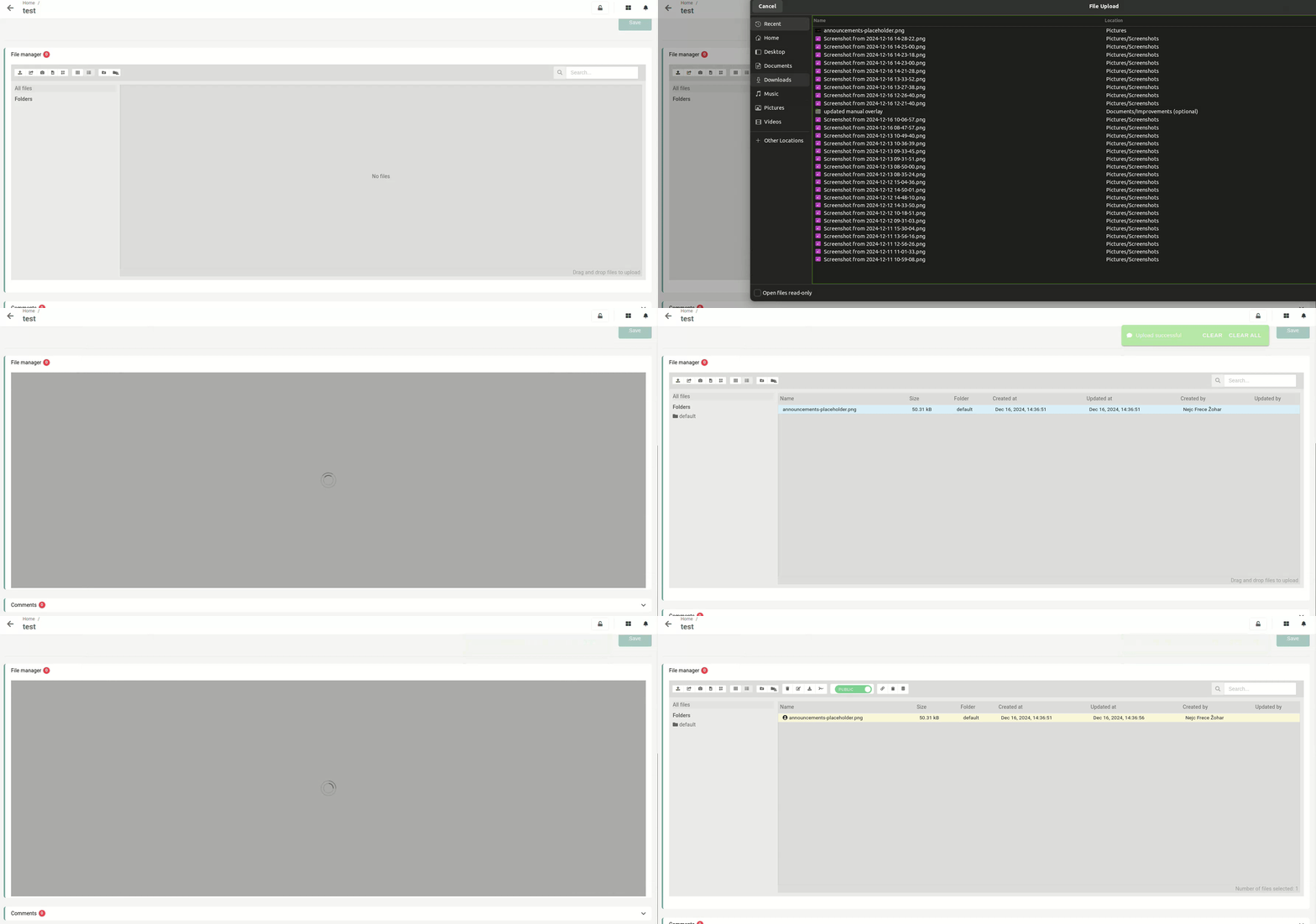A viable announcement requires at least **a title** (name), **a** **summary** and **the** **date** **from** when to show it.
# Update an existing announcementThis action requires the **"update announcements"** permission.
Announcements in the ERP are simple and independent, so you can easily edit them at any time without worrying about affecting other parts of the system. Everything in an announcement, from the content to the details, can be changed even after it’s created, as many times as necessary. 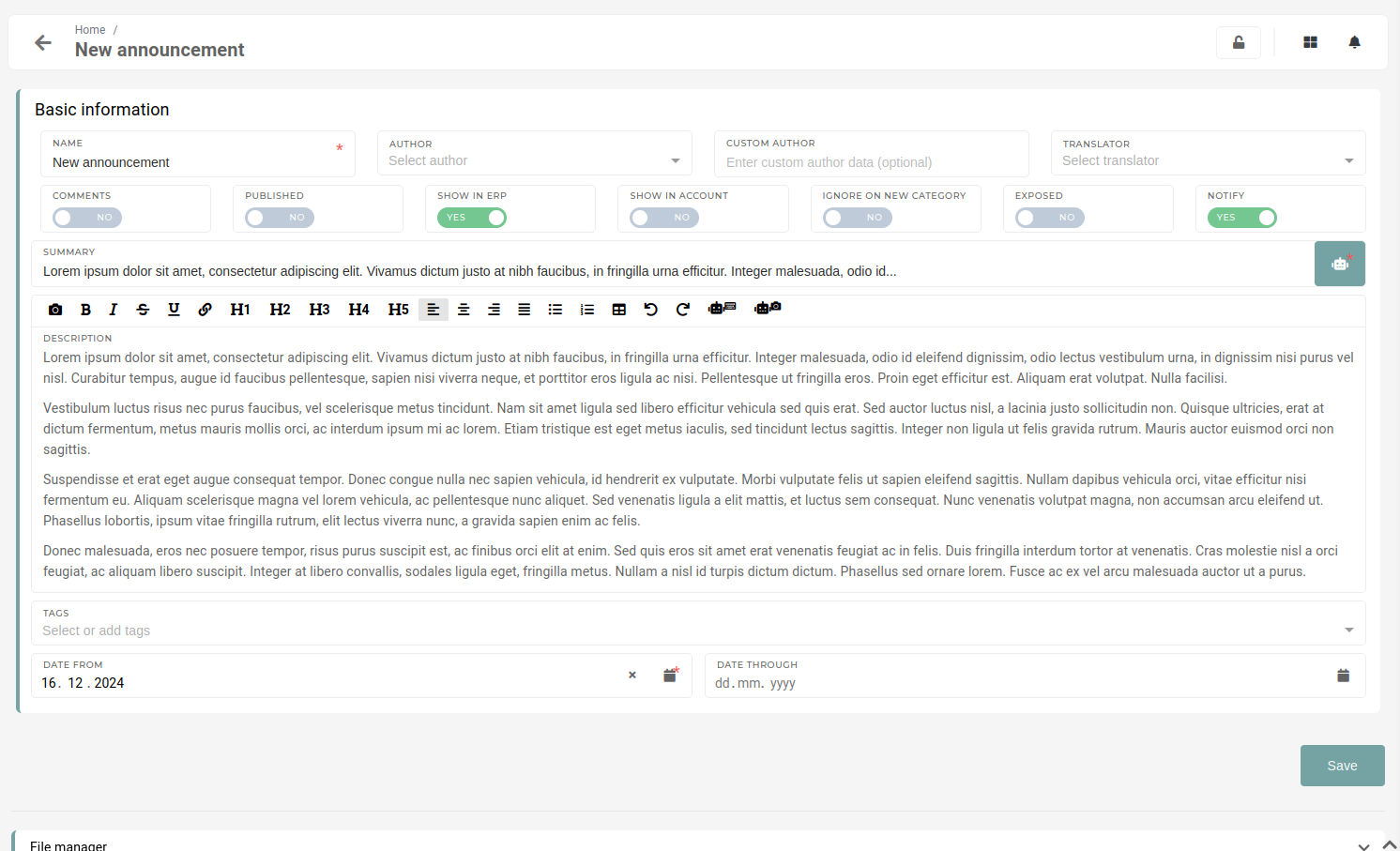Any and all information that the announcement consists of, can be edited and changed on-the-go.
# Delete announcementThis action requires the **"delete announcements"** permission.
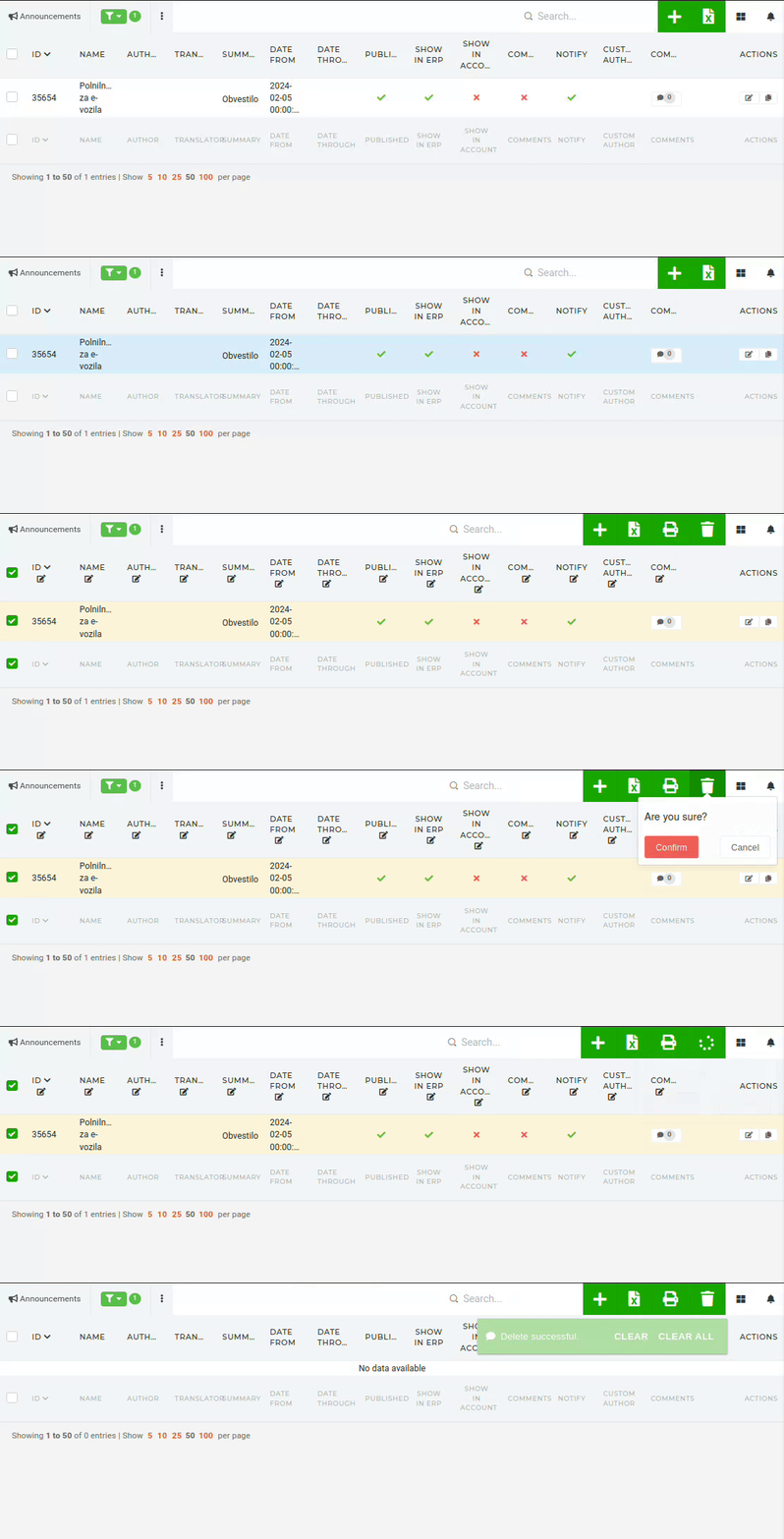
Check off the announcement that has been marked for deletion and click and confirm the **"trash"** button that appears in the top right corner, above the table.Announcements can be deleted directly in the table.
 # Add a photo in announcementAnnouncements can contain photos.
To add a photo in an announcement, click the **"camera"** icon in the text editor toolbar. A popup will open, where you can paste URL of any public photo. After submitting a valid URL, the photo will appear in the text editor. You can **upload photos** into the announcement's **file manager,** set them as public and **copy** their **public URL.**
# Add a video in announcementAnnouncements can contain videos.
To add a video in an announcement, click the **"video camera"** icon in the text editor toolbar. A popup will open, where you can paste URL of public videos. After submitting a valid URL and changing its size, the video will appear in the text editor. Currently, **only** videos from **YouTube, Google Drive** and **the file manager** are supported.
# Stock window # Company stock bids # Stock holders # Archives