Most tables in the ERP offer the option to export data to a formatted excel file.
This can be done by clicking the export **button with** the **Excel file icon.** During export generating, the button displays a loading animation. Once finished, the exported excel file is automatically downloaded onto your computer. The exported file is always named by the formula **exported-table-name\_today's-date-and-time\_random-number.xlsx** [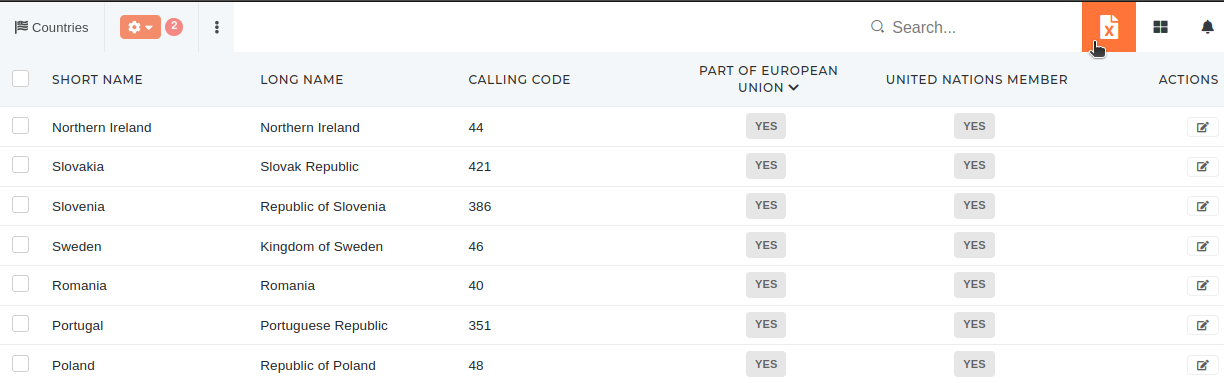](https://how-to-erp.dewesoft.com/uploads/images/gallery/2024-04/HORimage.png)**Export** is **affected** by **table filters** and **search.** If **no filters/search** are applied, **all rows** in the table will be **exported.**
**Example:** *Export of countries that are members of united nations and the european union.* 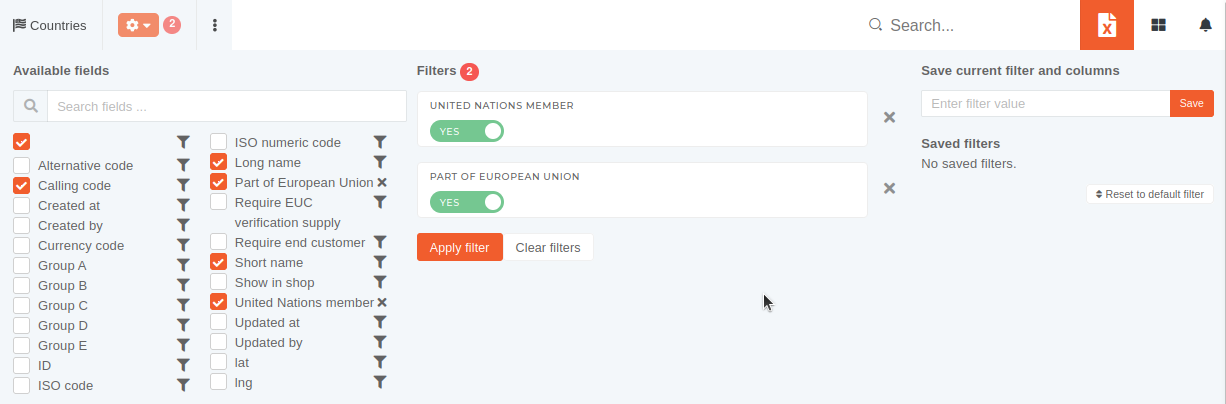 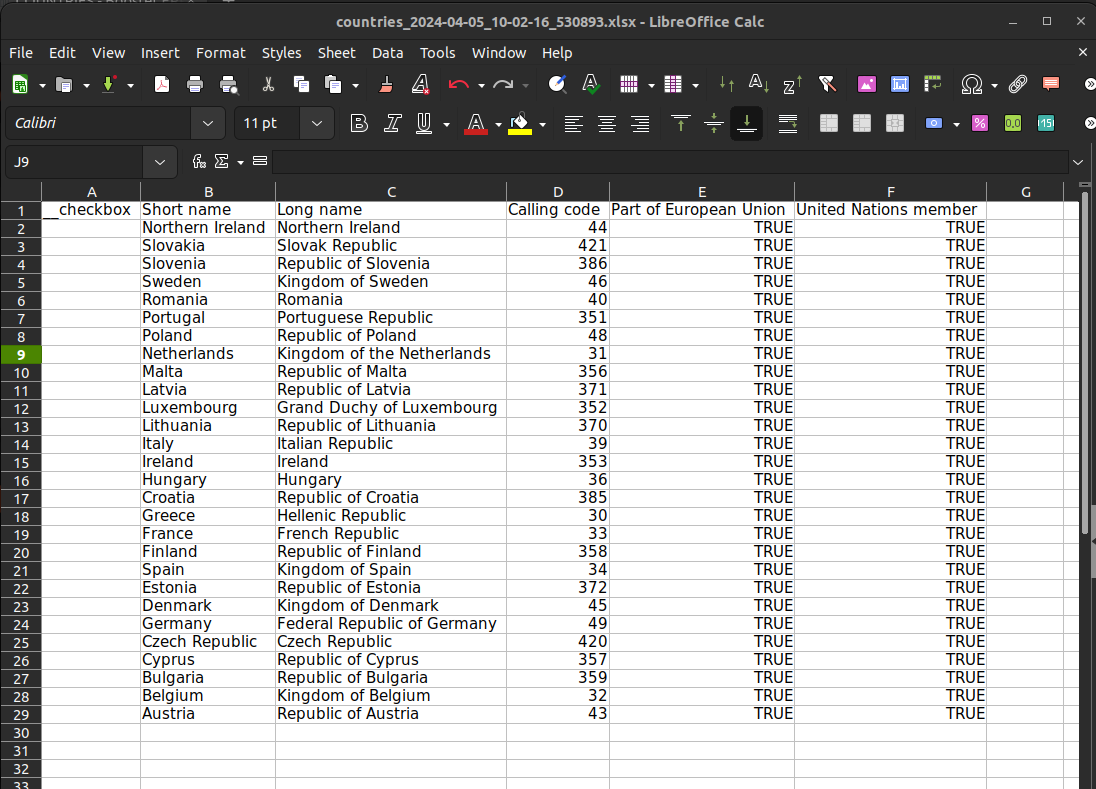 ##### Special purpose exports On certain tables, special, formatted exports are available alongside the default export. Here, a list of available exports is shown in a tooltip. These exports are present for a specific purpose and are usually unaffected by set filters or selected visible columns. [](https://how-to-erp.dewesoft.com/uploads/images/gallery/2024-04/BoRimage.png)