# Filters

The filters section, above a table, allows user's to apply custom filtering to the table.

![image.png](https://how-to-erp.dewesoft.com/uploads/images/gallery/2024-05/scaled-1680-/39cimage.png)

Filters for every field can be accessed by pressing the ![image.png](https://how-to-erp.dewesoft.com/uploads/images/gallery/2024-05/scaled-1680-/I1Vimage.png) icon next to the field's name.

<p class="callout info">Fields without the filter icon cannot be filtered by.  
</p>

#### Types of available filters

There are several types of filters available in the filter section.

Most common among these are:

<table border="1" id="bkmrk-yes%2Fno-filter-filter" style="border-collapse: collapse; width: 100%; border-width: 0px; height: 119.2px;"><tbody><tr style="height: 29.8px;"><td style="width: 16.7285%; border-width: 0px; height: 29.8px;">**Yes/No filter**</td><td style="width: 83.3951%; border-width: 0px; height: 29.8px;">Filter's value is either true or false.</td></tr><tr style="height: 29.8px;"><td style="width: 16.7285%; border-width: 0px; height: 29.8px;">**Date** **filter**</td><td style="width: 83.3951%; border-width: 0px; height: 29.8px;">Field's value is a date range between date 1 and date 2.</td></tr><tr style="height: 29.8px;"><td style="width: 16.7285%; border-width: 0px; height: 29.8px;">**Text filter**</td><td style="width: 83.3951%; border-width: 0px; height: 29.8px;">Field value is equal to given value.</td></tr><tr style="height: 29.8px;"><td style="width: 16.7285%; border-width: 0px; height: 29.8px;">**Select filter**</td><td style="width: 83.3951%; border-width: 0px; height: 29.8px;">Select a value from a provided list.</td></tr></tbody></table>

![image.png](https://how-to-erp.dewesoft.com/uploads/images/gallery/2024-05/scaled-1680-/9twimage.png)

To apply the filters, press the **"Apply"** button, which reloads your page and filters table rows. You can remove all applied filters at once by pressing the "**Clear**" button, or one at a time by pressing the **"x"** in the top right corner of the filter fields.

<p class="callout info">**NOTE:** The table filters, that you set for yourself, will only be set on the computer you set them on, if you don't save it. </p>

#### Saving set filters


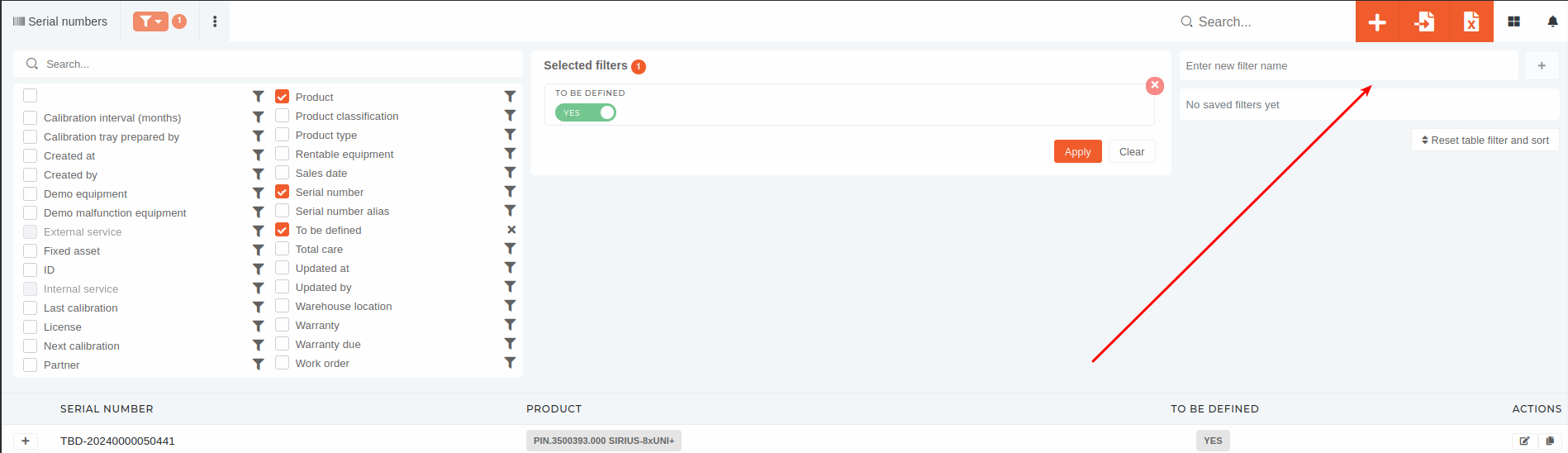
When you create a customized table view, you can choose to save your current **configuration** (the filters you have set and the columns you have set as visible).
![image.png](https://how-to-erp.dewesoft.com/uploads/images/gallery/2024-05/scaled-1680-/Yo1image.png)

To save an existing configuration, just give it a name and press the "**+"** button, and the configuration will be saved, available for use anywhere you log in. <span style="font-family: -apple-system, BlinkMacSystemFont, 'Segoe UI', Oxygen, Ubuntu, Roboto, Cantarell, 'Fira Sans', 'Droid Sans', 'Helvetica Neue', sans-serif; font-size: 14px; font-style: normal; font-variant-ligatures: normal; font-variant-caps: normal; font-weight: 400;">To apply an existing saved filter, just click on it's name.</span>

<p class="callout info"><span style="font-family: -apple-system, BlinkMacSystemFont, 'Segoe UI', Oxygen, Ubuntu, Roboto, Cantarell, 'Fira Sans', 'Droid Sans', 'Helvetica Neue', sans-serif; font-size: 14px; font-style: normal; font-variant-ligatures: normal; font-variant-caps: normal; font-weight: 400;">**TIP**: If a saved filter is currently applied, that saved filter will show a check mark and will be colored green. </span></p>

#### Setting saved filter as default

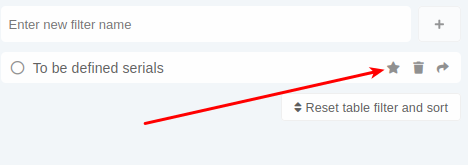
You can set any saved filter as default, by clicking it's **"star"** icon. When a filter is set as default, it is instantly applied, when you visit it's table page. To unset a default filter, click it's **"star"** icon again.
![image.png](https://how-to-erp.dewesoft.com/uploads/images/gallery/2024-05/scaled-1680-/eagimage.png)

<p class="callout info">There can be only one default filter set at a time. The current default filter has a colored star instead of a grey one. </p>

#### Editing saved filters

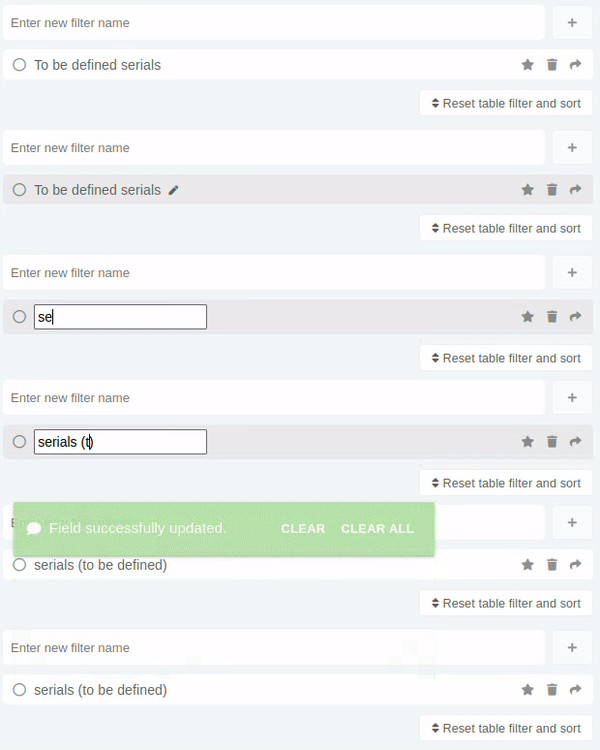
<span style="font-family: -apple-system, BlinkMacSystemFont, 'Segoe UI', Oxygen, Ubuntu, Roboto, Cantarell, 'Fira Sans', 'Droid Sans', 'Helvetica Neue', sans-serif; font-size: 14px; font-style: normal; font-variant-ligatures: normal; font-variant-caps: normal; font-weight: 400;">You can only edit a saved filter's name. This can be done by clicking the "pen" icon that appears next to saved filter's name.</span>

![Screencastfrom06.05.2024095005-ezgif.com-video-to-gif-converter.gif](https://how-to-erp.dewesoft.com/uploads/images/gallery/2024-05/screencastfrom06-05-2024095005-ezgif-com-video-to-gif-converter.gif)

#### Sharing saved filters

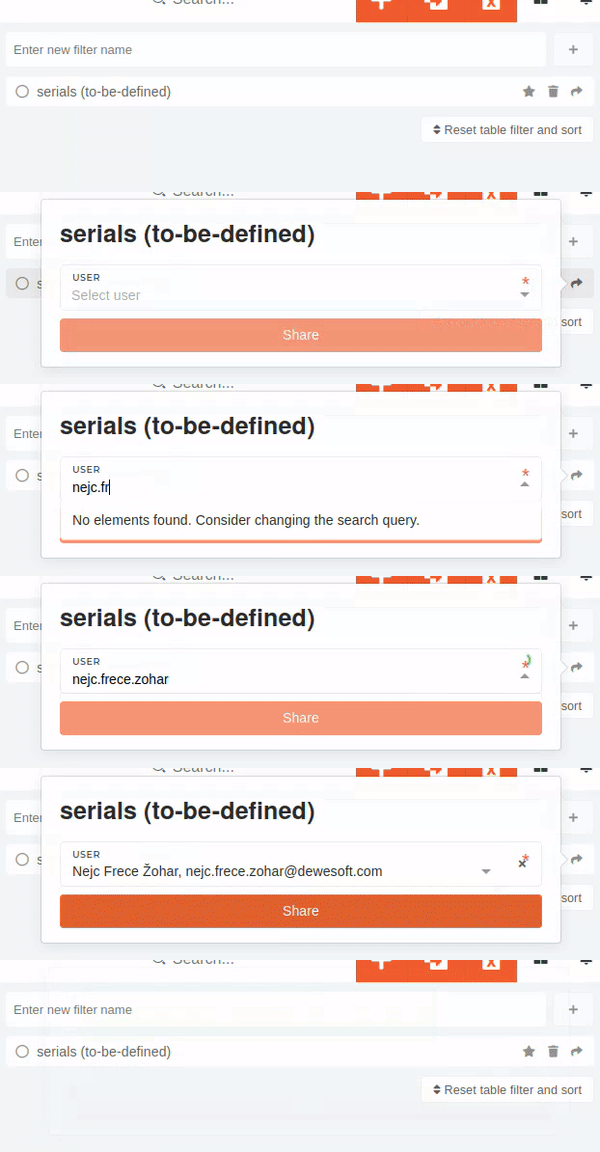
To share a saved filter, press the **"arrow right"** button. This displays a popup, where you select the user you want to share the saved filter with. You share the filter by pressing the **"share"** button. The shared filter will be visible after a page reload.
![ezgif.com-video-to-gif-converter(1).gif](https://how-to-erp.dewesoft.com/uploads/images/gallery/2024-05/ezgif-com-video-to-gif-converter1.gif)

#### Removing saved filters

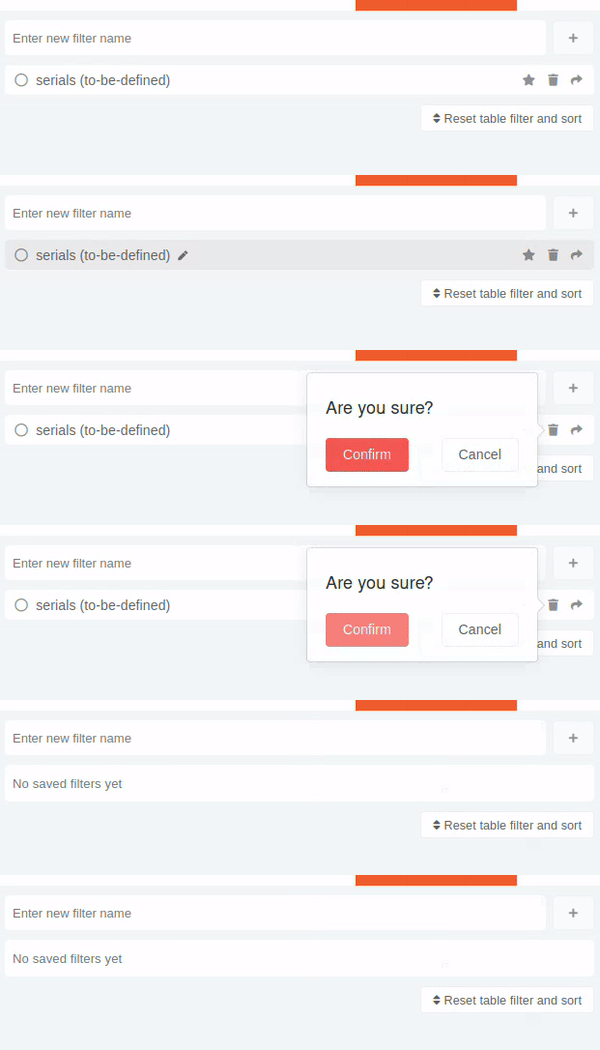
<span style="font-family: -apple-system, BlinkMacSystemFont, 'Segoe UI', Oxygen, Ubuntu, Roboto, Cantarell, 'Fira Sans', 'Droid Sans', 'Helvetica Neue', sans-serif; font-size: 14px; font-style: normal; font-variant-ligatures: normal; font-variant-caps: normal; font-weight: 400;">Saved filters can be removed by clicking the **"trash"** icon. A confirmation dialog is displayed, and after confirming, the saved filter is deleted.  
</span>

![Screencastfrom06.05.2024105042-ezgif.com-video-to-gif-converter.gif](https://how-to-erp.dewesoft.com/uploads/images/gallery/2024-05/screencastfrom06-05-2024105042-ezgif-com-video-to-gif-converter.gif)

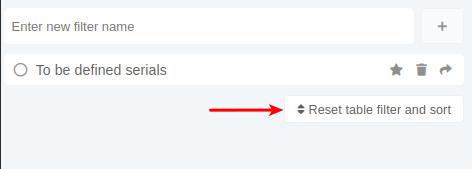
<p class="callout info">There is a "**Reset table filters and sort"** button under the list of saved filter sets. By pressing this button, you remove all filters and any column sorting, done by clicking column headers in the tables. </p>
![image.png](https://how-to-erp.dewesoft.com/uploads/images/gallery/2024-05/scaled-1680-/zG5image.png)