Get a daily e-mail report from any table filter
Any saved table filter can be linked to the “Send daily filtered email report” scheduled job. Once linked, you receive a daily e-mail with the filter’s current matching rows attached as a spreadsheet — great for “send me everything that matches X every morning”.
This guide covers linking only. If you don’t have a saved filter yet, first create and save one — see Creating and saving table filters. It works on any table you have access to (Products, Sales orders, Work orders…).
1. Open the filter panel and find your saved filter
On the table, open the filter panel (funnel icon, top-left). Your saved filters are listed on the right, each with a row of icons. On the filter you want, click the clock icon — “Link to scheduled job”.

2. Link it to the daily e-mail report
- In the Select scheduled job dropdown, choose “Send daily filtered email report”.
- Click Link filter.

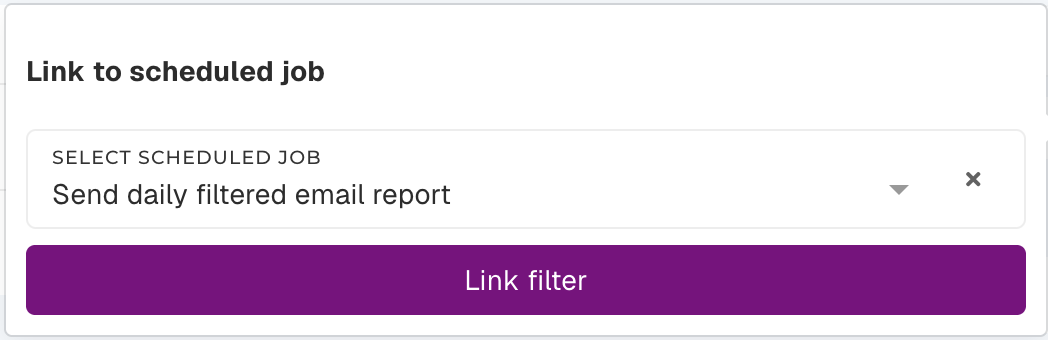
Done! A small badge on the filter shows it’s linked. From the next scheduled run you’ll receive a daily e-mail with the matching rows as a spreadsheet, sent to your own address.

3. Stop or manage a report
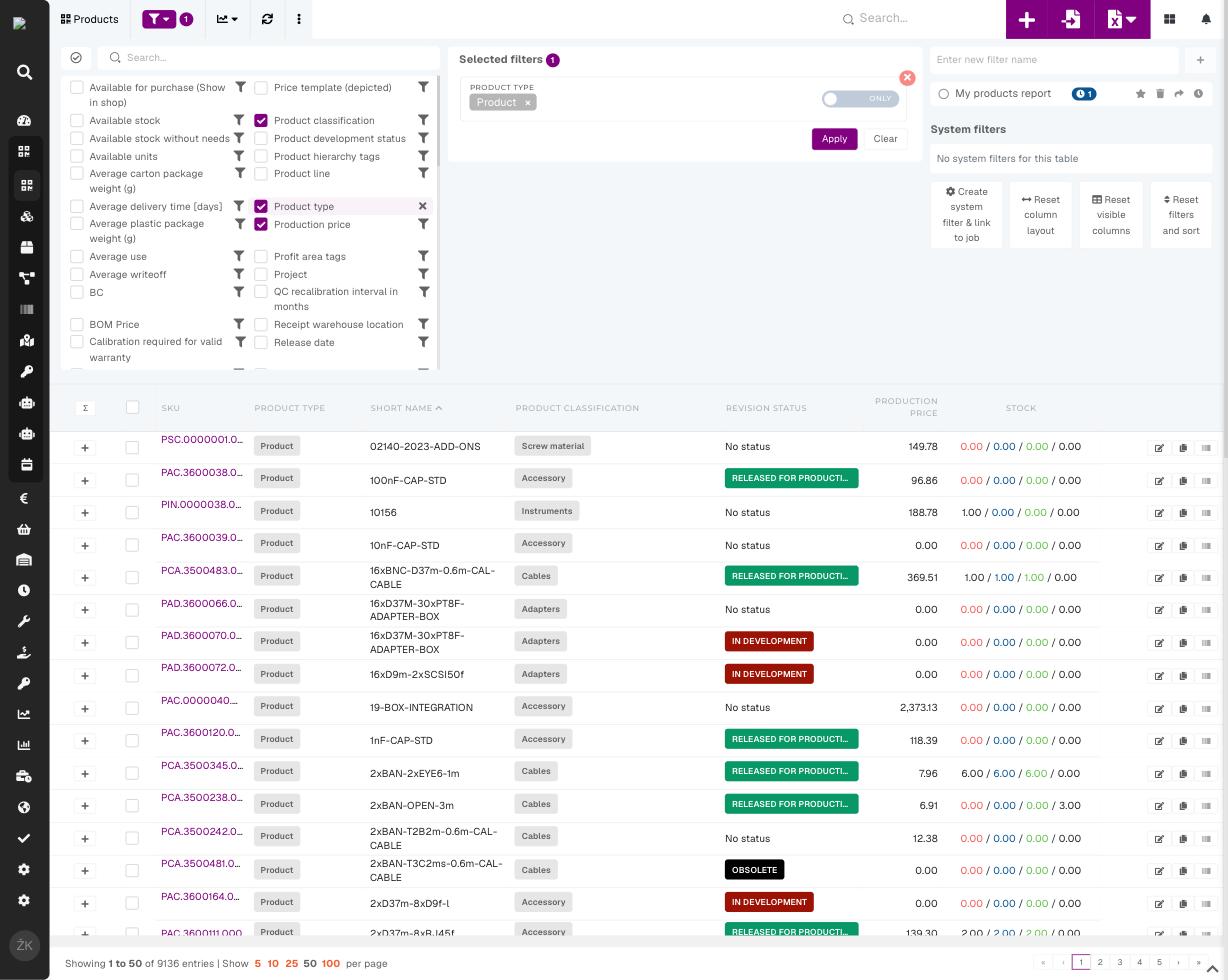
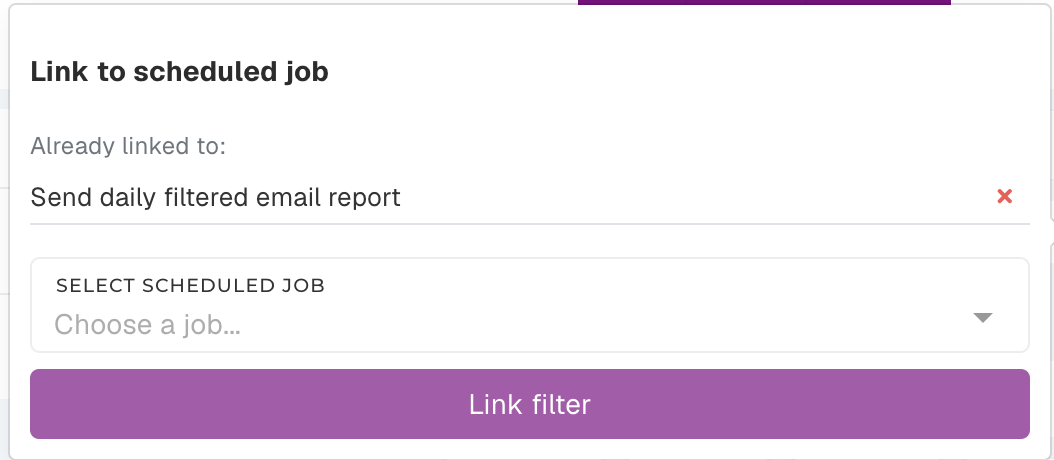
Click the same clock icon again. Jobs the filter is linked to are listed under “Already linked to” — click X next to a job to stop that report. You can re-link it any time.
Good to know
- The e-mail always reflects the filter’s current criteria and visible columns — edit the filter and the next report updates automatically.
- The report is sent to you, and only includes rows you have permission to see.
- Need a different frequency or recipient? Those are managed by an administrator.