This action requires the **"create safety standard"** permission.
If it does not already exist, a safety standard need to be created for selected work positions. [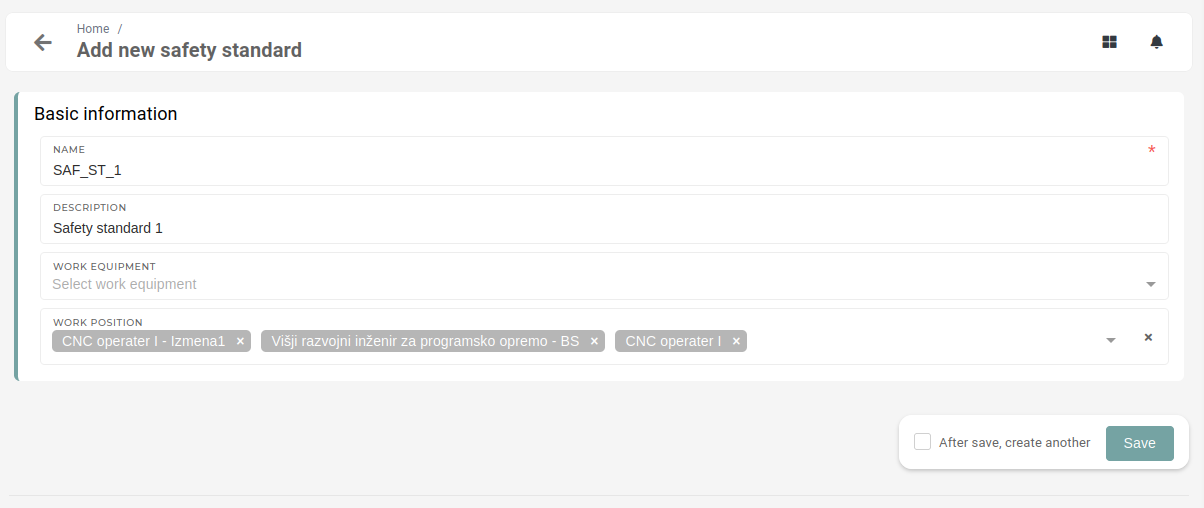](https://how-to-erp.dewesoft.com/uploads/images/gallery/2024-12/UBlimage.png) ### 2 - Add new work equipmentThis action requires the **"create work equipment"** permission.
To add new work equipment, click on the create button on [**work equipment table**](https://erp.dewesoft.com/work-equipment) or go to the work equipment [**create form**](https://placeholder.erp/work-equipment/create)**.** 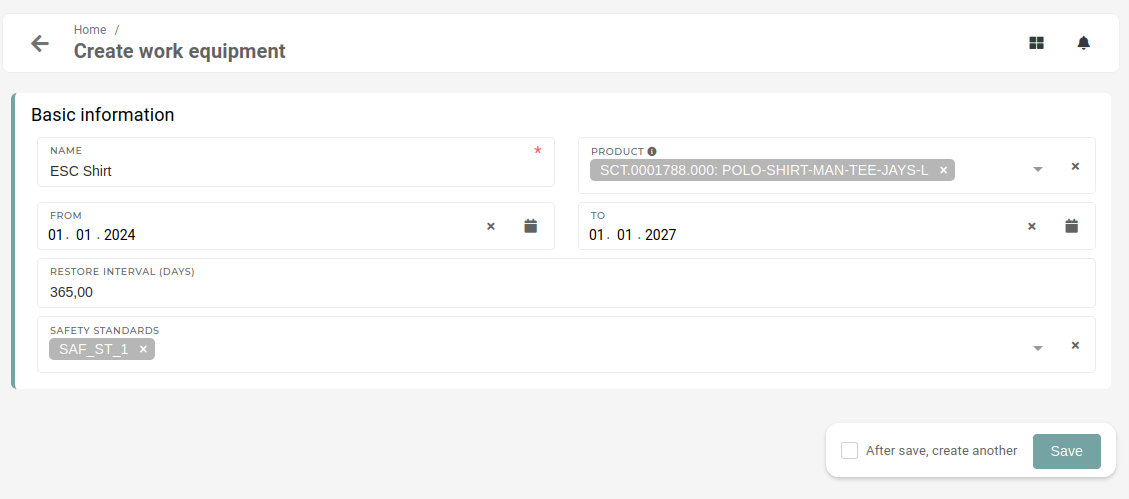A new work equipment requires a **unique** **name**, that distinguishes it from other work equipment.
After a name is entered, product(s) of type **Protection** **products** must be selected. These products will be what the work equipment represents. Usually, these products are different confection sizes of the same product. Enter the **"From"** and **"To"** dates to define how long the **work equipment** is **valid** to be distributed**.**  The **"Restore interval"** is used to set the **renewal period or amortization interval** in **days** (eg. every 365 days, employees receive new equipment). The **safety standard(s)** that correspond to the new work equipment need to be selected. Through these, work equipment is assigned to work positions. Work equipment is connected to work positions through safety standards.
### 3 - Assign work equipment to work positionsThis action requires the **"update work position"** permission.
The created new work equipment now needs to be assigned to work positions. This is done on a selected work position from the [**work positions table**](https://placeholder.erp/user-work-positions). 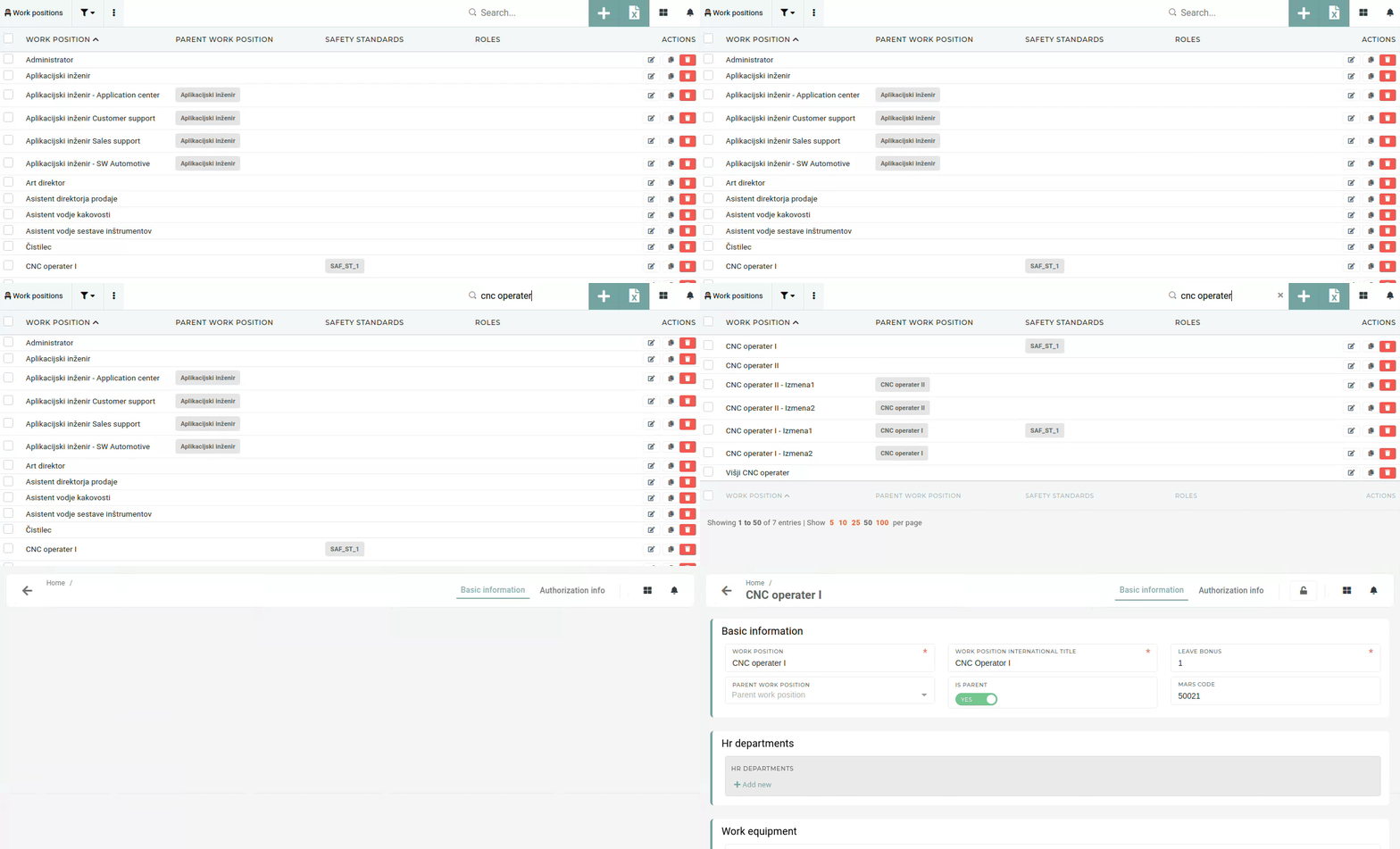 On a work position, we first need to select a safety standard (if it is not already selected). We then enter its quantity and then click **"Add new"** to add a new work equipment for this work position.Only **work equipment of the selected safety standard(s)** will be listed.
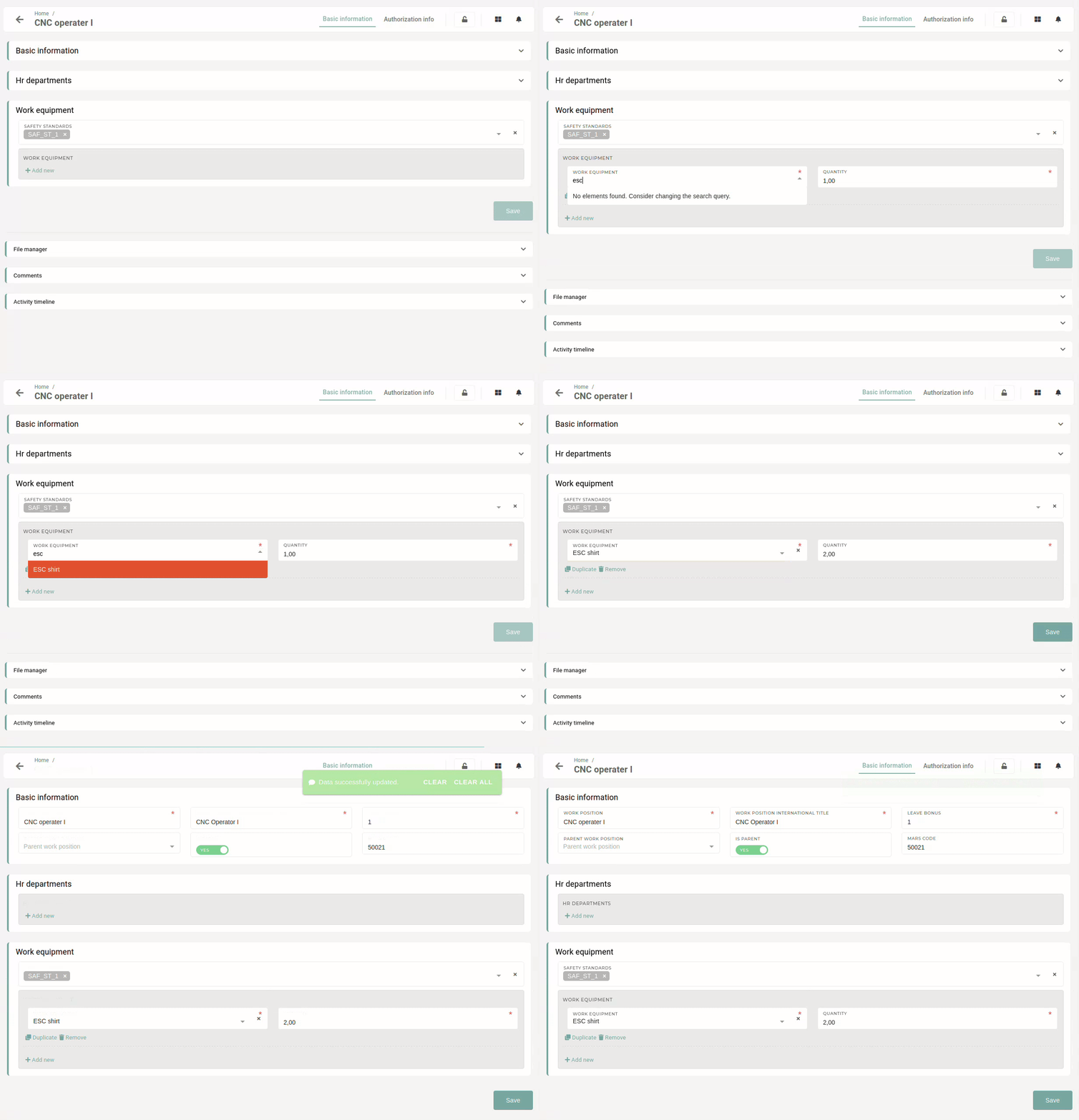 Once work equipment is selected on work position, users with that work position will be able to select confection numbers of their equipment on their [user profile page](https://placeholder.erp/user-profile#profile-edit) under the **"Work equipment"** section.Users can edit their equipment confection numbers when option **"Allow editing confection numbers"** is **enabled.**
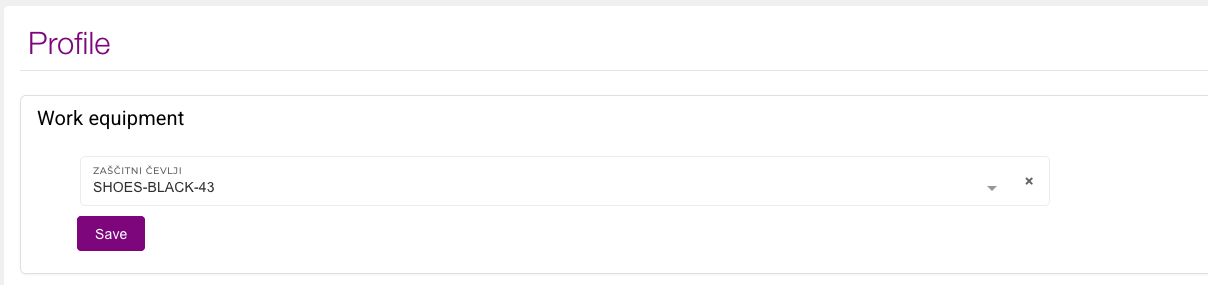 Once employees have selected/updated their equipment confection numbers, the option must be disabled. ### ### 4 - Work equipment distributionAn **automated process** is used to **check for missing equipment of employees** on a **daily** basis.
**Work equipment distribution** can be triggered from the "[**workflow approvals**](https://placeholder.erp/workflow-approvals)" page with the "**Missing** **work equipment"** button. 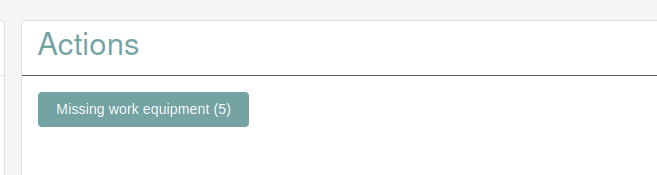 When missing work equipment without stock is found, the missing quantity is added to purchasing requirements, to be handled by the purchasing department. The distribution process will run a hourly check, if work equipment has available stock, at which point it will trigger rebooking and reservation tasks.Work equipment requirements can also be managed manually on the "**[Assign user to work positions](https://placeholder.erp/user-hr-profile-work-position)**" page.
Here, you can click the "**shirt**" button to **"start work equipment distribution"** work equipment to users. 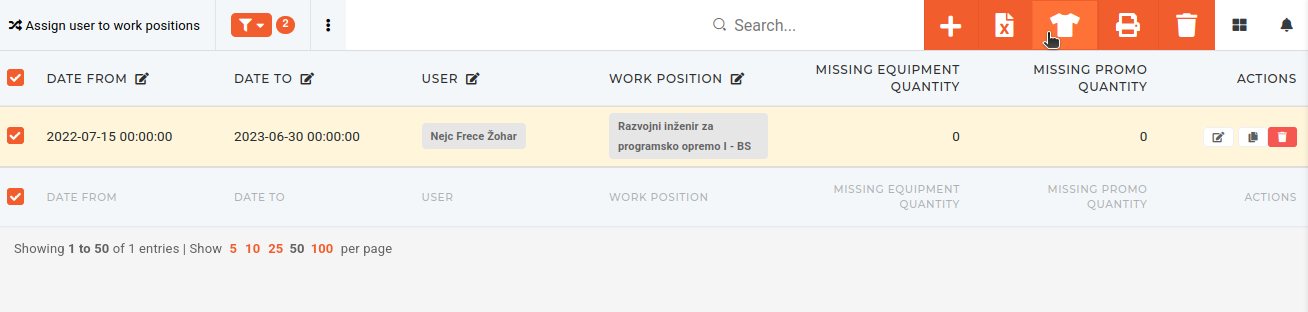 ### 5 - Getting work equipment to employeesThe task of getting work equipment to employees is handled by department leads.
Once reservation is completed, leads of departments will get **tasks** to **pickup** **work** **equipment** and deliver it to their team. When work equipment is handed off to employees and the **task** is **completed, work equipment** will be **written off.**