PacKing app is a desktop application for Windows, meant to streamline common packing work orders.
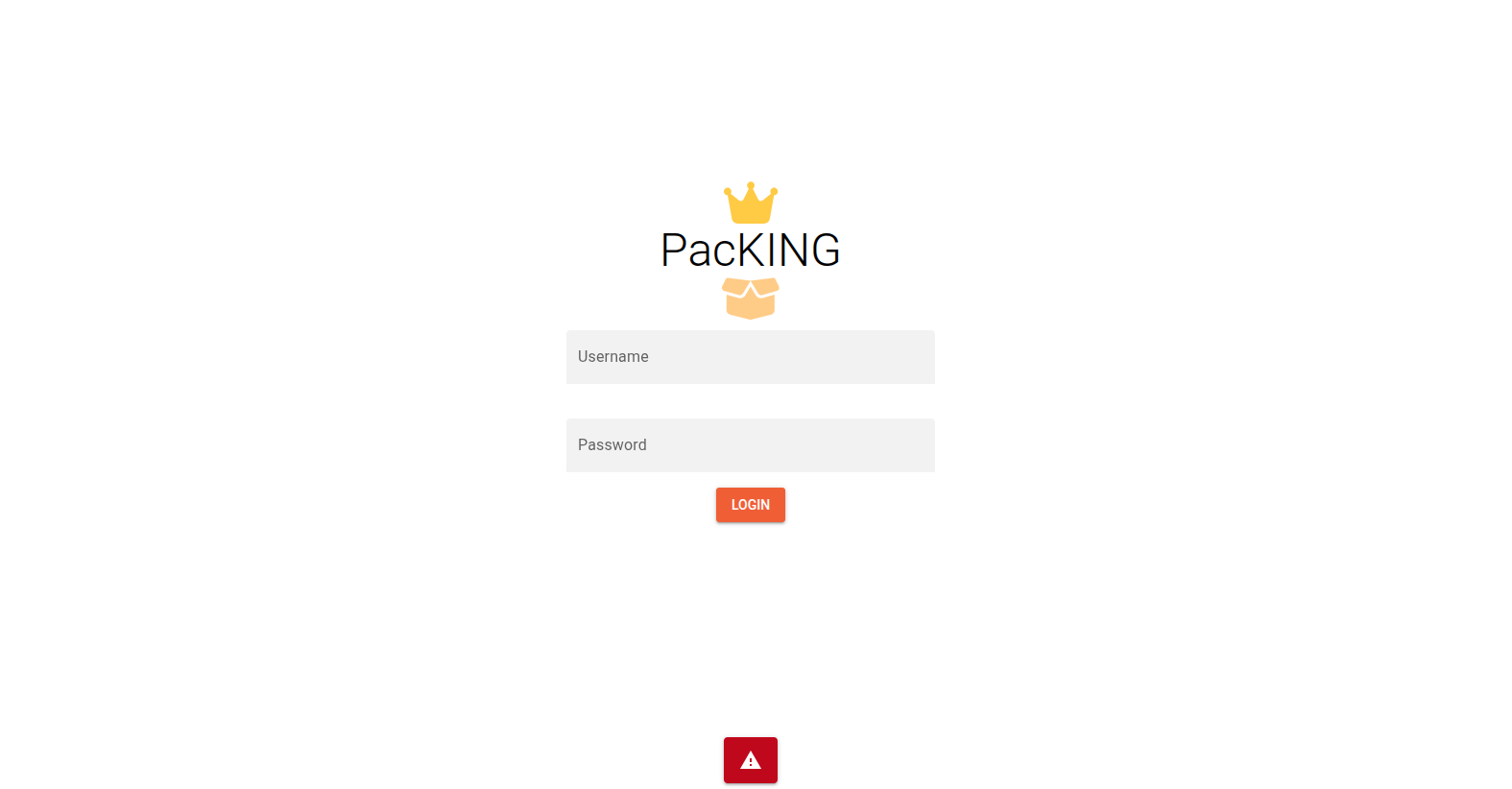
Requirements for use: - **Mateja Bočko** must check and confirm the order (and generate a draft invoice) - **Sale order value** of packing work order must be **more than 1000 EUR** ##### **Login** To log inot the Packing app, just enter your email and password, same as for ERP.**PaKing** app **credentials** are the **same as ERP credentials.**
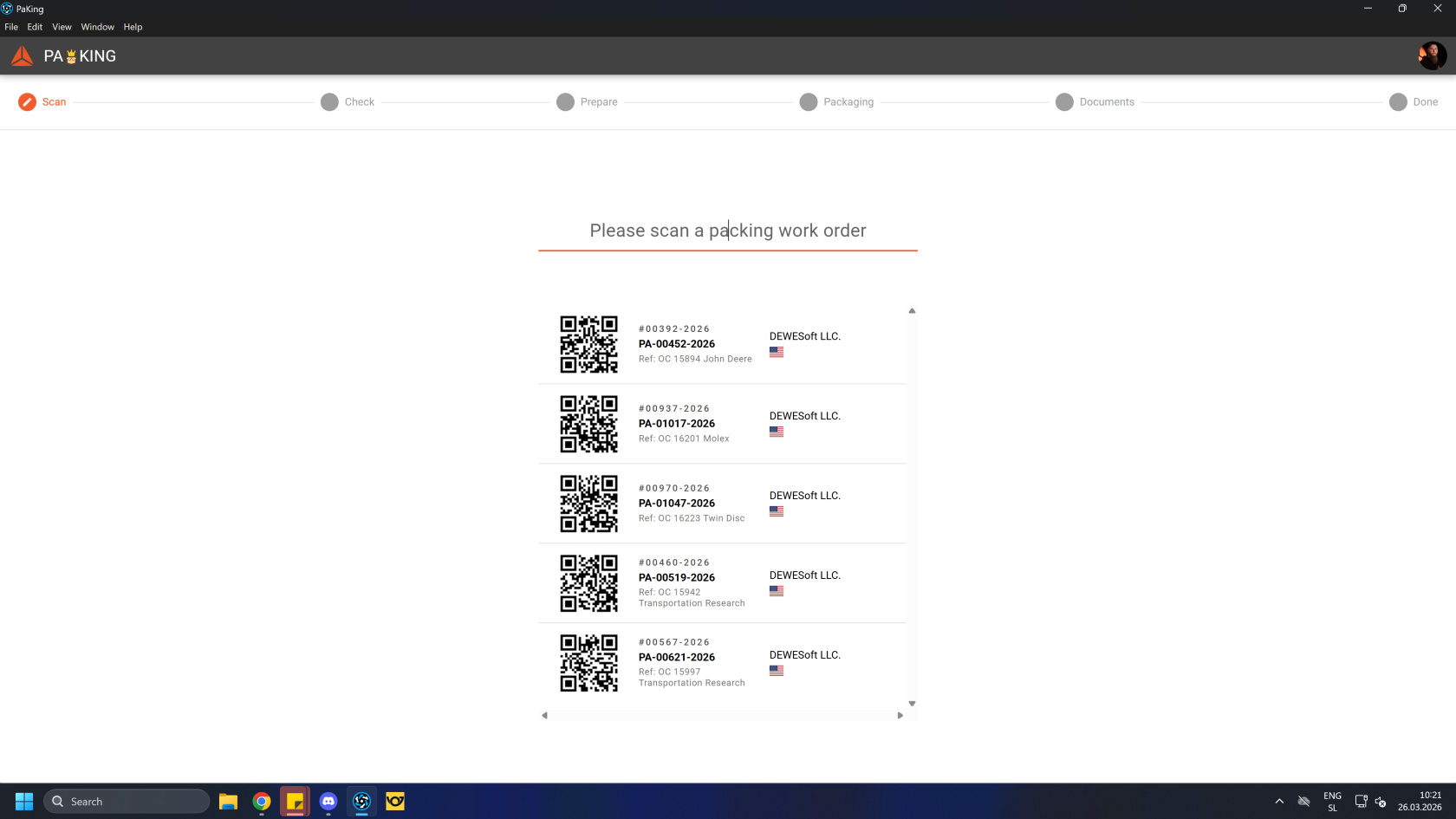
Only **"confirmed"** packing work orders will **appear** in **PacKing App.**
##### ##### **What is a "confirmed" packing work order?** It's document type is **"Packing Work Order"** Its order must be of document type **"Sale Order"** The **work order's status** must be **"Ready for Delivery"** The packing **work order's delivery note** has **status** of **"Draft checked"** The **issued invoice of** packing work order's **delivery note** must also be of **status "Draft checked"** **Destination country** of order must be either **USA, Japan** or **Singapore** # Step 1: Scan Draft CheckedBefore handling a packing work order, orders come to the **Shipping** department and must be **draft** **checked**.
The first step lists all **"confirmed"** packing work orders. **Confirmed work orders** have to be signed off on and have a **draft invoice generated.** #### Select an order To do this, **scan a QR code next to the order's document number** with the scanner or click on it with mouse. Selecting a packing work order leads to the next next.In Packing app scan the order's packing list to start packing procedure.
 Once an order is selected, the app will forward to the next step. [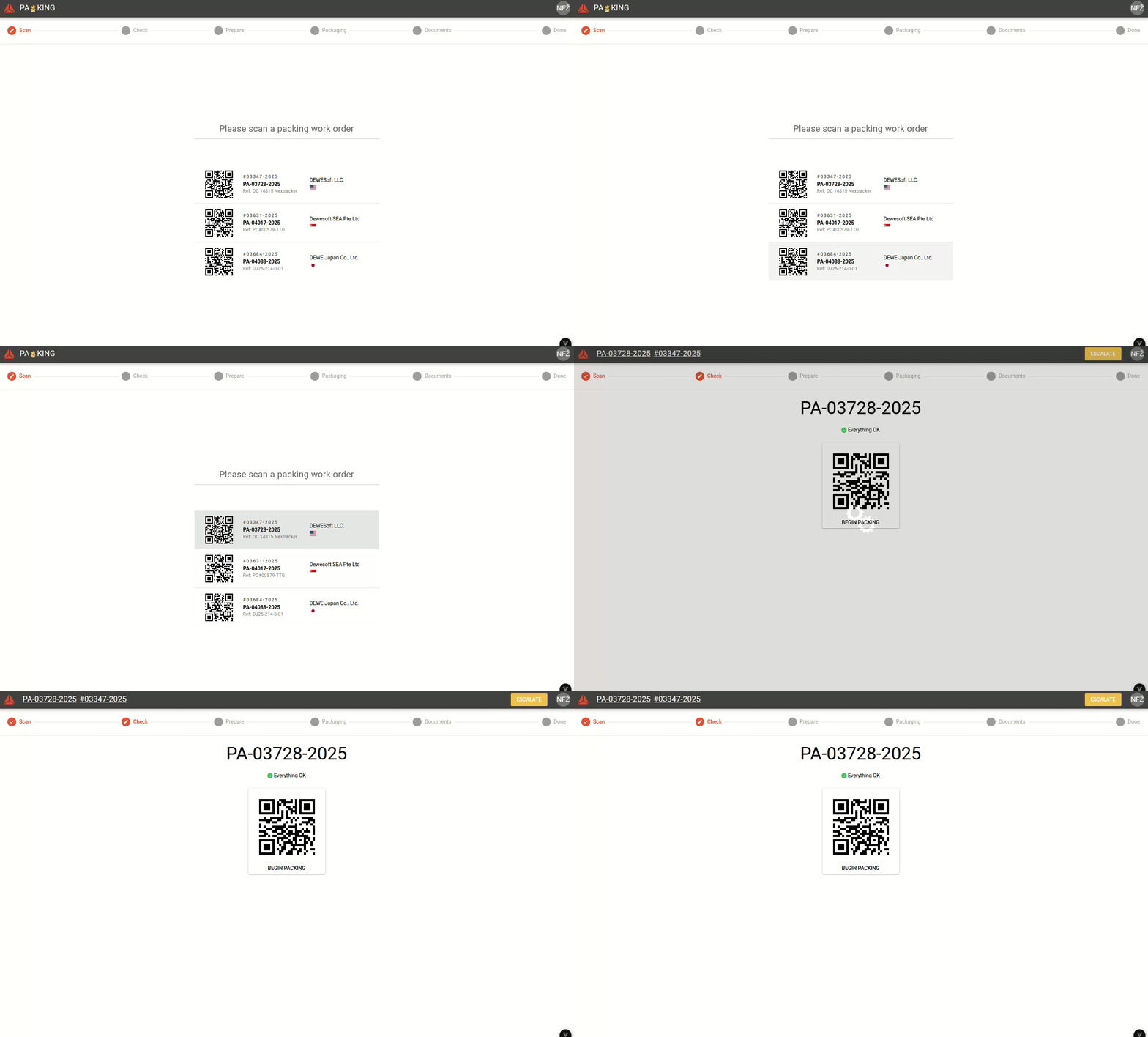](https://how-to-erp.dewesoft.com/uploads/images/gallery/2026-03/HfZoutput.gif) # Step 2: Check #### Begin packing In this step, you have a quick overview of the packing order. If any issues are found in the packing work order, they are listed here.If the work order has no problems, the **"Everything OK"** message is displayed.
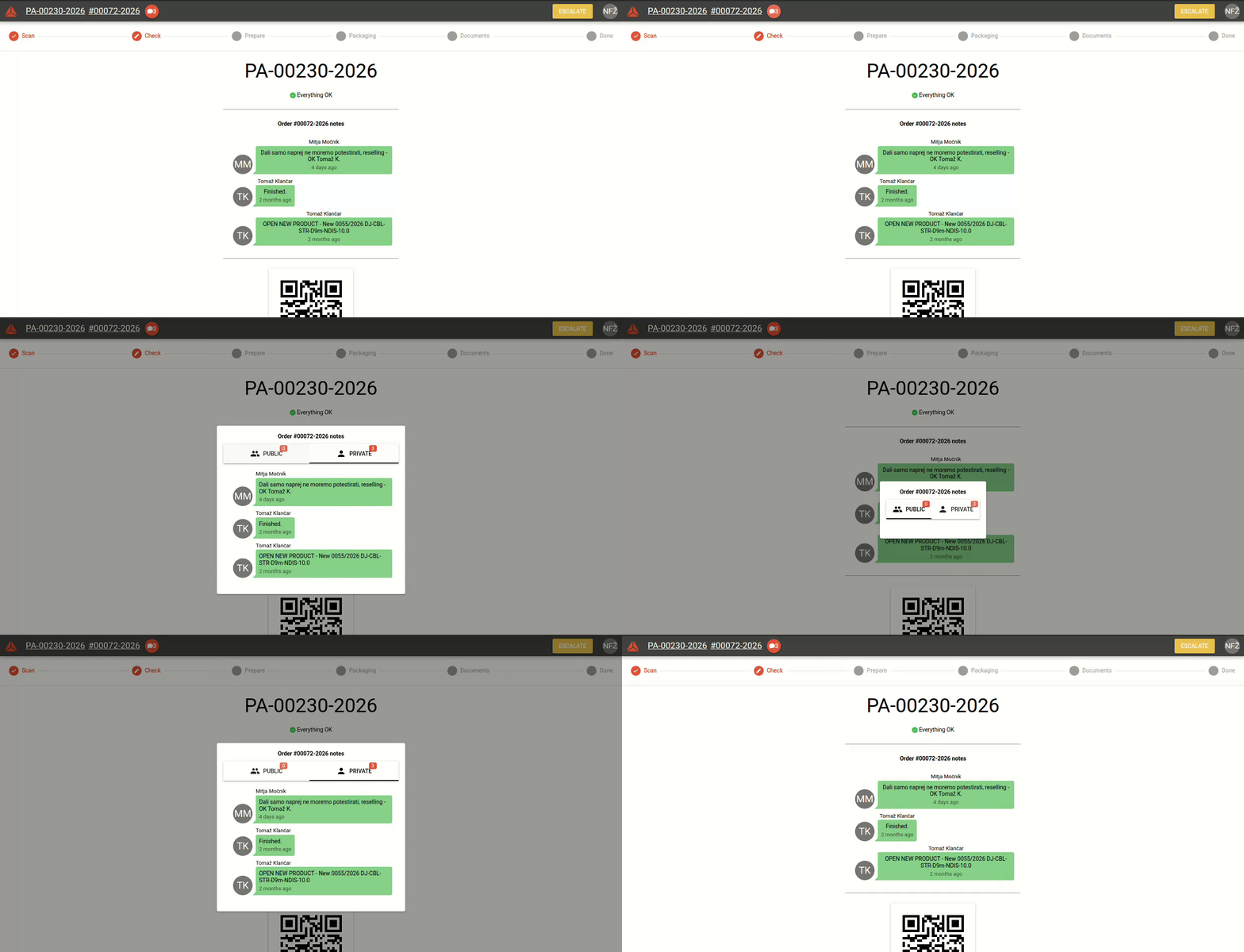
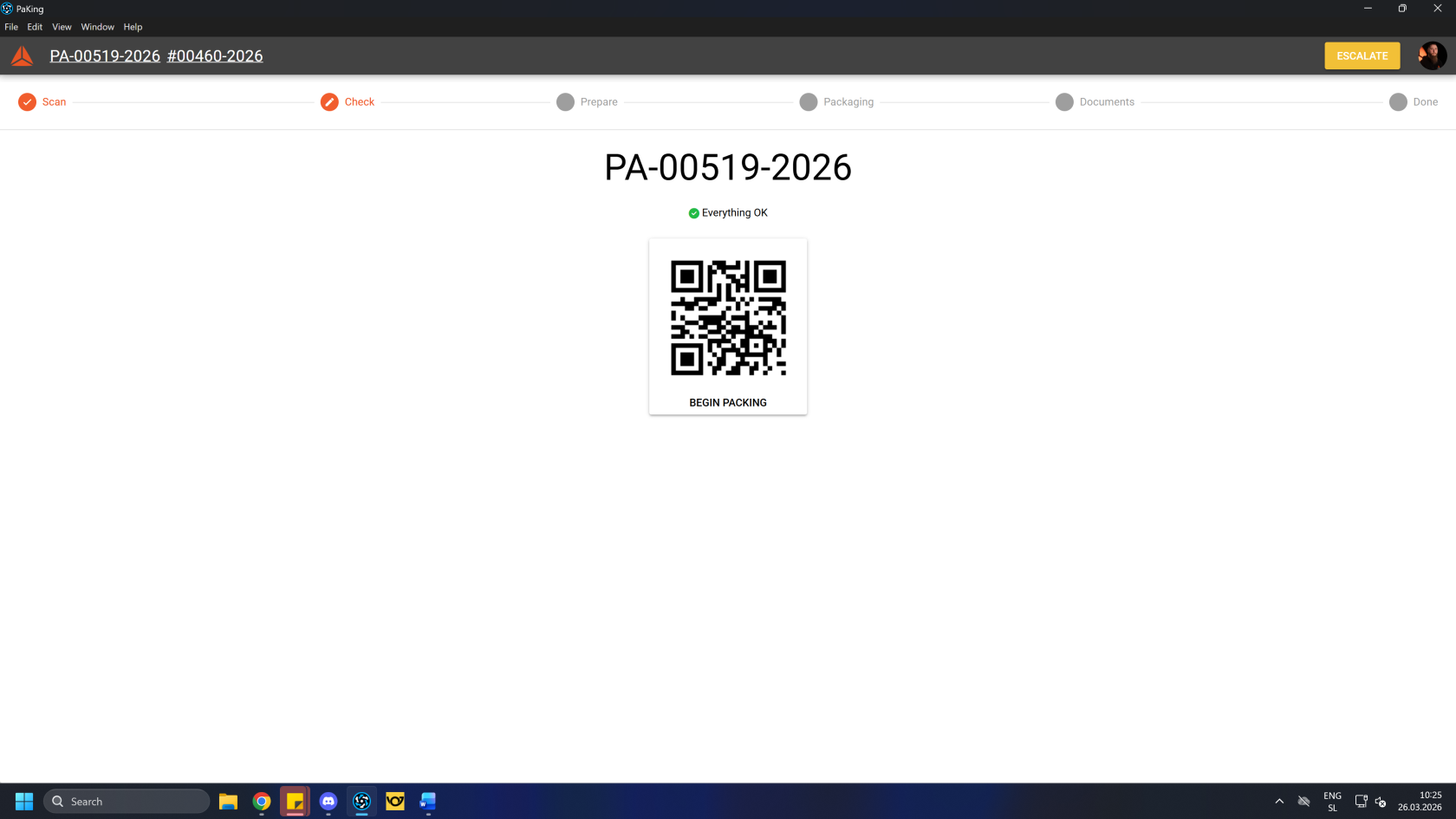 #### View packing work order and order You can click the order and packing work order document numbers to open them in browser. [](https://how-to-erp.dewesoft.com/uploads/images/gallery/2026-03/iAkimage.png) #### View Order comments You can view public and private comments of the order that the packing work order belongs to. Private comments are show above the QR code by default.To view all comments, click the **"speech bubble"** icon next to the order document number.
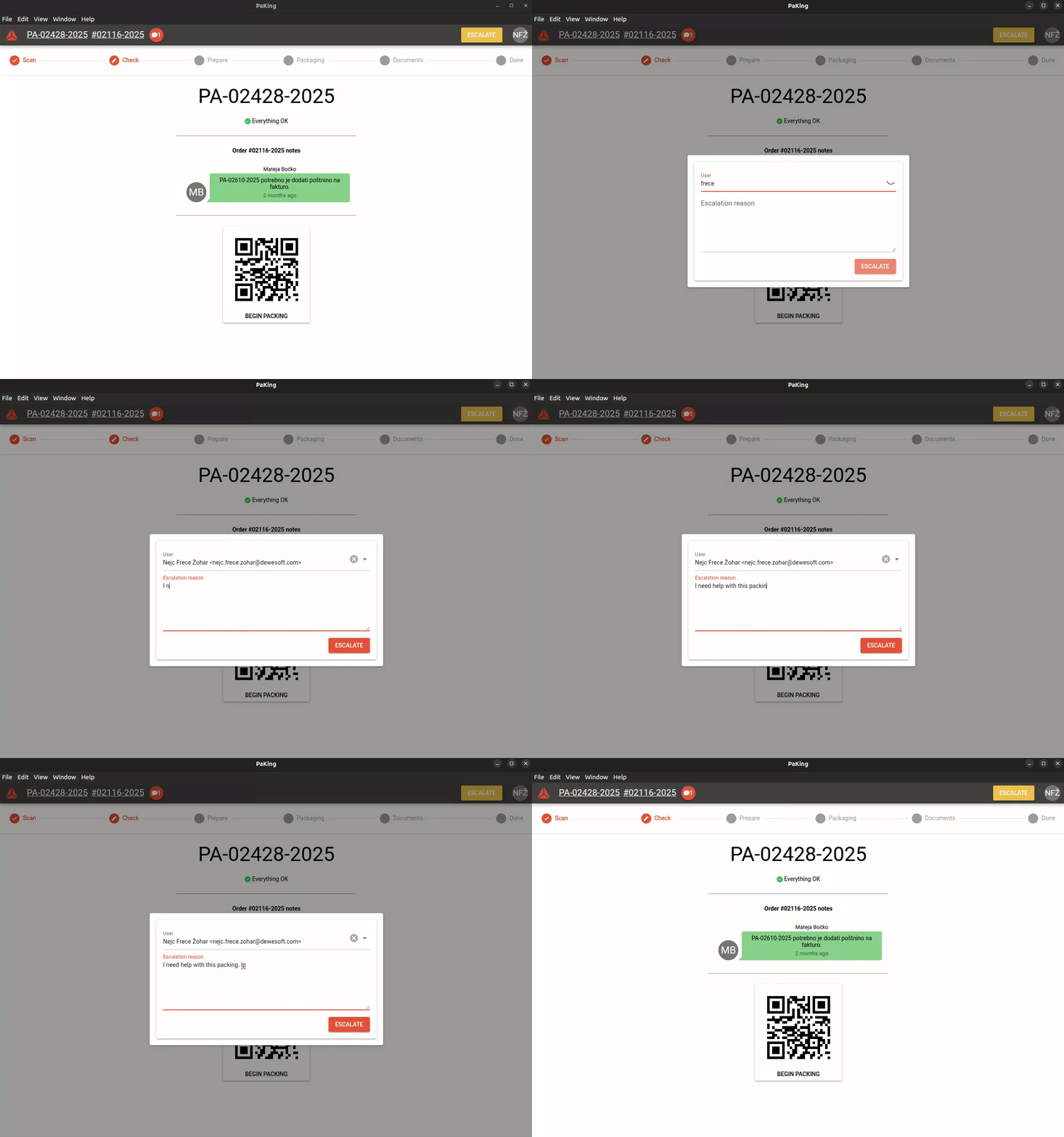
 #### Escalate work order A packing work order can be **escalated** to a specialist, who can assist you with problematic packing work orders.When you "**escalate a packing work order**", you notify a **"specialist"** to assist with a problematic packing work order.
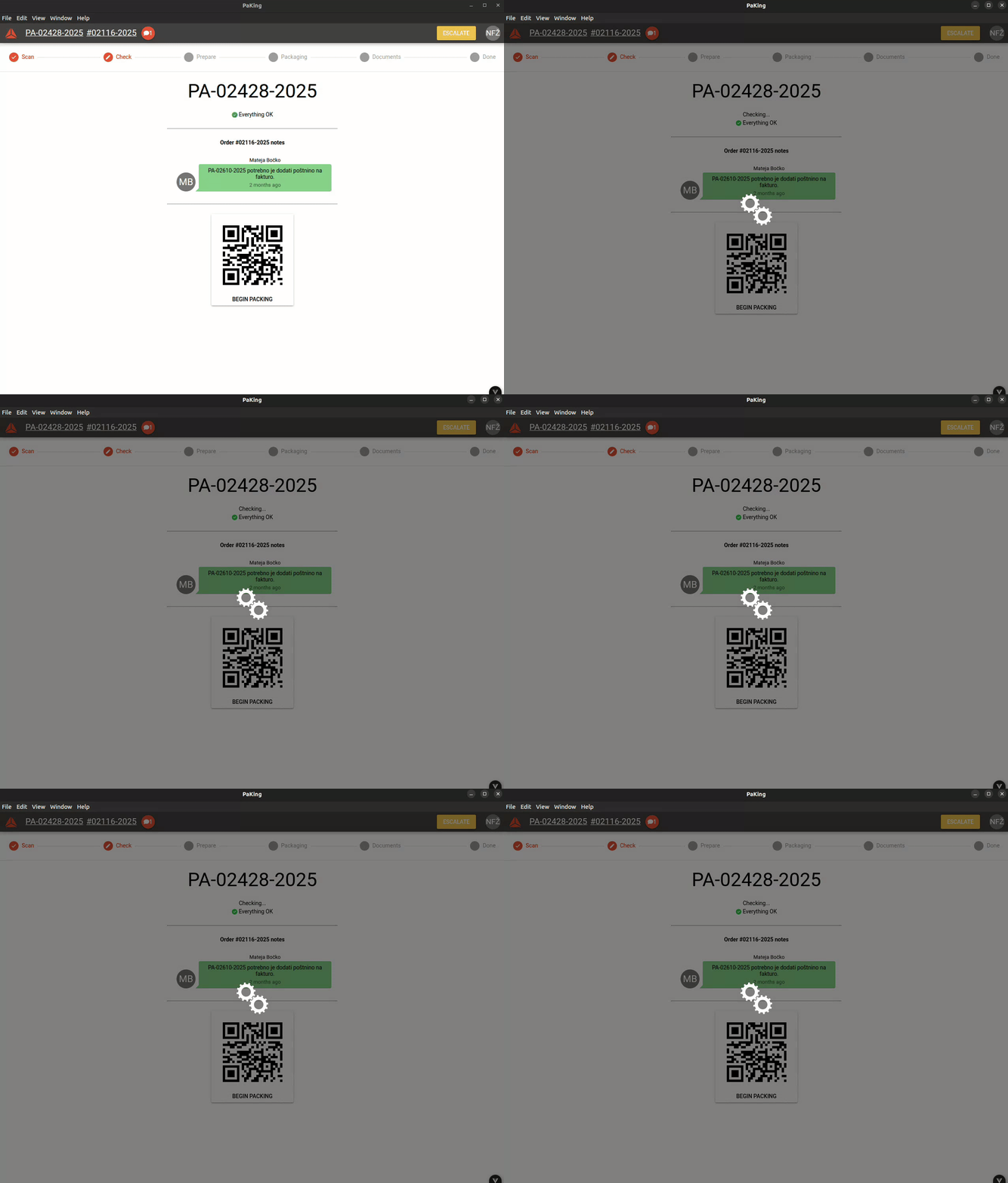
 To begin the packing process, **click/scan** the **"Begin packing"** QR code. This will move you to the next step.Once you click **"Begin packaging",** reserved material on the packing work order will be transferred to your warehouse location.
If a work order is already prepared, the app will skip the **"Prepare"** step and move on to the **"Packaging"** step.
# Step 3: PrepareIn this step all required packaging material gets prepared.
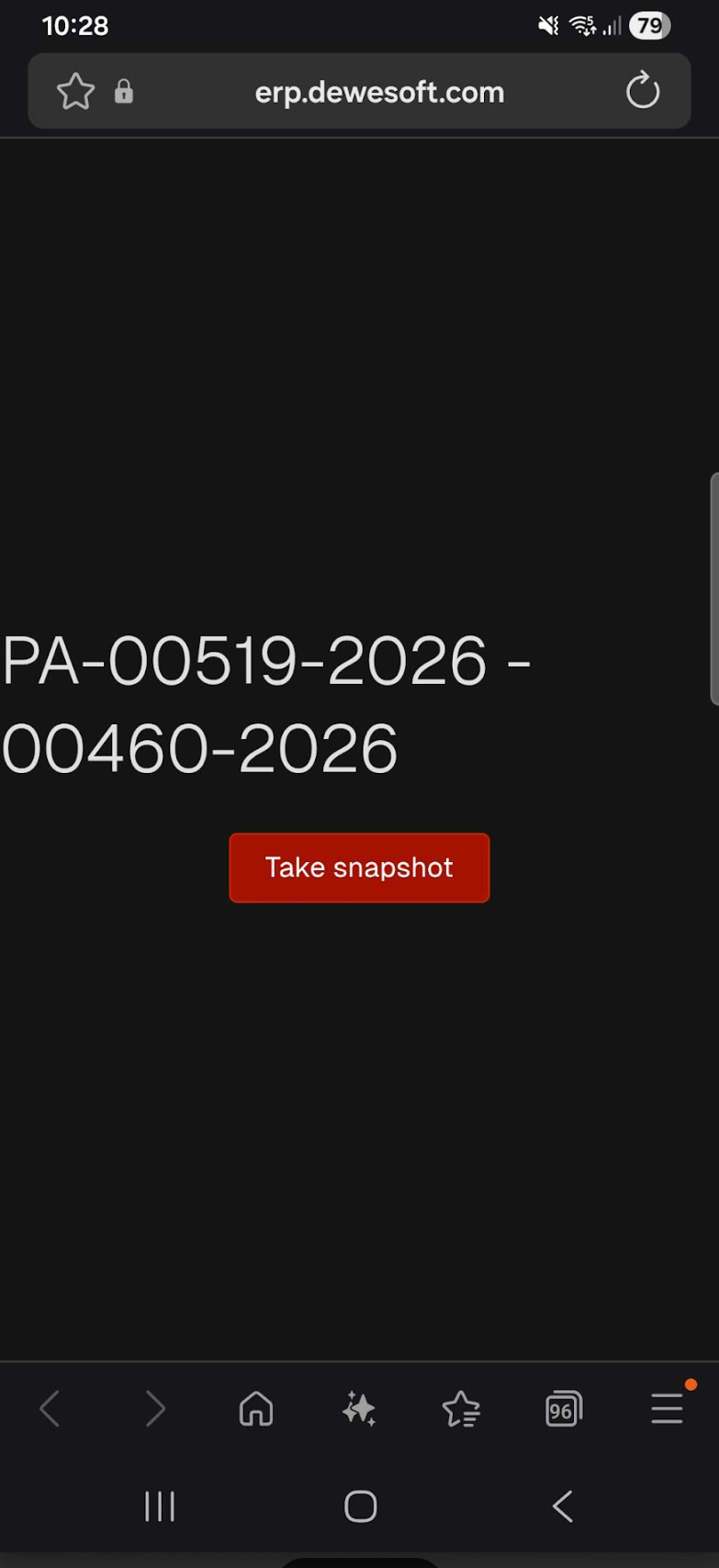
# Step 4: Packaging - In this step, we: - Photograph all products of packing order. - Pack all items accordingly. - Add needed outer boxes. - Pack items into boxes and insert items in corespondent boxes in-app. - Weigh boxes and enter their values (if calculated weight is wrong) into Packing app. [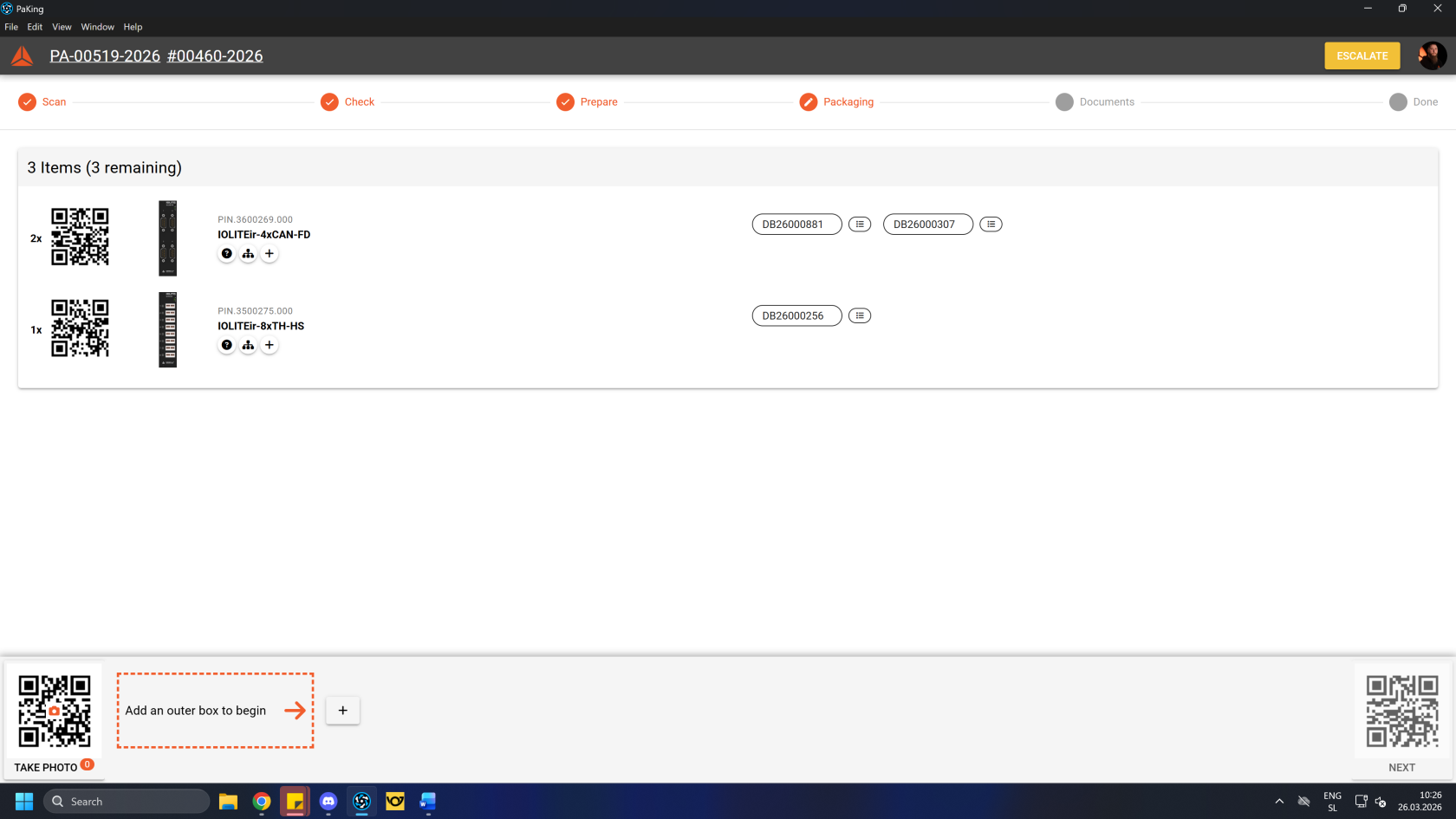](https://how-to-erp.dewesoft.com/uploads/images/gallery/2026-03/gDkimage.png) #### Take photo First, take a photo of the product before packaging. Scan the QR code for camera with phone to connect phone camera  This opens a pop-up with QR codes. Scan the big QR code in the middle to open a link on your phone, where you can take a photo of the product and send it to the packing app. [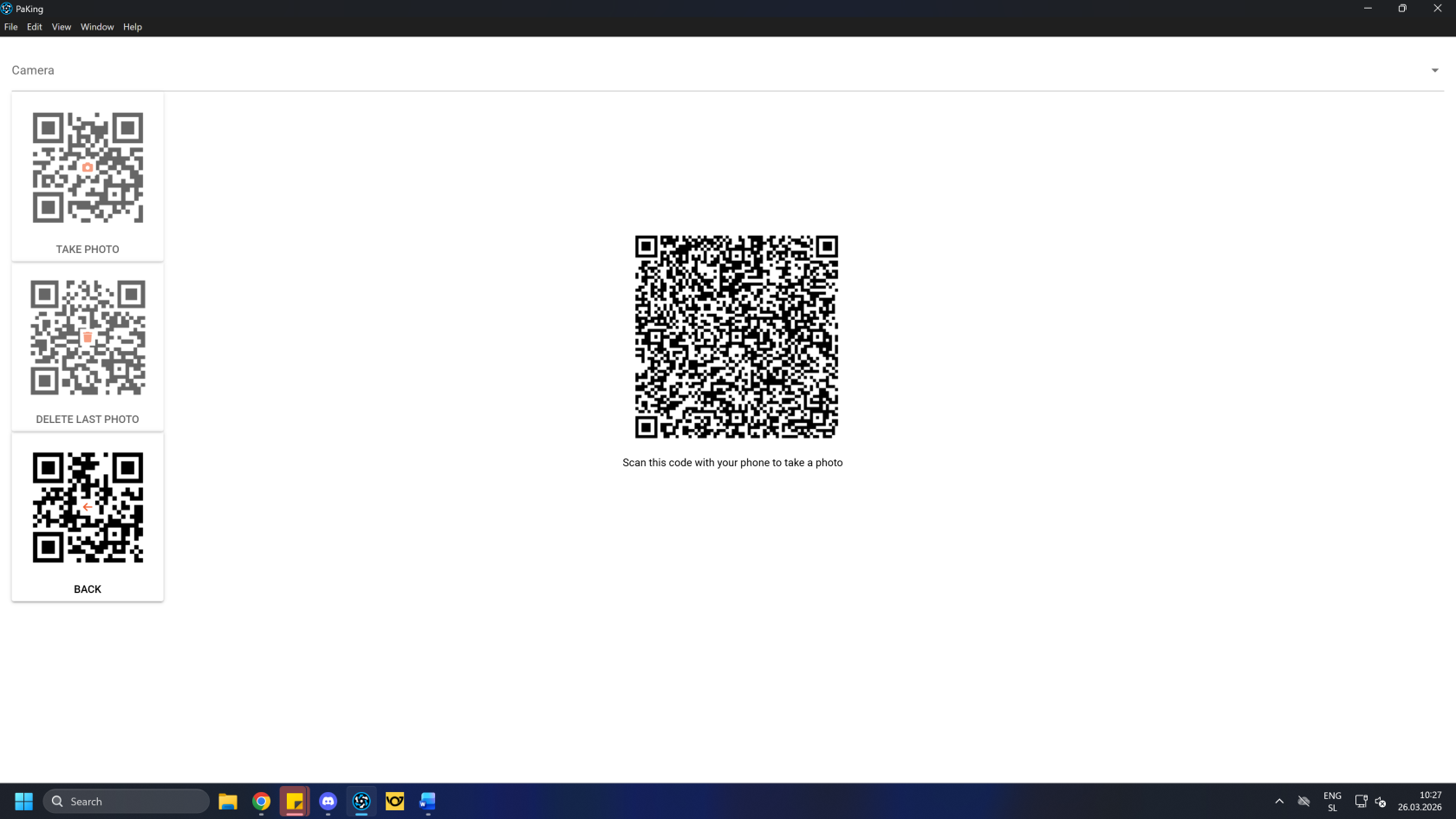](https://how-to-erp.dewesoft.com/uploads/images/gallery/2026-03/VuMimage.png) Scan the QR code and open the link in phone's browser. Click the **"Take snapshot"** button to open the camera and take the photo to upload.Keep in mind, that in order to **"take a** **snapshot",** you have to be **logged into the ERP on your phone** as well.
[](https://how-to-erp.dewesoft.com/uploads/images/gallery/2026-03/de0image.png) Add necessary outer box(es) and enter their necessary gross weight. 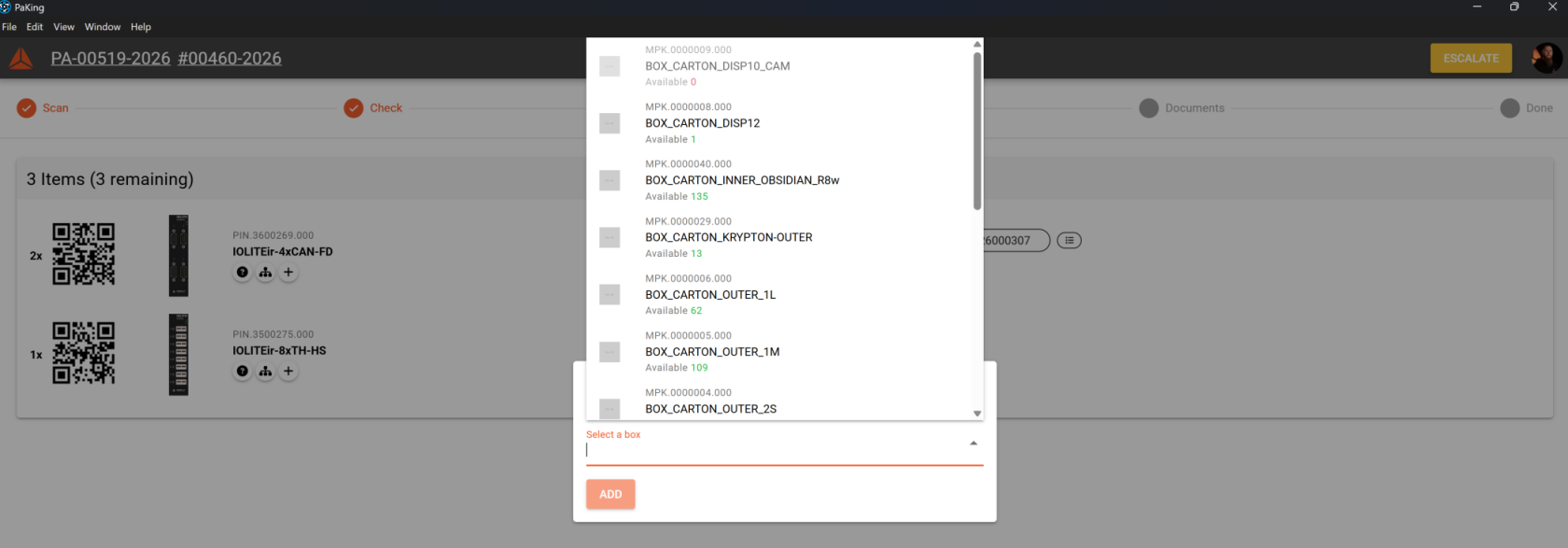 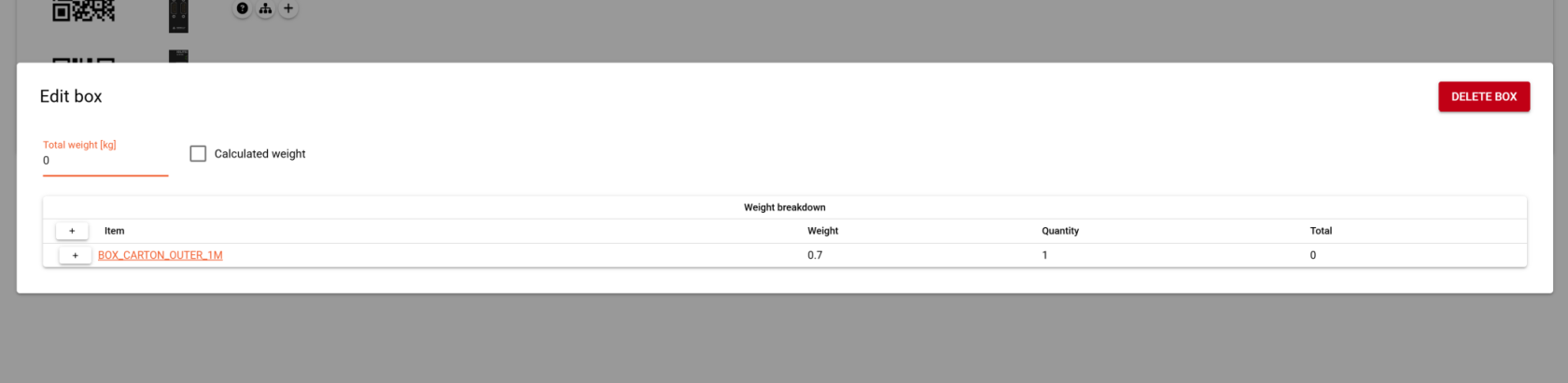 Once all boxes are added and their weight(s) entered, packing items need to be sorted into the box(es) according to the way they are packed.Actual weight of a box needs to be inputted, if the calculated weight not correct.
[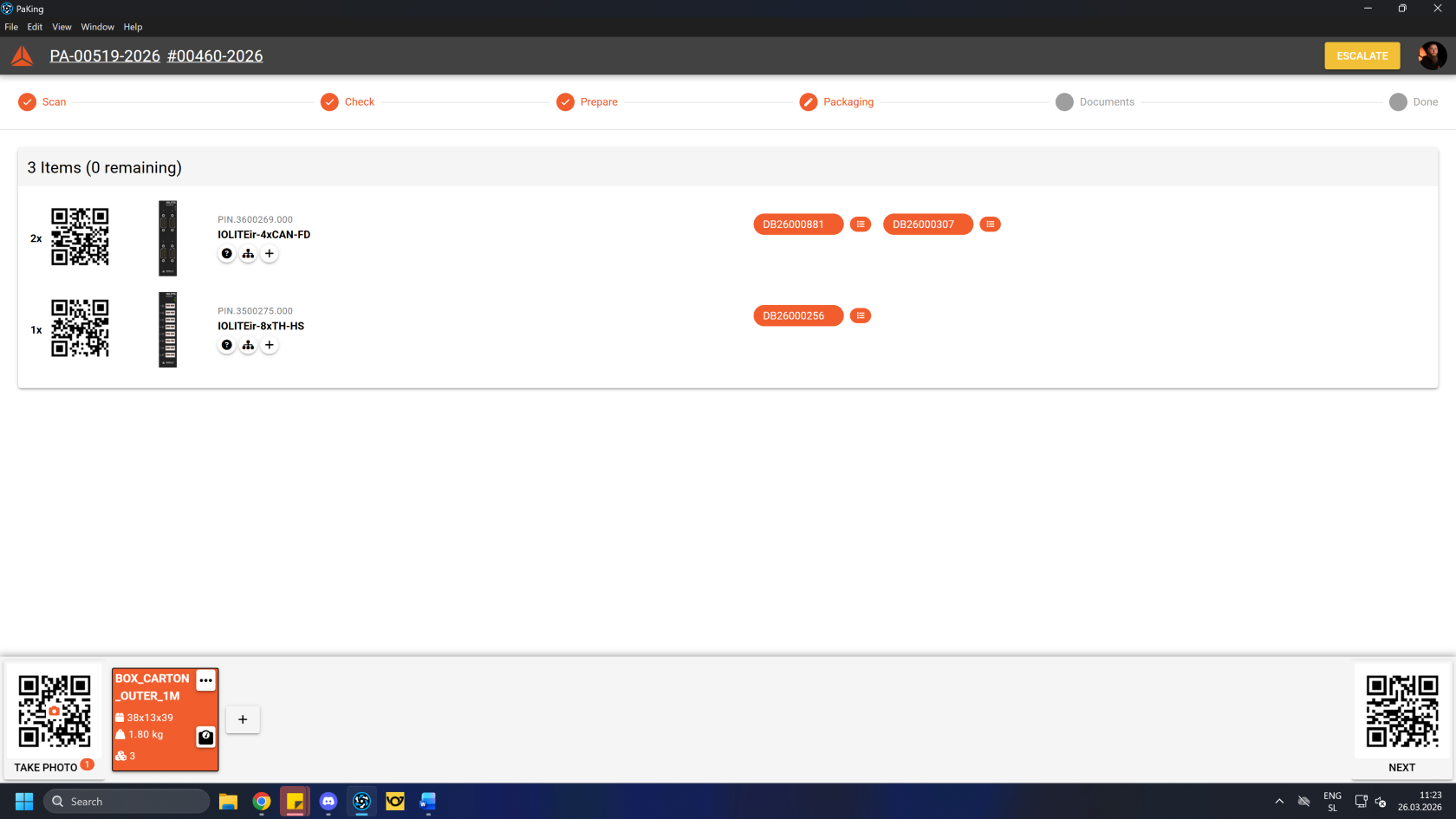](https://how-to-erp.dewesoft.com/uploads/images/gallery/2026-03/vICimage.png) Once boxes are sorted, you can continue to the next step by clicking/scanning the **"Next"** QR code. # Step 5: Documentation #### Create documents First, click/scan the **"Create documents"** button. This will generate packing documentation for the current packing work order.Clicking/scanning the button creates **delivery note, shipping list, packing list** etc. for the current packing work order.
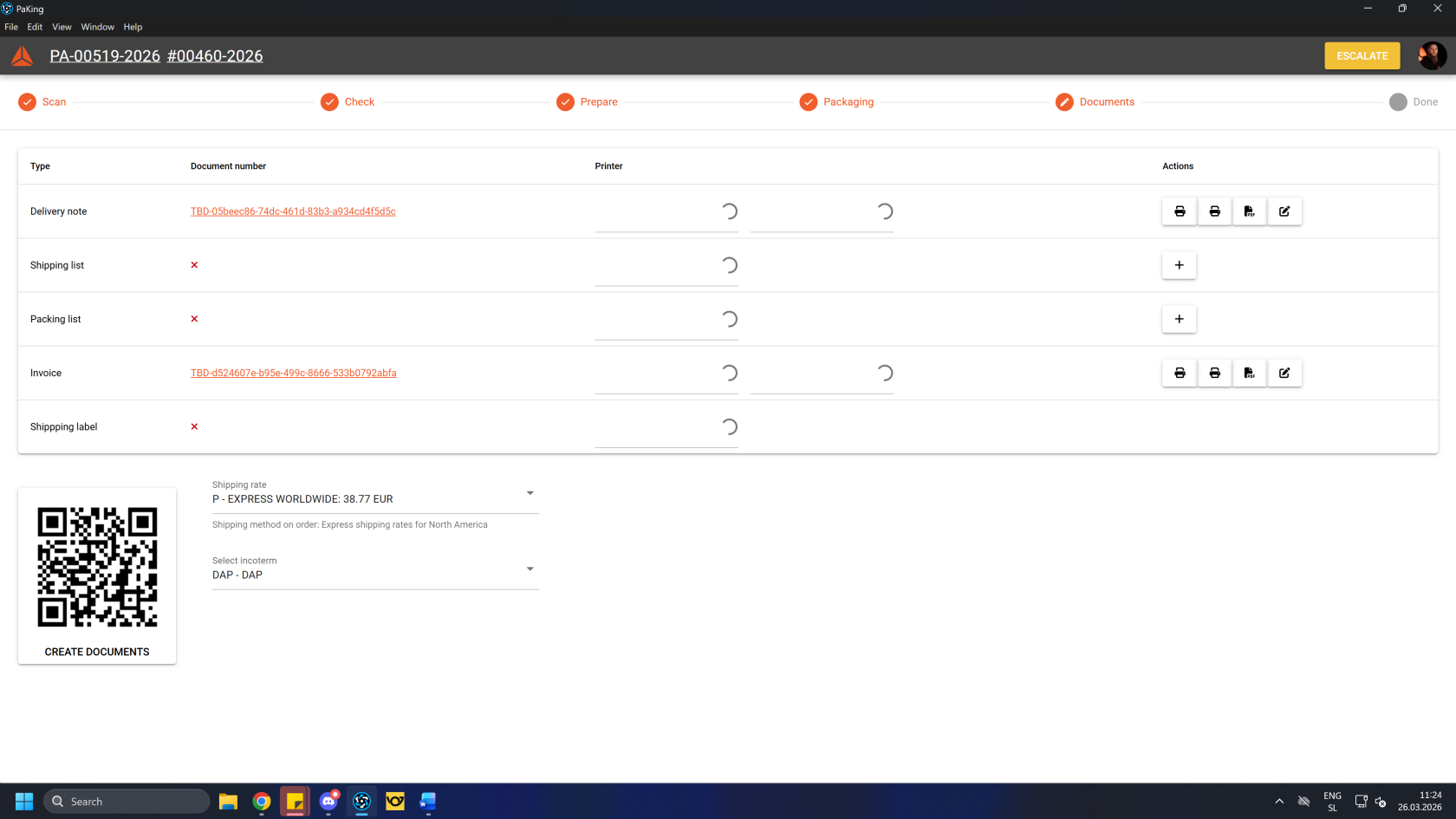 Once all the documents are created, **print** 2 copies of **delivery notes,** 2 copies of order's **invoice,** 1 copy of the **packing list** and 1 copy of **AWB** (air waybill, also known as a consignment note)**.** 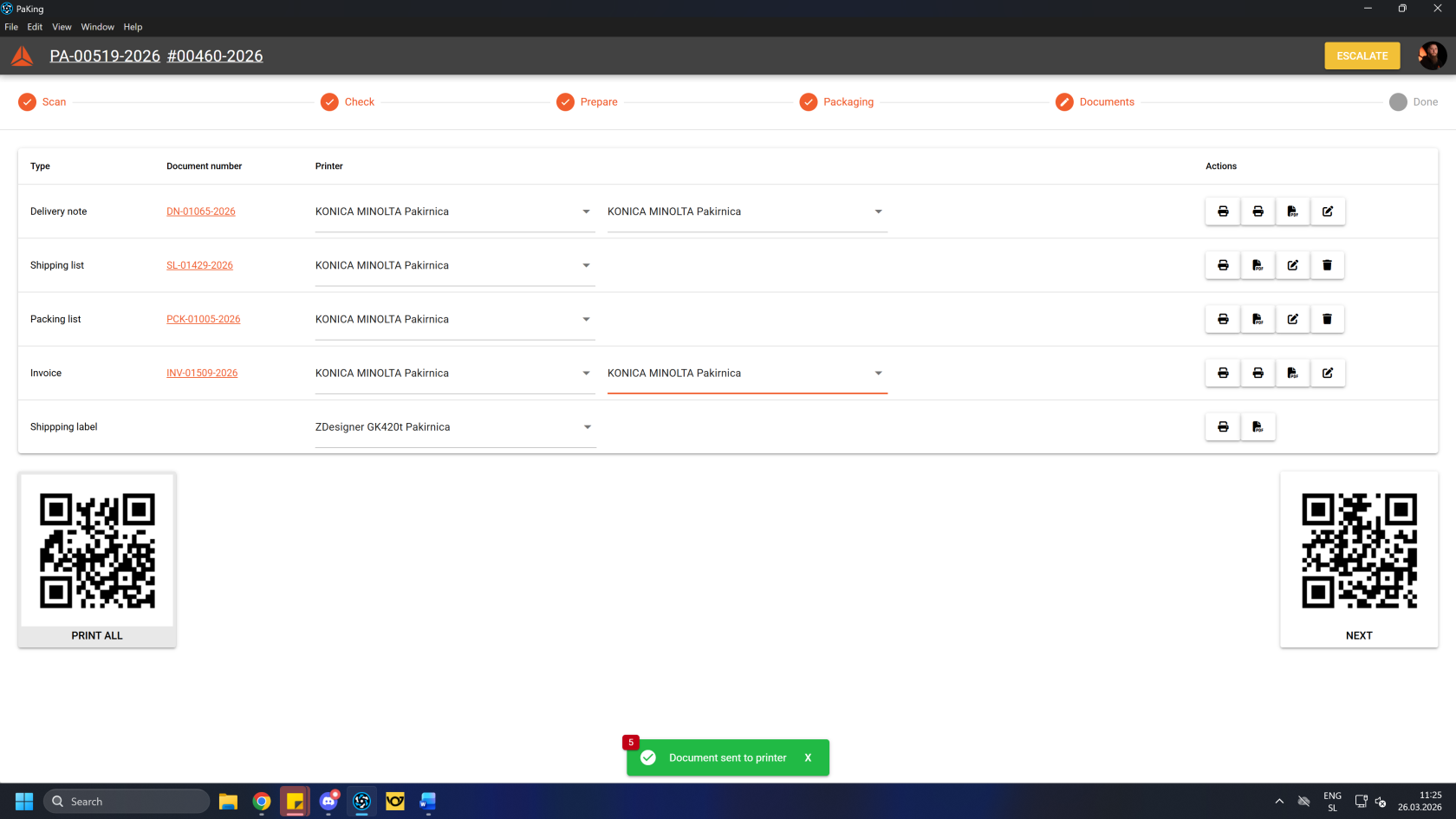Make sure that all products in the packing work order have stock tracking by serials enabled.
All products should be assigned into packing boxes.
Once finished and all requirements have been fulfilled, you can click/scan the **"Next"** button to complete the process.After the process in the PacKing app is completed, take the package(s) to the pick-up location.
# Step 6: Done