# Step 4: Packaging
- In this step, we:
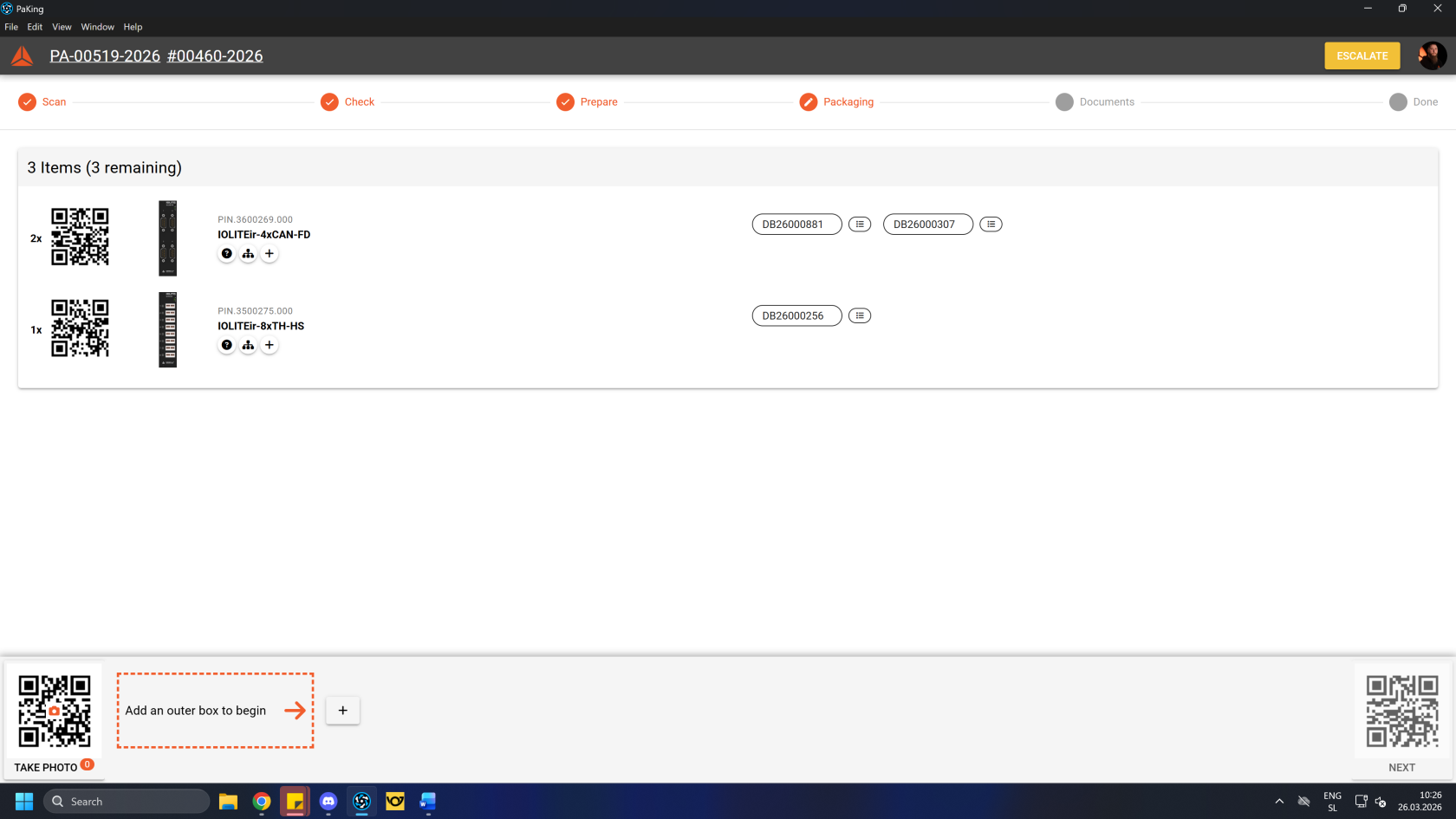
- Photograph all products of packing order.
- Pack all items accordingly.
- Add needed outer boxes.
- Pack items into boxes and insert items in corespondent boxes in-app.
- Weigh boxes and enter their values (if calculated weight is wrong) into Packing app.
[](https://how-to-erp.dewesoft.com/uploads/images/gallery/2026-03/gDkimage.png)
#### Take photo
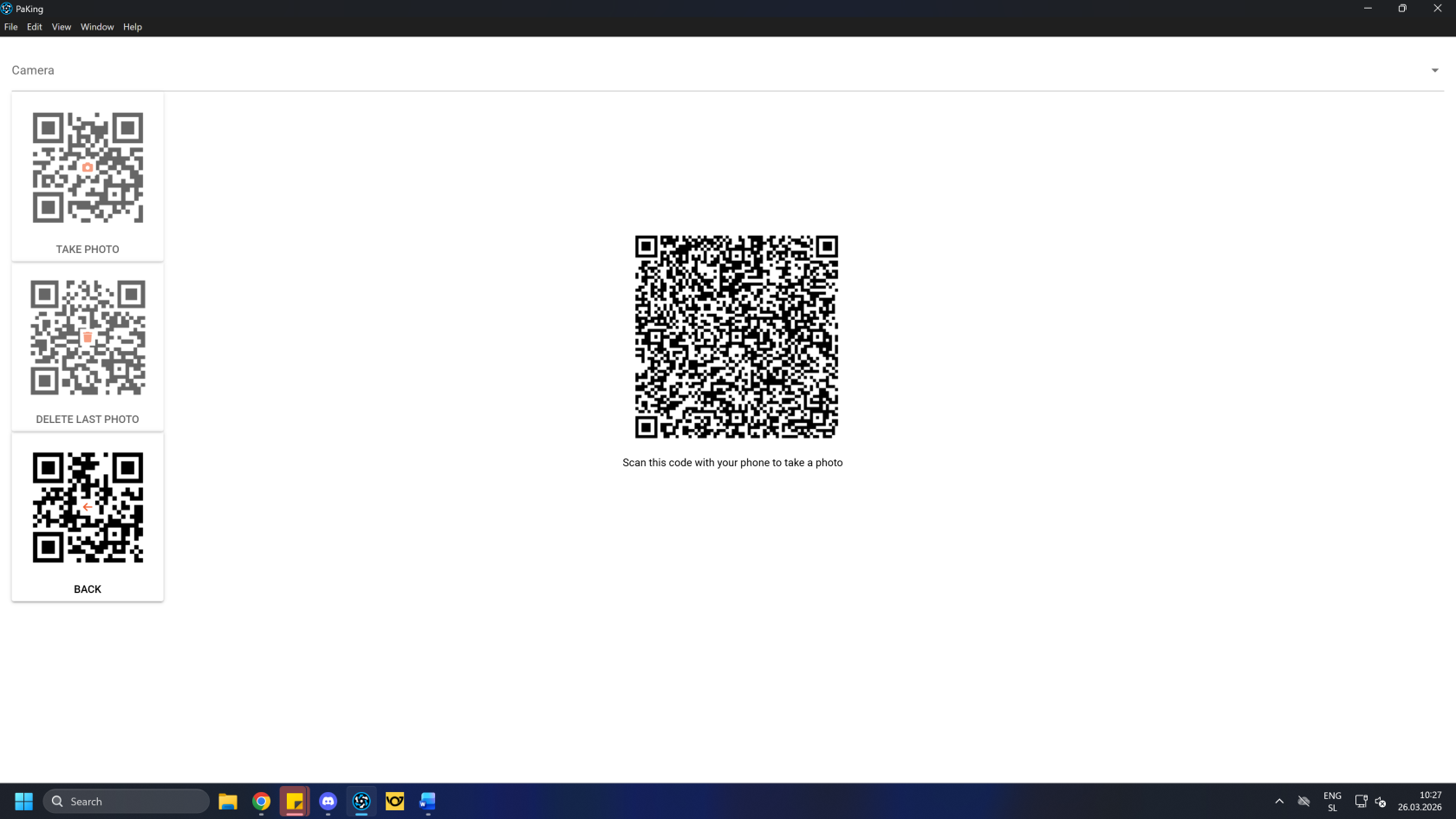
First, take a photo of the product before packaging. Scan the QR code for camera with phone to connect phone camera

This opens a pop-up with QR codes. Scan the big QR code in the middle to open a link on your phone, where you can take a photo of the product and send it to the packing app.
[](https://how-to-erp.dewesoft.com/uploads/images/gallery/2026-03/VuMimage.png)
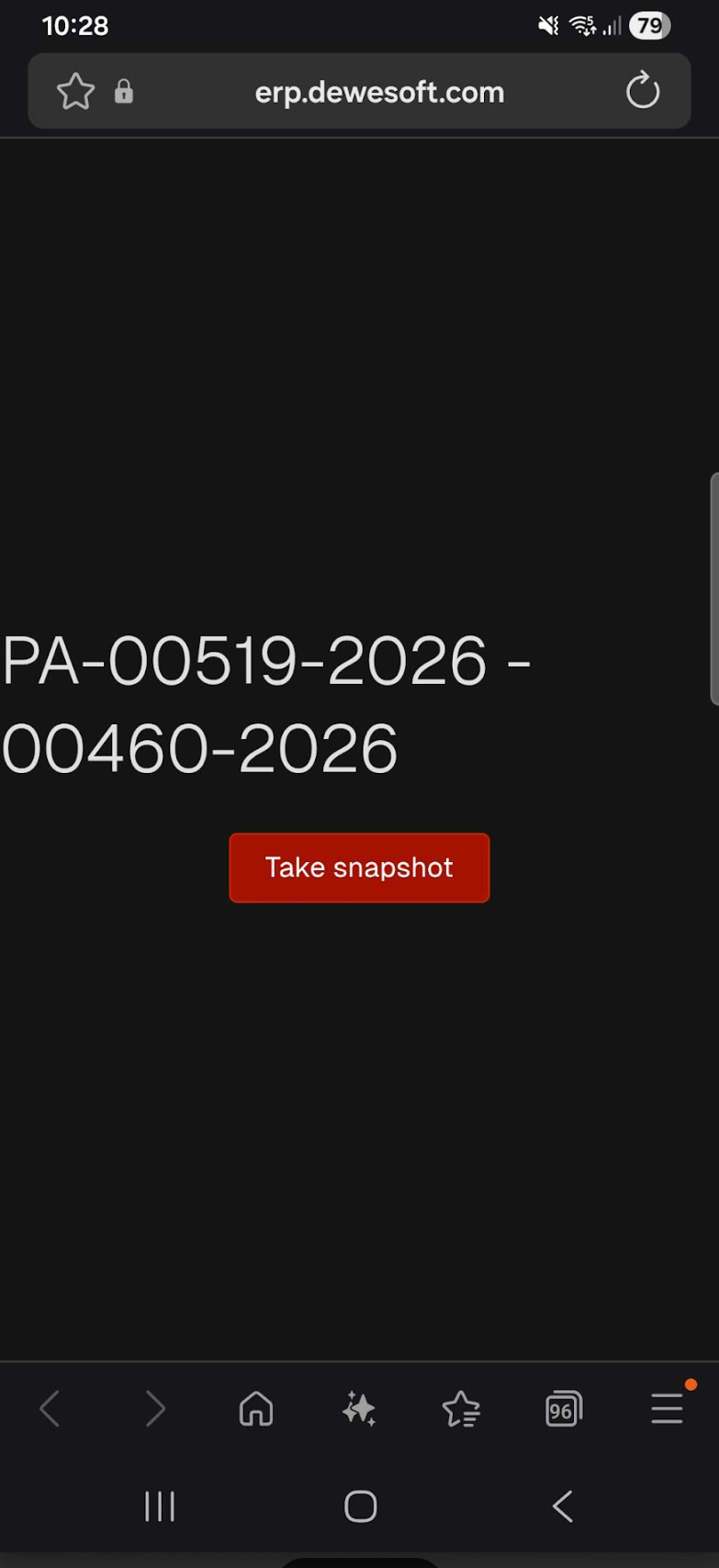
Scan the QR code and open the link in phone's browser. Click the **"Take snapshot"** button to open the camera and take the photo to upload.
Keep in mind, that in order to **"take a** **snapshot",** you have to be **logged into the ERP on your phone** as well.
[](https://how-to-erp.dewesoft.com/uploads/images/gallery/2026-03/de0image.png)
Add necessary outer box(es) and enter their necessary gross weight.
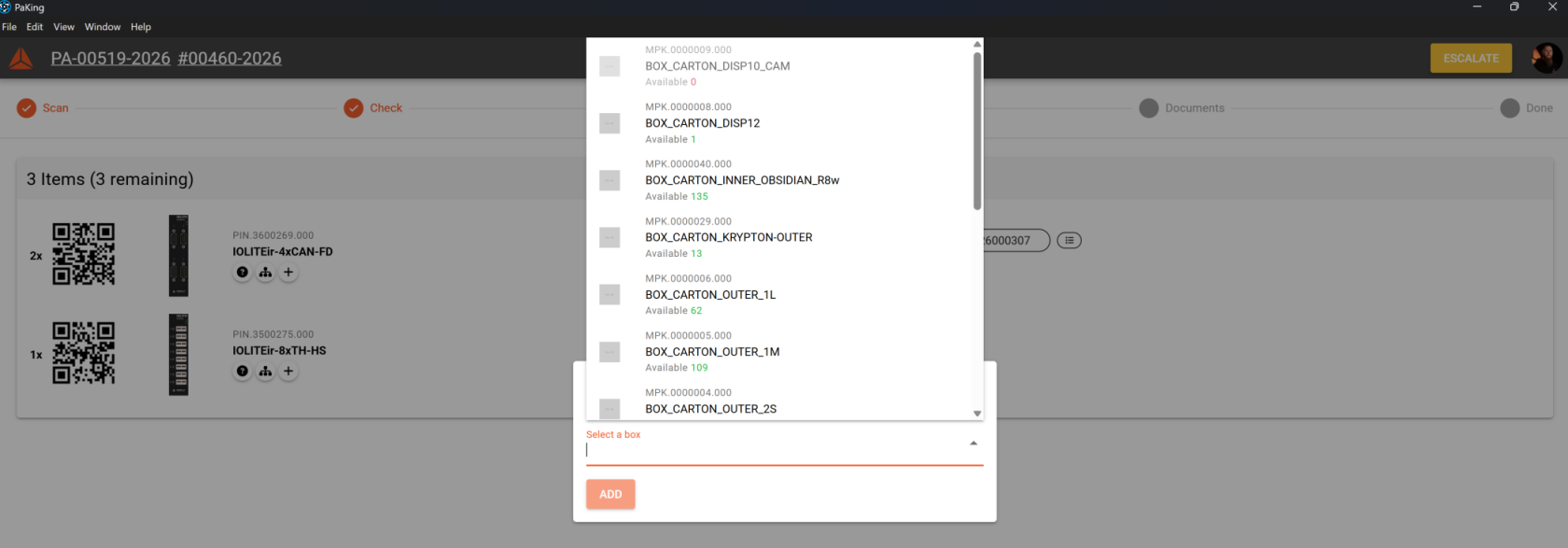
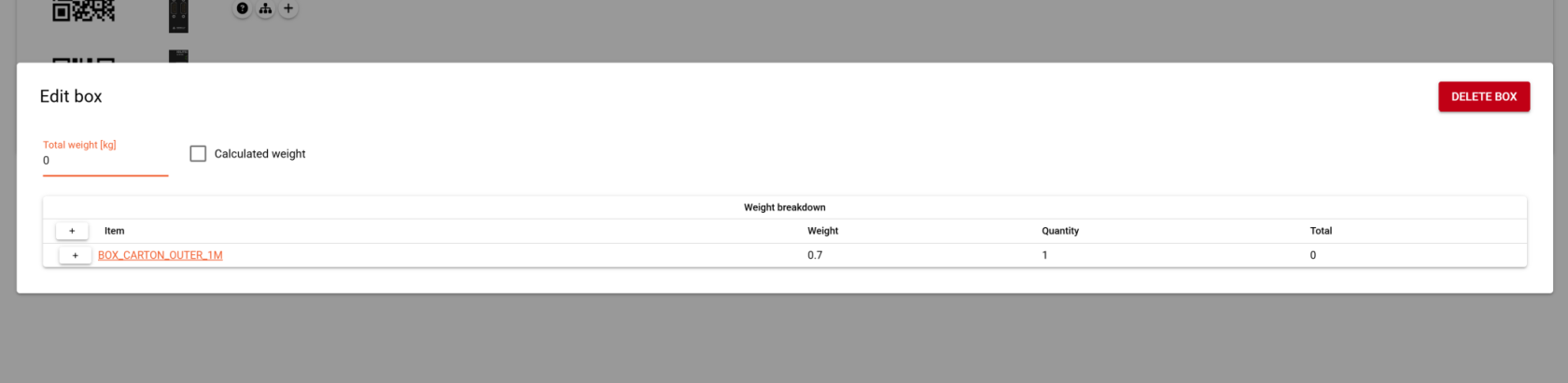
Once all boxes are added and their weight(s) entered, packing items need to be sorted into the box(es) according to the way they are packed.
Actual weight of a box needs to be inputted, if the calculated weight not correct.
[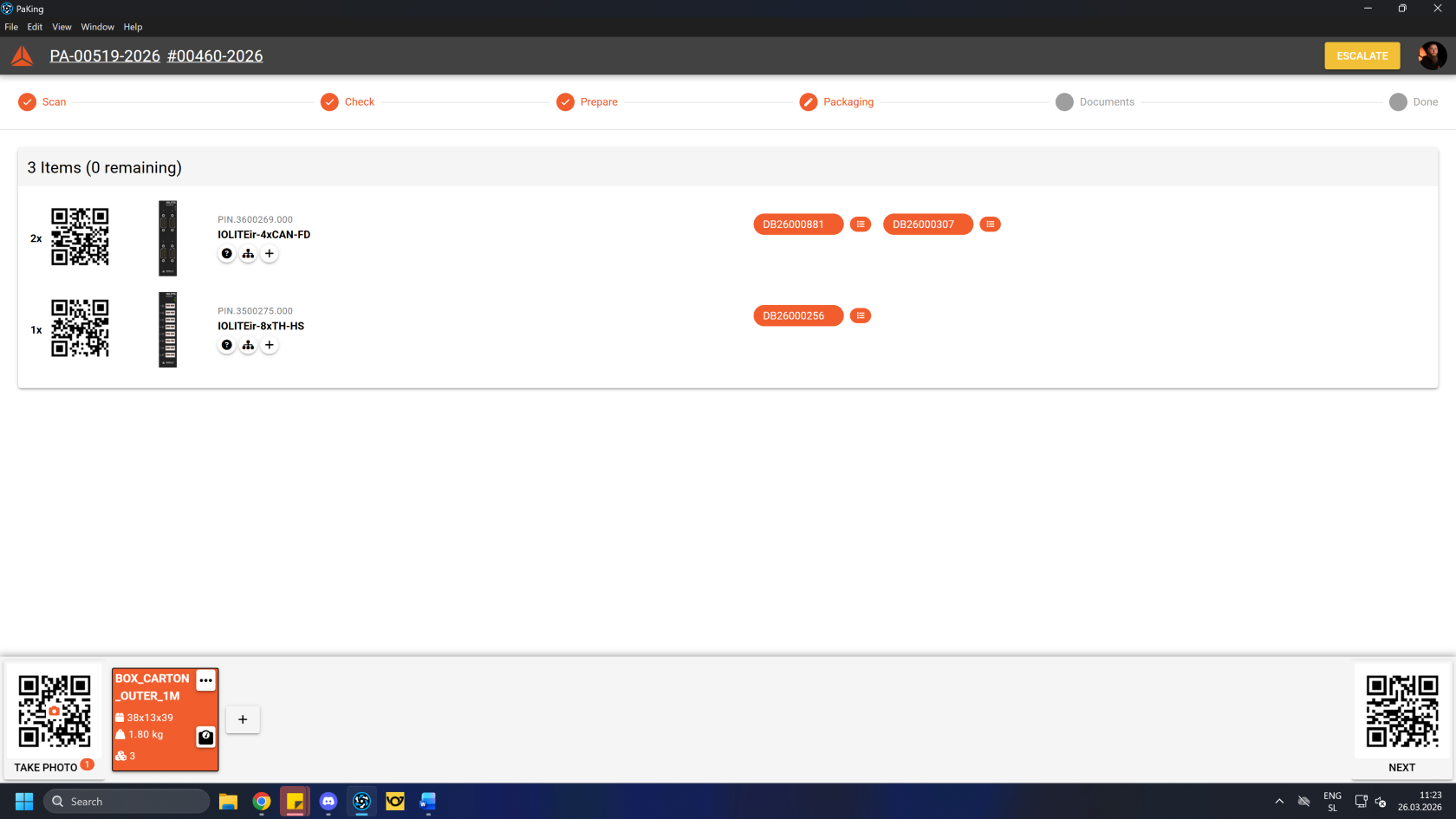](https://how-to-erp.dewesoft.com/uploads/images/gallery/2026-03/vICimage.png)
Once boxes are sorted, you can continue to the next step by clicking/scanning the **"Next"** QR code.