This section is available only for **Price List Owners.**
**Price list manager** section is used to manage **versions of price lists**, used in the ERP. It is located under the **"Price lists"** menu.  To view a price list's products list, you have to open the edit form from the table. 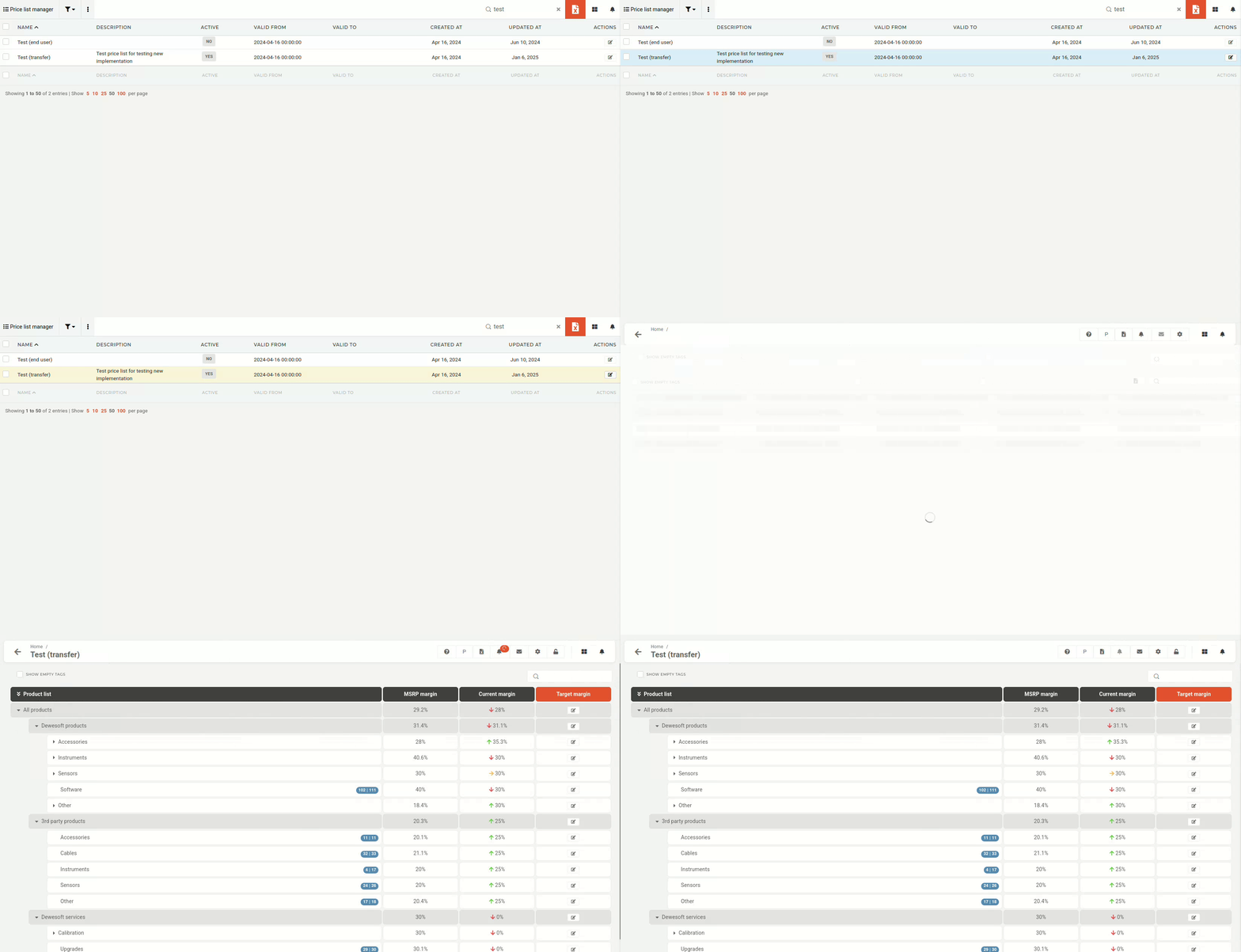 The editing interface is color-coded for easier overview: - **Blue**: - Blue indicators tell you how many products out of all available products in that category you have added to your price list. - **Yellow**: - Yellow plus icons allow you to add the entire product category to your price list (they only appear if you have no products from that category added). - **Red**: - Red notification bubbles are calls to action: they notify you of new products or price changes within the category. Areas that can be edited are colored (e.g. **Target margin** ), while columns that are automatically calculated (e.g. **MSRP** **margin** and **Current** **margin**) are not.
# Edit product listThis required the **Update** **price** **list** **versions** permission.
To edit a price list version's products, you have to open the product list in editing form. 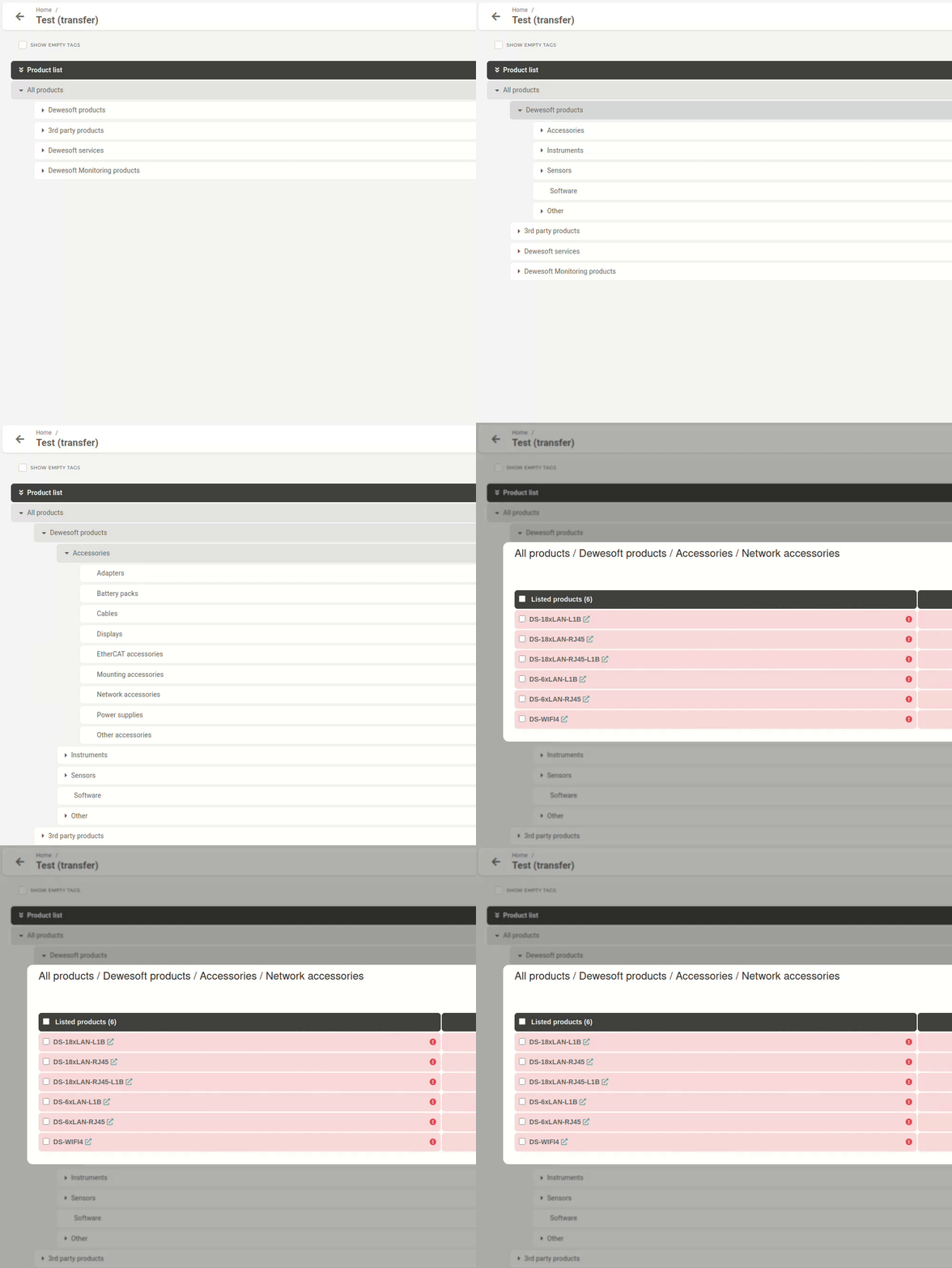Clicking on a **product** **category** in the hierarchy view opens up the **product list for that category,** e.g. **Network** **accessories**.
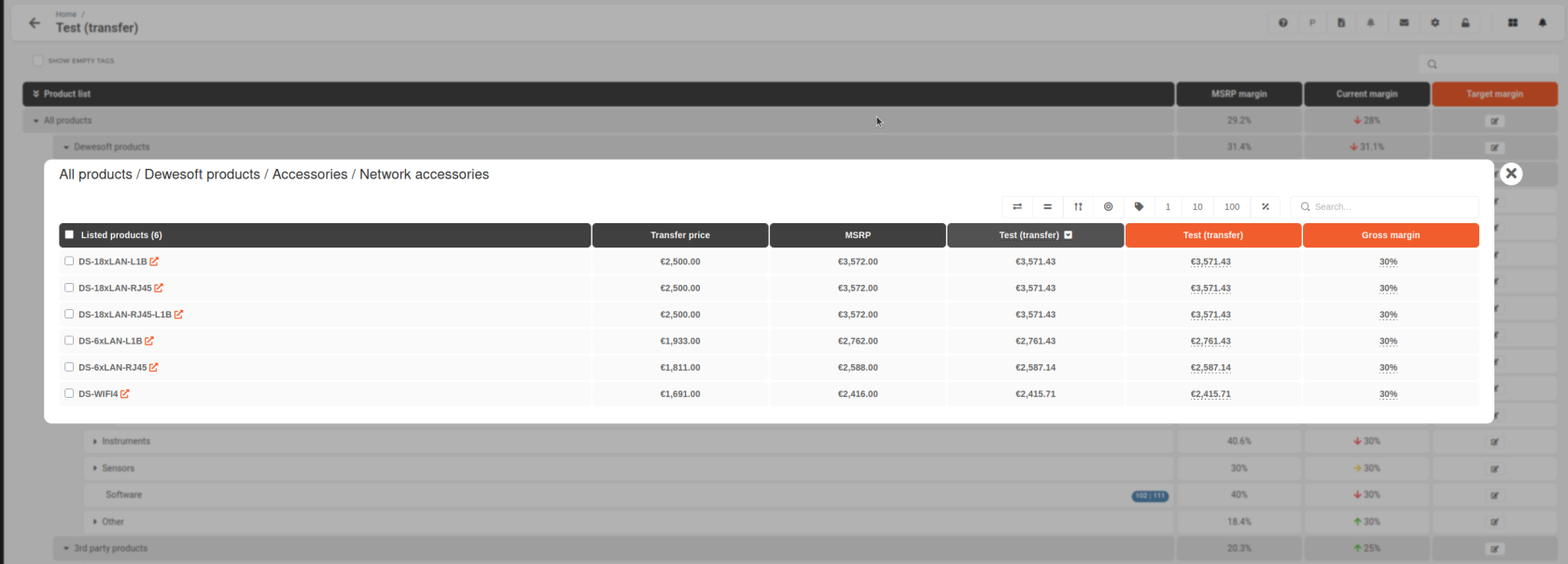 ##### ##### Transfer prices, MSRP, and reference points The three middle columns act as your guidelines and should be used to fine-tune the prices on your price list:  - **Transfer price** - The price at which you purchase from HQ. - **MSRP** - HQ’s **suggested** sales price. - **Select price list version** - Is customizable. You can select a price list from the drop down menu as an additional point of reference. ##### ##### Adjusting product prices and gross margins The last two colored columns are used to adjust your product prices and are interconnected. 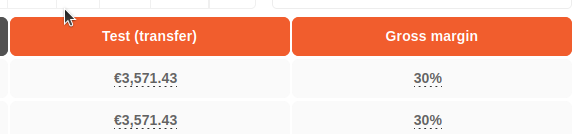 If you **adjust the** **gross** **margin**, your **product price will change.** If you **adjust the product price**, your **gross margin will change.** # Adjusting target margins for product categories You can set target margins for product categories by adjusting the percentage in the target margin column. 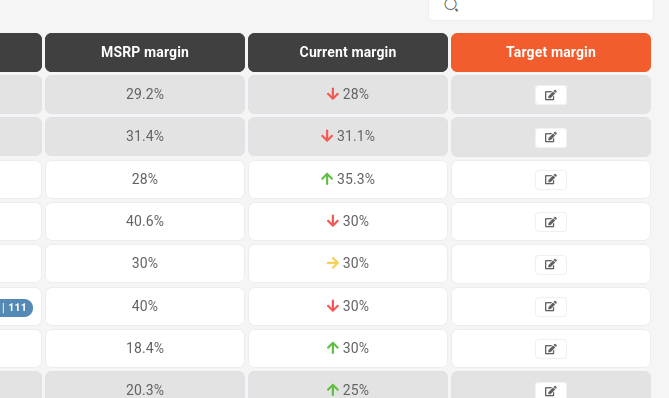 After making an adjustment, the system will provide two options: "**Save**" and "**Save** **&** **Apply**: - The "**Save**" option only changes the target margin for the category without affecting the product prices. - The "**Save** **& Apply**" option modifies the prices by applying the new target margin to all products in the category. 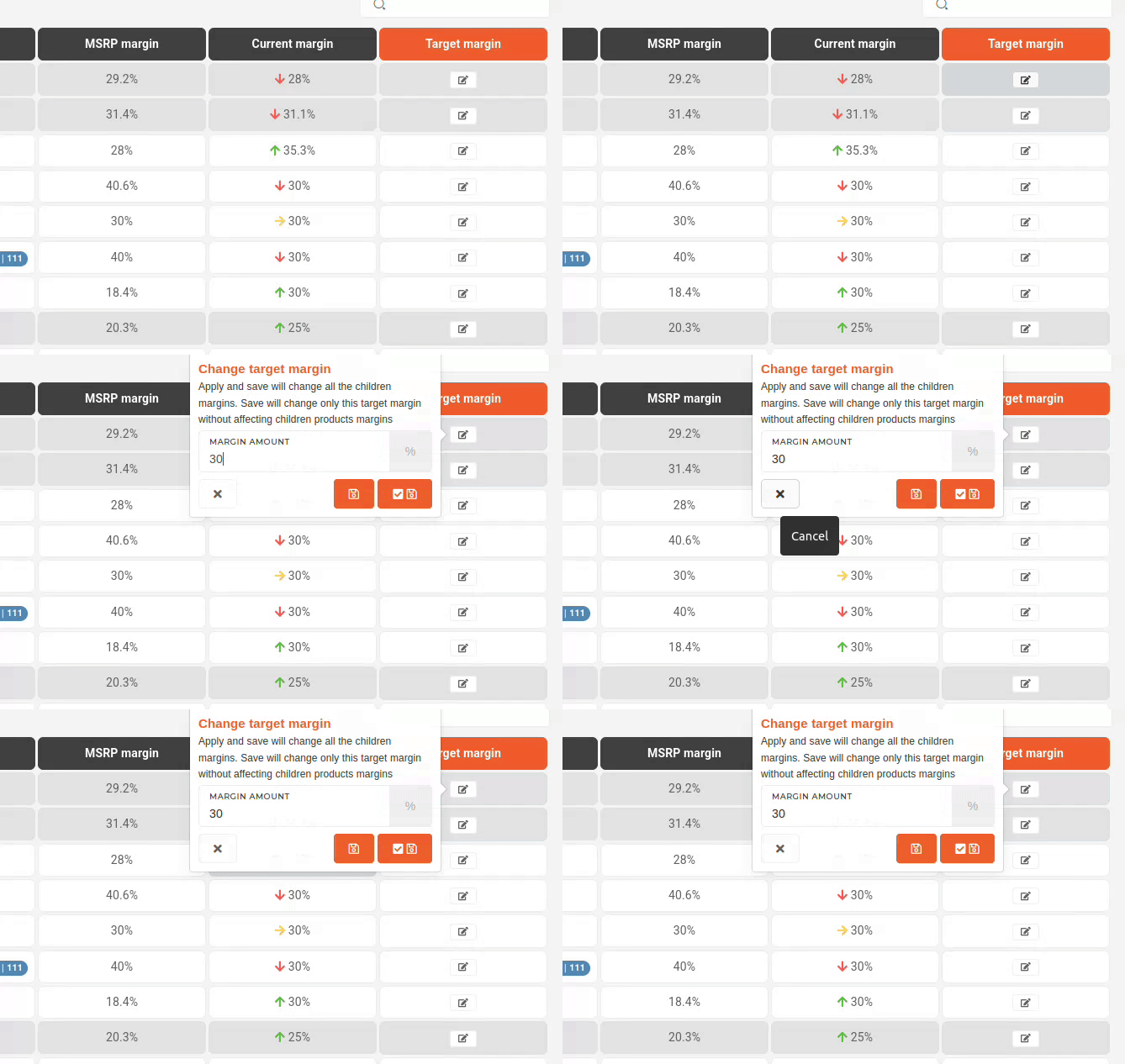Adjusting the target margin of a category will affect all of its subcategories. For example, adjusting the target margin for '**Accessories**' will also affect '**Adapters**,' '**Battery** **Packs**,' '**Cables**,' and other related subcategories.
# Price list productsClicking on a **product** **category** in the hierarchy view opens up the **product list for that category,** e.g. **Network** **accessories**.
The **"Listed products"** column displays product's short name along with a hyperlink icon.
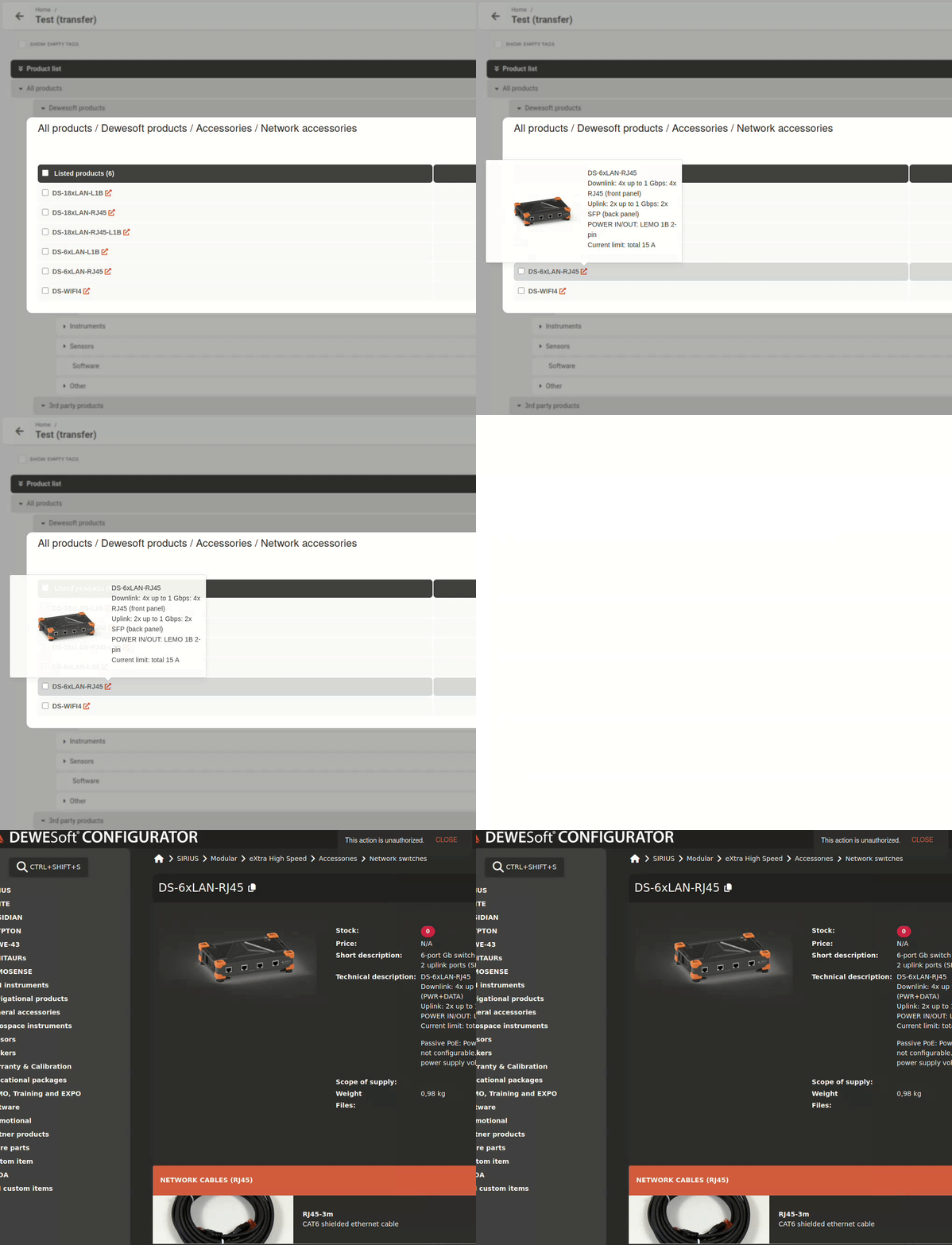You can **hover** the **hyperlink** to **display** some **product info. Clicking** the **hyperlink redirects** you to the product page on **Configurator store**
##### Managing listed/unlisted products Products included in your price list will appear under **‘Listed products’.** Products that have been removed or have not yet been added can be found under **‘Unlisted products’** at the bottom. 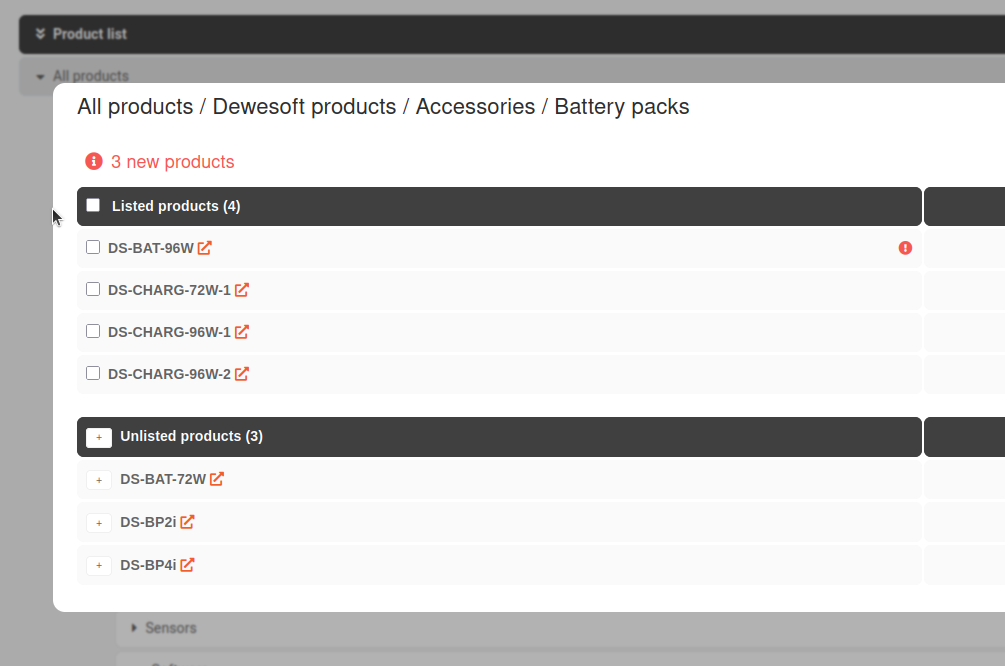 ##### Adding an unlisted product To add an unlisted product into the price list, click the "+" button next to its short name. The product will then be added, allowing for the price and margins to be set. [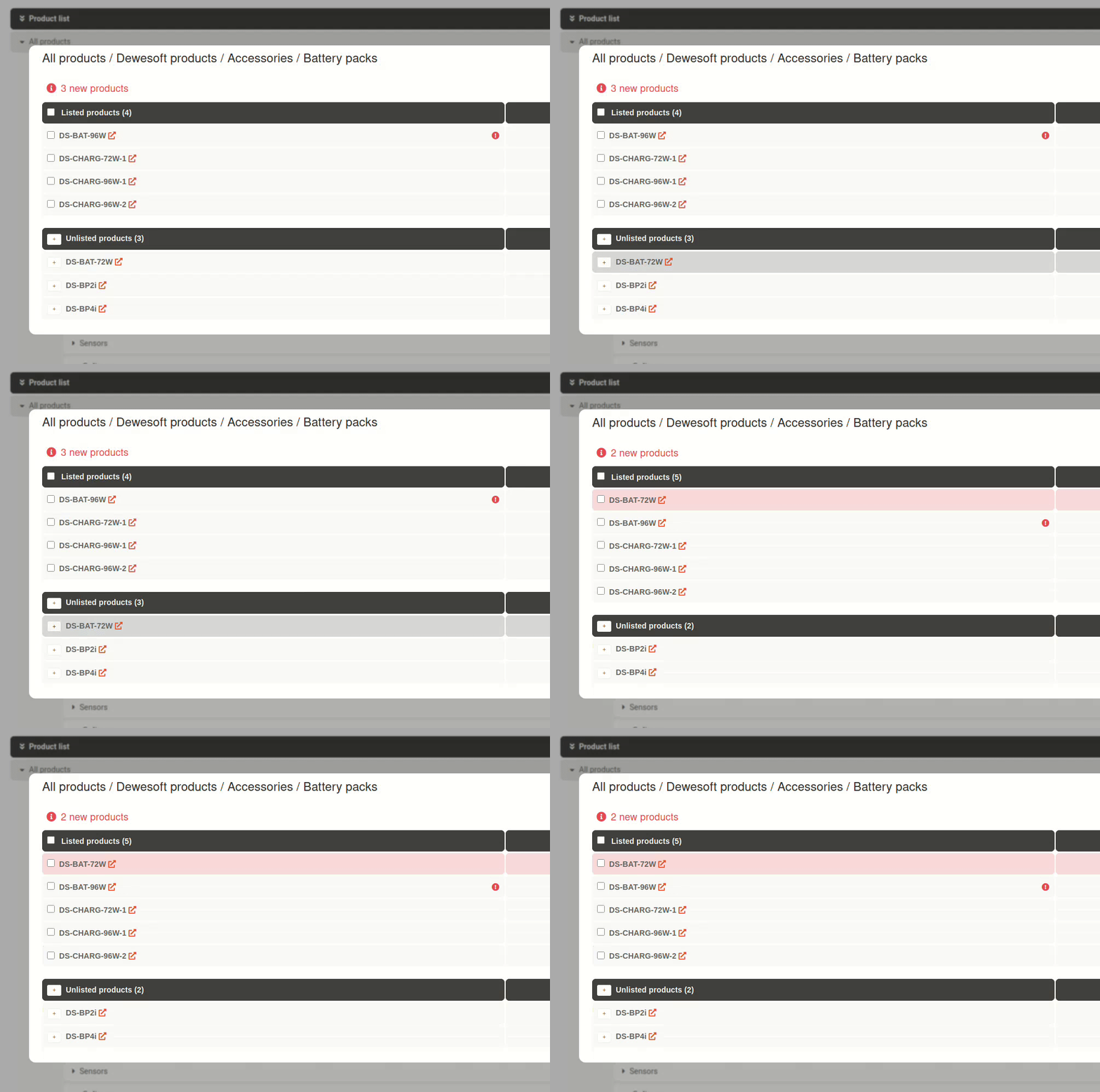](https://how-to-erp.dewesoft.com/uploads/images/gallery/2025-04/Iqdoutput.gif)