This action requires the "**create price list**" permissions.
To create a new price list, navigate to the "create" form from the table by clicking the "**+**" or by going [**here.**](https://placeholder.erp/price-lists/create) 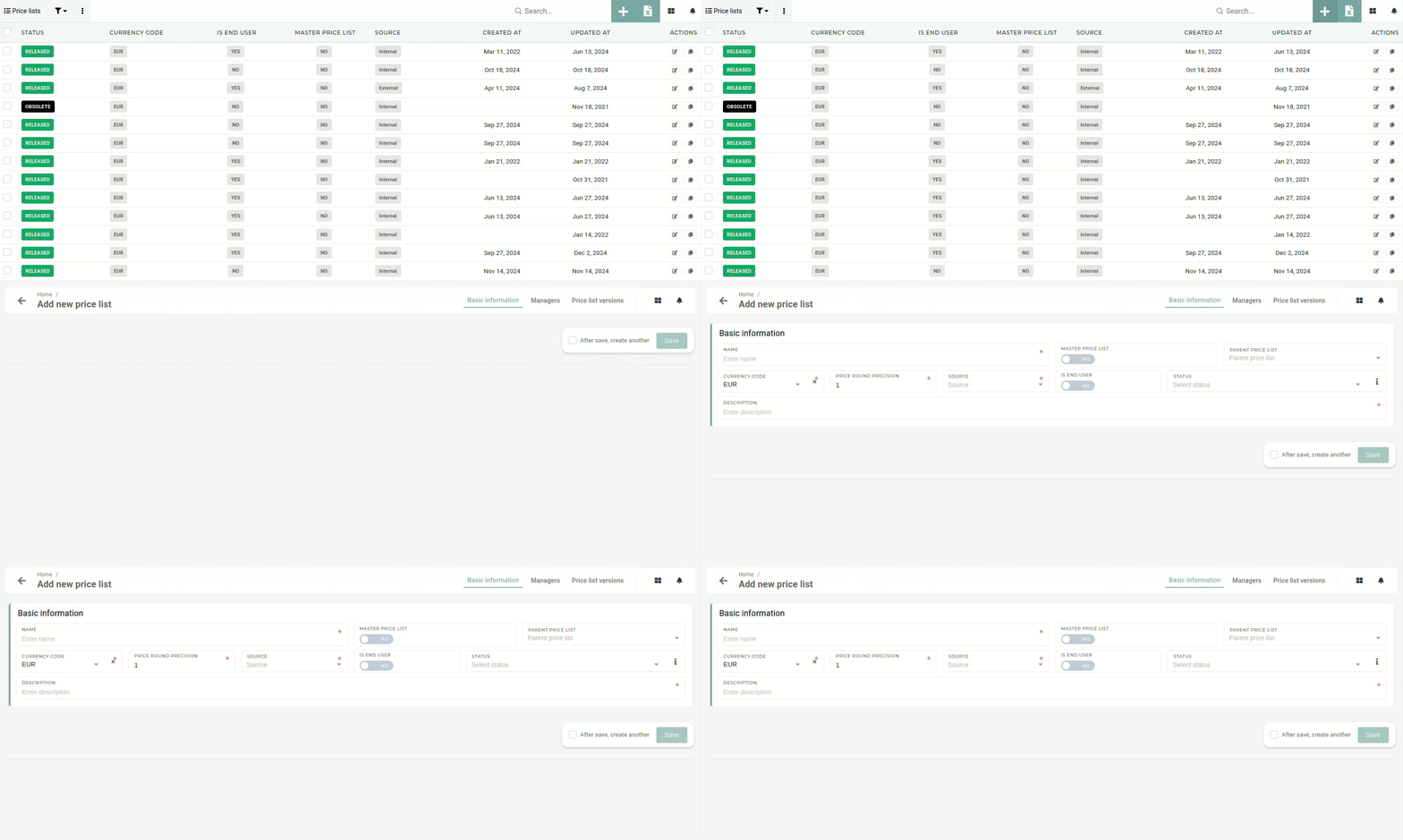 ##### Basic information To create a new price list, at least some basic information has to be entered (name, currency, decimal precision, source and description). 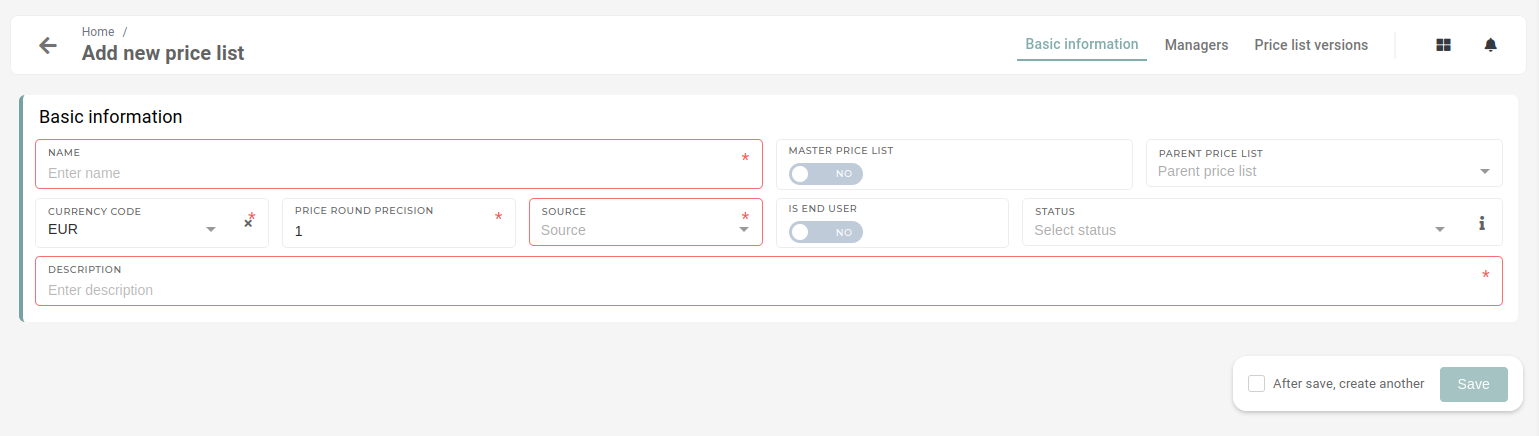 A price list's name must be entered. It is recommended that it is a unique one, to avoid any confusion. The **"Master price list"** switch determines, if the price list is a main or a **"master"** price list from which other price lists will be derived. If the new price list **is not a "master" price list,** then its parent needs to be selected in the **"Parent price list"** drop-down.  Every **price list is** **required** **to have a currency selected**. By default, **EUR** currency is selected. The "**Price** **round** **precisison**" defines to how many decimals all prices on the price list are rounded up to. By default, prices are rounded to 1 decimal.  With the price formatting set, the price list **source** should be selected. The source, in this case, means where the price list has been received from, either "**internal"** - from within the company or "**external"** - from an external source ( eg. a consultant).  The **"Is end user"** switch is used to determine, if orders, created with this price list will be calculated into employee salary rewards. The initial **status** of a price list is not among the necessary information. If not selected, a new price list will have the **"Released"** status set as default. The status can also be set as **"Obsolete",** in cases when old price lists are being entered into the system. A **description of a price list is necessary** to provide additional information about what the price list's purpose is, as names are not always descriptive enough. 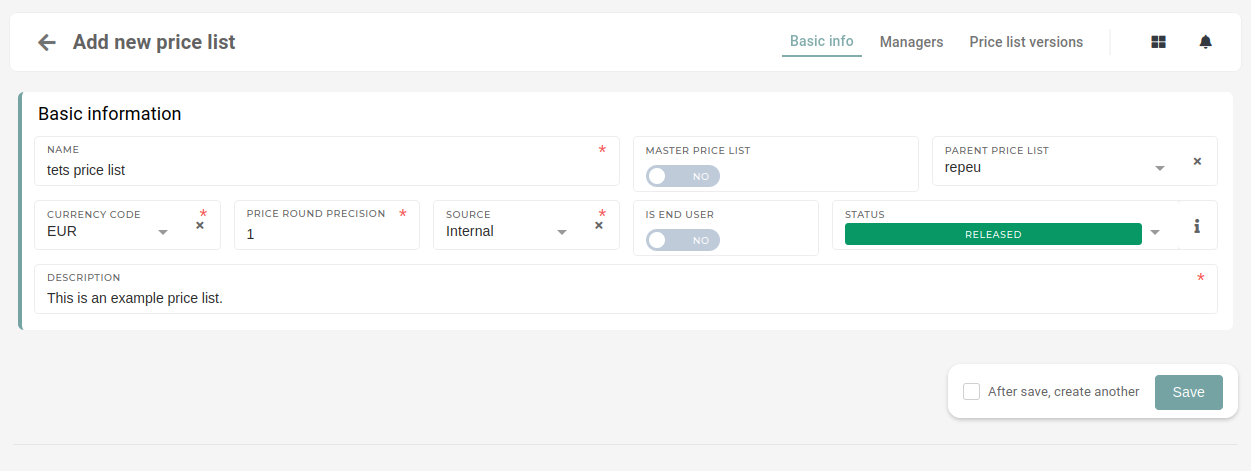 Once all the information has been entered, the price list can be saved. ##### Managers - ##### Price list versions After the new price list is created, you should open the "**price list versions**" tab and create the initial version of the new price list. here, click "new version". this opens a model, where new version is defined. 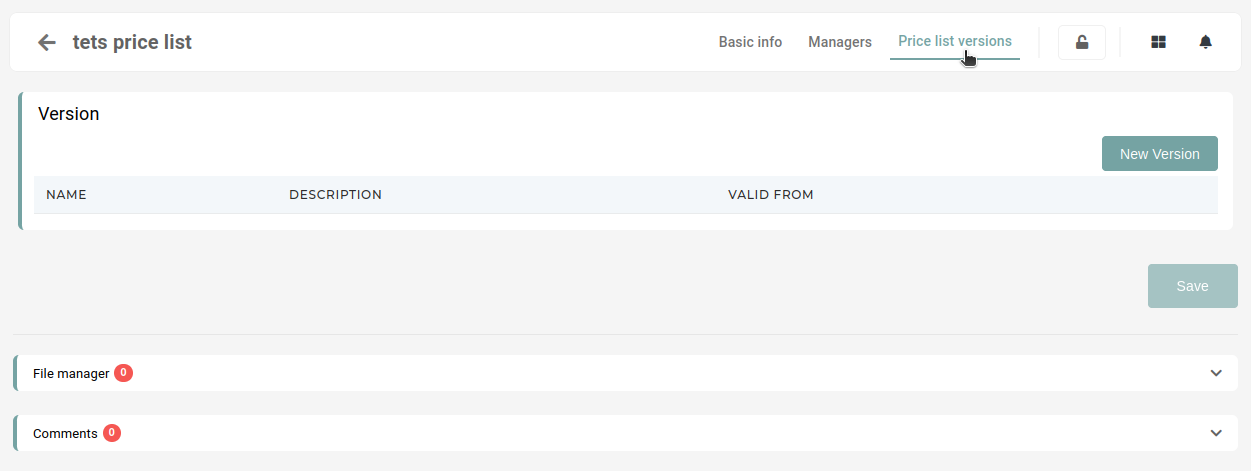 Name - price list version name (eg. END\_XXX\_2023) valid from - the start date of price list validity (is active from this date forwards) decription - a short description of price list version function.... currency rate - currency exchange rate (exchange to parent price list currency, eg. REPEU => EUR) parent price list version - the last version of the price list (eg. REPEU 2023) 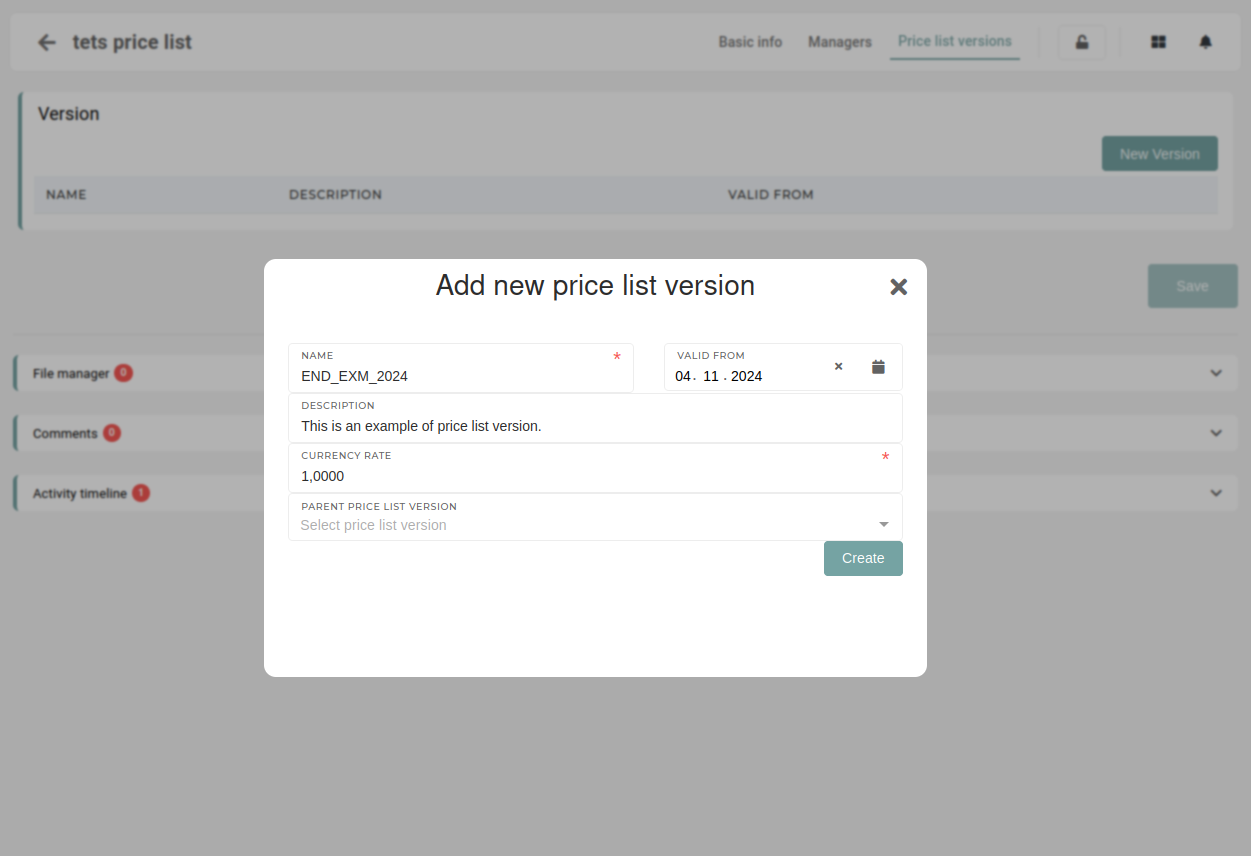 Before viewing the newly created price list version you have to add yourself and anyone else who can edit these price list version as the price list version manager on the "managers" tab and in price list manager (/price-list-versions) page . Once the managers have been assigned, open the pc version under "price list versions" tab. Once open, the "Generate tags" button must be pressed to generate appropriate tags for this price list version. 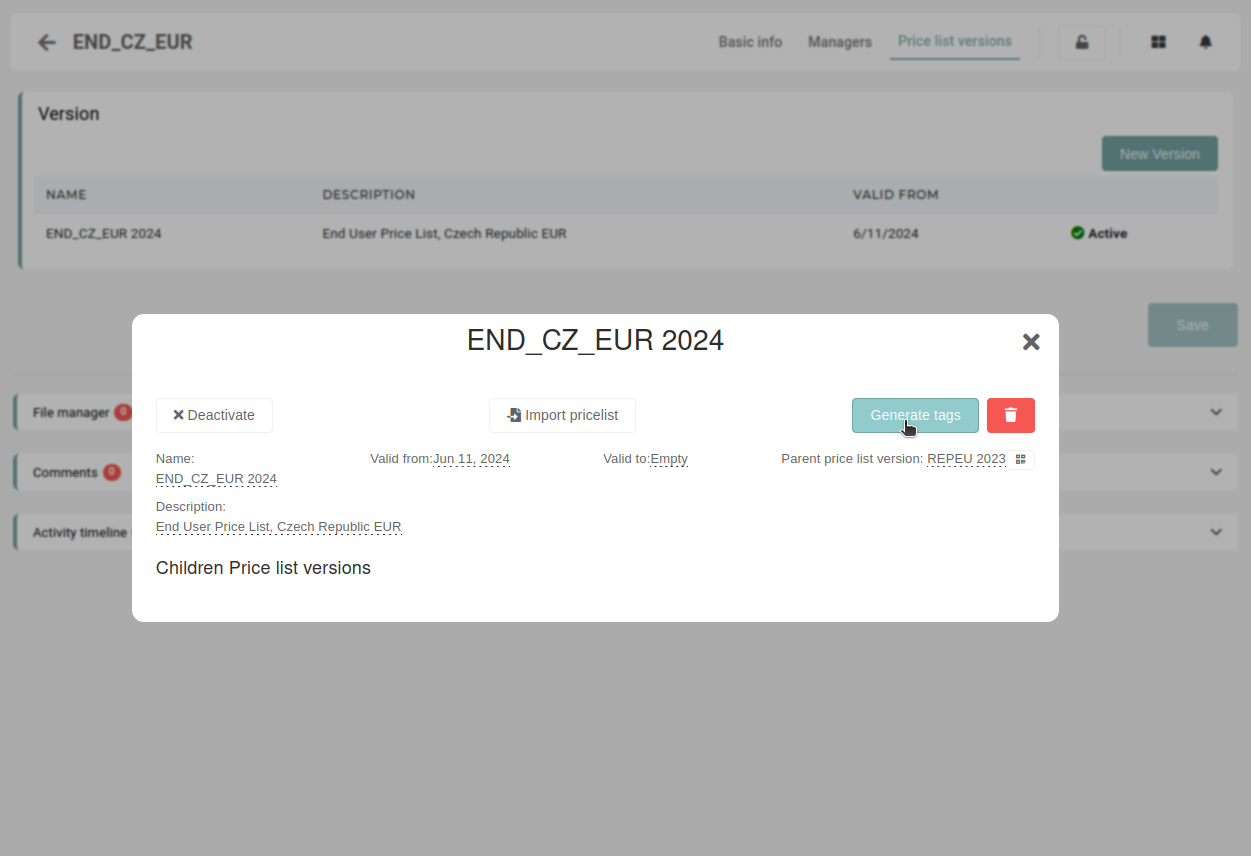These tags are used in the system to display the price list version within the price list manager,
# Update existing price list # Delete price list Price lists should not be deleted, unless necessary, at they provide a price list history. # Price templates # Price list manager # OverviewThis section is available only for **Price List Owners.**
**Price list manager** section is used to manage **versions of price lists**, used in the ERP. It is located under the **"Price lists"** menu.  To view a price list's products list, you have to open the edit form from the table. 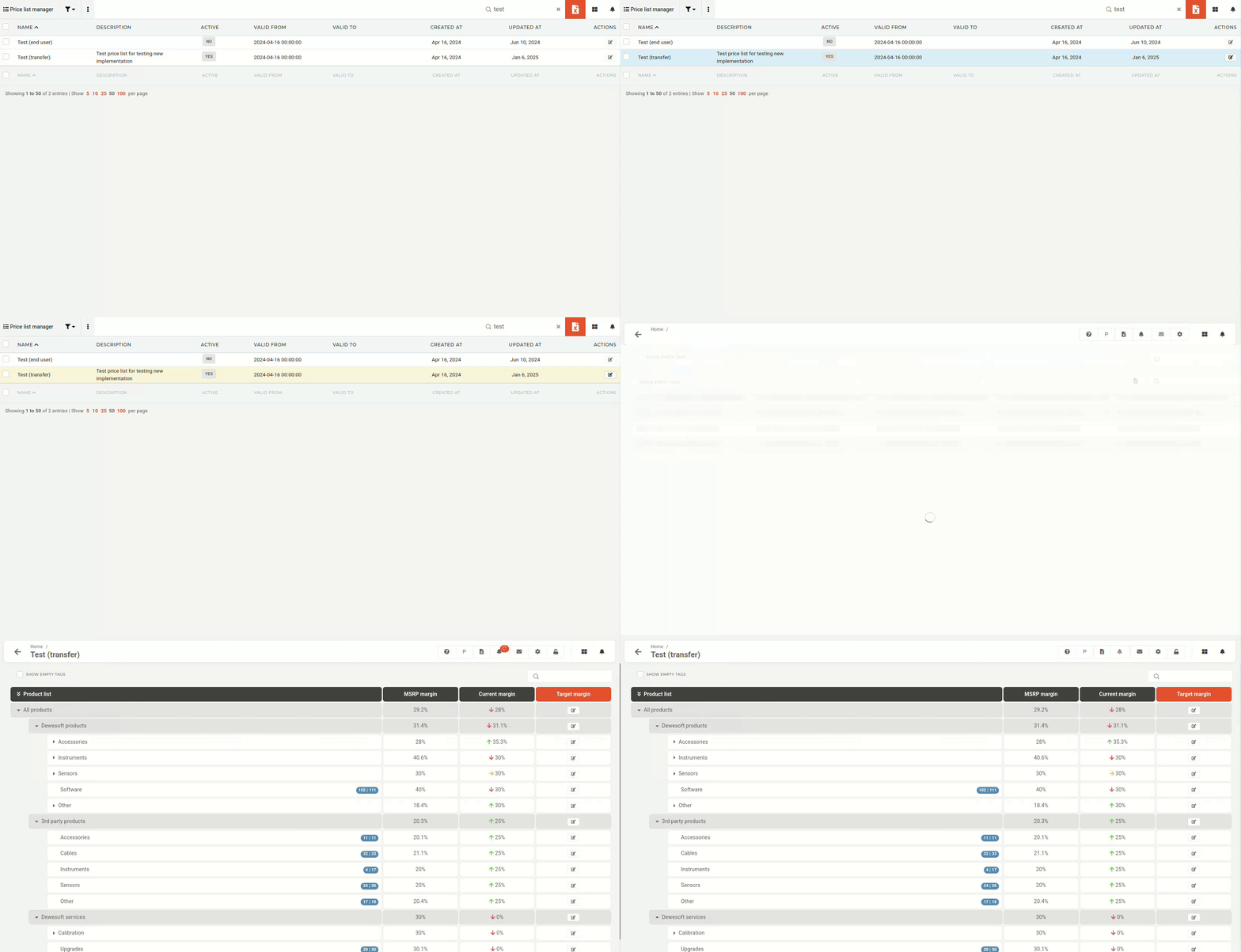 The editing interface is color-coded for easier overview: - **Blue**: - Blue indicators tell you how many products out of all available products in that category you have added to your price list. - **Yellow**: - Yellow plus icons allow you to add the entire product category to your price list (they only appear if you have no products from that category added). - **Red**: - Red notification bubbles are calls to action: they notify you of new products or price changes within the category. Areas that can be edited are colored (e.g. **Target margin** ), while columns that are automatically calculated (e.g. **MSRP** **margin** and **Current** **margin**) are not.
# Edit product listThis required the **Update** **price** **list** **versions** permission.
To edit a price list version's products, you have to open the product list in editing form. 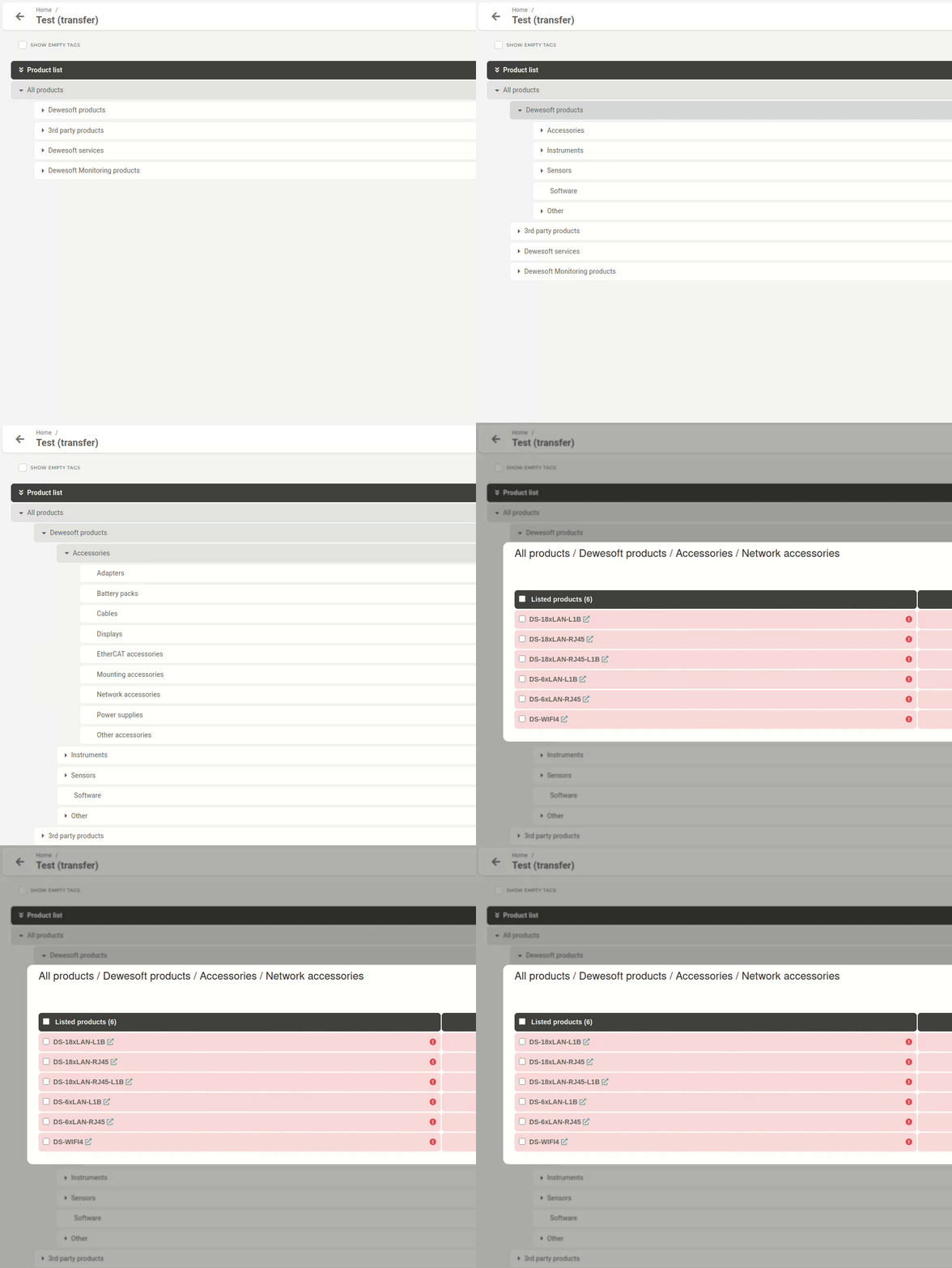Clicking on a **product** **category** in the hierarchy view opens up the **product list for that category,** e.g. **Network** **accessories**.
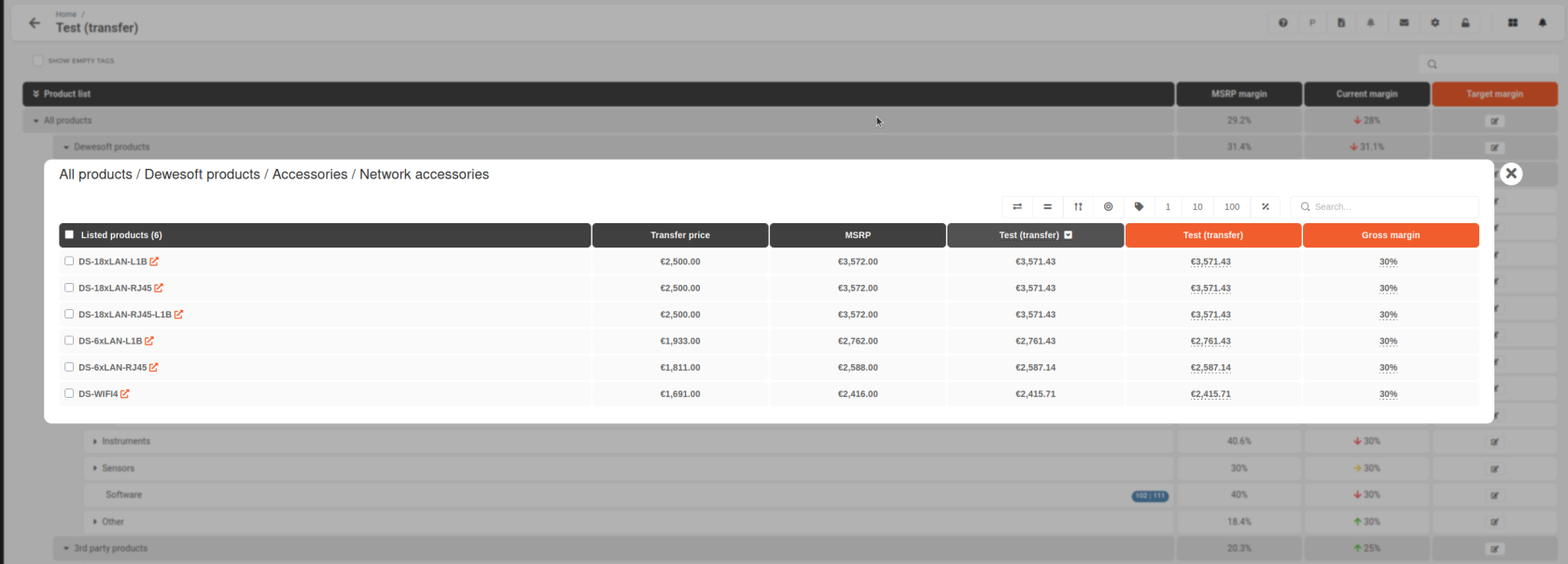 ##### ##### Transfer prices, MSRP, and reference points The three middle columns act as your guidelines and should be used to fine-tune the prices on your price list:  - **Transfer price** - The price at which you purchase from HQ. - **MSRP** - HQ’s **suggested** sales price. - **Select price list version** - Is customizable. You can select a price list from the drop down menu as an additional point of reference. ##### ##### Adjusting product prices and gross margins The last two colored columns are used to adjust your product prices and are interconnected. 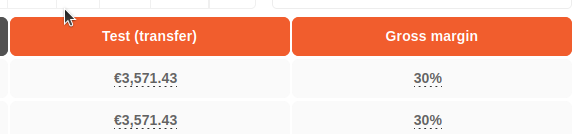 If you **adjust the** **gross** **margin**, your **product price will change.** If you **adjust the product price**, your **gross margin will change.** # Adjusting target margins for product categories You can set target margins for product categories by adjusting the percentage in the target margin column. 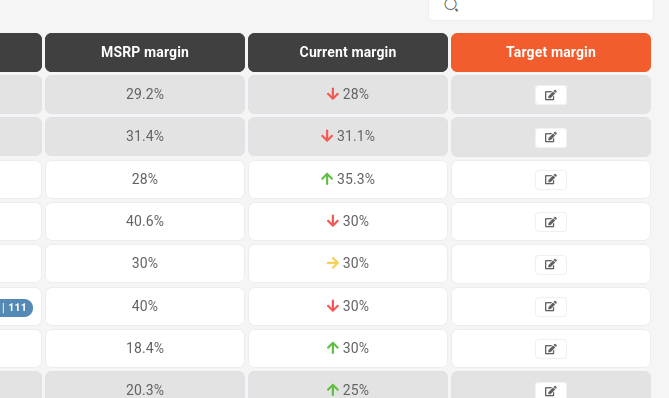 After making an adjustment, the system will provide two options: "**Save**" and "**Save** **&** **Apply**: - The "**Save**" option only changes the target margin for the category without affecting the product prices. - The "**Save** **& Apply**" option modifies the prices by applying the new target margin to all products in the category. 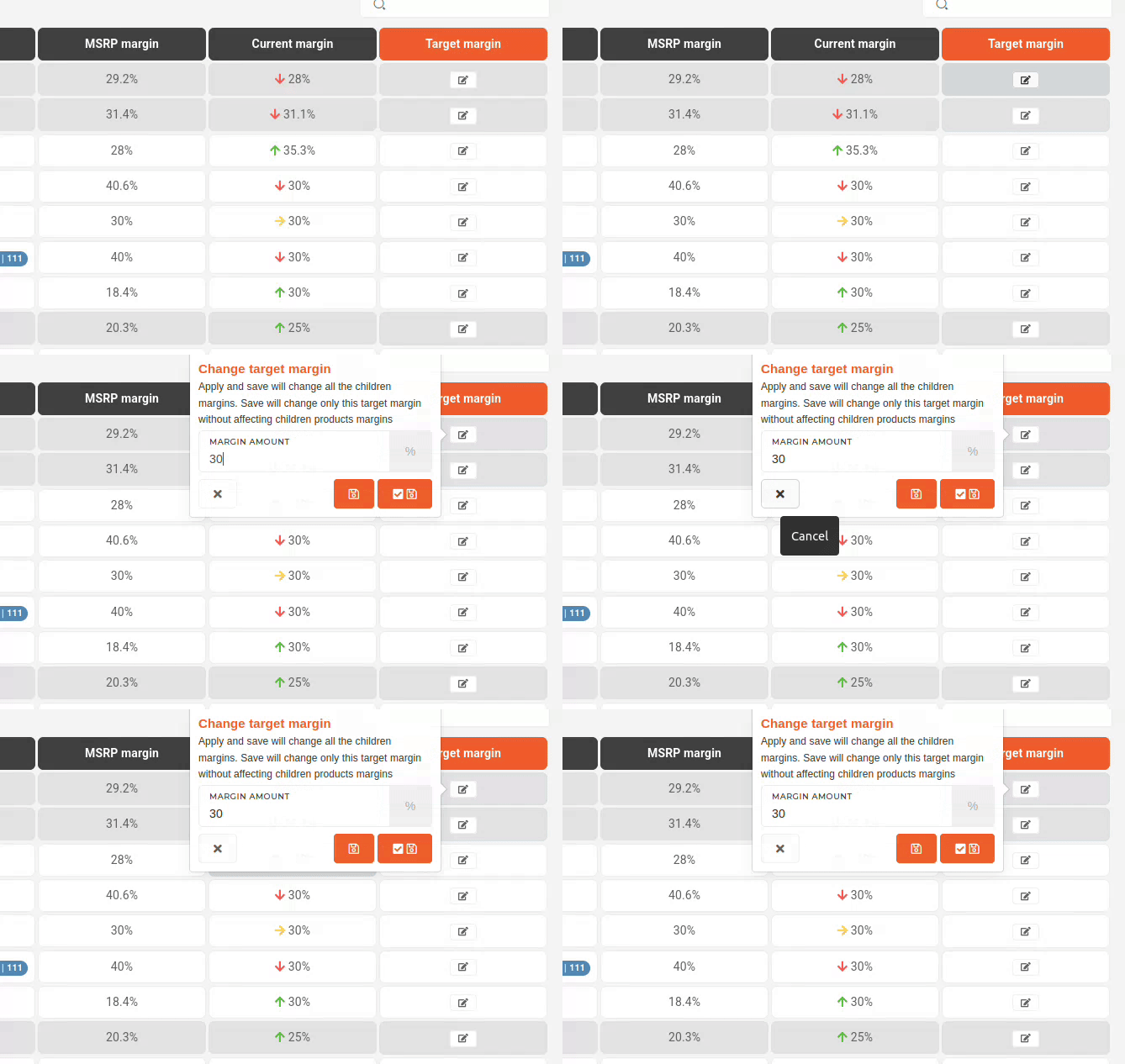Adjusting the target margin of a category will affect all of its subcategories. For example, adjusting the target margin for '**Accessories**' will also affect '**Adapters**,' '**Battery** **Packs**,' '**Cables**,' and other related subcategories.
# Price list productsClicking on a **product** **category** in the hierarchy view opens up the **product list for that category,** e.g. **Network** **accessories**.
The **"Listed products"** column displays product's short name along with a hyperlink icon.
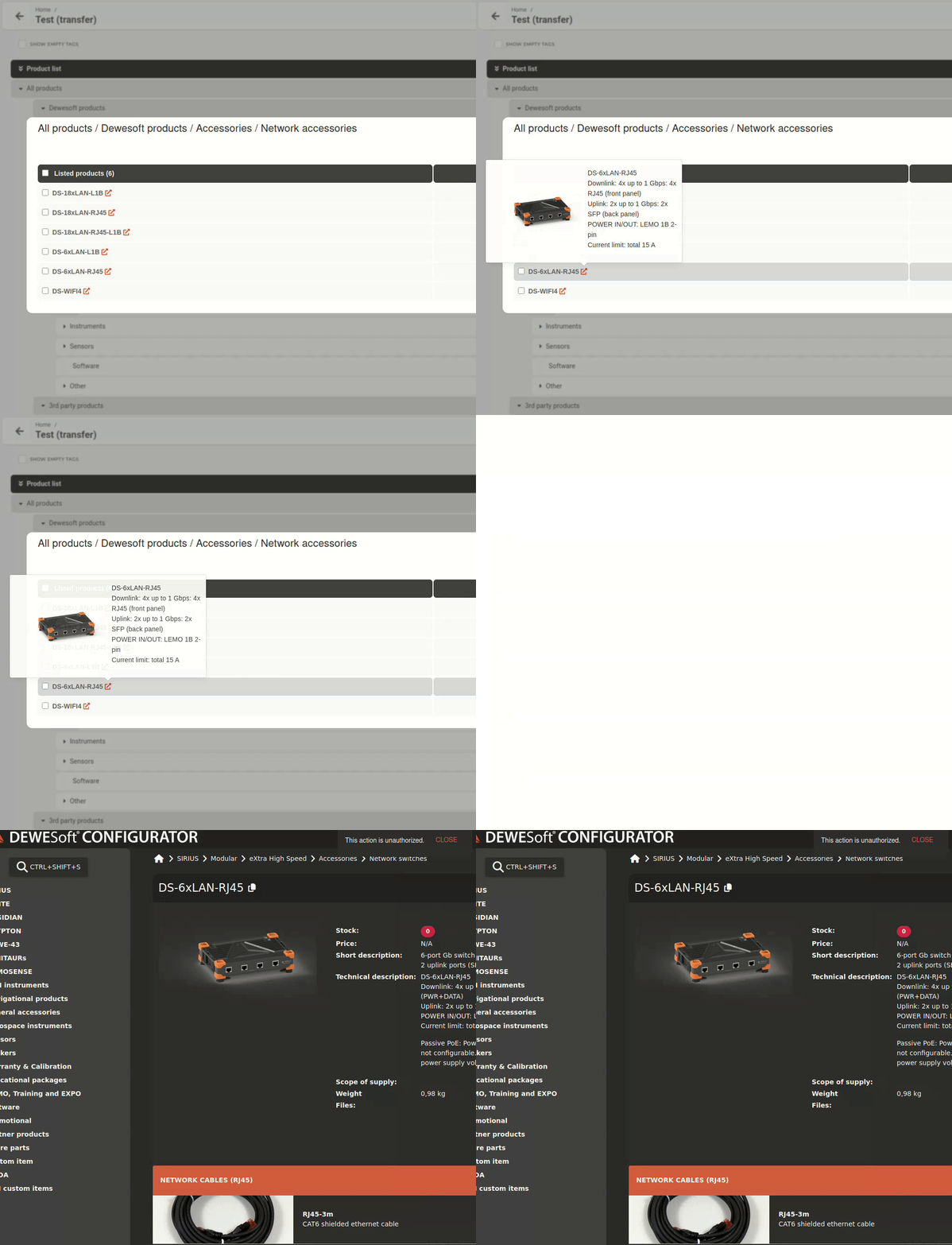You can **hover** the **hyperlink** to **display** some **product info. Clicking** the **hyperlink redirects** you to the product page on **Configurator store**
##### Managing listed/unlisted products Products included in your price list will appear under **‘Listed products’.** Products that have been removed or have not yet been added can be found under **‘Unlisted products’** at the bottom. 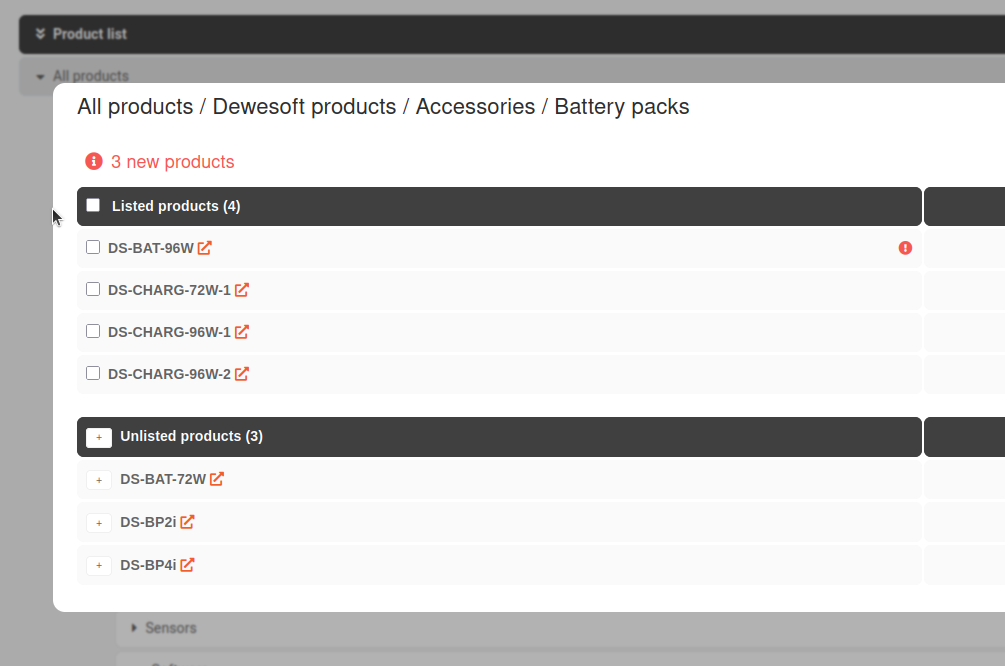 ##### Adding an unlisted product To add an unlisted product into the price list, click the "+" button next to its short name. The product will then be added, allowing for the price and margins to be set. [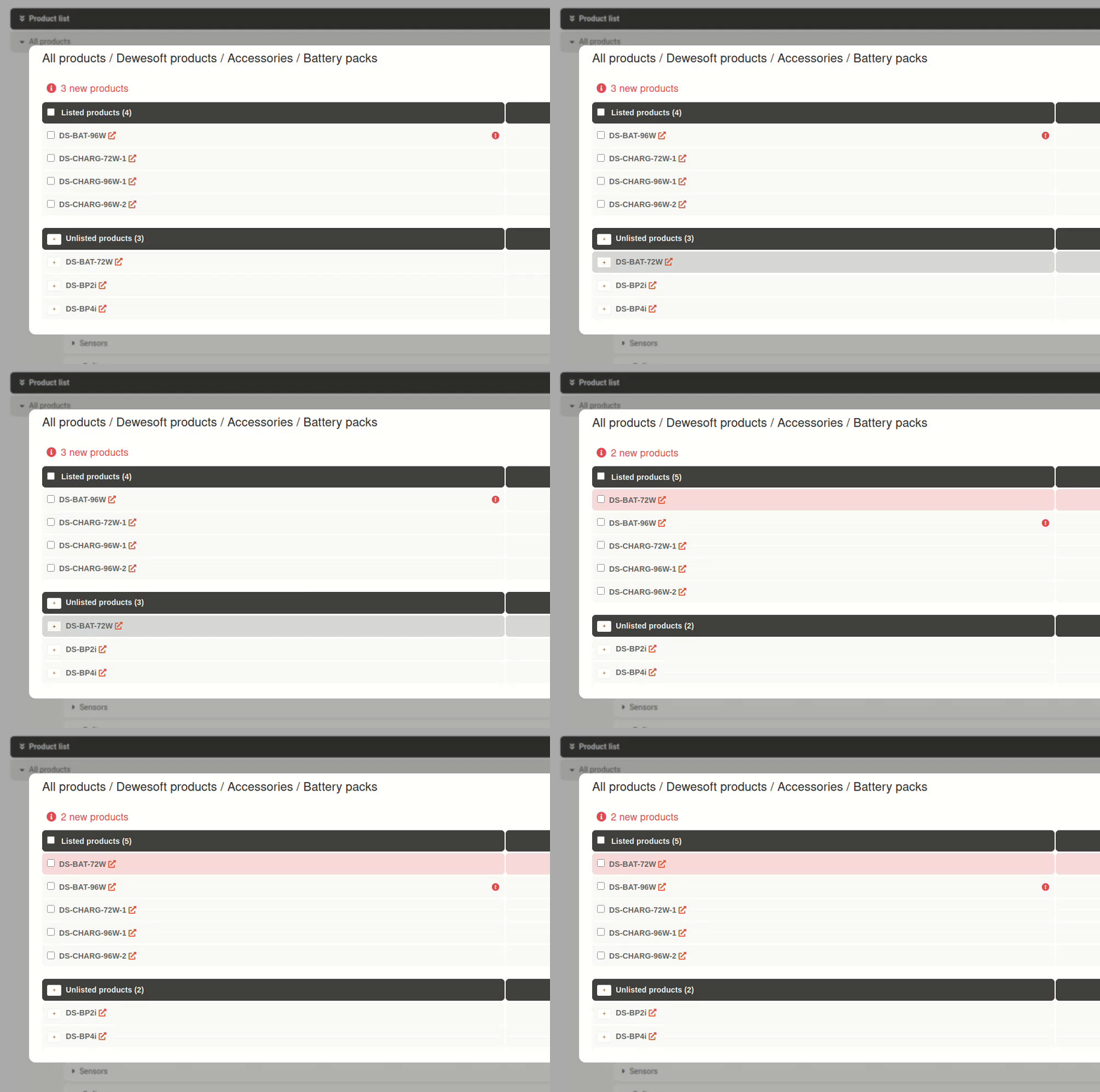](https://how-to-erp.dewesoft.com/uploads/images/gallery/2025-04/Iqdoutput.gif) # Products