# Tasks

# Complete an open task

*This should be done only for tasks that were not automatically closed.*

To close a task of a work order, first find it by navigating to the work order's page and opening the **"Technologies"** section.

![image.png](https://how-to-erp.dewesoft.com/uploads/images/gallery/2024-06/scaled-1680-/tEximage.png)

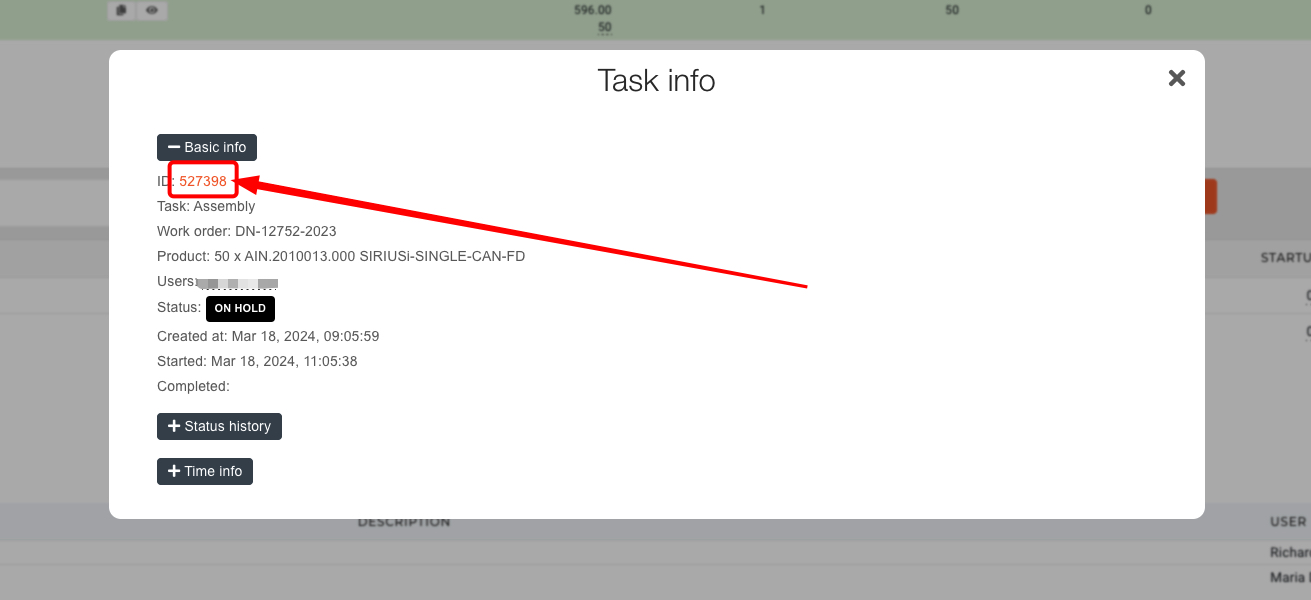
Select the task you want to close from the list that appears and copy its **"ID".**

<p class="callout info">**Clicking the "scope" icon next to the task's status label will open up a modal with all information about the task.**</p>

![image.png](https://how-to-erp.dewesoft.com/uploads/images/gallery/2024-06/scaled-1680-/1nUimage.png)

After copying the **ID** of the task, navigate to the "[Tasks](https://placeholder.erp/tasks)" table.

<p class="callout info">It is easiest to find your task in the Tasks table by filtering the rows by ID.</p>

![image.png](https://how-to-erp.dewesoft.com/uploads/images/gallery/2024-06/scaled-1680-/gdRimage.png)

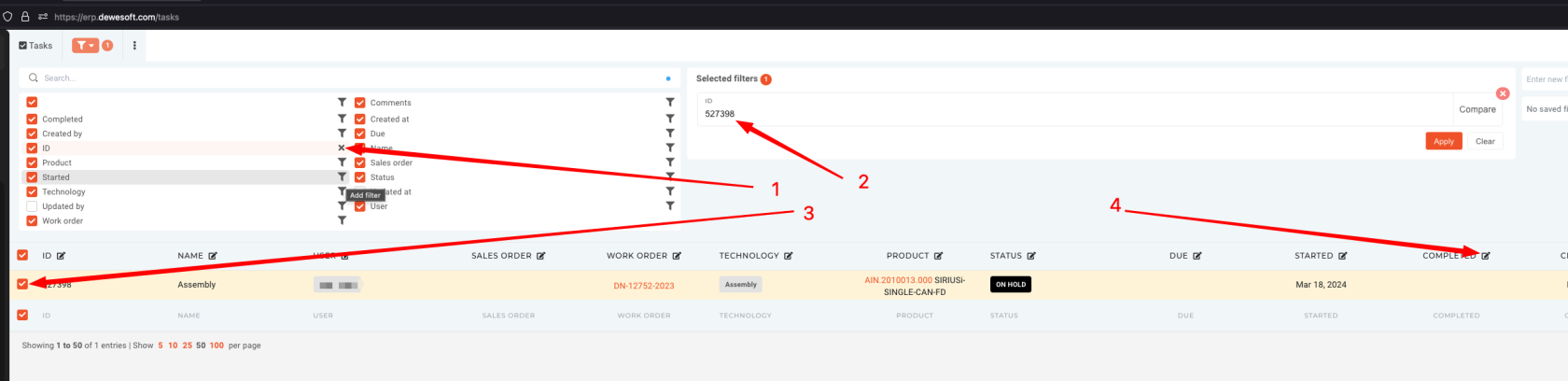
**1**. Open the filters section and click on the "Add filter" icon next to the ID field.

**2**. Paste your task's ID into the IF filter field and apply the filter.

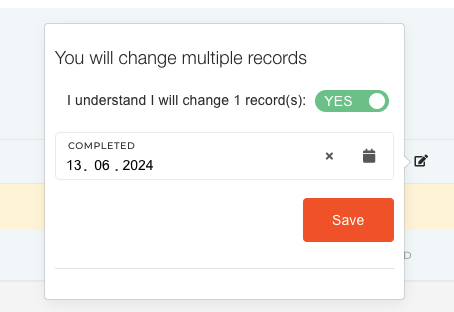
**3**. Check the checkbox of your task and click on the "Edit" icon next to the **"Completed"** column. This will open a tool-tip, where you can set the "**Completed**" field to today's date.
![image.png](https://how-to-erp.dewesoft.com/uploads/images/gallery/2024-06/scaled-1680-/27Limage.png)

<p class="callout info">A task cannot be closed without a set **Completed** date value!</p>

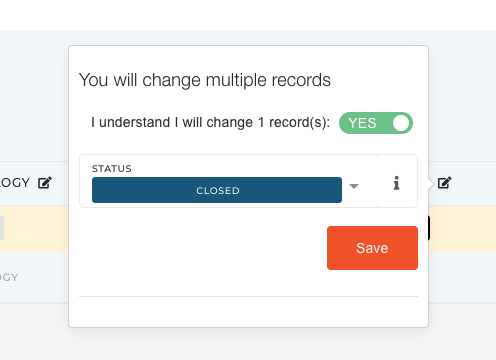
**4**. To close the task, again check the task's checkbox. Now click the "Edit" icon next to the **"Status"** column.

![image.png](https://how-to-erp.dewesoft.com/uploads/images/gallery/2024-06/scaled-1680-/S6Cimage.png)

This opens up a tool-tip, where you can update the task's **"Status"** to closed.
![image.png](https://how-to-erp.dewesoft.com/uploads/images/gallery/2024-06/scaled-1680-/9mjimage.png)