Production

Troubleshooting

Troubleshooting

Duplicated serials

Usually this happens because serial was programmed before creation in ERP:
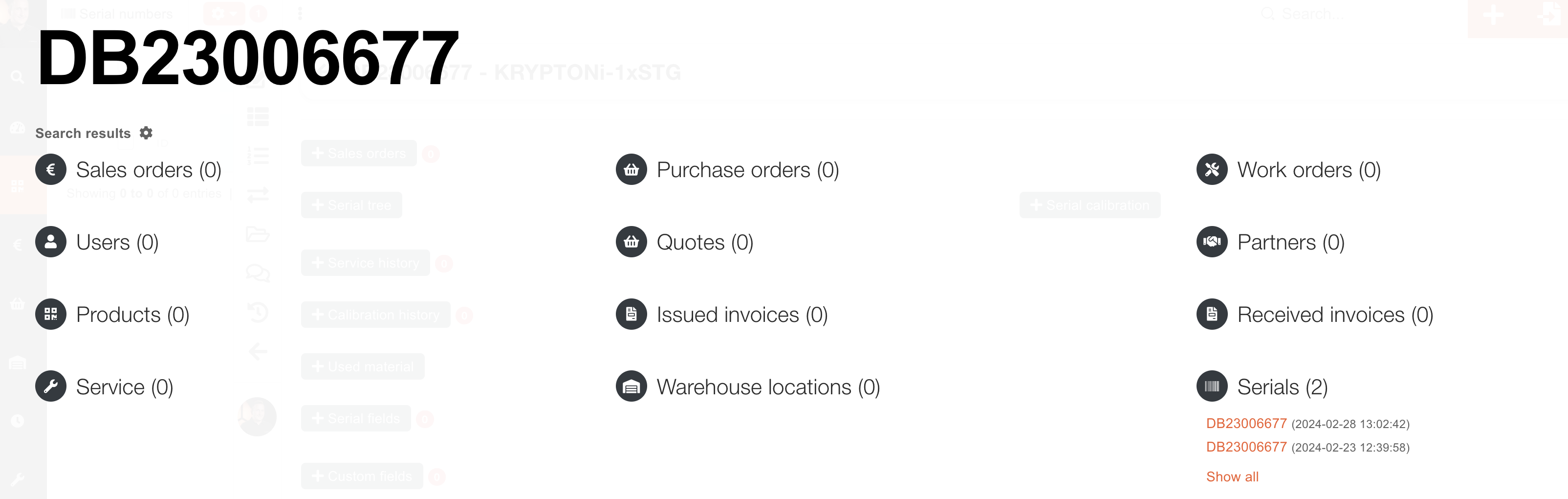
image.png

image.png

image.png

Solution:

Download calibration files from serial without selected product:
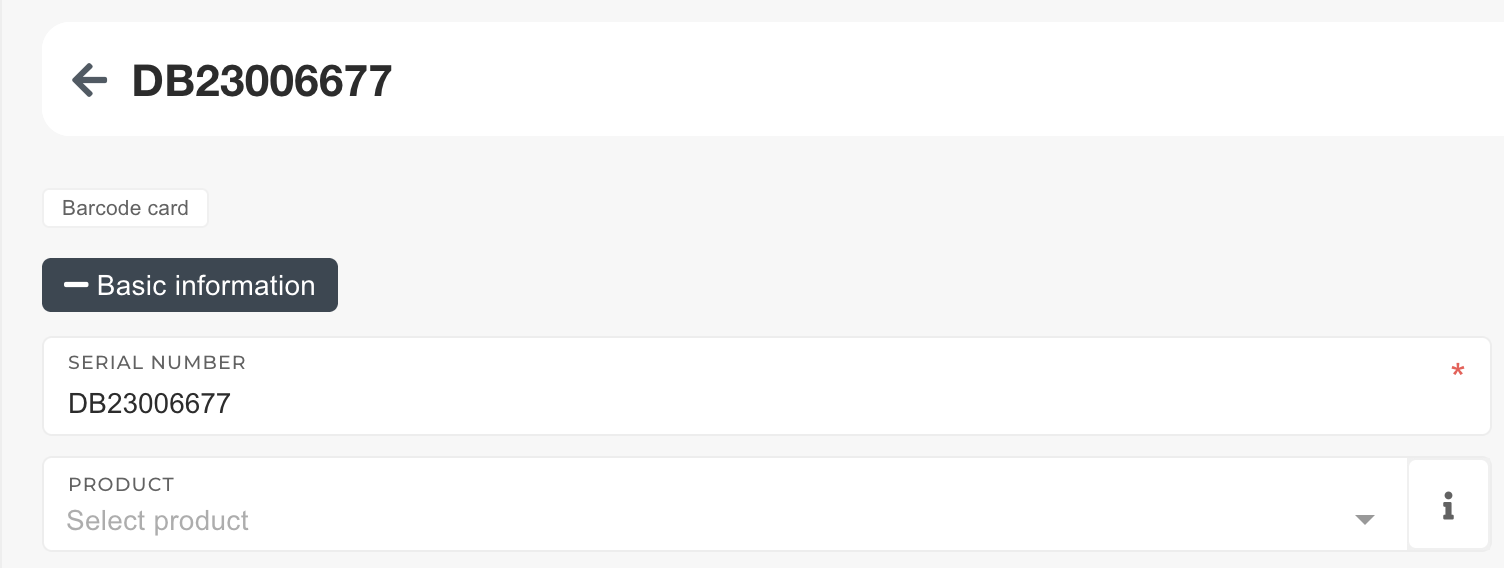
image.png

image.png

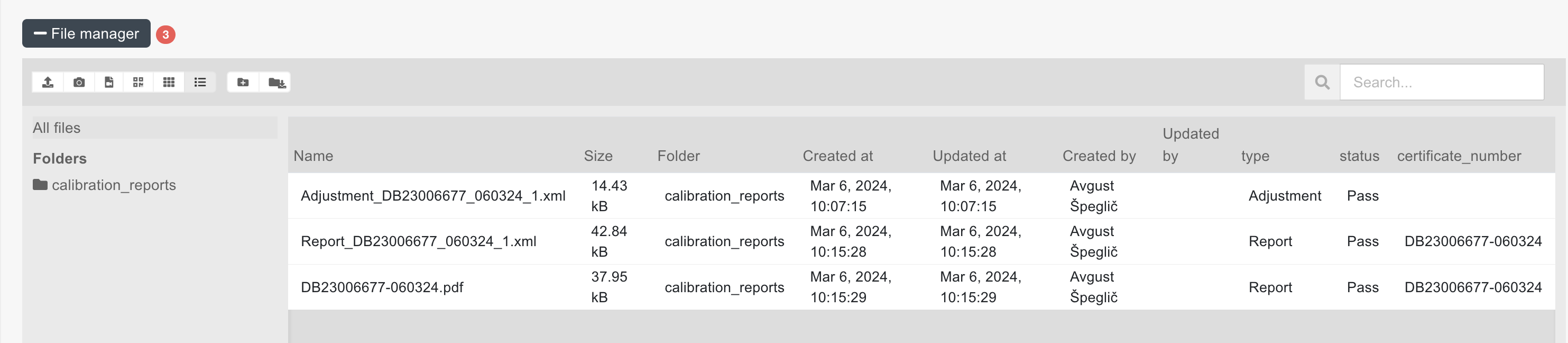
Upload files to other serial to the calibration_reports folder:
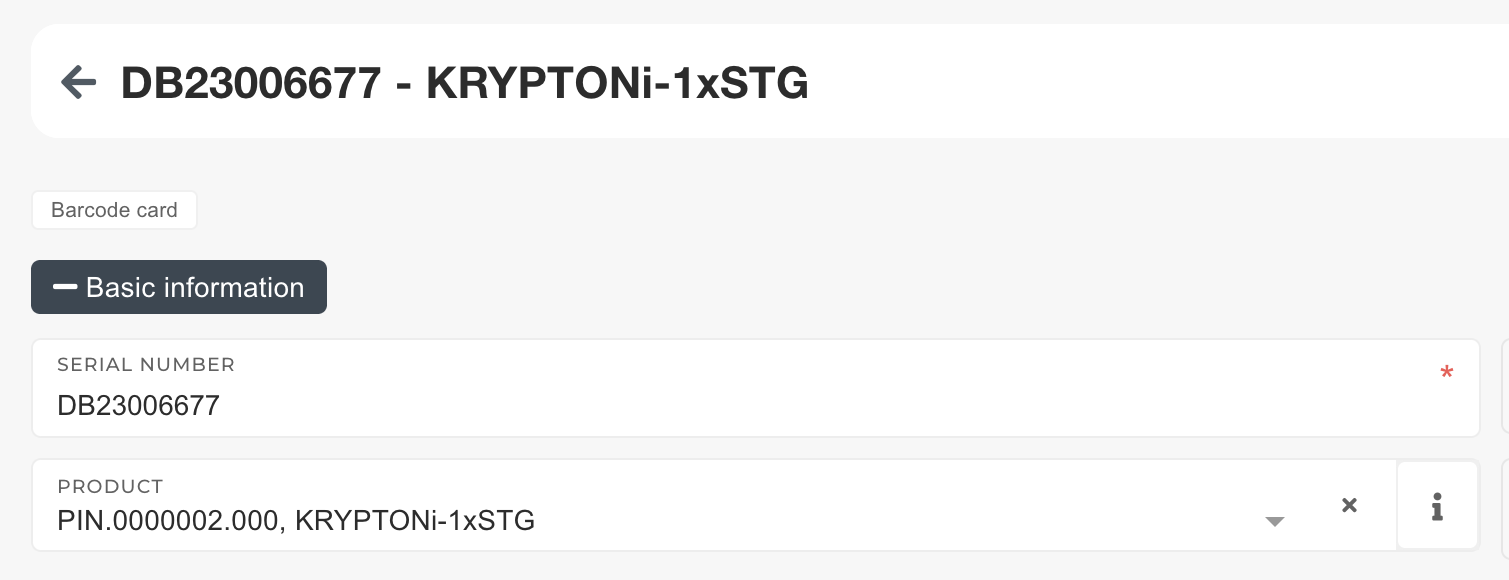
image.png

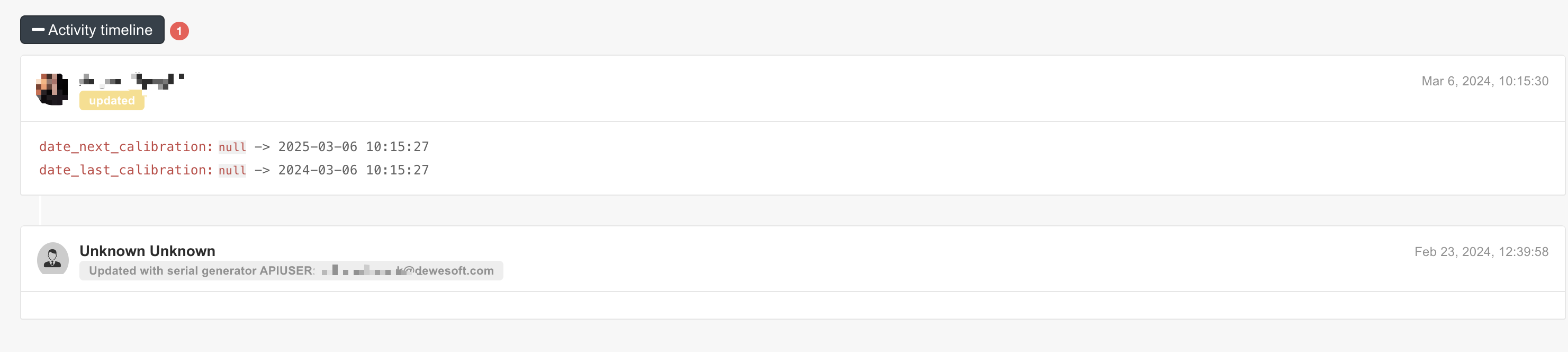
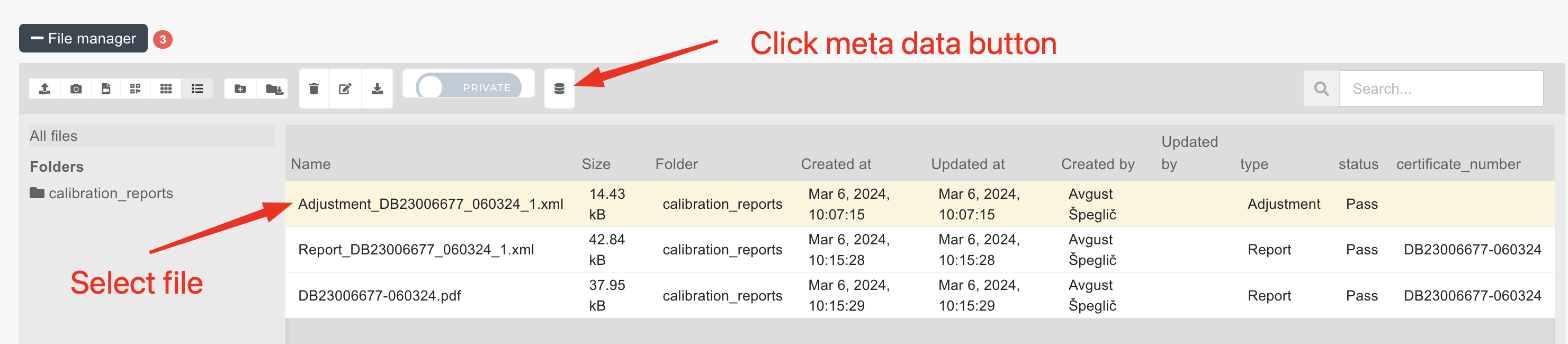
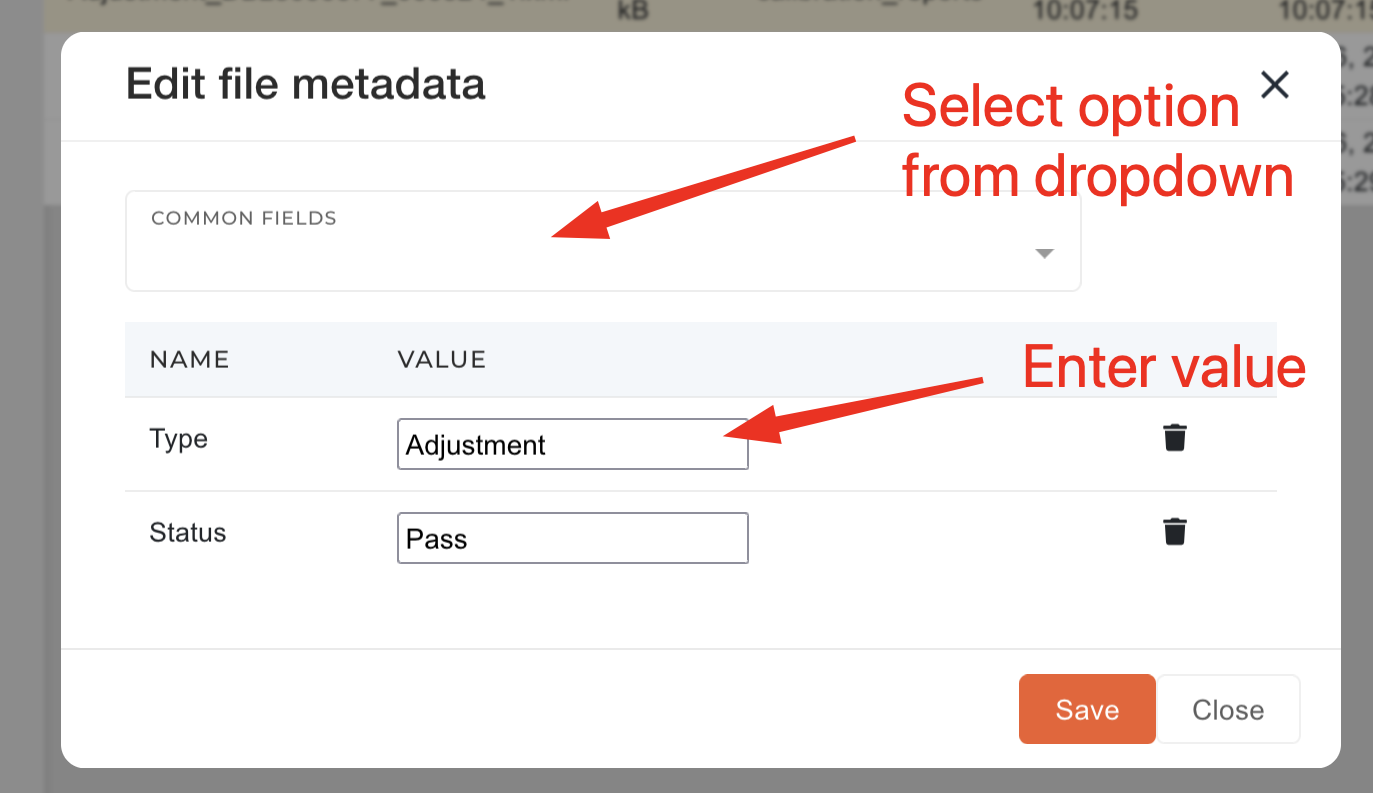
Update additional calibration information on files:
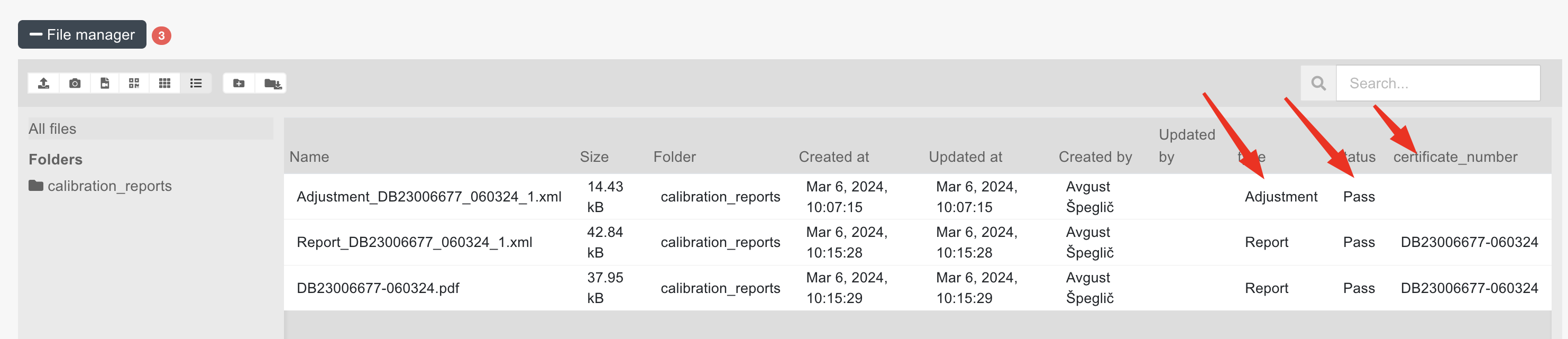
image.png

image.png

image.png

Delete serial without product.

Troubleshooting

Data missing on issued invoice default print

Data missing from marked sections:

image.png

Solution

Looking at the blade file, we found the problem was with serial on sale order.

The problem was, the serial DB20119714 was not added on order sale item with "Link existing instrument serial number" button.

image.png

The serial was not found, because the product of sale order item was not listen under "Configurator data" section (Eligible products when enter serials input)

image.png

image.png

of the SER.0000001.000 product. Once added, the serial was shown in the drop down, could be selected and then linked to the sale order item.  After this, the print displayed the correct data.

image.png

Work orders

Work orders

Reserve material on work order

This action requires the "can reserve" permission

On work order's page in ERP, open the "Bill of materials" section of work order's items.

output.gif

If the bill of materials is empty, we need to add some material first.

In the "Product" select form, we find the material we want to add/reserve on this work order item and enter the quantity of material to add to the work order. 

output.gif

We then click the "Select serials" button, which opens a popup, depending on if the work order item is tracked by serials or not.

image.pngimage.png

If work order product is tracked by serials, check the listed serials, you want to add this material to.

Click the "Add product" button. This adds the material to the work order item's bill of materials. The material's background is then colored yellow if it is on stock or red, if it is not.

Products in the bill of materials are color-coded, depending on their current reservation state: 

Not-yet-reserved material that has no stock is red.

Not-yet-reserved material on stock is yellow.

Virtually reserved material is blue.

Physically reserved material is green.

Before physical reservation, the added material needs to be virtually reserved. This "marks" some of the material on stock for this work order before the actual material reservation.

We can reserve one material at a time with the "thumbs up" button, or multiple by selecting their checkboxes and clicking the "Reserve" button.

output.gif

output.gif

Once the material is on-stock and virtually reserved, we can physically reserve it. To do this, we press the "Create reservation task" button on top right corner. This open a popup, where we select our user, set current date and then press the Create button.

For the task, other users can be selected, but then the task will be assigned to them. Likewise, a later date can be selected, but the task will not appear until the set date.

output.gif

When the reservation task is created, navigate to the dashboard and start/open the reservation task, found under "My tasks"

image.png

image.png

Once the task is competed, the material is physically reserved on the work order.

Work orders

Unreservation of material

This task supports barcode scanner input.

On work order's page in ERP we click the "Barcode card" button. A barcode scanner-supported popup is opened, where we can start an unreservation by clicking the "Unreserve" button.

output.gif

The "Unreserve" button creates and opens a new unreservation task.

To complete the task, the following data needs to be entered: 

All of these fields can be entered by clicking on the data in the table.

output.gif

After all the necessary data is filled out, click/scan the "Add" button. This will add the product to the unreservation list.

Unreservation task can be completed in 3 ways:

Work orders

Fix technologies on work orders

When updating DNC work orders, you have different types of reservation technologies: Reservation&Cutting  and Reservation.

The difference between Reservation&Cutting and Reservation is in the way they reserve material.  Reservation&Cutting performs virtual and physical reservation, while Reservation only does physical reservation of  the material.

You should only use either Reservation&technologies or Reservation. Using both will result in an error.

Work order is completed and technologies stayed opened

Sometimes work orders are completed, but some of its technologies remain open.

When this happens, the work order needs to be unlocked, after which the unnecessary technologies can be deleted. Once the technologies are deleted, the work order should be re-locked.

image.png

Tasks can then be completed on the dashboard.

Work orders

Create CNC work order

image.png

image.png

If product does not have BOM, status will change to Waiting for review

Work orders

Replace product of work order item

This action requires the "view work order items" and "update work order items" permissions.

Open the "Work order items" table. Set the "work order" filter and filter work order items by your work order (e.g. DN-01895-2026).

output.gif

This filter will list all items of the selected work order.

Once the filter is applied, and only items of the selected work order are shown, select the work order item, whose product you want to replace. The icon, which opens the edit form, will appear next to "Product" column name. 

When at least one item is selected, the "edit" button appears next to "Product" column name. This edit form can be used to update several (up to a 100) work order items at once.

output.gif

After agreeing, that you understand you are updating (multiple) items, you can set the new product of selected work order item(s). Clicking "Save" will update all selected work order items.

This example updates 1 work order item, but you can update multiple items (up to 100 at once).

output.gif

Keep in mind that this only replaces the product on the work order item. If the work order item has any serials, the product on those must be changes manually. Work order item's BOM (Bill of Materials) must be updated manually as well.

Order processing

Production

Work order items

Work order items

Reset a work order item

This action requires the "Reset work order items" permission.

Work order items can be reset,  with their material flow getting removed. This means that any and all receipts,  transfers and write-offs, connected to a work order item are canceled.

output.gif

To perform a work order item reset, open the work order item's "bill of materials" section and open the "danger zone". Here, the "Reset work order item" button will appear. On button click, after confirming, the work order item's material flow will get reset.

image.png

If a work order or a work order item already has attached goods receipts, the item reset will fail with an error. When this happens, the goods receipts must be canceled manually before the reset.

All goods receipts, that relate to the work order and its items, can be found in the "Material flow" section of the work order.

image.png


Co-operations

Co-operation items

Required products

Wor order item bom

Tasks

Tasks

Complete an open task

This should be done only for tasks that were not automatically closed.

To close a task of a work order, first find it by navigating to the work order's page and opening the "Technologies" section.

image.png

Select the task you want to close from the list that appears and copy its "ID".

Clicking the "scope" icon next to the task's status label will open up a modal with all information about the task.

image.png

After copying the ID of the task, navigate to the "Tasks" table.

It is easiest to find your task in the Tasks table  by filtering the rows by ID.

image.png

1. Open the filters section and click on the "Add filter" icon next to the ID field.

2. Paste your task's ID into the IF filter field and apply the filter.

3. Check the checkbox of your task and click on the "Edit" icon next to the "Completed" column. This will open a tool-tip, where you can set the "Completed" field to today's date.

image.png

A task cannot be closed without a set Completed date value!

4. To close the task, again check the task's checkbox. Now click the "Edit" icon next to the "Status" column.

image.png

This opens up a tool-tip, where you can update the task's "Status" to closed.

image.png

Picker

Picker

Missing product line "Start" button

image.png

If the picker view is missing a button to start picking for a certain production line (eg. SIRIUS), that usually means some settings are missing.

image.png

To enable these settings and display the "Start" button for SIRIUS on the picker view, open a product in cart and add the missing product line information on the product. 

image.png

After refreshing the picker view, the missing "Start" button should be visible.

image.png

Runner