Serial number is a sort of identification number of a particular device.
With the serial number, users can access calibration reports for a particular device. Serial numbers can also be used to track a particular product's stock transactions. 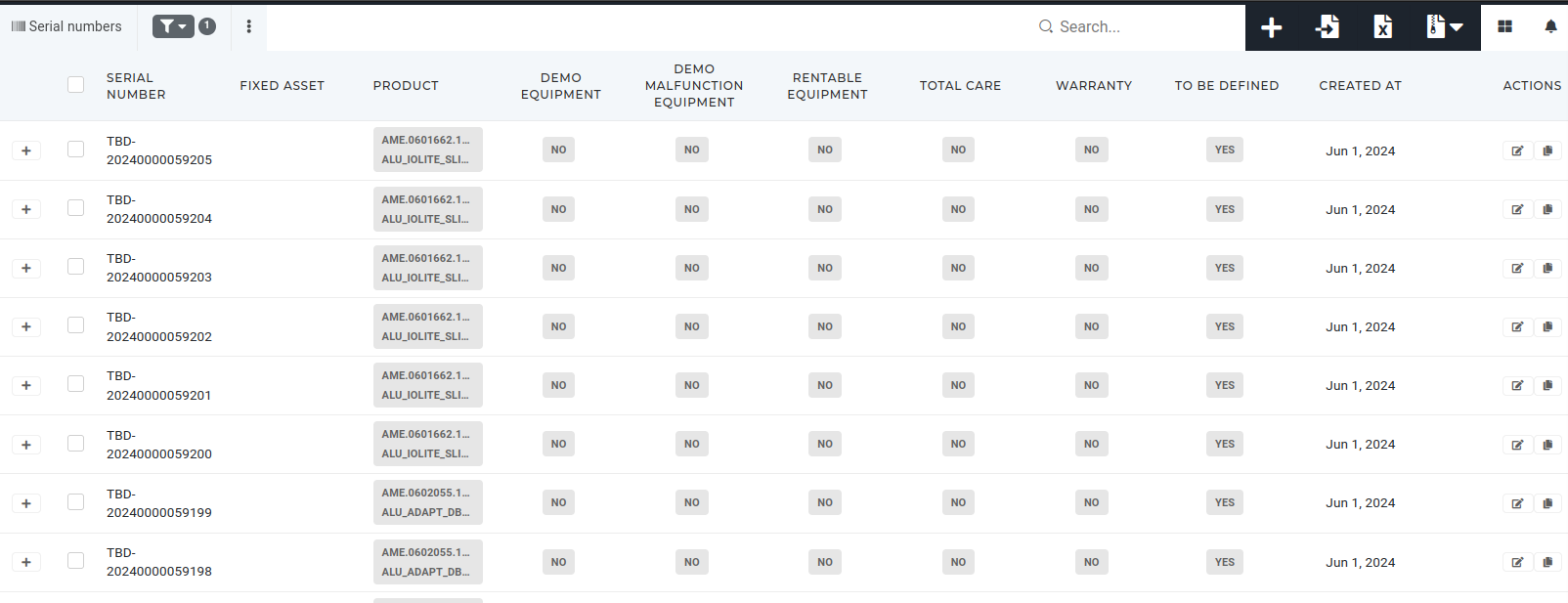 Serials are usually connected to a product and/or to a license. # Create new serialsThis actions required the **"create serial"** permissions.
Adding a new serial through the ERP is usually not necessary, as new TBD serials are automaticaly generated for work orders and can simply be renamed. Serials can be added via the ERP "[Add new serial number](https://placeholder.erp/serials/create)" form. 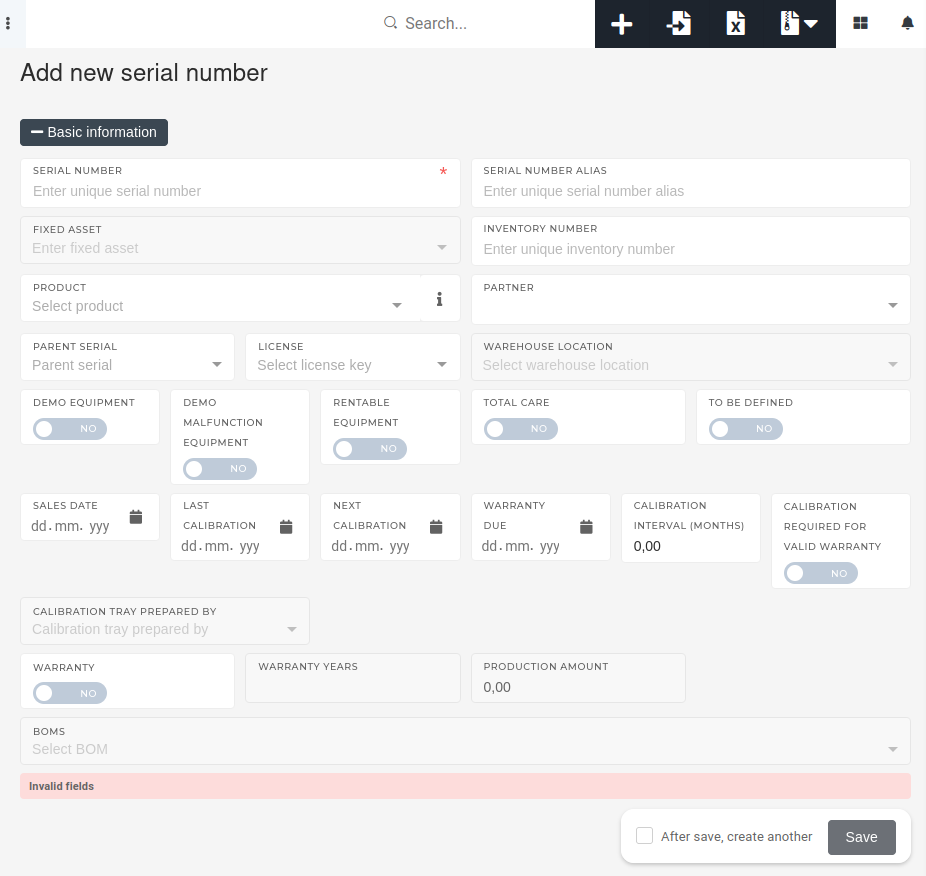 When adding a new serial number into the system, only its serial number value is required.When adding a new serial number, keep in mind that the system does not limit the adding of multiple serials with the same serial number. There can, however, not be more than a single serial with a particular serial number and a particular product type.
 # Update existing serials # Delete serialsThis action requires the "**delete** **serial**" permission.
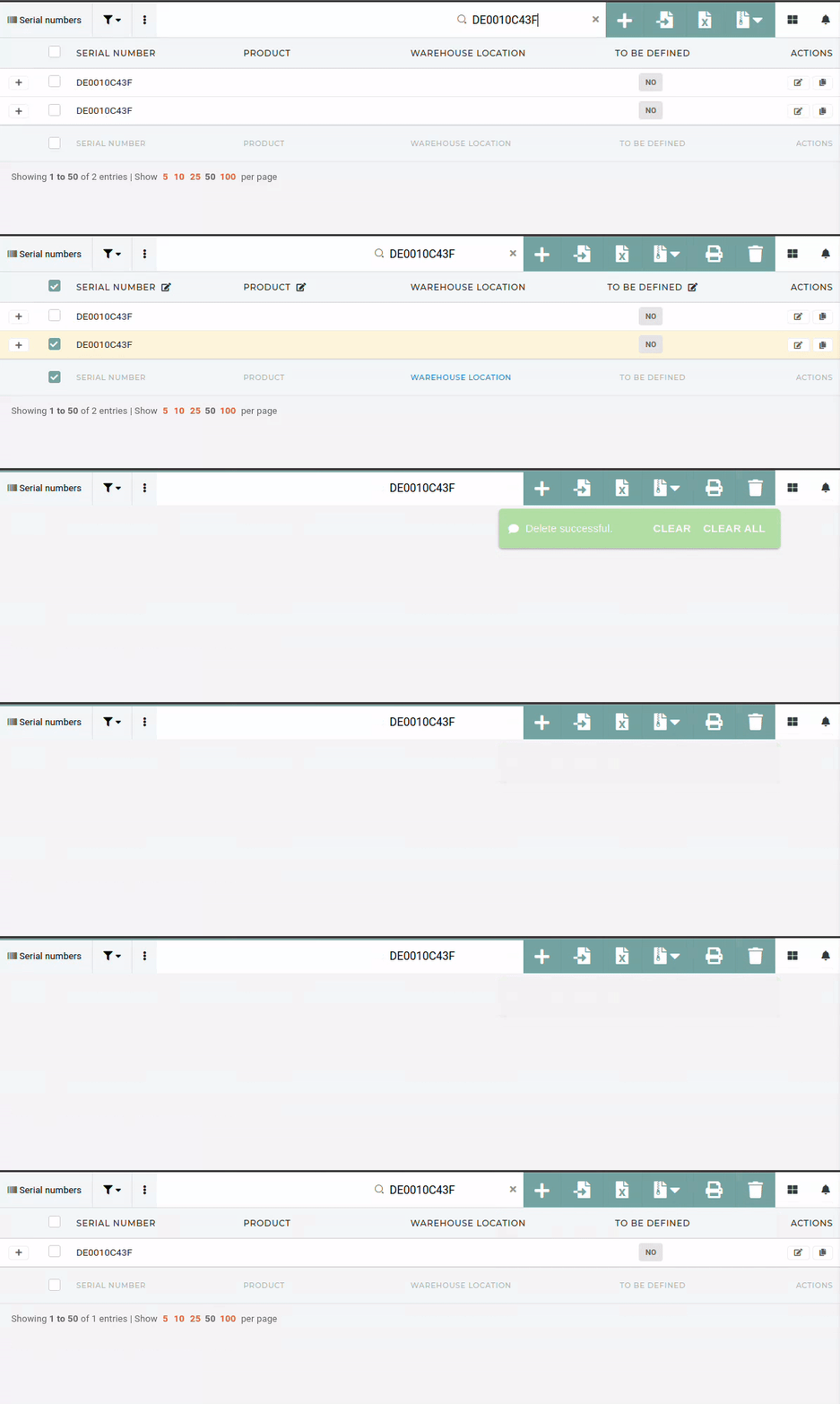
**Serials** **should**, in most cases, **not be deleted**. The only exceptions are **duplicates of existing serials**. This happens when serials are create through different sources without all information. When this happens, both serials should be checked and their data synced (warranty, calibration intervals, file manager contents...)After syncing all serial data, the serial with existing stock transactions should be retained, while the duplicate can be deleted.
 # Extend serial's warranty By default, warranty is calculated automatically, based on fields on serials: [](https://how-to-erp.dewesoft.com/uploads/images/gallery/2024-04/5GKimage.png) Conditions, that apply are (warranty enabled): - if serial is not sold (this is necessary to show correct data in calibrator) - if sold serials do not need calibrations (image below) - if sold serials need calibration and are calibrated (**last calibration** is before current date and **next calibration** is after) - if warranty is valid until the **warranty due** on serial number. This is generated from sales date to calculated date from product setting **warranty duration in months** (image below)  Warranty will turn off, when **warranty due** date passes or calibration was not done within **N** months from **next calibration** date (the N can be setup in ERP settings). You can turn on warranty with **warranty** switch on serial's page. Be aware of automation explained in section below:Warranty will turn off every night, if settings are not correctly set up (e.g. **warranty due** or **next calibration** is missing based on conditions above)
**Calibration** interval can be changed, if calibration is necessary more or less often. Zero mean 12 months. # Troubleshooting: duplicated serials Occasionally, two serials with the same serial number are created in the ERP. [](https://how-to-erp.dewesoft.com/uploads/images/gallery/2024-07/P0Oimage.png) When this happens, the two serials must be compared. If one serial has some fields filled that the other does not, those fields have to be synced between the two serials. 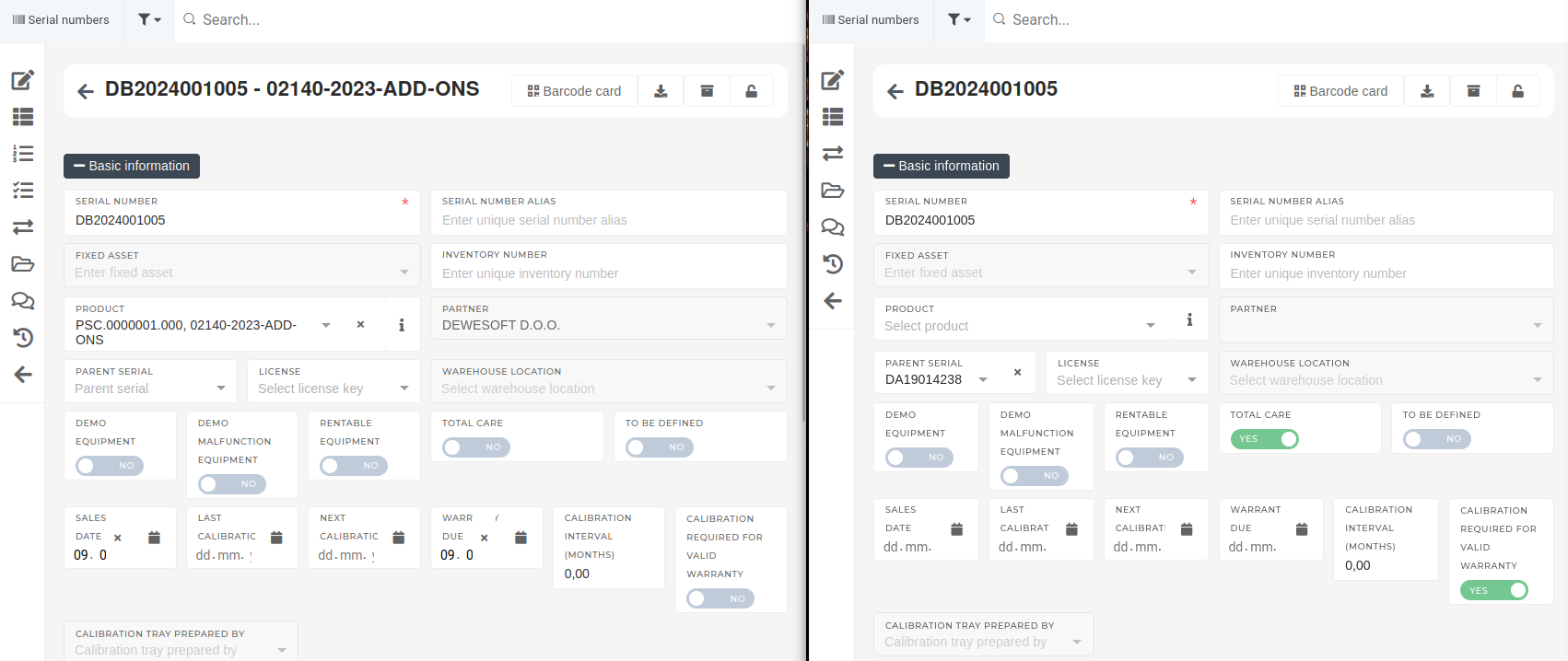 Once all the information, present on the serials, is added on both serials, the "stock transactions" section has to be checked on both serials. 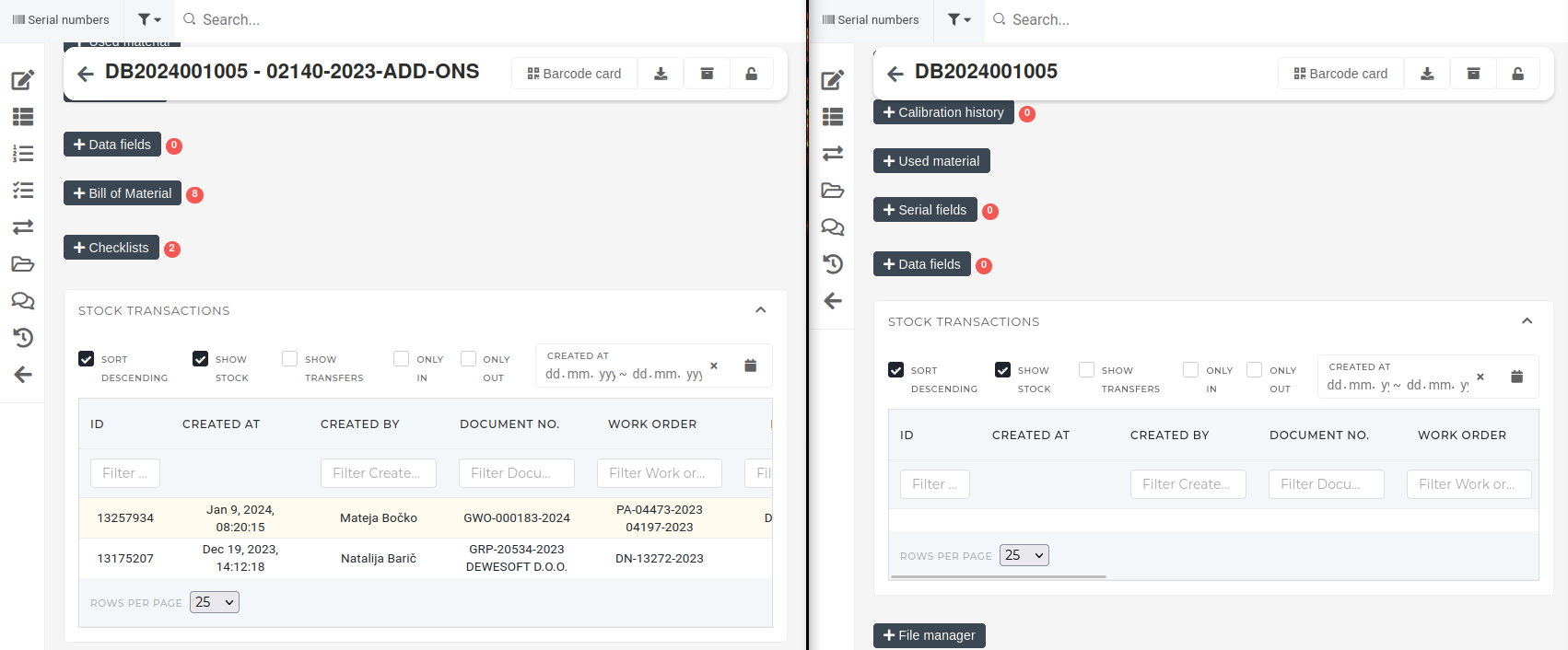After all information has been synced, files in file manager should also be synced between the two serials, as files such as calibration reports, can pertain to either of the serials.
If, on inspection, one of the serials has stock transactions while the other does not, then the one without stock transactions can be deleted. 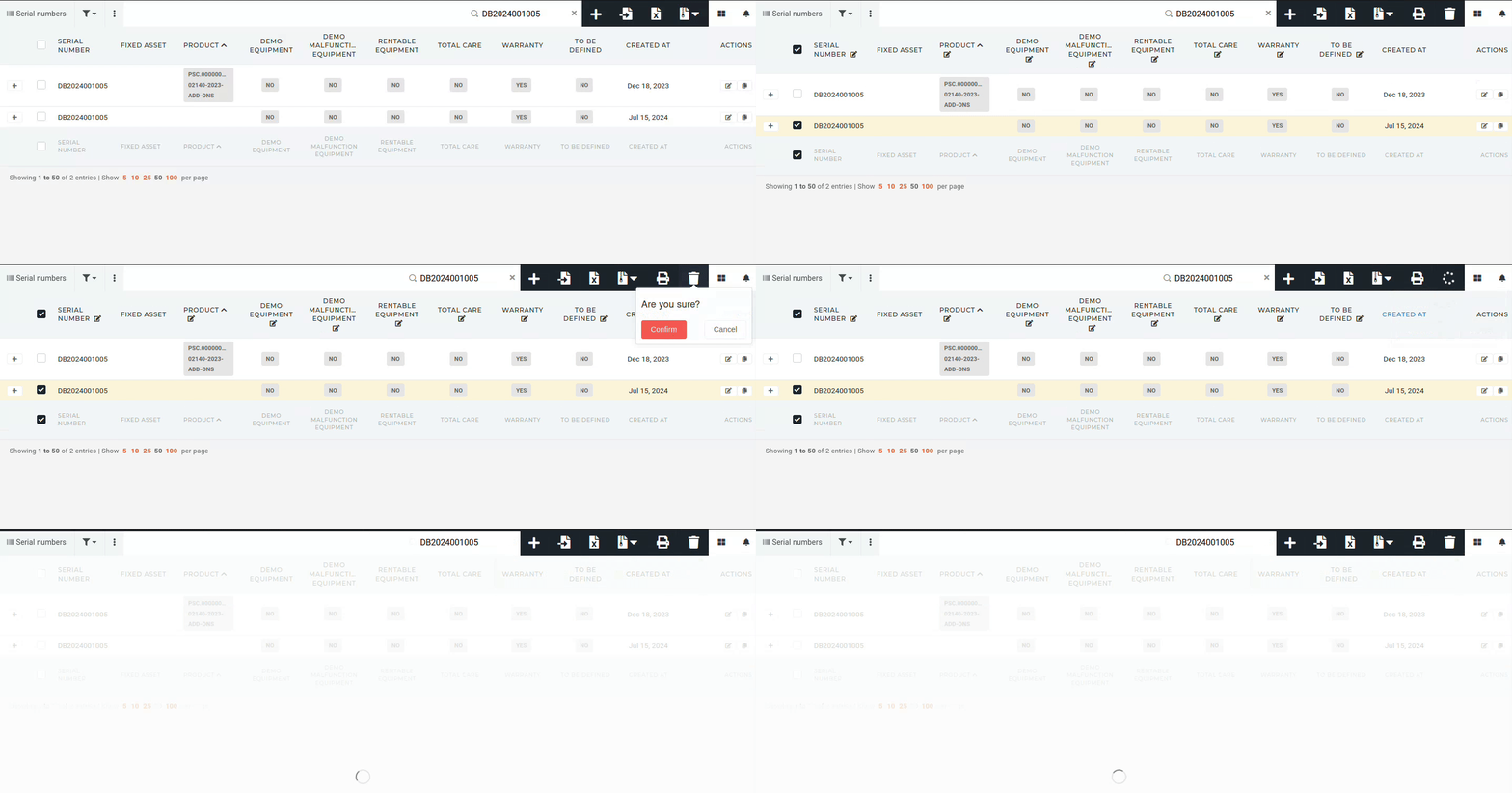 # Troubleshooting: Find serial stock sourceThis action requires the **"View serials", "View lots"** and **"View stock transactions"** permissions.
A serial's stock source needs to be identified for a variety of stock operations.**Serial's stock source** usually refers to **Goods receipts, Goods rebooks** or **Stock adjustments...**
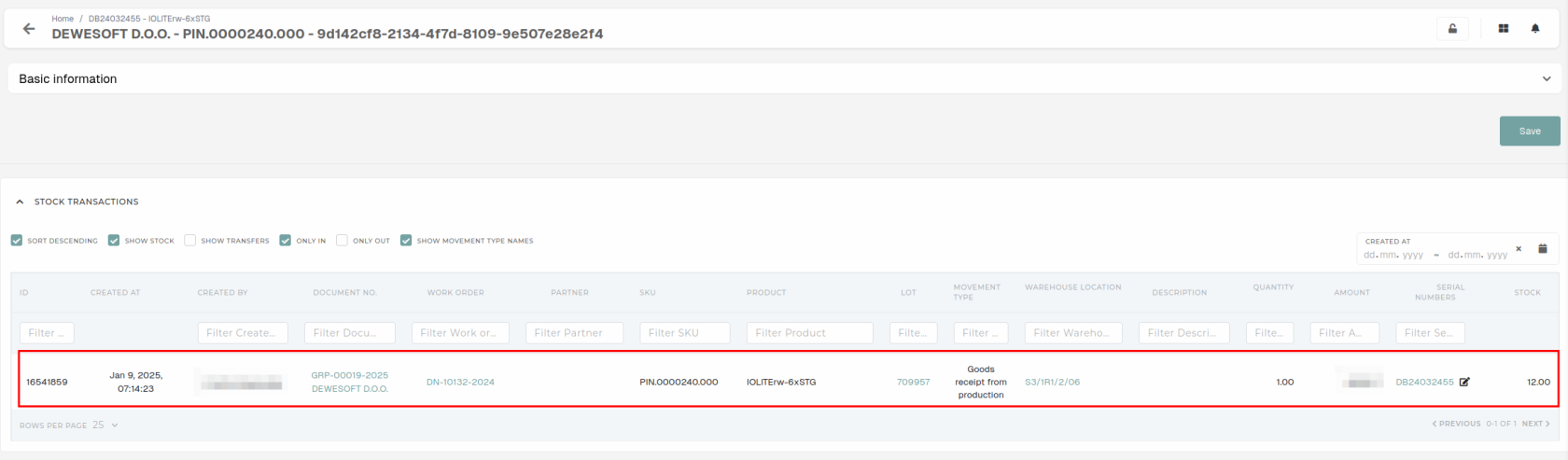
To find a serial's stock source, open the serial's details page and find its **"Lot"** field. Click the link icon, this will redirect you to Lot's details page. 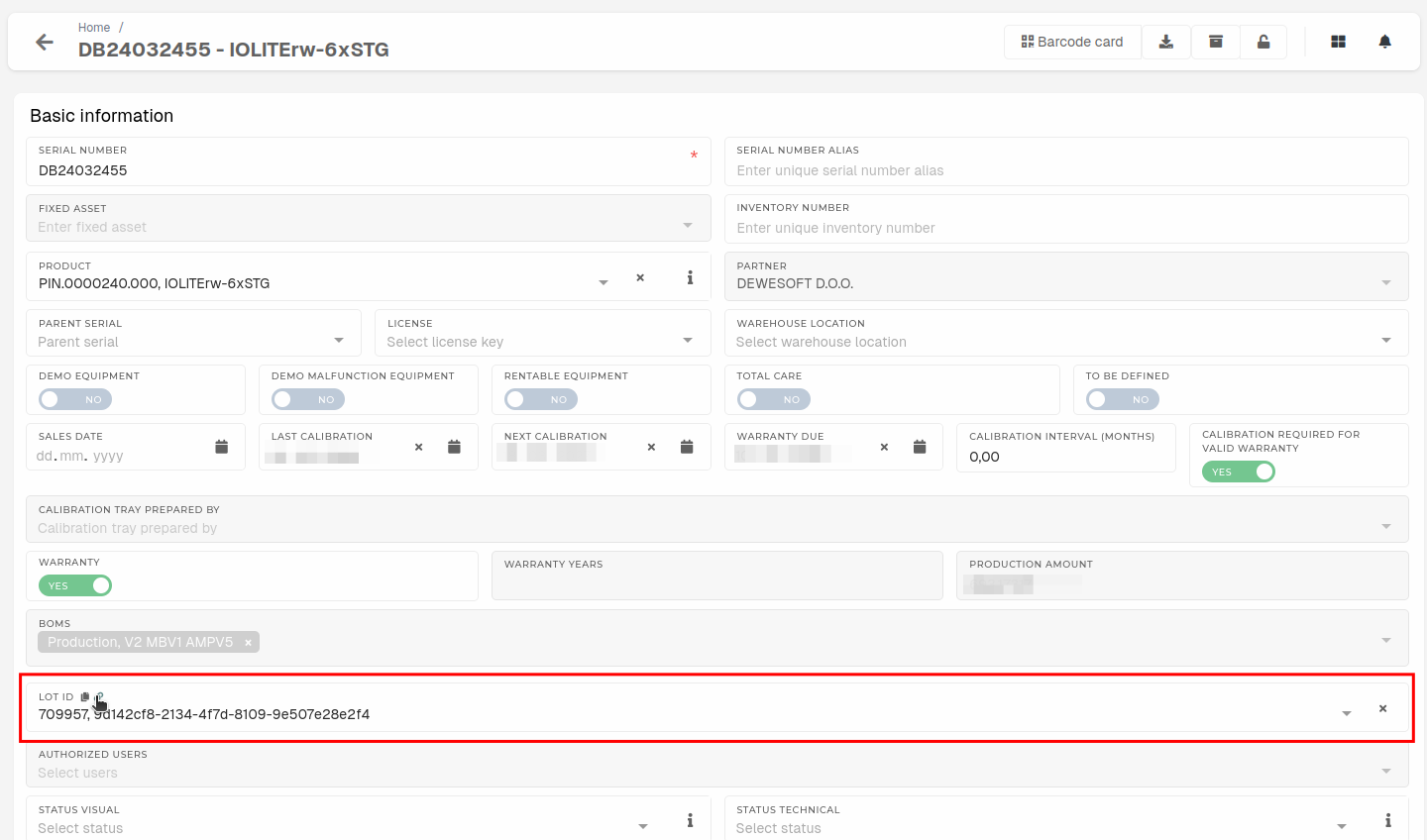 On the lot's details page, open the **"Stock transactions"** section, this will load all transactions of this lot. Scroll to the first stock transaction.It is recommended to check the **"Only In"** checkbox and view transactions by their names to find the right goods receipt/rebook or stock adjustments. The stock transaction usually has a link to the stock document in the **"****Document no.****"** column.