This action requires the **"create products"** permission.
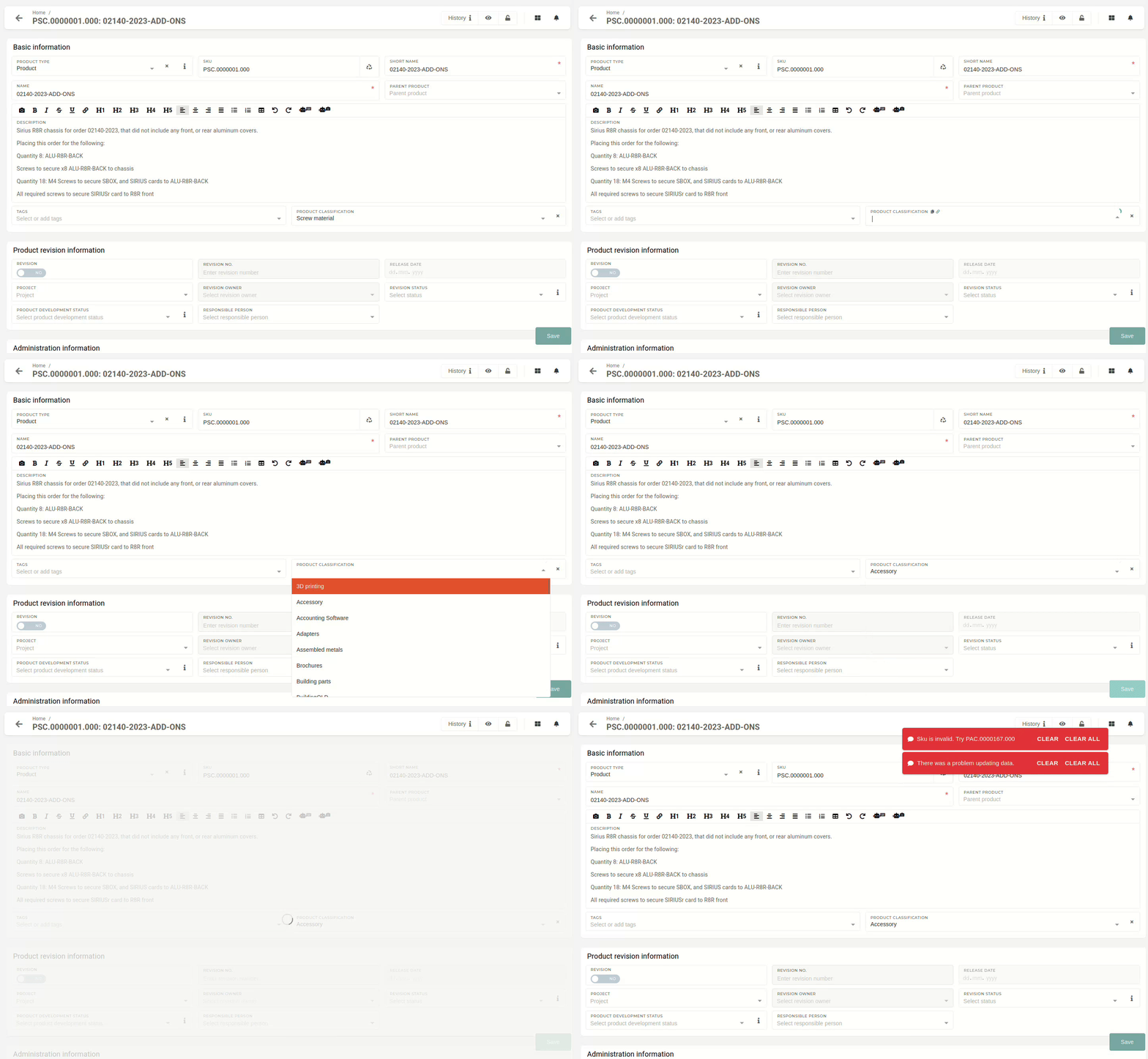
New products can be created from the **"Create new product"** form, that can be accessed [**here**](https://placeholder.erp/products/create), or by clicking the **"Add new"** button above the **[products](https://placeholder.erp/products)** table.  From the form, a new product can be created.To create a new product, at least a **product**'s **name**, **short** **name** and **SKU** are required.
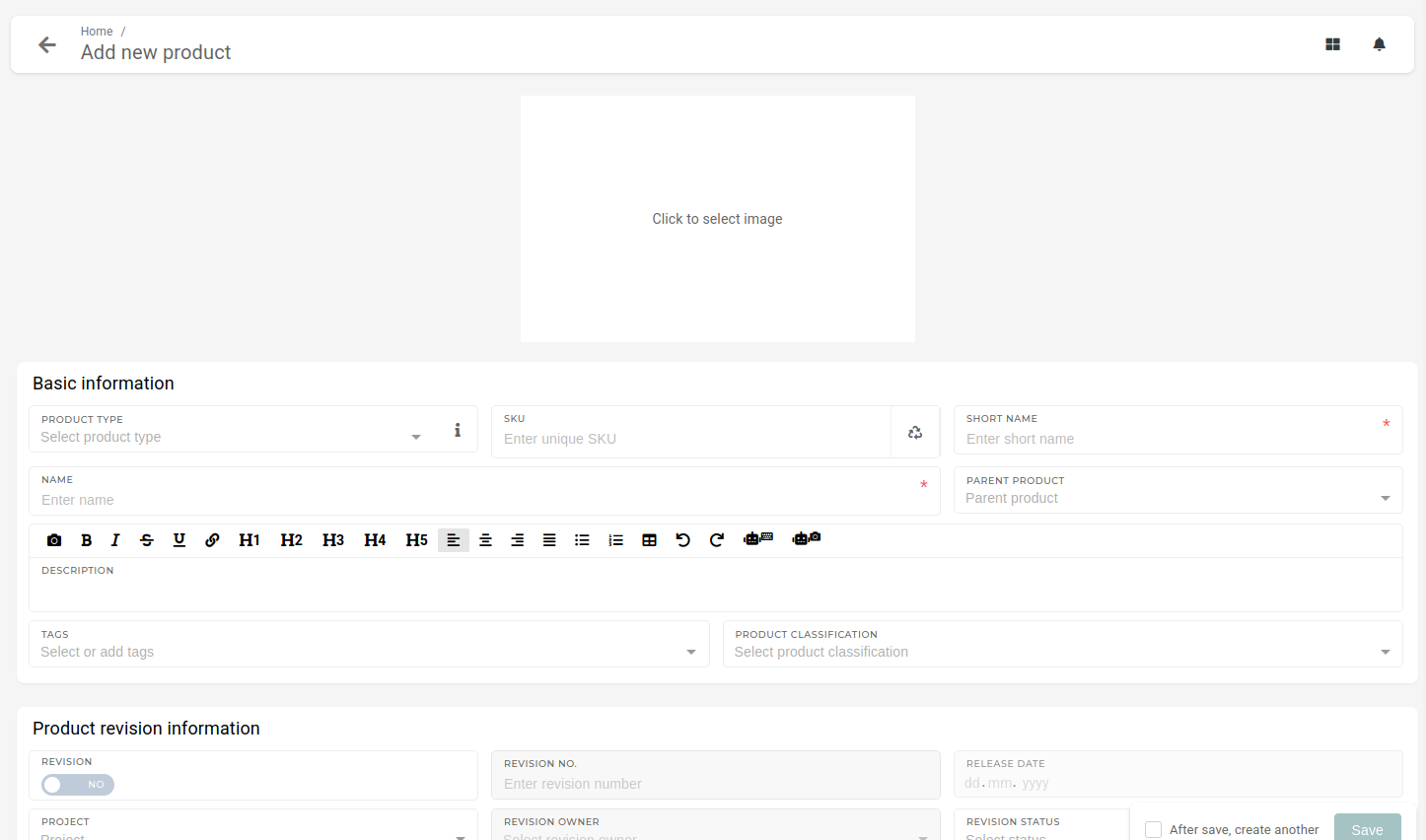To generate a correct SKU, product type and product classification should be entered (type and classification are used to determine SKU structure).
#### Making a product visible for adding in quotes/orders (local items) To make a product available for selection in quotes or orders, you first need to enable its availability for purchase using the toggle in the Price List Information section. [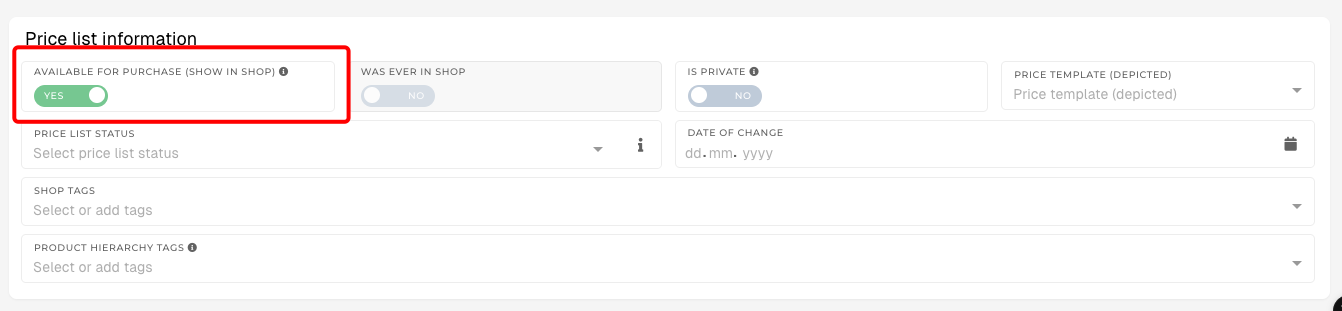](https://how-to-erp.dewesoft.com/uploads/images/gallery/2025-08/image.png)Next, in the Price List section, add the product to the specific price list you want. ##### Adding a Product to a Price List 1. Locate the desired price list – In the Price List section, find the price list you want to add the product to (e.g., END\_MENA 2025). 2. Add the product – Click the + Add button next to the price list name. 3. Set the price – Enter the desired price in the field (e.g., 471.00 €) or adjust an existing price. 4. Save changes – Ensure your changes are saved so the product becomes available in that price list. [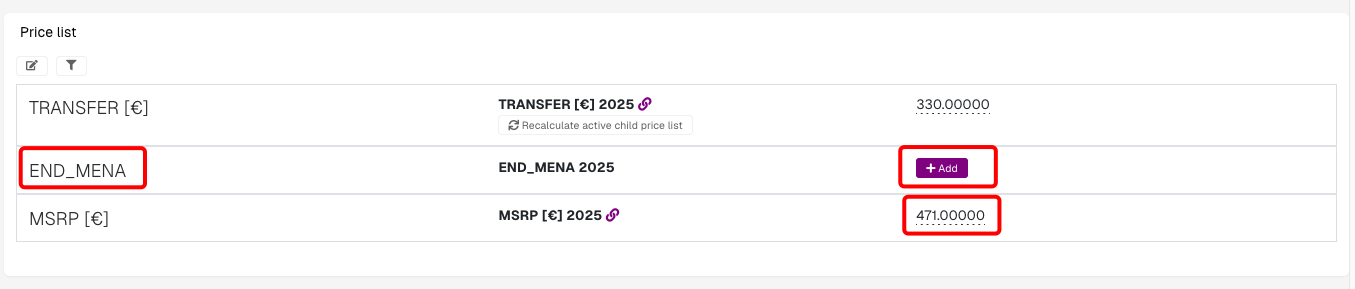](https://how-to-erp.dewesoft.com/uploads/images/gallery/2025-08/W1Gimage.png) Once completed, the product will be visible in quotes and orders (if it is also marked as available for purchase in Price List Information). # Update existing productsThis action requires the **"Update products"** permission.
When it comes to updating product's properties, there are specifics regarding certain properties. 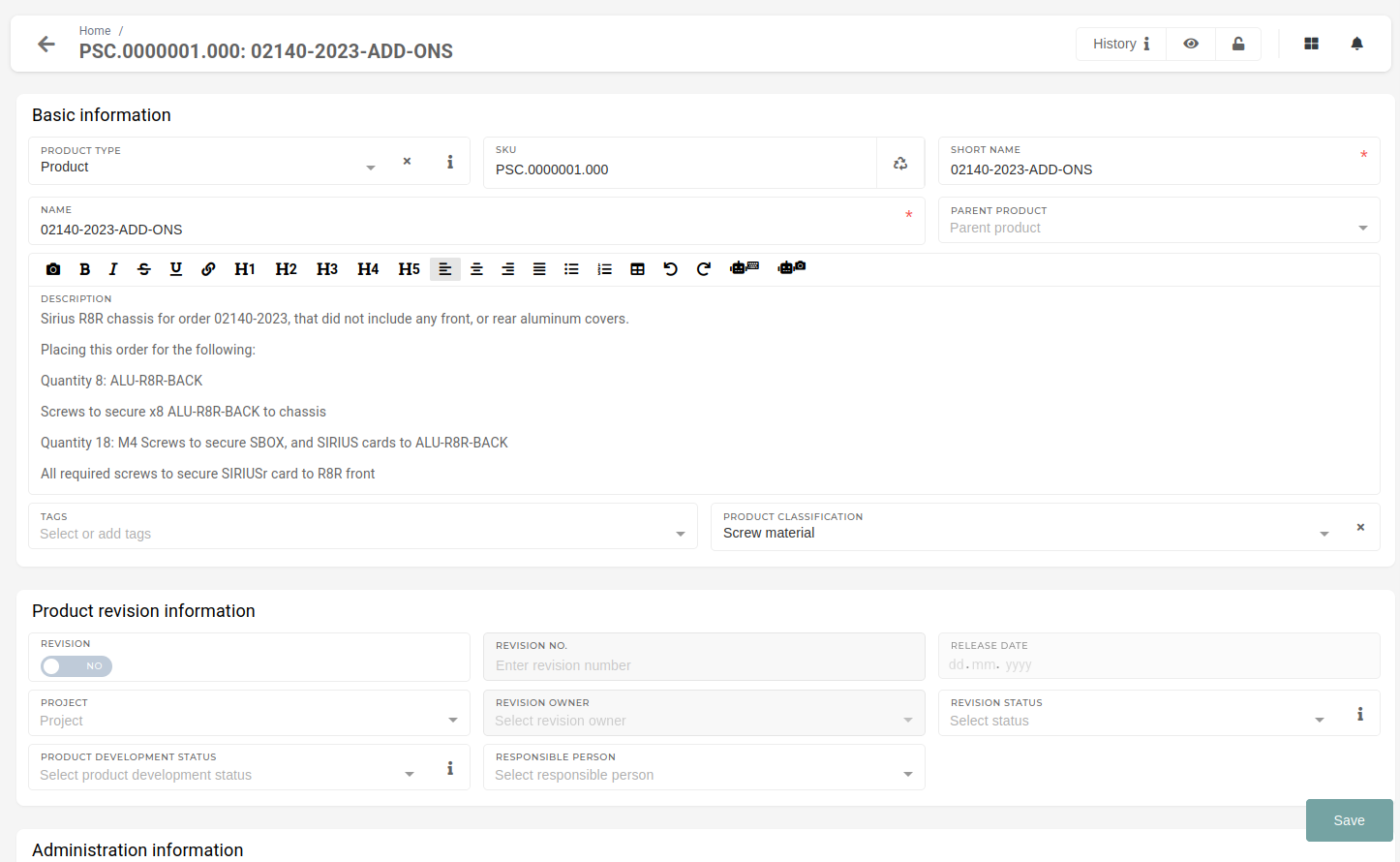 ##### Product SKU Every product has its own unique SKU, which must remain unchanged, to avoid unintentional duplicates.Product's **SKU should not be changed,** if at all avoidable.
##### Product short name A product has a full and an abbreviated version of its name. The short version of the name should not be updated, as it version it is written on many documents, including invoices. Short name should remain unchanged to avoid any discrepancies.Product's short name should not be updated, if issued invoices exist for that product.
##### Product type and classification Product type or classification should not be changed unless the SKU must be changed, as these properties are linked. Type and classification are used to determine SKU structure.Changing **only** either **type** **or classification** will result in an **error.**
 # Delete productsThis action requires the **"delete products"** permission.
Deleting products is not advisable, as they are referenced in many places in the ERP system, but can be done from the products table.Only products, created recently (eg. a month ago or within the current year) should be considered for deletion. Old products that are no longer being sold, should be marked as deprecated or obsolete instead.
To delete a product, locate it in the table. Then tick it's checkbox and press the **"Trash"** button. A confirmation dialog will appear, and once confirmed, the product will be deleted.Attempting to deleting any product with existing transactions will result in an error.
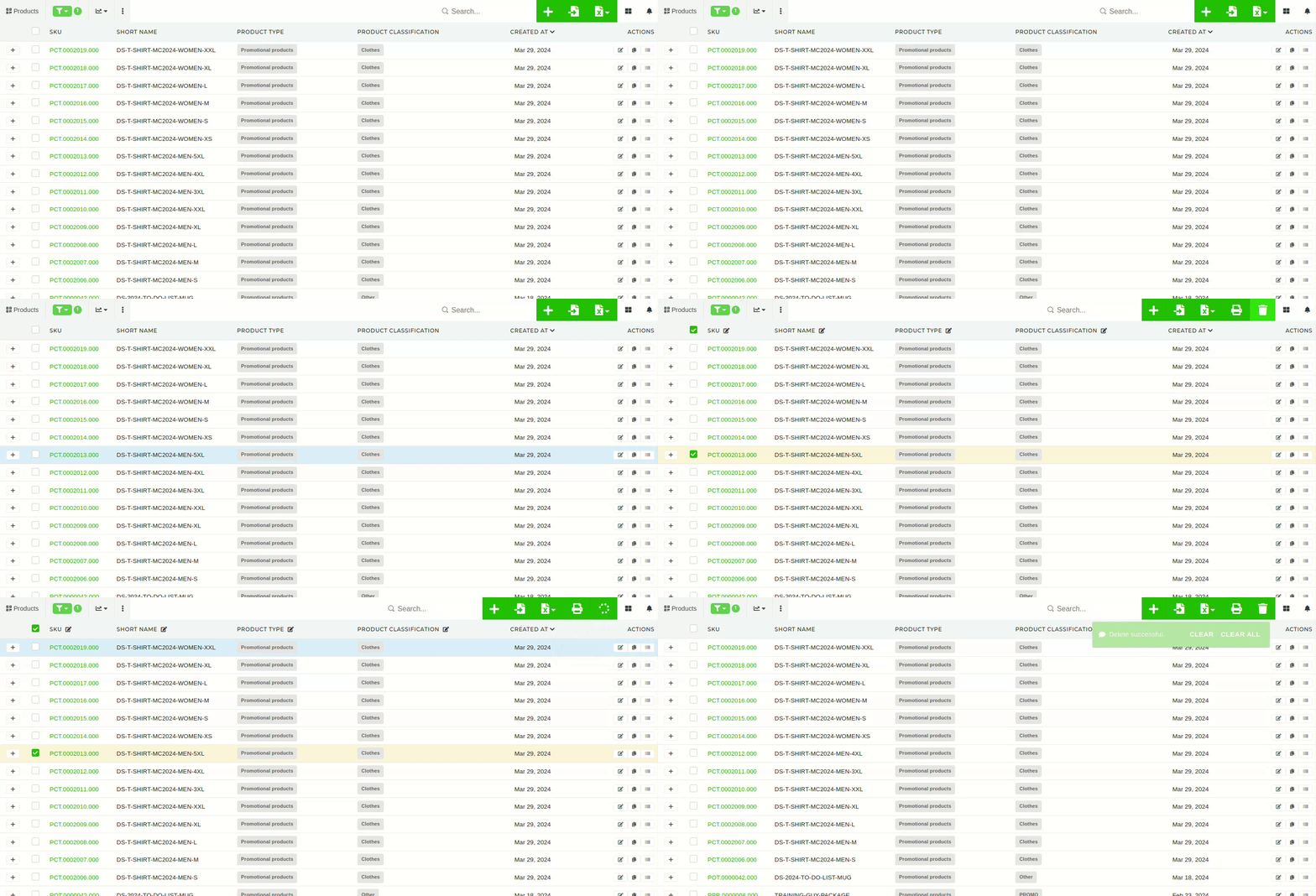You can select and delete multiple products at once.
# How SKUs are generatedEvery **product** can have only **one SKU** and every **SKU has to be unique.** Duplicate SKU-s are not supported.
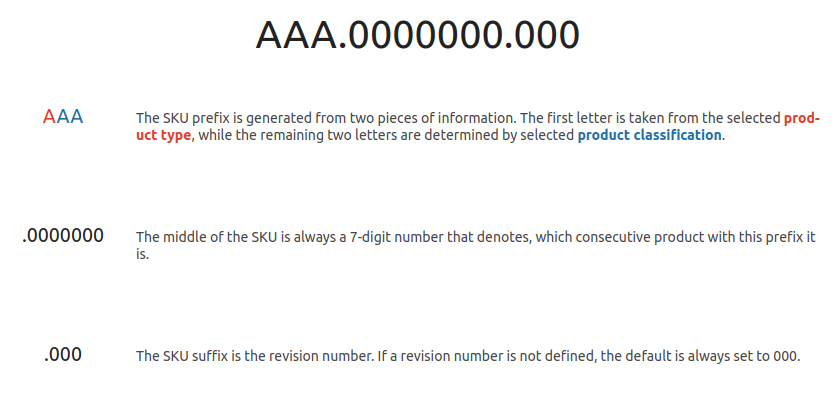 ##### **Example:** MME.0038447.11B In this example, the prefix **MME** stands for **Materials, Metal** (M - Materials, ME - Metal), the number **0038447** means, that this is the 38447th MME product. The suffix **11B** means that the product **revision** is 11B. # Bulk replace materialProducts can be replaced in bulk across product BOMs or in work order item BOMs.
To bulk-replace a product, open its details page and find the "Bulk replace products / work orders bom" section. [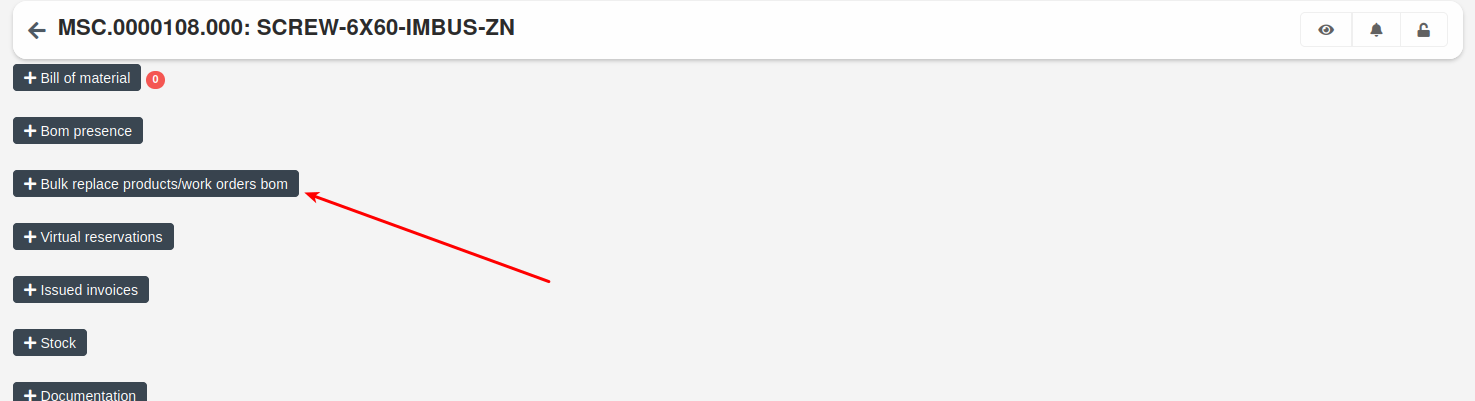](https://how-to-erp.dewesoft.com/uploads/images/gallery/2024-10/qRIimage.png) Open it and follow the steps in it. **1**. **Select material** Select the product, that will replace the current product in BOMs, and set its quantity. There can be from one to several products selected to replace the current product. 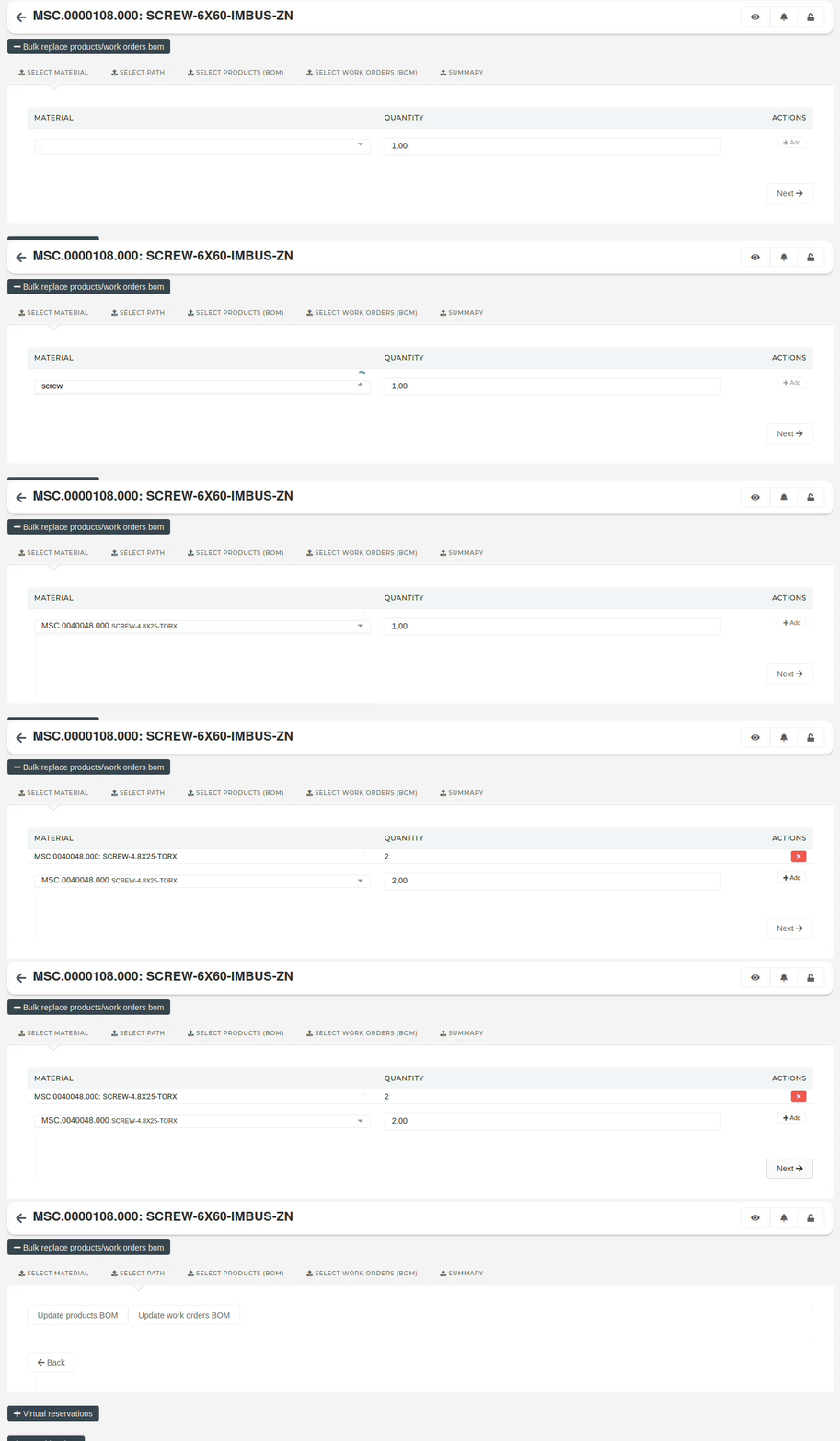 **2**. **Select path** Here you have to select which type of BOMs you will be updating (replacing the product in): - **Update product BOM**: the product will be replaced in BOMs of selected products. - **Update work order BOM**: the product will be replaced in BOMs of selected work orders. 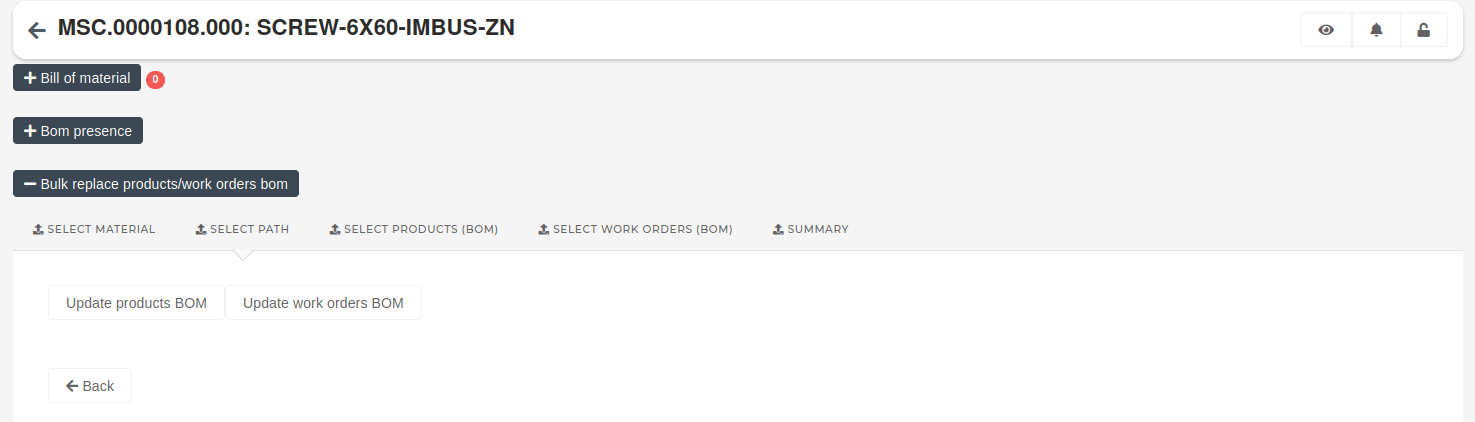 **3**. **Select products (BOM)** If the selected path was "**Update product BOM**", the next step is to select the products, whose BOMs will be updated. 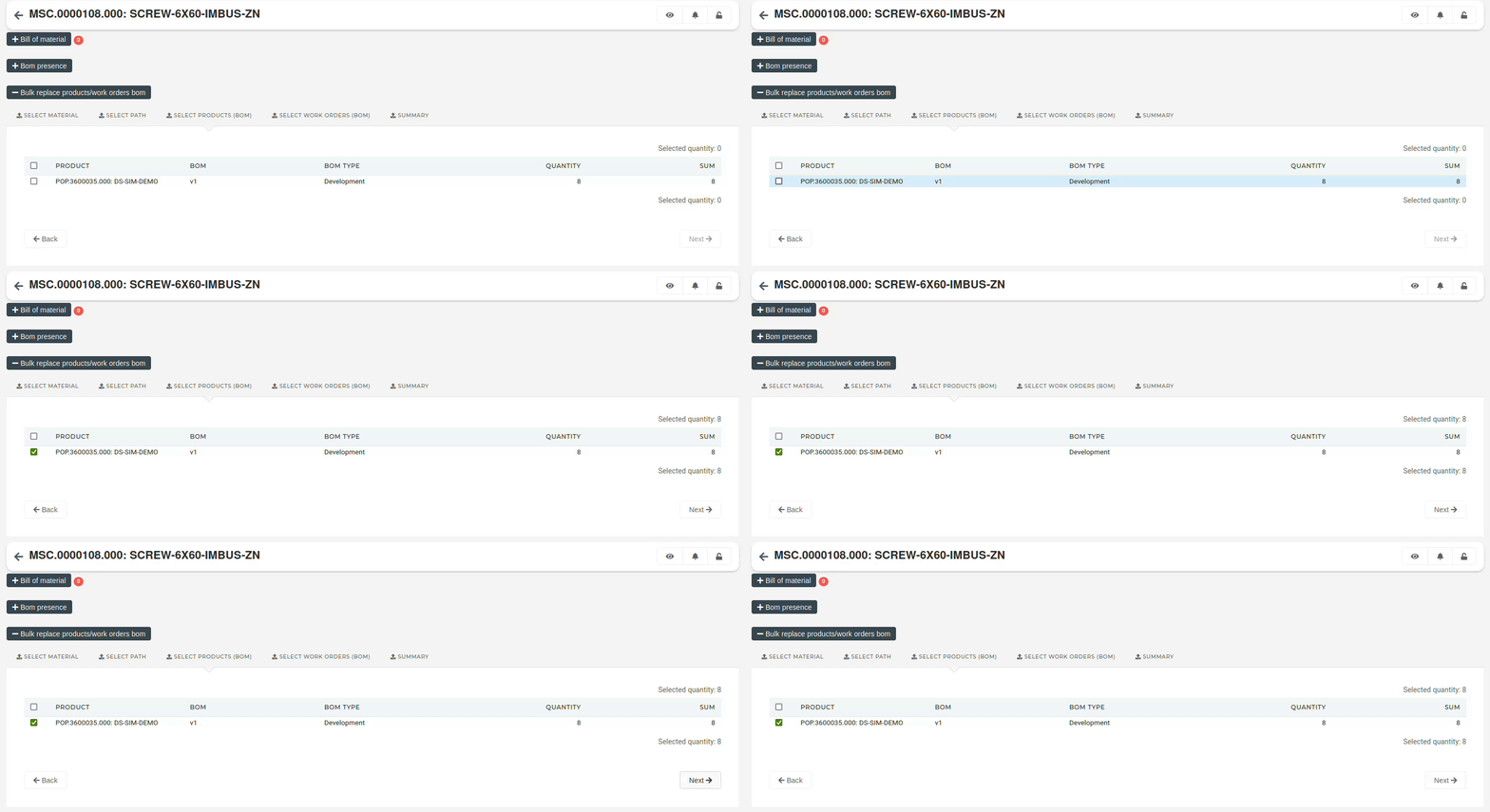 **4**. **Select work orders (BOM)** If the selected path was "**Update work order BOM**", the next step is to select work order(s), where work order item BOMs will be updated. [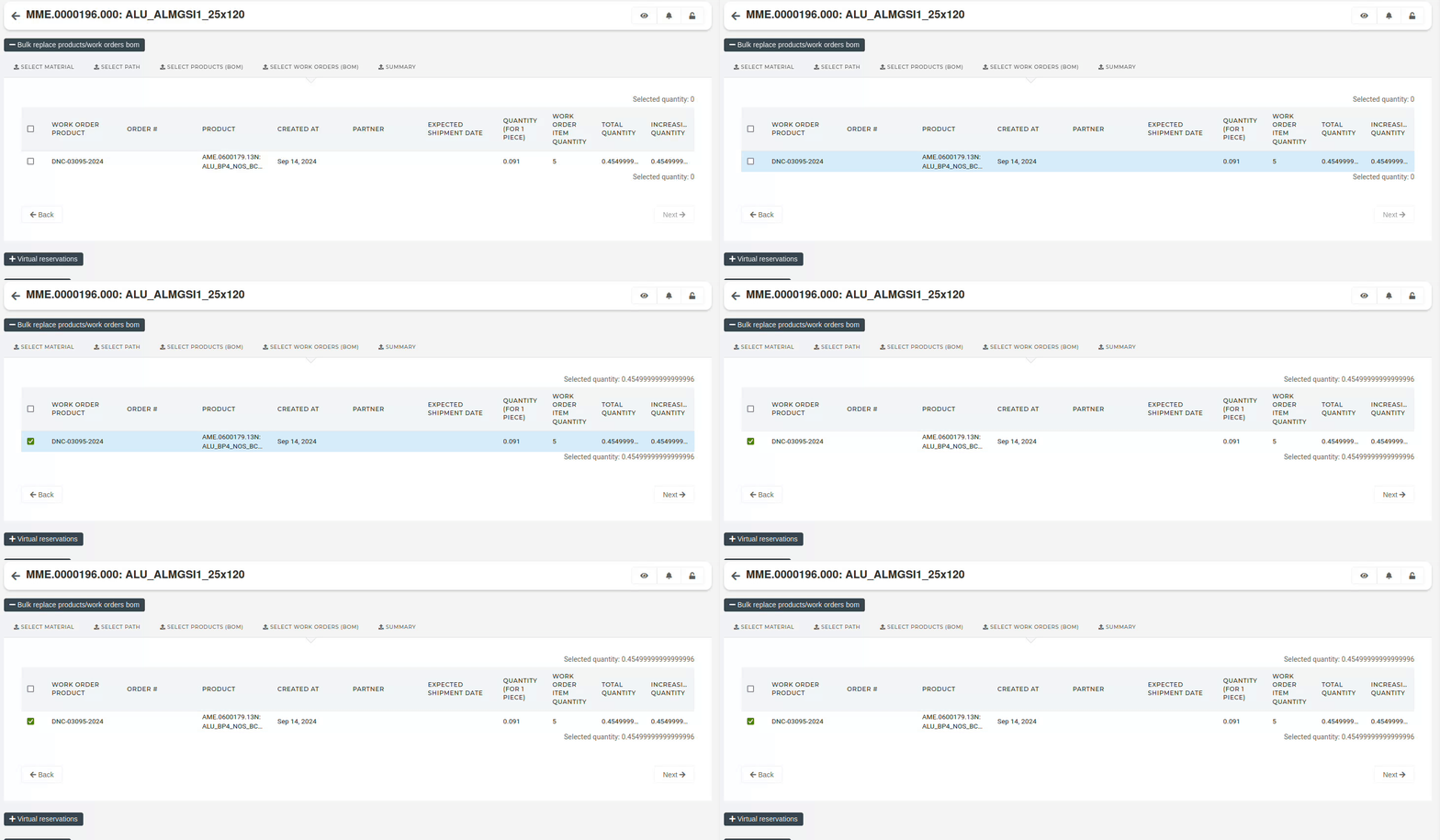](https://how-to-erp.dewesoft.com/uploads/images/gallery/2024-10/F4Youtput.gif) **5**. **Summary** If we are updating the product BOM, the summary will list the products that will be updated. Clicking the "Remove material" button and confirming will perform the replacement/removal of material on selected products. [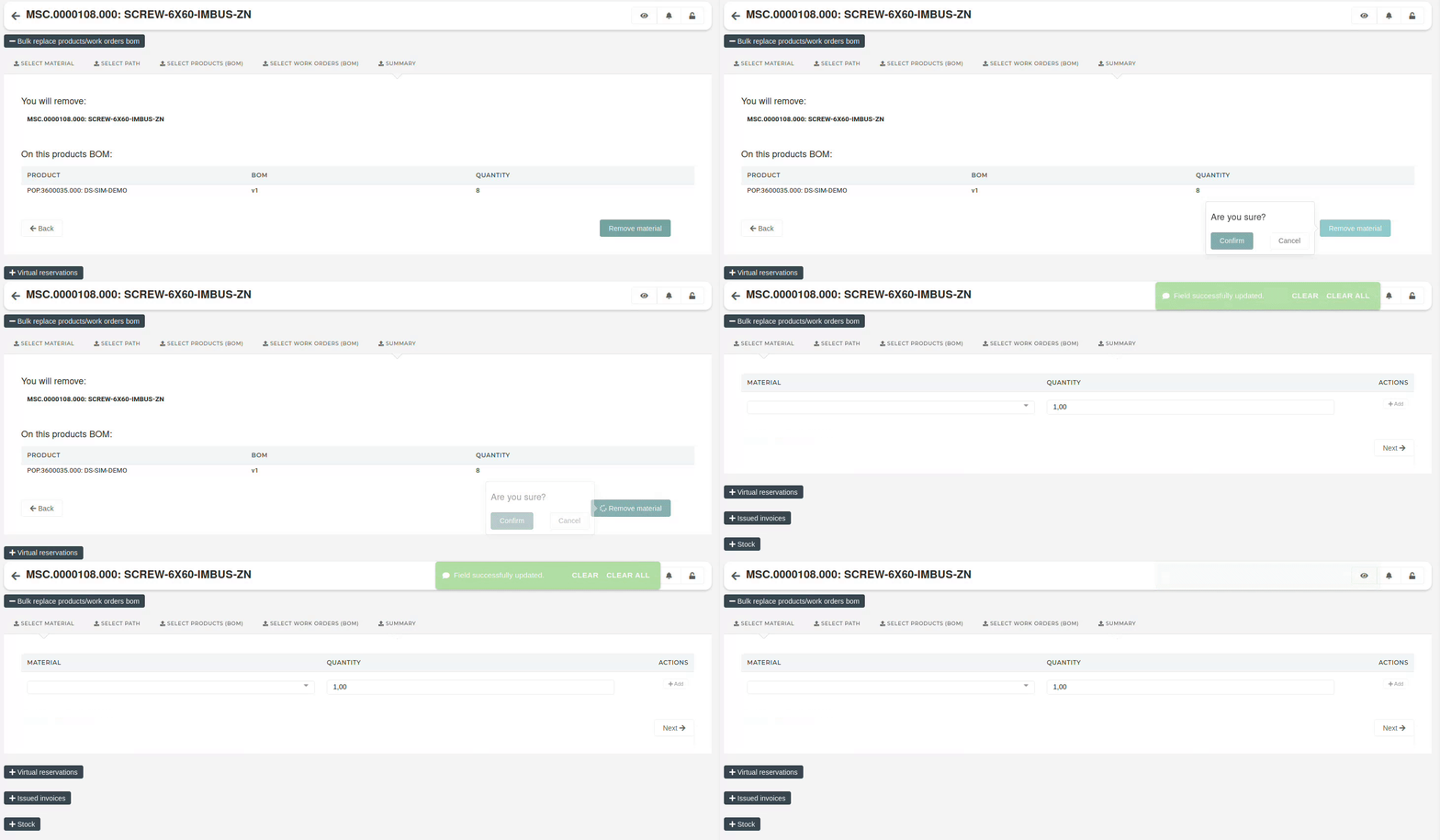](https://how-to-erp.dewesoft.com/uploads/images/gallery/2024-10/fhfoutput.gif) If we are updating a work order's BOM, the summary will list the products that will be updated. [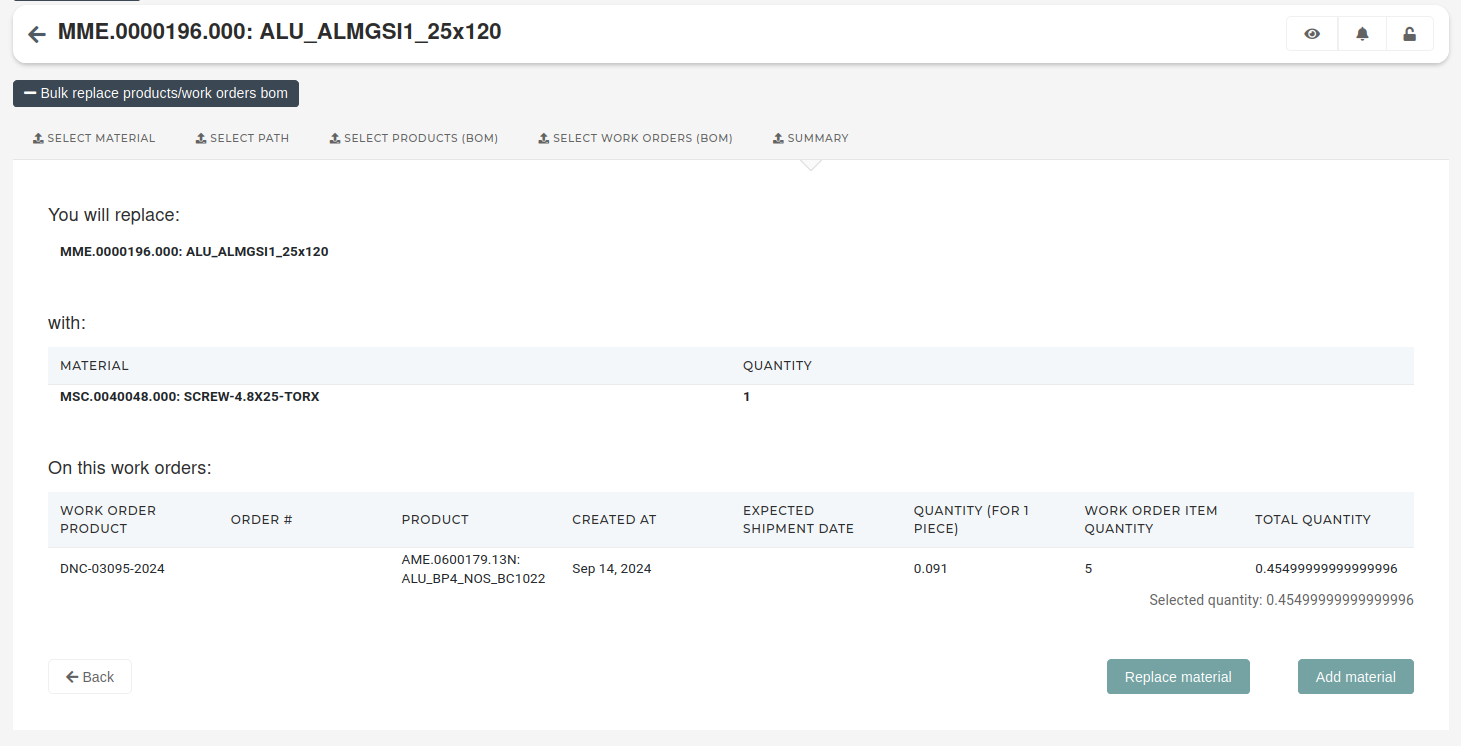](https://how-to-erp.dewesoft.com/uploads/images/gallery/2024-10/3Ytimage.png) Clicking the "**Replace** **material**" button will replace material on BOMs of selected work order's items. Clicking the "**Add** **material**" button will add material on BOMs of selected work order's items. # Product safety stock wip # Product suppliers wip # Bill of materials (BOM) ### StepsThis can only work if produced assembly has tracking by serials!
The steps are designed for automatically generating actions on the consoles, including machine setup, a basic operation, and a measurement. [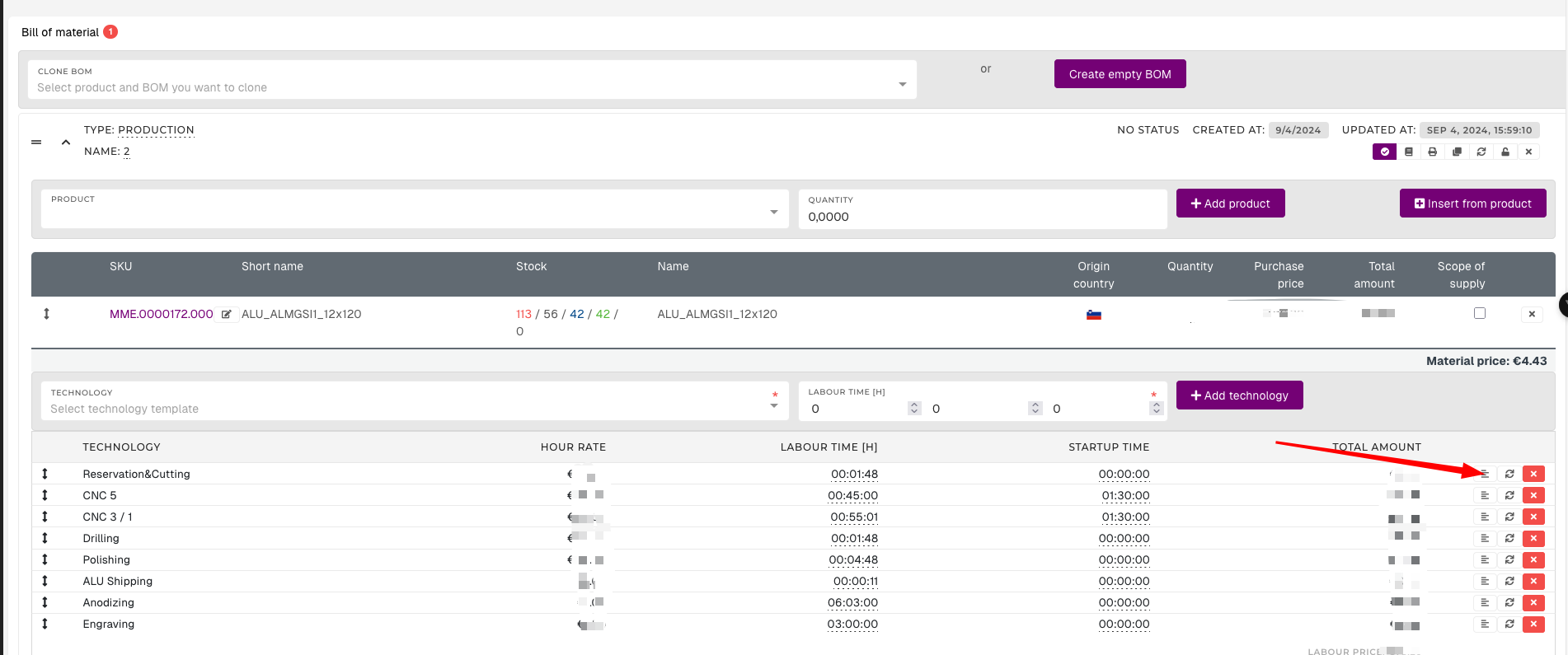](https://how-to-erp.dewesoft.com/uploads/images/gallery/2025-07/oJAimage.png) - Technology step: type of step (machine preparation, measurement, default operation) - these are codelist which can be updated [here](https://how-to-erp.dewesoft.com/books/code-lists/chapter/technology-steps "Technology steps") - Start with: selected operation will start with n-th piece - Repeat every: selected operation will repeat every n-th piece - Is general step: selected operation will repeat for every serial - Question/instruction: Description of the measure operator should make - Nominal measure: Measure that should be measured - Tolerance field max: Max value operator can measure - Tolerance field min: Min value operator can measure - Group: groups are meant for multiple passes for each technoogy. In CNC maching it could happen that you need to take out the piece and rotate it for CNC to finish [](https://how-to-erp.dewesoft.com/uploads/images/gallery/2025-07/x6Pimage.png) For developers: When creating WO, this will generate serials steps which are then used in Console. # BOM presence wip # Product lines # Overview Product lines are used to group similar products into merchandise groups. Product lines provide default warehouse location, maximum and minimum required stock for all products, added to that particular product line. [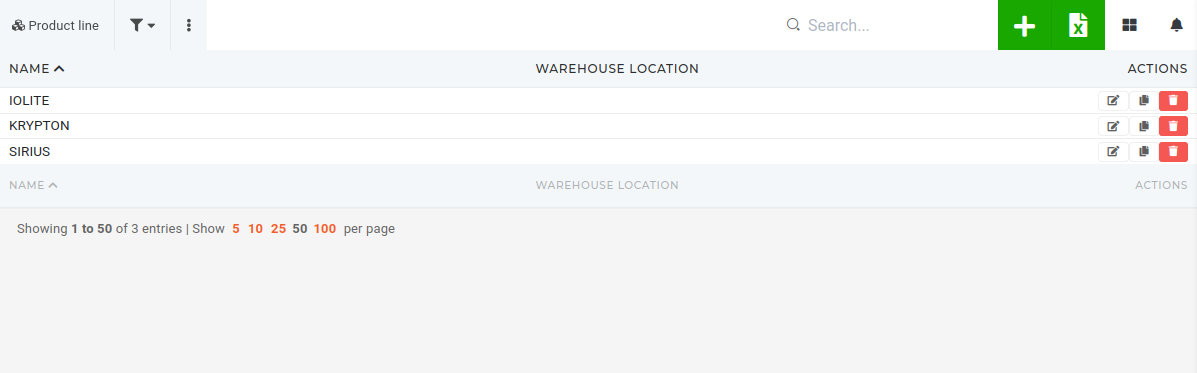](https://how-to-erp.dewesoft.com/uploads/images/gallery/2024-05/ZMiimage.png) # Create new product line To add a new product line, press the **"Add new"** button to get redirected to the **"Add product line"** form. To create a new product line, all that is required is a unique product line name. 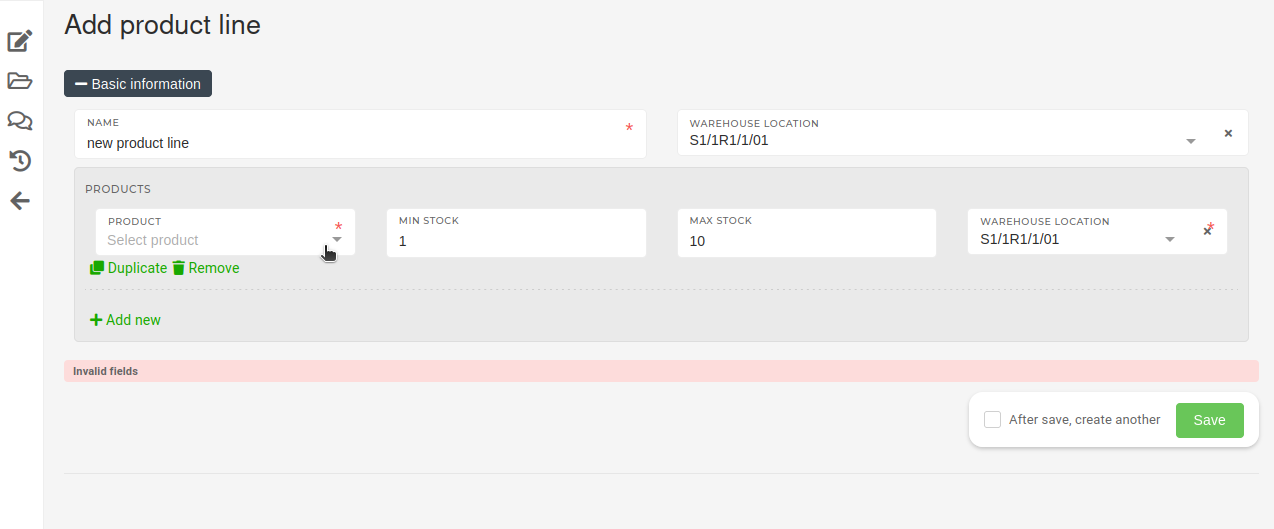When adding a product into the product line, a default location for that product is required.
# Update existing product line # Delete product line # Projects # Overview # Create new project # Update existing project # Delete project # Serial numbers # Overview Serials are used within the ERP for tracking of devices.Serial number is a sort of identification number of a particular device.
With the serial number, users can access calibration reports for a particular device. Serial numbers can also be used to track a particular product's stock transactions. 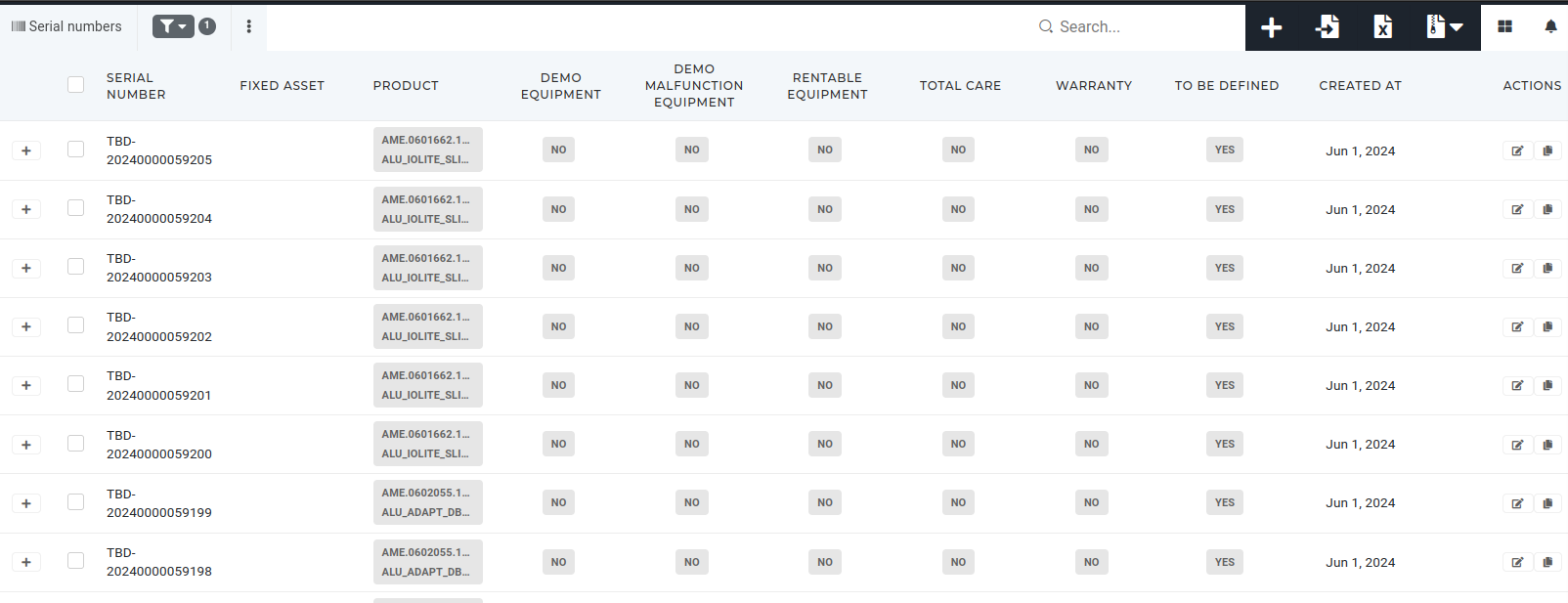 Serials are usually connected to a product and/or to a license. # Create new serialsThis actions required the **"create serial"** permissions.
Adding a new serial through the ERP is usually not necessary, as new TBD serials are automaticaly generated for work orders and can simply be renamed. Serials can be added via the ERP "[Add new serial number](https://placeholder.erp/serials/create)" form. 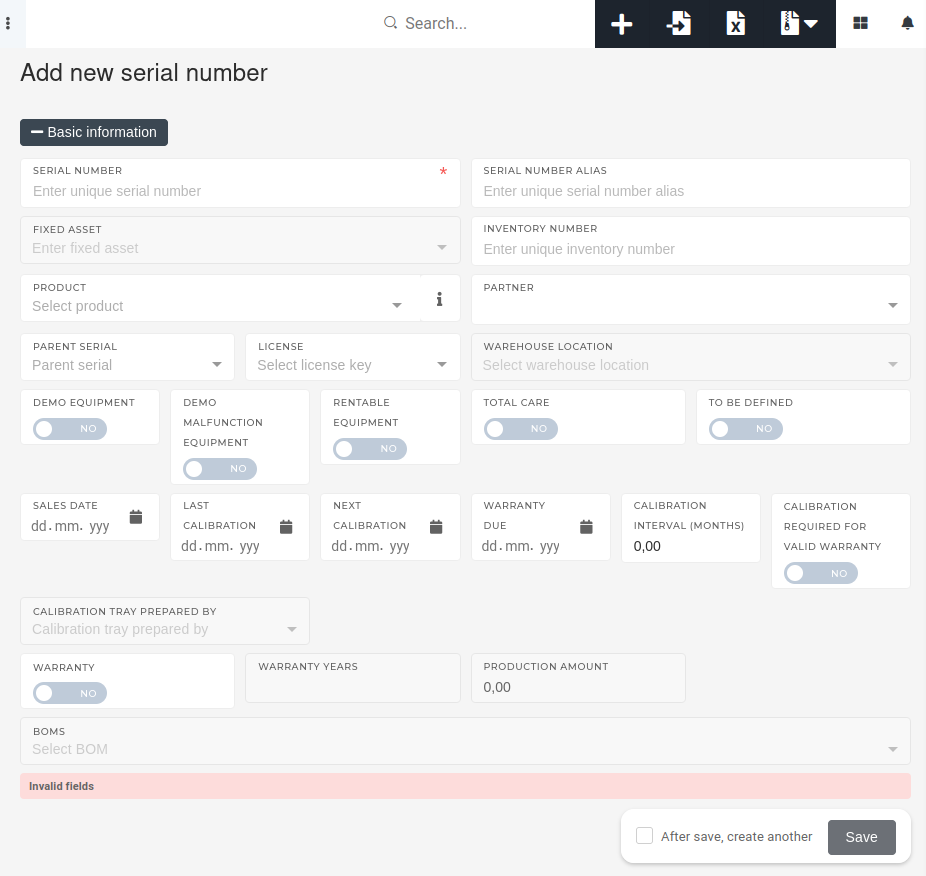 When adding a new serial number into the system, only its serial number value is required.When adding a new serial number, keep in mind that the system does not limit the adding of multiple serials with the same serial number. There can, however, not be more than a single serial with a particular serial number and a particular product type.
 # Update existing serials # Delete serialsThis action requires the "**delete** **serial**" permission.
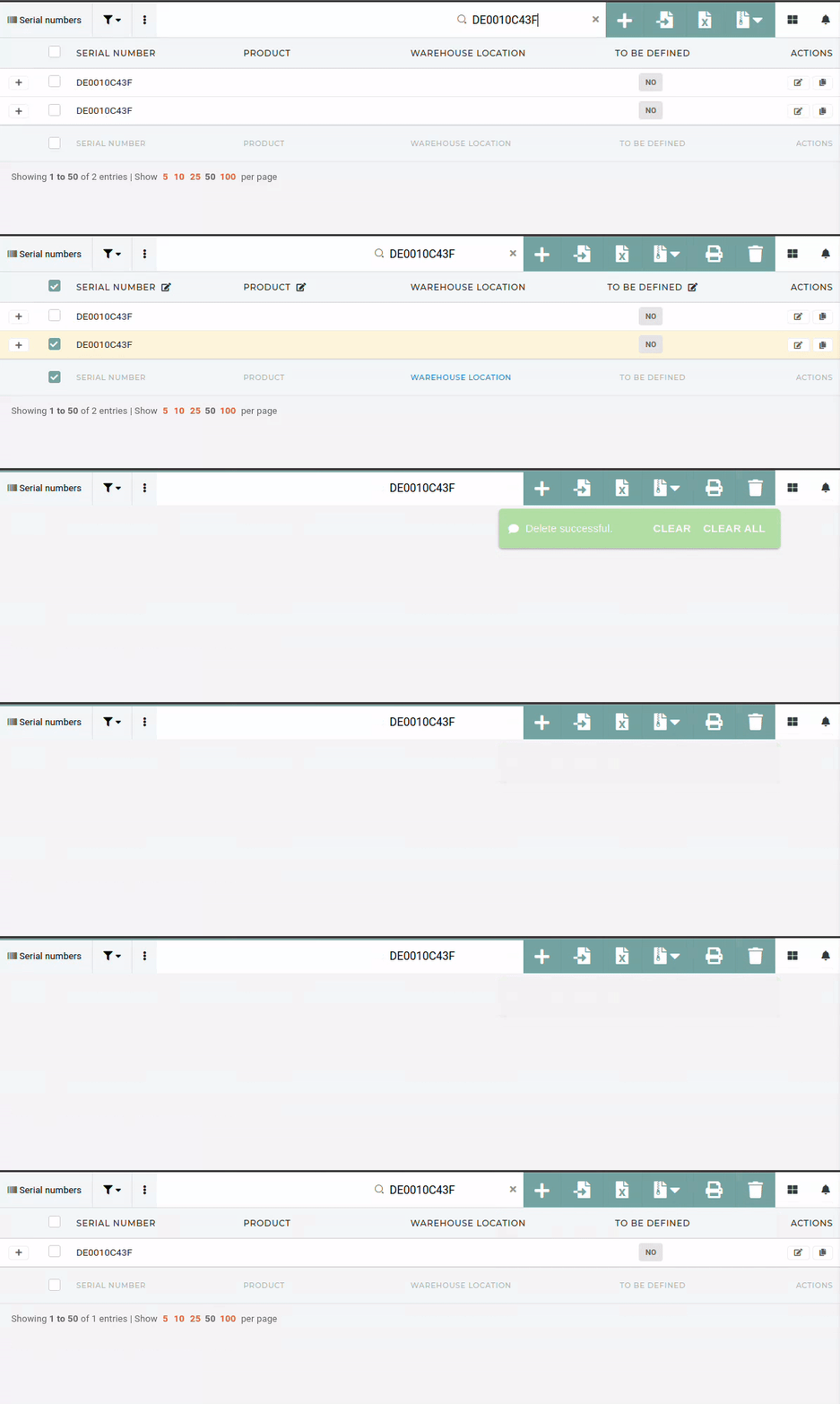
**Serials** **should**, in most cases, **not be deleted**. The only exceptions are **duplicates of existing serials**. This happens when serials are create through different sources without all information. When this happens, both serials should be checked and their data synced (warranty, calibration intervals, file manager contents...)After syncing all serial data, the serial with existing stock transactions should be retained, while the duplicate can be deleted.
 # Extend serial's warranty By default, warranty is calculated automatically, based on fields on serials: [](https://how-to-erp.dewesoft.com/uploads/images/gallery/2024-04/5GKimage.png) Conditions, that apply are (warranty enabled): - if serial is not sold (this is necessary to show correct data in calibrator) - if sold serials do not need calibrations (image below) - if sold serials need calibration and are calibrated (**last calibration** is before current date and **next calibration** is after) - if warranty is valid until the **warranty due** on serial number. This is generated from sales date to calculated date from product setting **warranty duration in months** (image below)  Warranty will turn off, when **warranty due** date passes or calibration was not done within **N** months from **next calibration** date (the N can be setup in ERP settings). You can turn on warranty with **warranty** switch on serial's page. Be aware of automation explained in section below:Warranty will turn off every night, if settings are not correctly set up (e.g. **warranty due** or **next calibration** is missing based on conditions above)
**Calibration** interval can be changed, if calibration is necessary more or less often. Zero mean 12 months. # Troubleshooting: duplicated serials Occasionally, two serials with the same serial number are created in the ERP. [](https://how-to-erp.dewesoft.com/uploads/images/gallery/2024-07/P0Oimage.png) When this happens, the two serials must be compared. If one serial has some fields filled that the other does not, those fields have to be synced between the two serials. 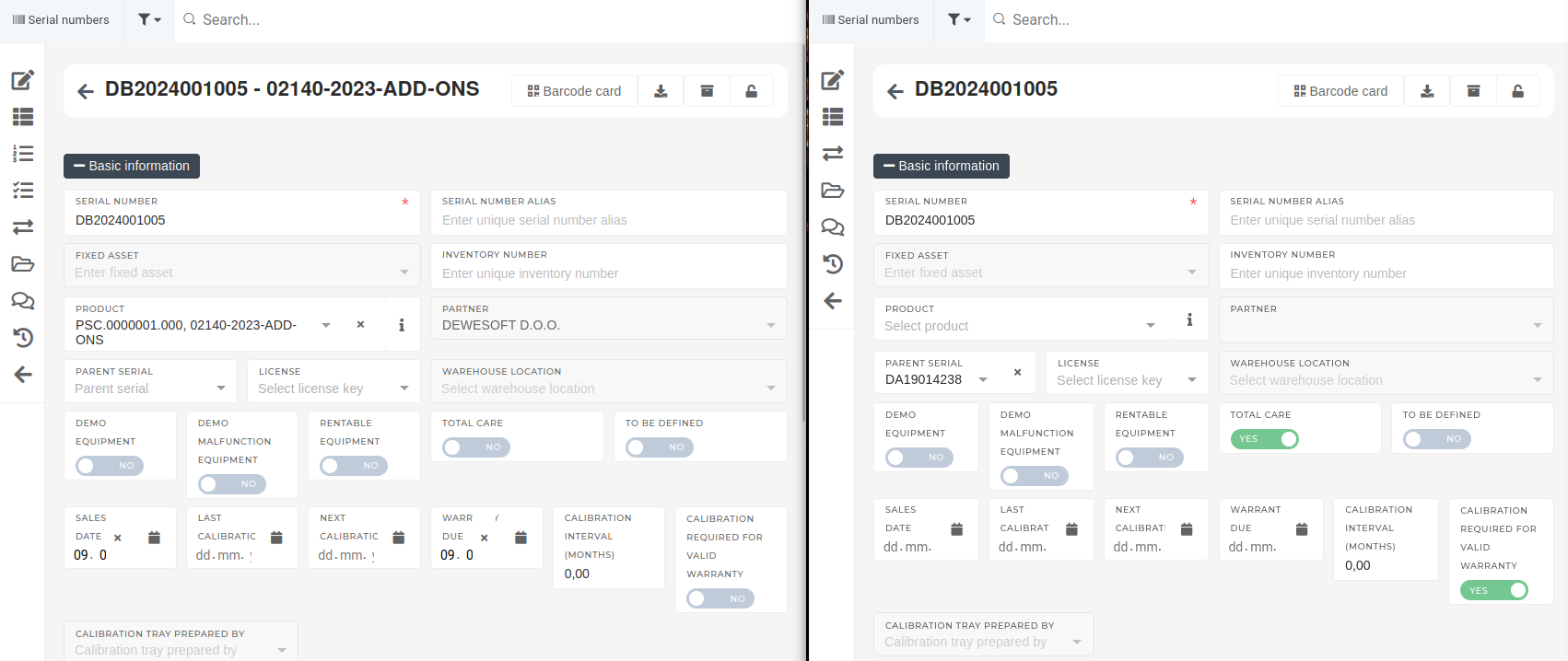 Once all the information, present on the serials, is added on both serials, the "stock transactions" section has to be checked on both serials. 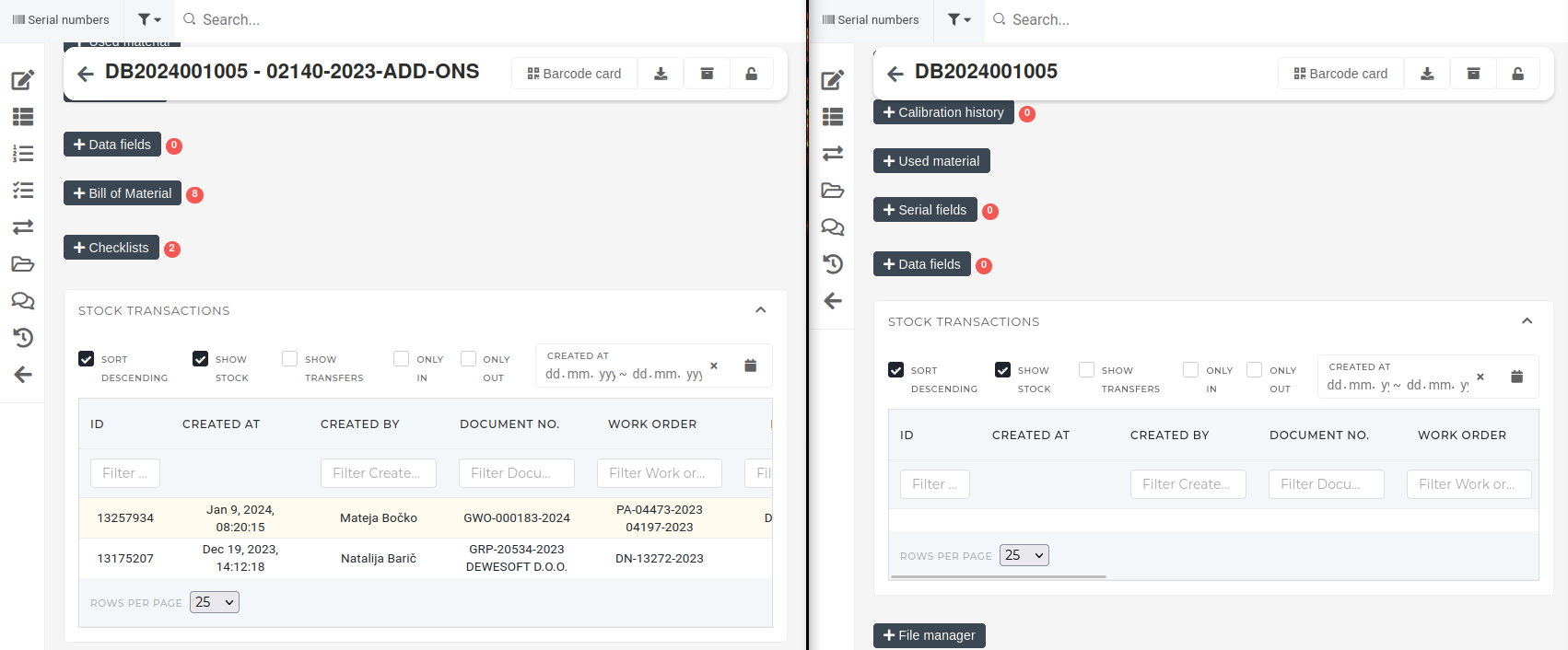After all information has been synced, files in file manager should also be synced between the two serials, as files such as calibration reports, can pertain to either of the serials.
If, on inspection, one of the serials has stock transactions while the other does not, then the one without stock transactions can be deleted. 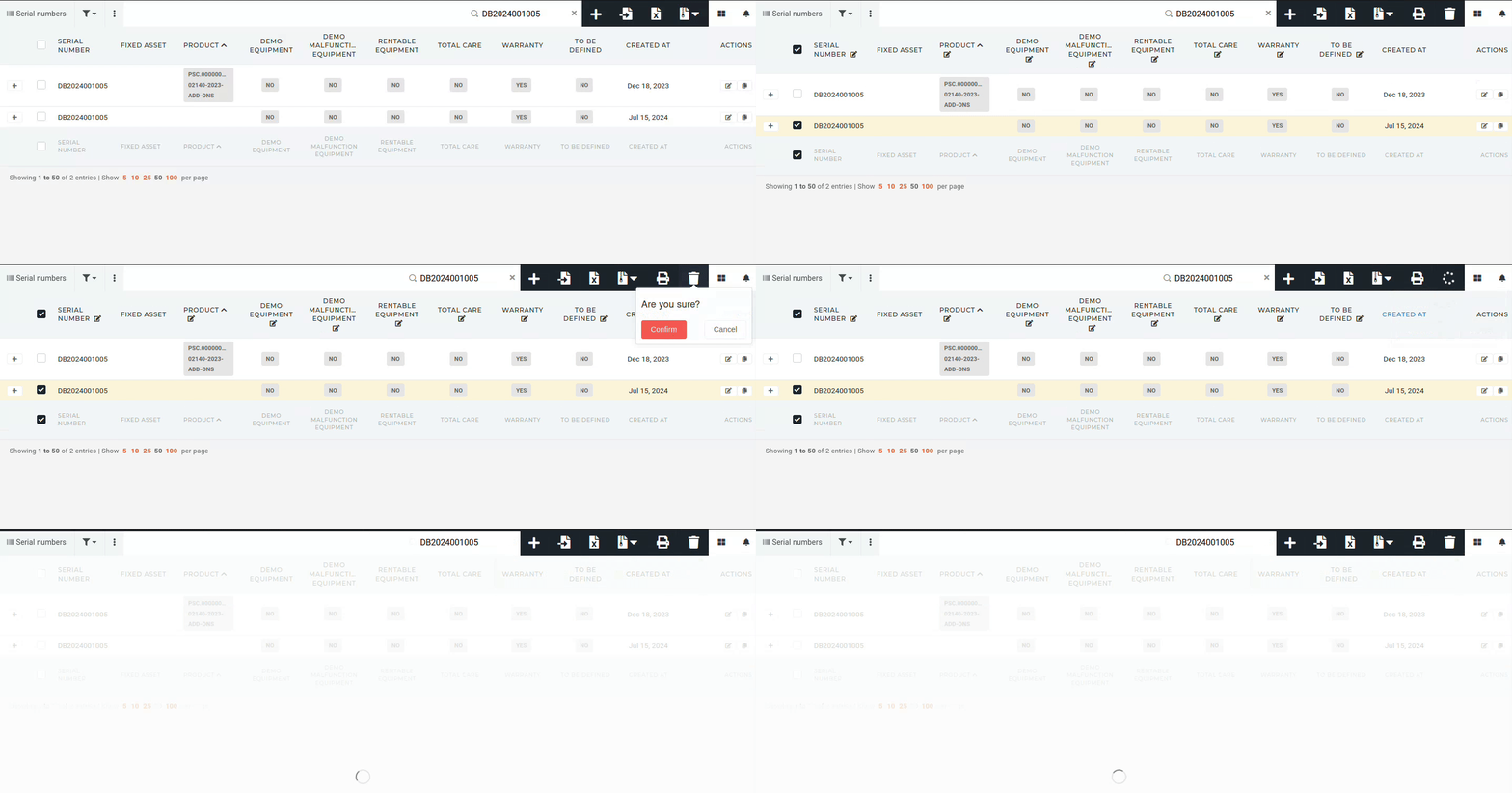 # Troubleshooting: Find serial stock sourceThis action requires the **"View serials", "View lots"** and **"View stock transactions"** permissions.
A serial's stock source needs to be identified for a variety of stock operations.**Serial's stock source** usually refers to **Goods receipts, Goods rebooks** or **Stock adjustments...**
To find a serial's stock source, open the serial's details page and find its **"Lot"** field. Click the link icon, this will redirect you to Lot's details page. 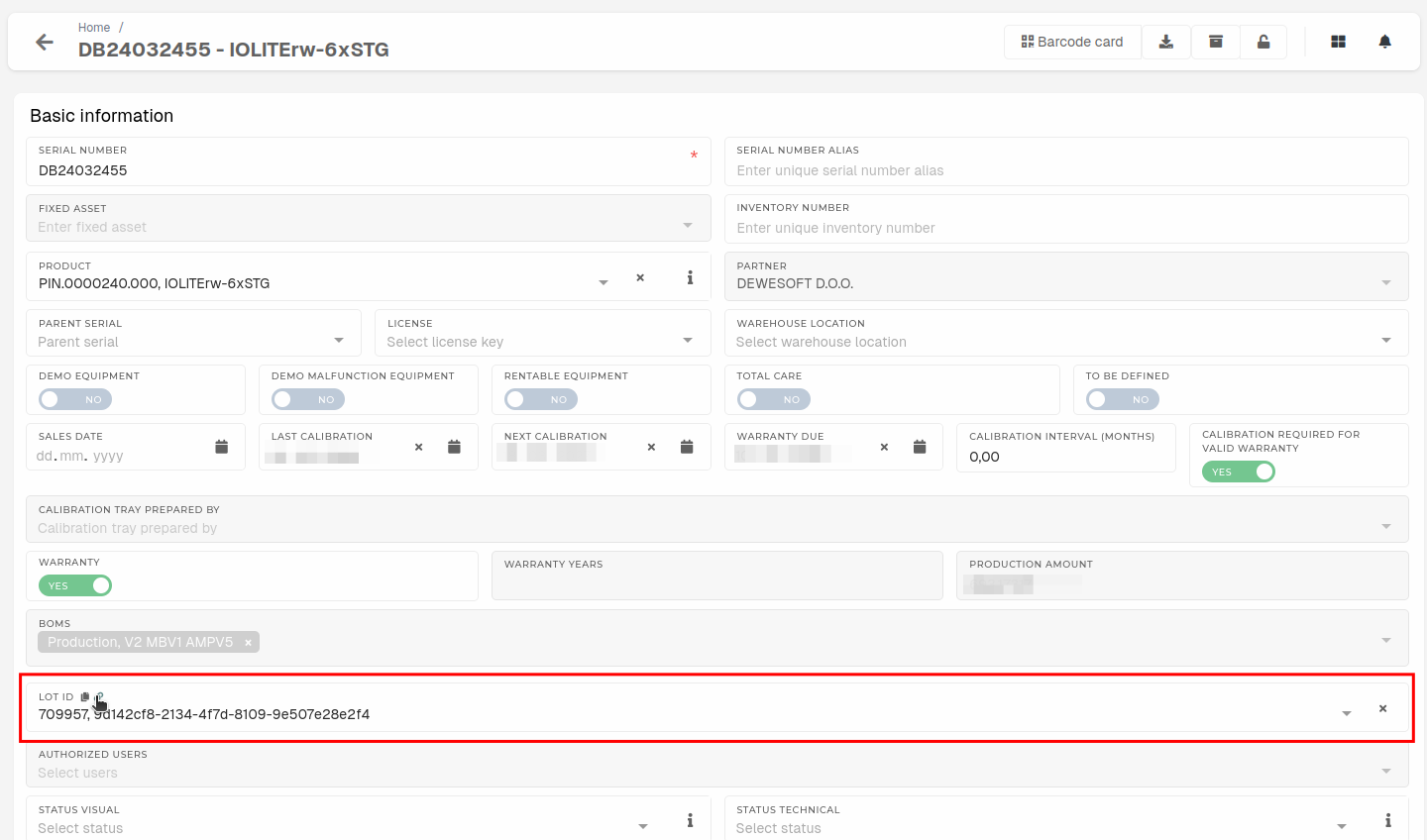 On the lot's details page, open the **"Stock transactions"** section, this will load all transactions of this lot. Scroll to the first stock transaction.It is recommended to check the **"Only In"** checkbox and view transactions by their names to find the right goods receipt/rebook or stock adjustments. The stock transaction usually has a link to the stock document in the **"****Document no.****"** column.
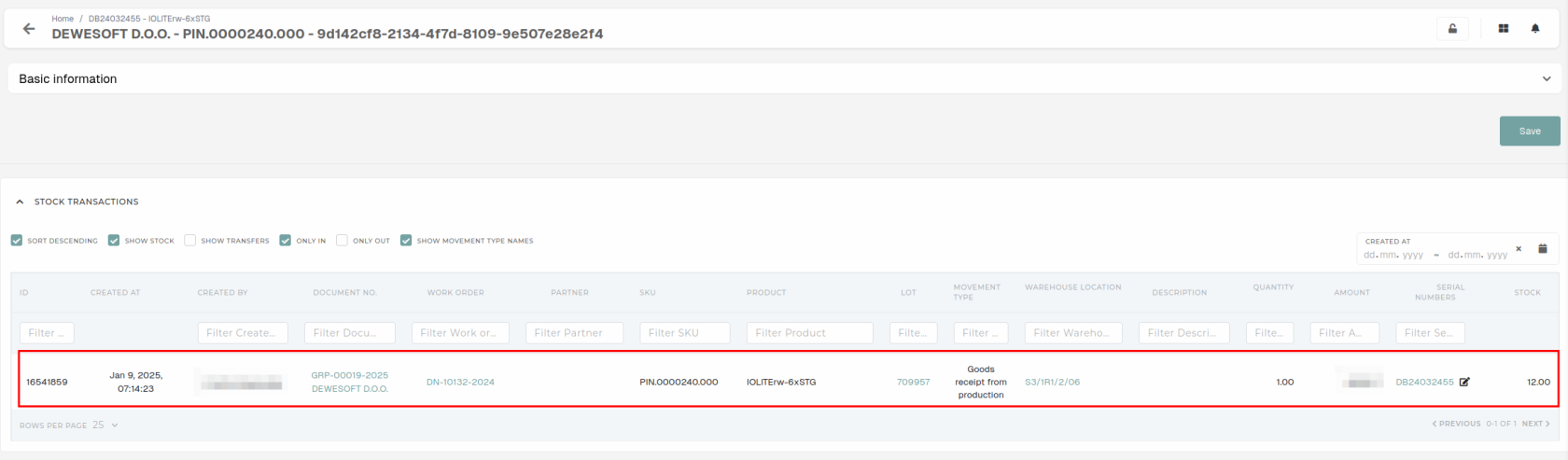 # Fixed assets # Overview # Create new fixed asset # Update existing fixed asset # Delete fixed assetThis action can be performed by users with proper permissions.
A fixed asset can be deleted from the ""[Fixed assets](https://placeholder.erp/fixed-assets)"" table view. Find the fixed asset that you want to delete by searching for its inventory number in the table. 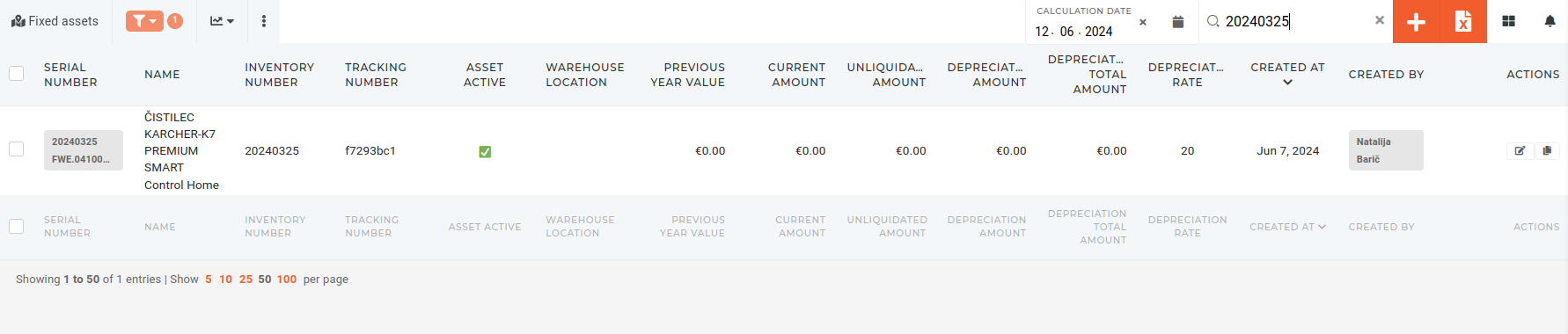 Once you have found the fixed asset, tick its checkbox, and click & confirm the "**Trash**" button that appears in the top right corner. With the fixed asset deleted, the goods receipt can now be canceled. 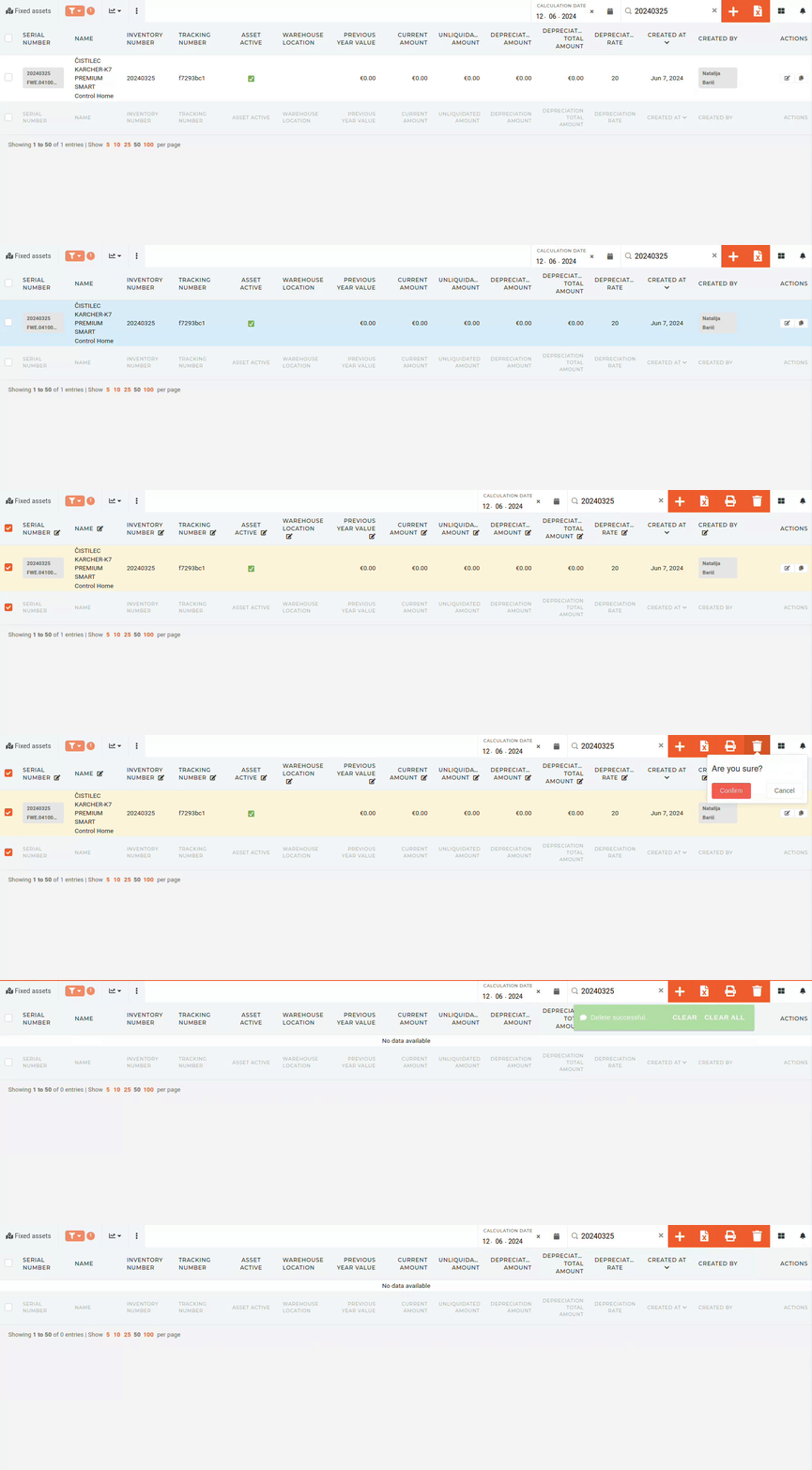 # Licenses # Overview # Create new license # Update existing license # Delete license # Restore license #### Problem description Customer order upgrade and then cancel it. Because we need license key as soon as the order is created, system automatically delete old license and create new one. To revert this process you need to follow next how to guide #### Solution Go to licenses (CTRL+/ and search license): [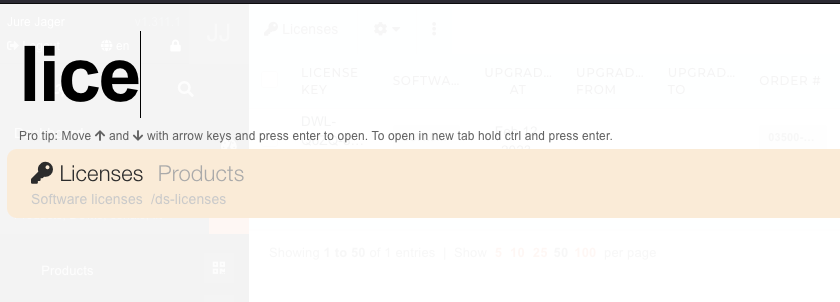](https://how-to-erp.dewesoft.com/uploads/images/gallery/2023-03/image.png) Find newly created license and delete it: [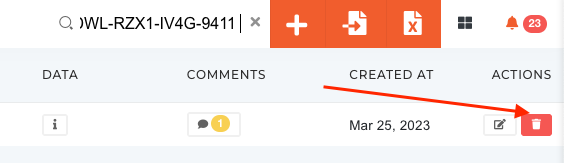](https://how-to-erp.dewesoft.com/uploads/images/gallery/2023-03/jaGimage.png) Find old license which needs to be restored: [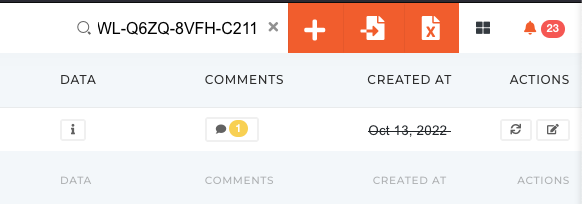](https://how-to-erp.dewesoft.com/uploads/images/gallery/2023-03/eGMimage.png) Open and restore it: [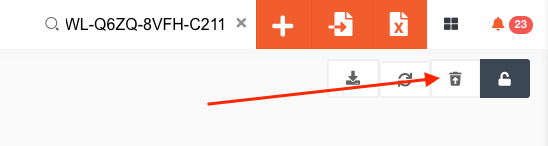](https://how-to-erp.dewesoft.com/uploads/images/gallery/2023-03/zaGimage.png) Create upgrade to, upgraded at and save it: [](https://how-to-erp.dewesoft.com/uploads/images/gallery/2023-03/CVOimage.png) # Downgrade license Old license: - copy sale order item id from new one - change ds\_licence\_id on serial to old one - remove deleted at on old license - remove upgrade\_ds\_license\_to\_id New license: - remove upgrade\_ds\_license\_from\_id - delete license with button # AGV robots # Overview # Add new AGV robot # Update existing AGV robot # Delete AGV robot # AGV Control Panel # AGV Control PanelUse this page when something on the AGV Control Panel is not going the way you expect.
**How to use it:** find the part of the panel you are looking at (the parts are listed in the same order as on the screen), find your problem in the *If something is wrong* list, and do the steps. If your problem is not listed, go to the last part, *Asking for help*. Three rules that solve half of all problems: - **Press Refresh first** (the round-arrows button in the section). Sections do not update by themselves unless *autoupdate* is ticked. - **Read the pop-up before you confirm.** Every button that changes something asks you first. - **Do not guess.** If you are not sure which button is right, ask before pressing. 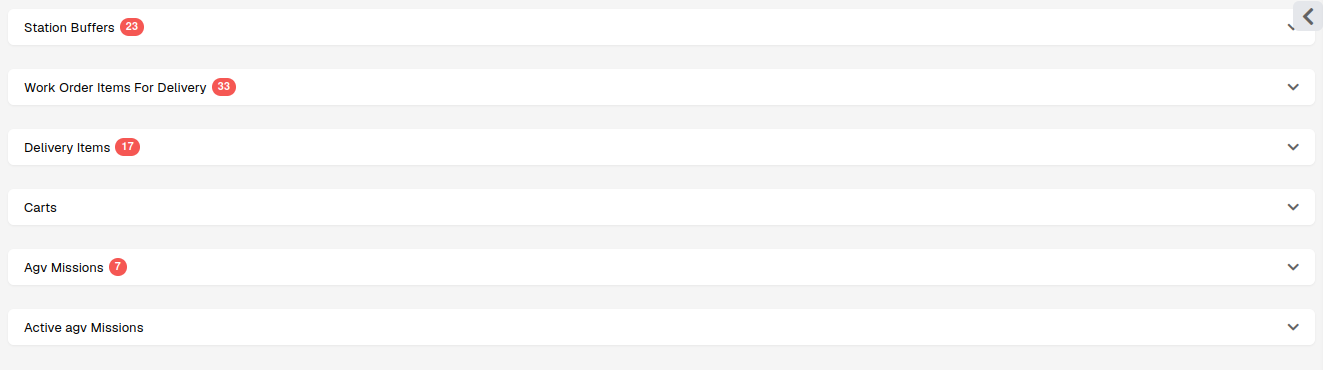 --- #### 1. Station Buffers **What you see.** One line per station (one line per person). The coloured badge says whether the person is at work (`present`), has a shift later today (`scheduled`) or has no shift today (`absent`). The numbers say how much work is already waiting at that station and until when the person will be busy. Click a line to see the work orders behind the numbers. **What you can do.** Look, search and filter. Nothing here changes anything.  **If something is wrong:** - **A station is missing.** The person has no shift today, or the station is not set up for AGV. Check the shift calendar first. If the shift is there, ask support. - **Red text `no AGV node` under a station.** The robot cannot deliver there. Ask support to link the station's location to an AGV node. - **A red box above the table.** The automatic planner has switched itself off because of a setting. Copy the text and send it to support. Deliveries can still be made by hand (parts 2, 3 and 5). - **The bar is red (100 % or more).** The station is full. The planner will not send more material there until the person works some off. If it must go now, plan it by hand (parts 2, 3 and 5). - **Badge says `absent` but the person is here.** The shift calendar is wrong. Have the shift entered; the planner only counts people with a shift. - **The hourglass icon.** The time shown runs past all known shifts. It is the earliest possible time, nothing is broken. --- ## 2. Work Order Items For Delivery **What you see.** Work order items that *could* be delivered by the robot but are not planned yet. Normally the planner takes them from here by itself. **What you can do.** Press **Create** in a line, then **Create** again in the pop-up. The item becomes a *delivery item* and moves to part 3.  **If something is wrong:** - **The work order item is not in the list.** Check these four things: 1. Is the material at the wall (in the AGV warehouse)? 2. Is its next operation an AGV operation? 3. Does that operation have a station (resource) assigned? 4. Is it perhaps already planned? Look in parts 3, 5 and 6. - **Message `Assigned resource on technology not available…`.** The operation has no station. Assign the station on the work order item, then try again. - **Message `some OPFB's are still assigned in AGV cart`.** A box of this item is still registered on a cart in the system. Go to part 4, find the box and remove it there. Do this only if the box is really not on that cart. - **Red warning triangle next to the work order number** *\[Upcoming\]*. The material has been at engraving longer than allowed. Check with engraving before you send it. --- ## 3. Delivery Items **What you see.** Delivery items that are planned but not on a mission yet. A mission is one cart trip. **What you can do.** Press **Mission**, choose a mission in the list (it shows the mission number and how many of the 8 slots are used), press **Add**. The item moves to that mission in part 5. [](https://how-to-erp.dewesoft.com/uploads/images/gallery/2026-09/Yidimage.png) **If something is wrong:** - **The list of missions is empty.** Either there is no mission in preparation (make one in part 5, button **Create Mission**) or every mission is too full for this item's boxes. - **The item keeps jumping between here and a mission.** The planner is moving it. This is normal today. *\[Upcoming\]* Items you add to a mission by hand stay there. - **Message `Delivery … is already started`.** That mission is already on its way. Refresh and choose another mission. - **Message `Delivery item is not free to be assigned`** *\[Upcoming\]*. Somebody (or the planner) just moved the item. Refresh and look for it in part 5. --- ## 4. Carts **What you see.** Every AGV cart with its 8 slots. Green blocks are boxes the system believes are on the cart. The label reads *box – work order item – wall location*. The section loads when you open it; press **Refresh** to reload. **What you can do.** Check what is on a cart. Move the mouse over a box and press **×** to remove the box from the cart *in the system only*. The real box is not touched. 📷 *Figure 5 – placeholder: one cart with a box hovered and the × visible.* **If something is wrong:** - **A box is shown but is not on the cart in reality.** Hover the box, press **×**. Then continue with what you were doing (for example part 2, *Create*). - **A box is on the cart in reality but not shown.** Do not add it by hand. The runner must load it through the loading task; ask the runner. - **A label shows `???`.** Press Refresh. If it stays, tell support the cart number and box number. - **You cleared a box of a mission that is driving.** Tell the runner and the operator of that station at once; the box will not be expected at the station. --- ## 5. Agv Missions **What you see.** Missions that are being prepared. They are not started; no runner and no robot knows about them yet. Each line shows the cart (or `No cart`), the load (for example `5 / 8`) and the delivery items on it. **What you can do.** - **Create Mission** – a new, empty mission. - **Pencil** next to the cart – choose a free cart, press **Apply**. - **Remove** in the item list – take an item off the mission (it goes back to part 3). - **Start** – send the mission to the runner. Confirm the pop-up. - **Delete** – remove the mission; its items go back to part 3. **To send a mission on its way, do this:** 1. Check the items on it (the item list under *Deliveries*). 2. Attach a cart with the pencil, **Apply**. 3. Press **Start**, then confirm. 4. The mission moves to part 6 with status *Waiting for material*. The runner now gets the task *Runner Load Cart*. *\[Upcoming\]* The runner also gets a violet alert on the screen. [](https://how-to-erp.dewesoft.com/uploads/images/gallery/2026-09/LV6image.png) **If something is wrong:** - **Start is grey.** The mission needs a cart **and** at least one box. Attach a cart; if the load shows `0 / 8`, the items have no boxes – check the work order. - **Message `Invalid cart`.** The cart is on another mission or is not an AGV cart. Press the pencil again to reload the list and pick another one. - **No free cart in the list.** All carts are out. Wait until a mission in part 6 is *Closed*, or force close a stuck one (part 6). - **Message `Mission is already in progress!` or `Mission already started`.** Somebody started it meanwhile. Refresh; you will find it in part 6. - **Message `Mission has no cart assigned`** *\[Upcoming\]*. Attach a cart first. - **The planner put the wrong items together.** Press **Remove** on the items you do not want; they go back to part 3 and the planner may place them elsewhere. - **A mission is empty and useless.** Press **Delete**. --- ## 6. Active AGV Missions **What you see.** Missions that are being loaded, driving or coming back. Tick **autoupdate** so the list refreshes every 5 seconds. Each mission shows its status and its items with their status. **What you can do.** Move the mouse over an item to see three small buttons, and use the red **×** in the table header to force close the whole mission.| Button | Use it when |
|---|---|
| 🚫 **Abort** | The station no longer needs the item; the robot should skip it |
| « **Return to wall** | The item is *Failed* and its boxes are physically back on the wall |
| » **Manually deliver** | The boxes reached the station but the item did not finish in the system |
| red **× Force close** | The mission cannot be finished normally (robot stuck, cart lost) |
| Status | Meaning |
|---|---|
| New | Being prepared (part 5) |
| Waiting for material | Runner is loading |
| In progress | Robot is driving the stops |
| Returning | All stops done, cart coming back |
| Partially delivered | Cart back, some items failed |
| Closed | Finished |
| Status | Meaning |
|---|---|
| New | Planned, waiting |
| Assigned | On a mission that has not started |
| In progress / In transit | Robot is driving to its station |
| Delivered | Robot arrived, waiting for Accept |
| Confirmed | Operator accepted, unloading |
| Completed / Closed | Done, material booked |
| Failed | Not delivered; needs Return to wall or Manually deliver |