This action requires the **"create purchase orders"** permission.
A new purchase order can be created with the **"create new"** form, located above the **purchase** **orders** table, found under "**purchases**" or [**here**](https://placeholder.erp/orders-purchase-signers/create). 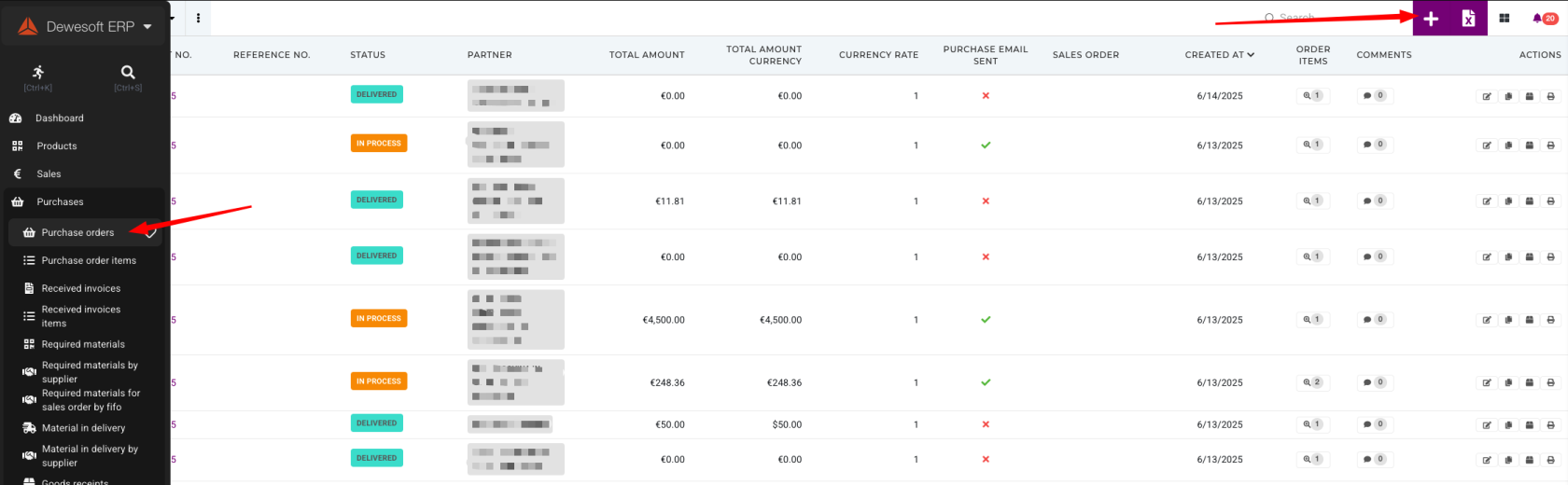When creating a new purchase order, at least the **partner (supplier)** and **currency code** need to be selected, **initially**.
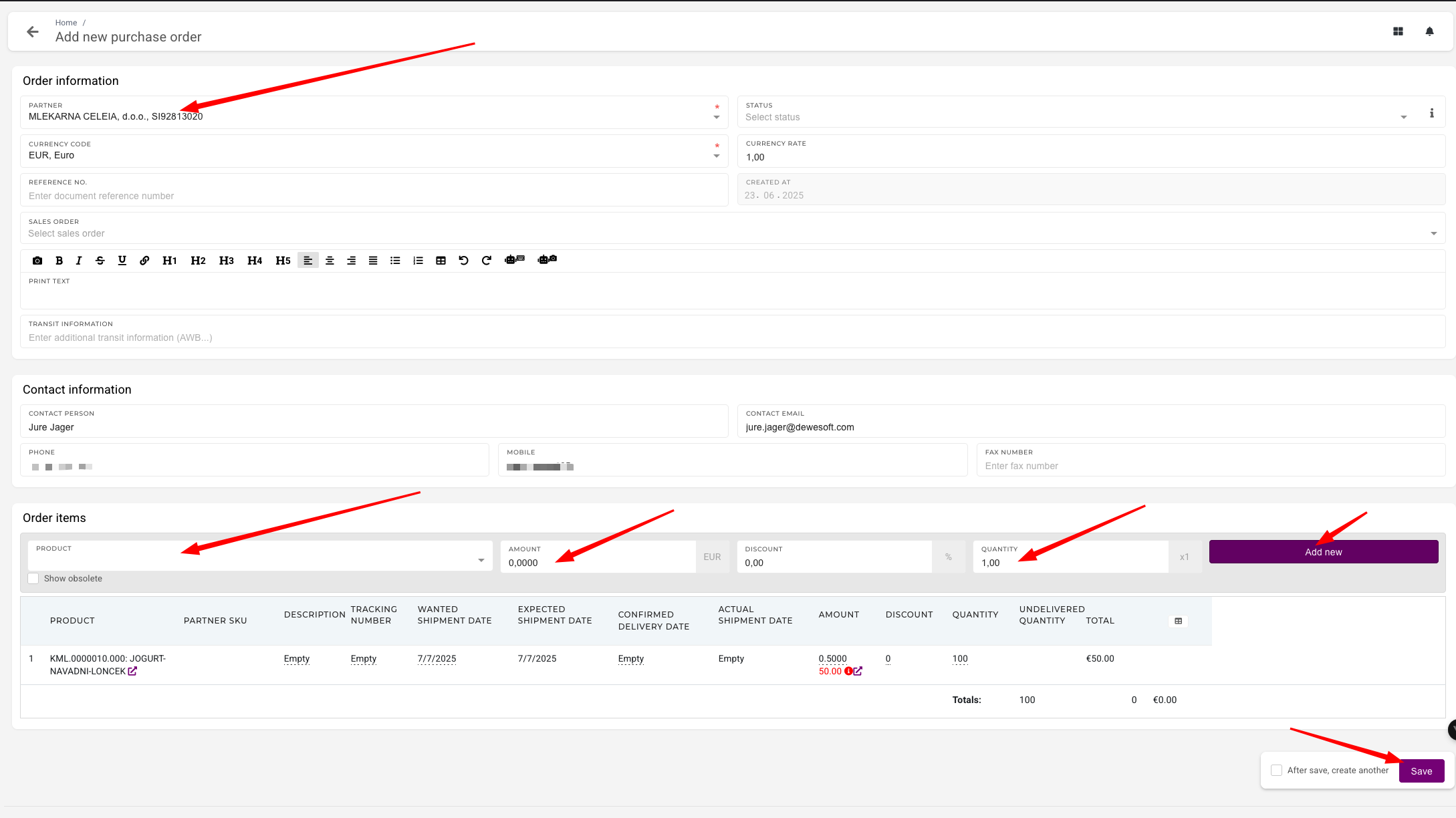 Items that will be purchased with this order can be added under **"Order items"** section. 1. **Product**: Select the product that will be purchased with this order 2. **Amount**: Enter how much of selected product will be purchased 3. **Quantity**: Enter the quantity of the product to purchase. 4. Click "**Add** **new**" to add the new item to purchase order. 5. Repeat if needed.Once all order items are added, the purchase order can be saved.
# Update existing purchase order # Delete purchase orderThis action requires the **"delete purchase orders"** permission.
Purchase orders can be deleted by finding ans selecting them in the tabla and clicking and confirming the **"trash"** button, that appears on the right, above the table. 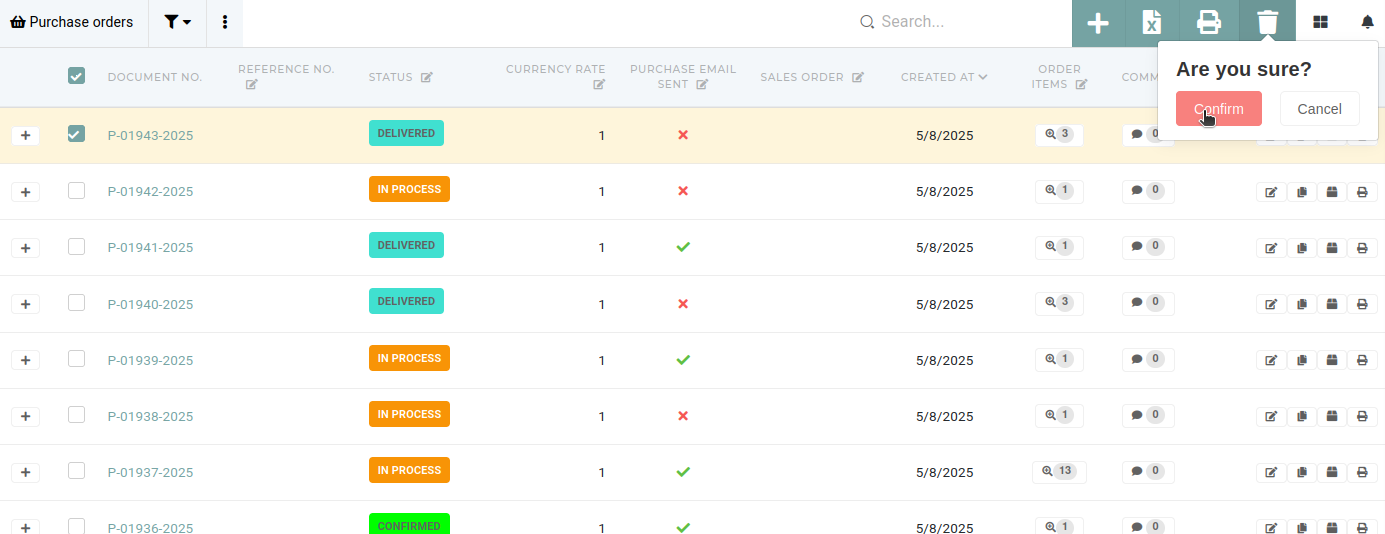 # Receive material from purchaseThe action requires the **"create goods receipt"** permission.
An existing purchase order can be used to receive purchased material to stock.**Material** from **one purchase** order can be received with **multiple goods receipts,** if needed.
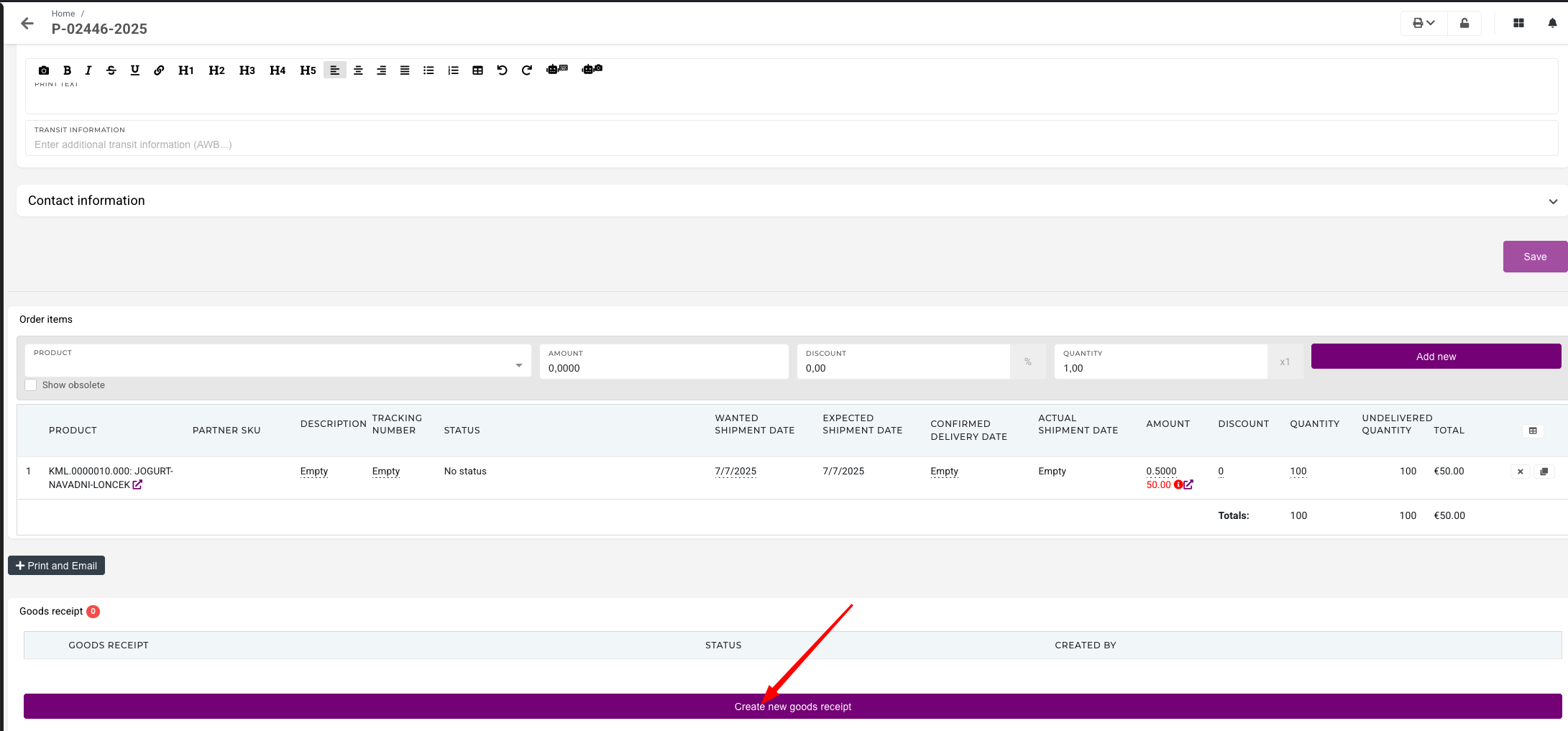 To do this, go to the purchase order, open the **"Goods receipts"** section and click the "**Create** **new** **goods** **receipt**" button. This will open the "**New goods receipt for order**" form. [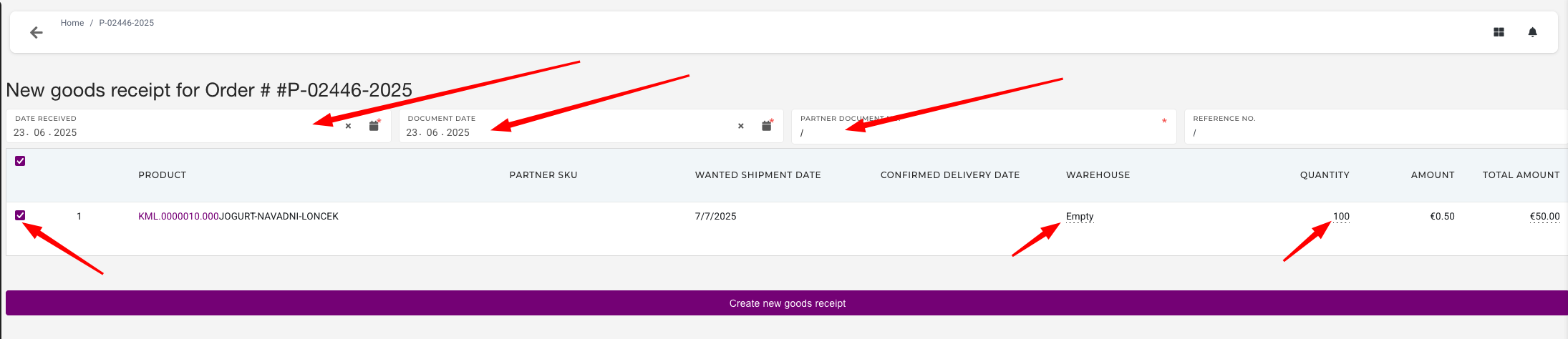](https://how-to-erp.dewesoft.com/uploads/images/gallery/2025-06/oj7image.png) To create a new receipt, first fill out the form that appears: 1. **Date received:** enter the date, when the material was receive. 2. **Document date:** enter the date, when the document was made. 3. **Partner** **document**: enter the document number, provided by the material supplier 4. **Reference** **number**: enter the reverence number, provided by the material supplierIf no partner **document** and/or **reference number** was provided, "**/**" should be entered.
Once the form is filled out, select the products that will be received to stock with this goods receipt. You can select only some, or all if needed.Once form is filled out and products are selected, click the **"Create new goods receipt"** button to create a new goods receipt.
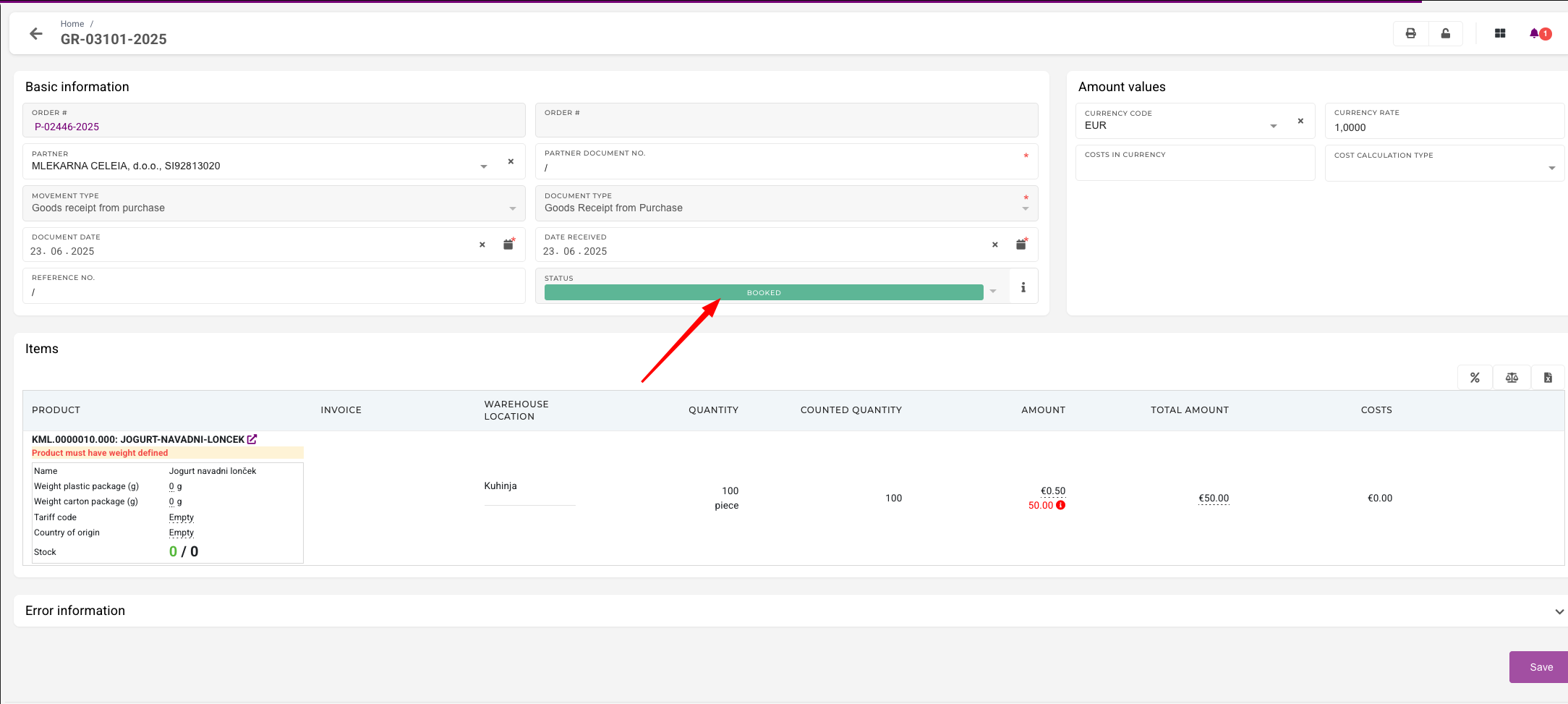
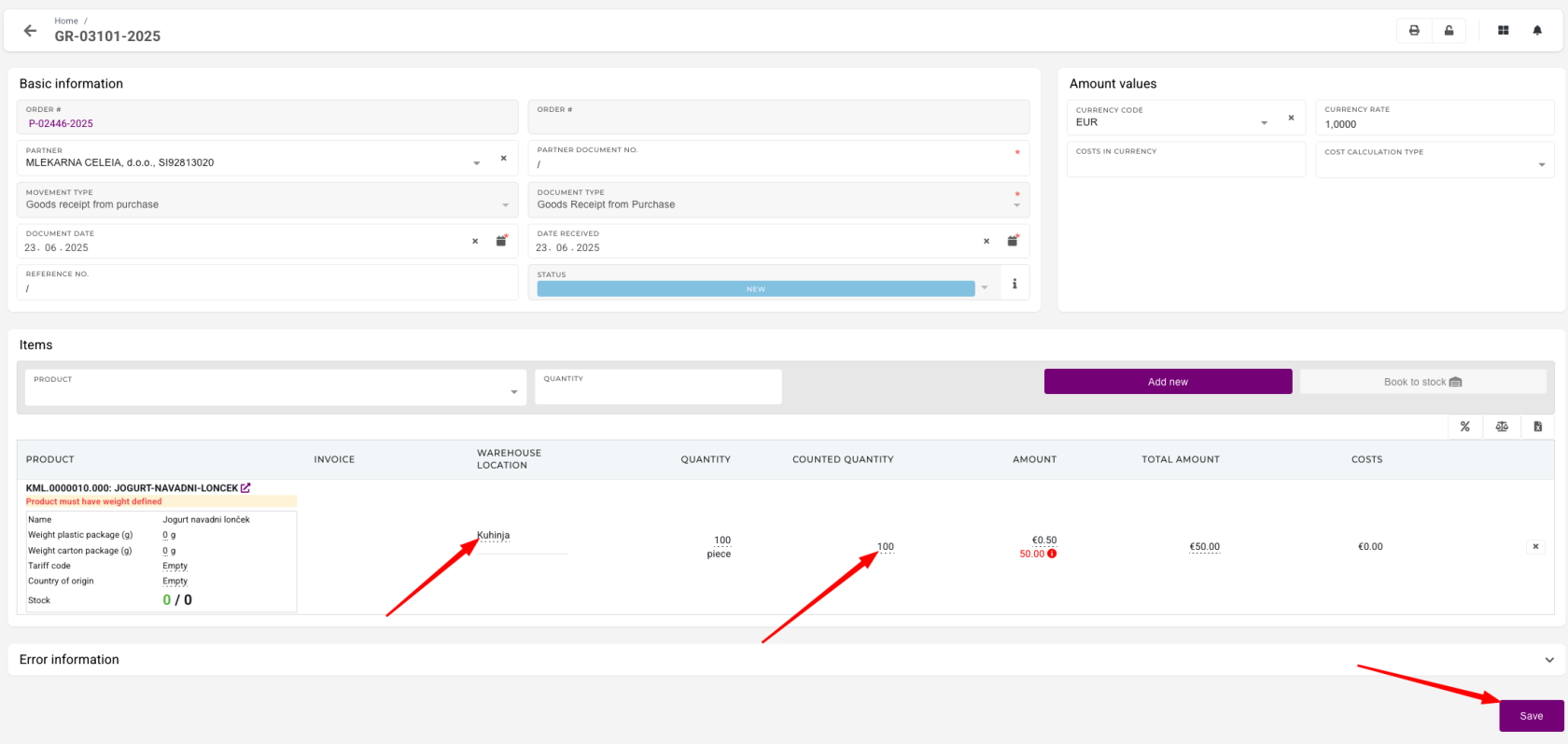 Once the goods receipt is created, make sure that information on goods receipt items (**warehouse location** the material is set to be received and its counted quantity) is correct. Edit it if needed and then save the changes. 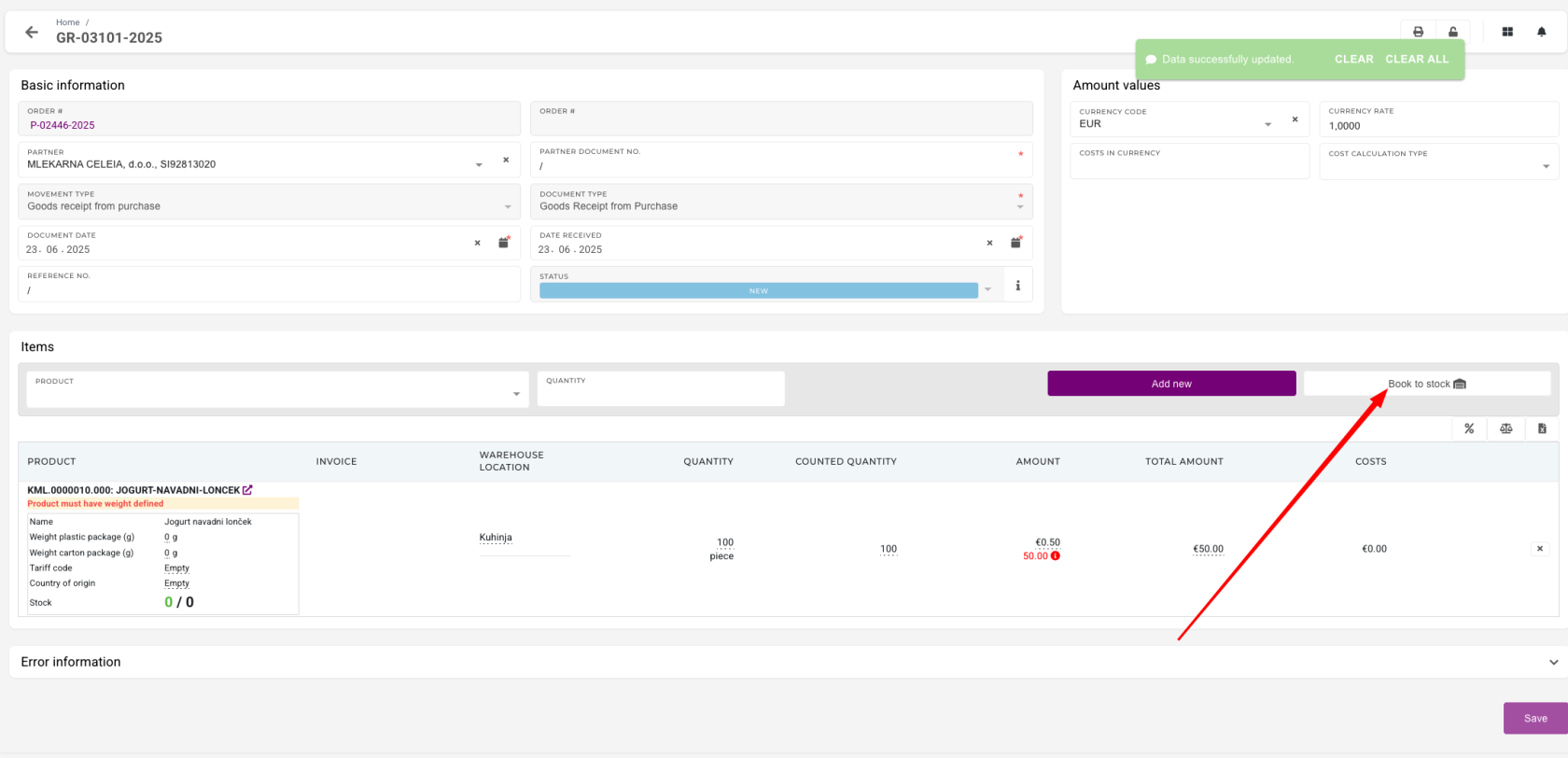 Once the goods receipt is ready, click **"Book to stock"** button to book the receipt.If the booking to stock was successful, the goods receipt will have its status updated to **"Booked".**
[](https://how-to-erp.dewesoft.com/uploads/images/gallery/2025-06/RLTimage.png)