Purchases
- Purchase orders
- Overview
- Create new purchase order
- Update existing purchase order
- Delete purchase order
- Receive material from purchase
- Purchase order items
- Received invoices
- Received invoice items
- Required materials
- Required materials by supplier
- Required materials for sales order by fifo
- Material in delivery
- Material in delivery by supplier
- Goods receipts
- Overview
- Create new goods receipt
- Update existing goods receipt
- Delete goods receipt
- Cancel goods receipt: fixed assets
- Cancel goods receipt
- Goods receipt items
- Consumable orders
- Outflows
- Purchasing timeline
- External products
- External purchases
Purchase orders
Overview
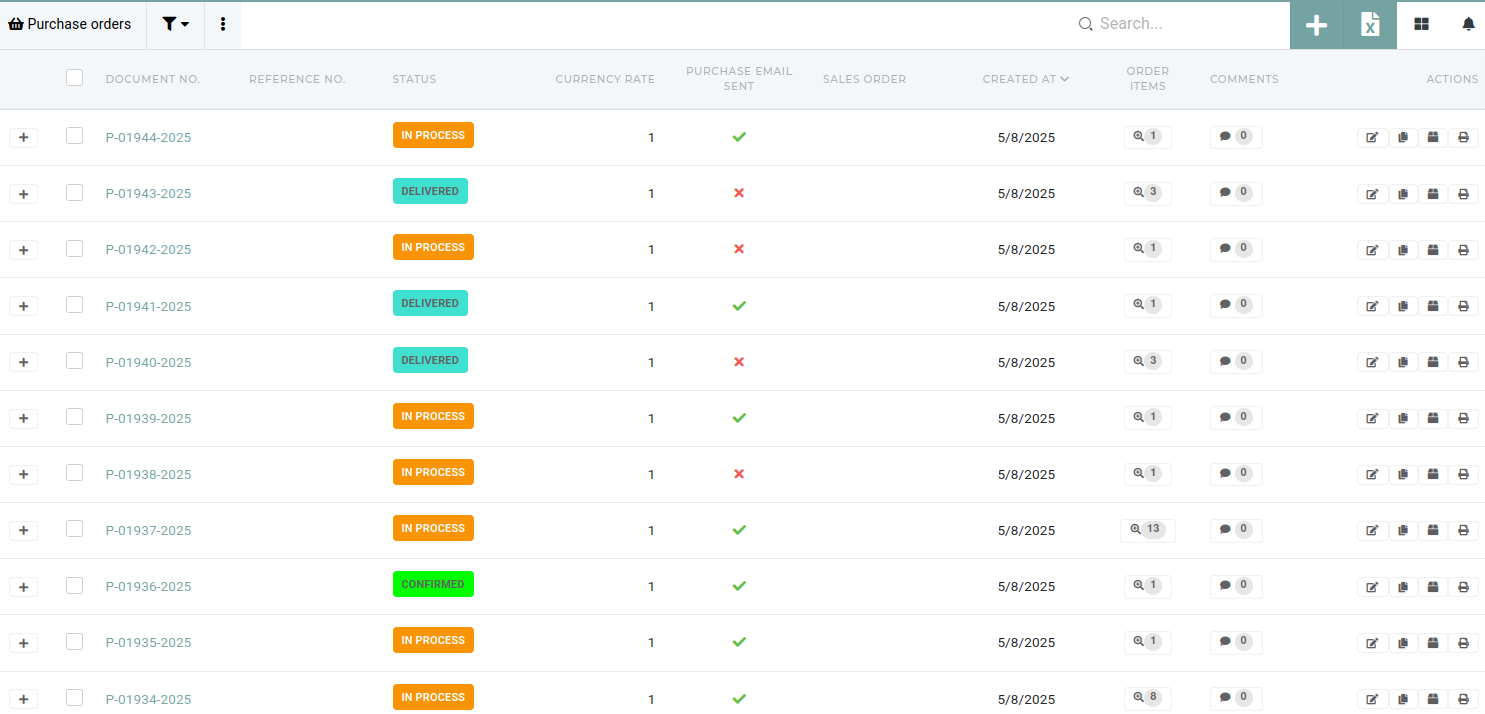
Purchase orders are used within the ERP for managing material procurement. They are used to formalize and control the purchase of goods and services from external suppliers.
Create new purchase order
This action requires the "create purchase orders" permission.
A new purchase order can be created with the "create new" form, located above the purchase orders table, found under "purchases" or here.

When creating a new purchase order, at least the partner (supplier) and currency code need to be selected, initially.

Items that will be purchased with this order can be added under "Order items" section.
- Product: Select the product that will be purchased with this order
- Amount: Enter how much of selected product will be purchased
- Quantity: Enter the quantity of the product to purchase.
- Click "Add new" to add the new item to purchase order.
- Repeat if needed.
Once all order items are added, the purchase order can be saved.
Update existing purchase order
Delete purchase order
This action requires the "delete purchase orders" permission.
Purchase orders can be deleted by finding ans selecting them in the tabla and clicking and confirming the "trash" button, that appears on the right, above the table.

Receive material from purchase
The action requires the "create goods receipt" permission.
An existing purchase order can be used to receive purchased material to stock.
Material from one purchase order can be received with multiple goods receipts, if needed.

To do this, go to the purchase order, open the "Goods receipts" section and click the "Create new goods receipt" button. This will open the "New goods receipt for order" form.
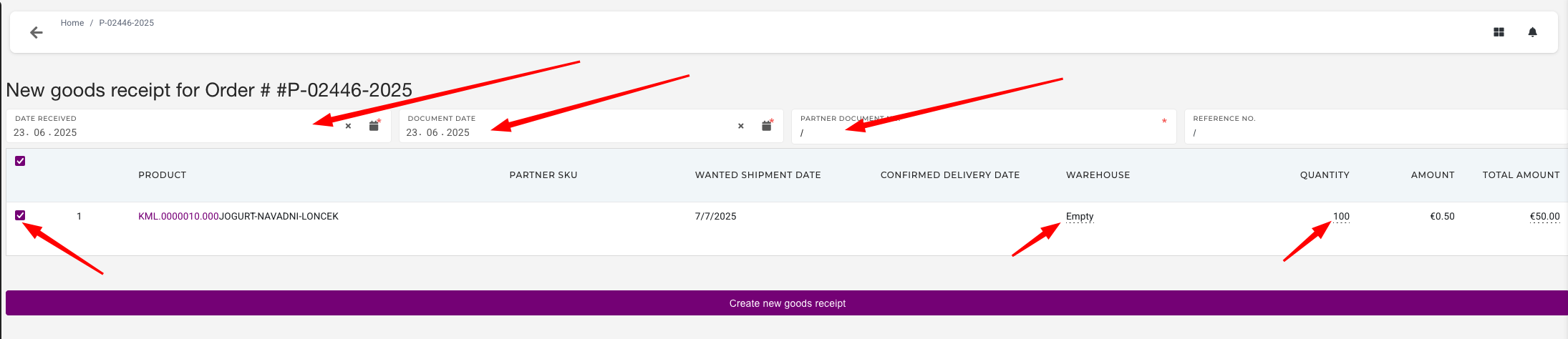
To create a new receipt, first fill out the form that appears:
- Date received: enter the date, when the material was receive.
- Document date: enter the date, when the document was made.
- Partner document: enter the document number, provided by the material supplier
- Reference number: enter the reverence number, provided by the material supplier
If no partner document and/or reference number was provided, "/" should be entered.
Once the form is filled out, select the products that will be received to stock with this goods receipt. You can select only some, or all if needed.
Once form is filled out and products are selected, click the "Create new goods receipt" button to create a new goods receipt.

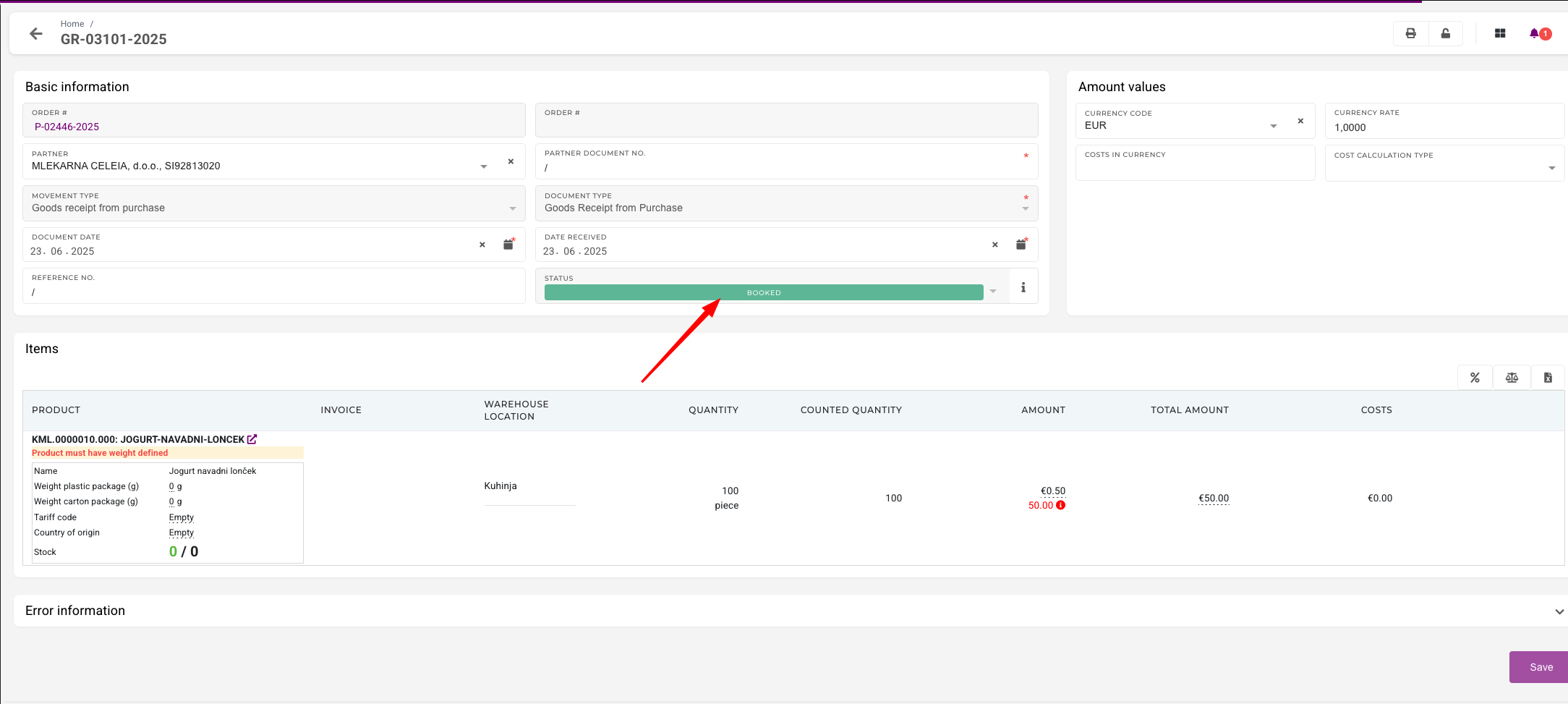
Once the goods receipt is created, make sure that information on goods receipt items (warehouse location the material is set to be received and its counted quantity) is correct. Edit it if needed and then save the changes.

Once the goods receipt is ready, click "Book to stock" button to book the receipt.
If the booking to stock was successful, the goods receipt will have its status updated to "Booked".
Purchase order items
Received invoices
Received invoice items
Required materials
Required materials by supplier
Required materials for sales order by fifo
Material in delivery
Material in delivery by supplier
Goods receipts
Overview
Goods receipts are primarily used to "receive" materials into stock.
Goods receipts are used for documenting and confirming the receipt of goods or materials into inventory, ensuring accurate records and supporting various processes within the ERP.

They update stock counts in real time, providing visibility into product inventory and stock of warehouse locations while linking to purchase orders, services or production/development work orders to confirm correct deliveries from suppliers.
Goods receipts also facilitate quality control by recording checks and ensuring items meet specifications before adding them to stock. Additionally, goods receipts create an audit trail for regulatory compliance and traceability, making them a critical component for efficient inventory, procurement, and financial management in an ERP.
Create new goods receipt
This action requires the "create goods receipt" permissions.
New goods receipts are not created with a "create" form. Instead, creation of goods receipts is done from the work order's details page.
To create a goods receipt, open a work order's page and look for a list of work order's items.

Only items of production, CNC or development work orders can be received.
All items that can be received will have a button labeled as "Create goods receipt" present on the right side.

If there is no more material/products to receive after the goods receipt is created, the work order will automatically be set as "Closed".
To view the newly created goods receipt, open work order's "Goods receipts" section, all goods receipts of this work order will be listed there.

If there was a problem with creating the goods receipt, it will have the "Failed" status. More information about the failure can be found in the "Error information" section.
Update existing goods receipt
This action requires the "update goods receipt" permission.
Goods receipts should generally not be updated, because they serve as a critical record for stock inventory, procurement, and financial processes.
Altering them can compromise data integrity and disrupt dependent workflows. Goods receipts are tied to stock transactions, ensuring that inventory levels accurately reflect the physical stock. If updated, problems can arise, leading to mismatched stock records and potential issues with availability for sales, production and development.
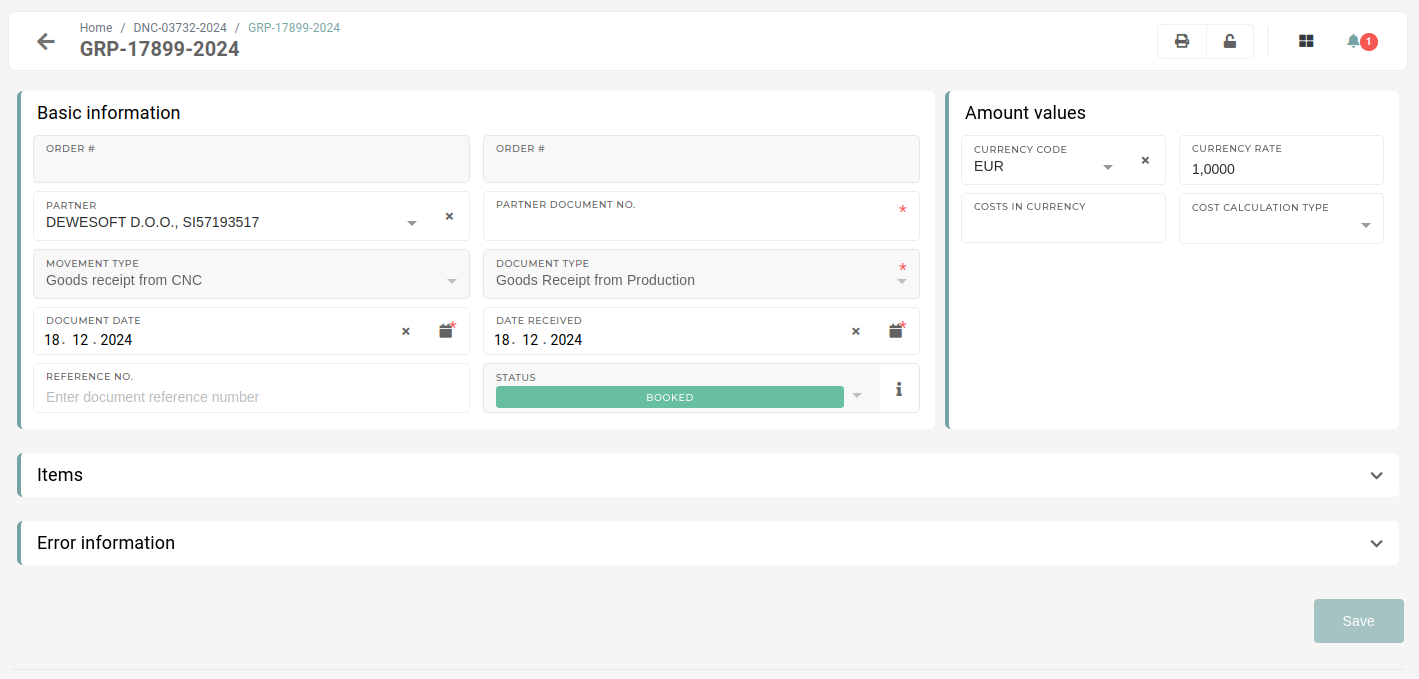
Goods receipts are linked to purchase and work orders, invoices, and financial entries. To maintain accuracy and ensure accountability, any errors in goods receipts should be addressed using proper correction processes, such as canceling/deletion and re-entry, rather than direct updates, when possible. This preserves data integrity and ensures that all dependent workflows and records remain consistent and reliable.
If dates in the goods receipts need to be updated, that is only possible in cases, when the goods receipt's material has not been transfers or used after being received.
Delete goods receipt
This action requires the "delete goods receipt" permission.
Goods receipt cannot be deleted directly, due to the stock transactions that are connected to them. Because of this, goods receipt need to be canceled first.
Goods receipt with no stock transactions, such as "Failed" receipts, can be deleted without being canceled first.
Once a goods receipt is "canceled" and there are no existing stock transactions tied to it, it can be deleted from the table.

Cancel goods receipt: fixed assets
This action requires the "cancel goods receipt" permissions.
At times, fixed assets that were already received and booked, need to be reassigned to a different asset.
On these occasions, the old goods receipt must not be deleted, but instead "Canceled"

To cancel an already booked goods receipt, navigate to its details page and scroll down to the "Danger zone" section.

If you don't see this section, that means you don't have the authorization to perform this action.
In the "Danger zone" section, press and confirm the "Cancel" button. With everything in order, the goods receipt should be canceled and the page refreshed.
If pressing the button displays an error, that means that the fixed asset entry was not yet deleted and is blocking the canceling of the goods receipt.

To find the fixed asset, that is blocking the goods receipt cancellation, click on the "Counted quantity" button. This opens up a list of all inventory numbers, linked to this goods receipt.

Copy this inventory number and navigate to the "Fixed assets" table. Here, find the fixed asset that the inventory number belongs to with table's search.

Once you have found the fixed asset, check its checkbox, and click & confirm the "Trash" button that appears in the top right corner. With the fixed asset deleted, the goods receipt can now be canceled.

Cancel goods receipt
This action requires the "cancel goods receipt" permission.
Goods receipt cannot be deleted directly, due to the stock transactions that are connected to them. Instead, they can be "canceled".
When canceling a goods receipt, make sure that it is the receipt is not followed by any transfers within the same lot. Trying to cancel a goods receipt with goods transfers after it will result in an error being shown.
If goods documents exist after the goods receipt, all must be canceled, in reverse order (from last to first) of when they were created.

To perform the cancellation of the goods receipt, go to its details page and open the "Danger zone" section. Here, users with the "cancel" permissions will see a button, labeled as "Cancel". Click and confirm the button to cancel the goods receipt. This will rollback any changes to the stock, done by the goods receipt, as well as delete any stock transactions, tied to this goods receipt.
After the process is finished, the status of the goods receipt will then be updated to "Canceled".
