# Invoicing
# Troubleshooting
## Voucher bank transaction not found on issued invoice
- Go to sales order for this invoice and find bank transaction
- Rename voucher to something meaningful (e.g. Voucher payment - Jure Jager)
- Find this transaction on invoice by new name
# Cancel an issued invoice
If invoice has already been issued and sent to customer, you need to issue a new credit note. You should not modify already sent invoices!
1. Open the problematic **issued** **invoice** and remove all of its **items**.
2. Update the **shipping** and **financing** costs to **zero**.
3. Change status of the **issued invoice** to **canceled**.
4. Change invoice's **delivery note** status to **canceled.**
5. Delete **shipping list**:
[](https://how-to-erp.dewesoft.com/uploads/images/gallery/2024-03/ixRimage.png)
6. Delete **packing list** (flow is the same as for deleting shipping list)
7. Go to the **Packing work order** and open it's **material flow.**
8. Find all of the write-off documents:
[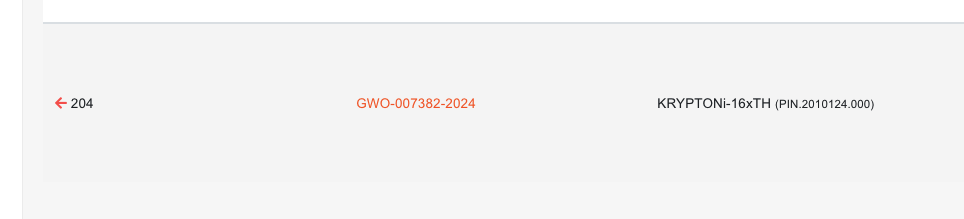](https://how-to-erp.dewesoft.com/uploads/images/gallery/2024-03/BAuimage.png)
9. Open each write-off and cancel it (this will remove write-off transactions from database):
[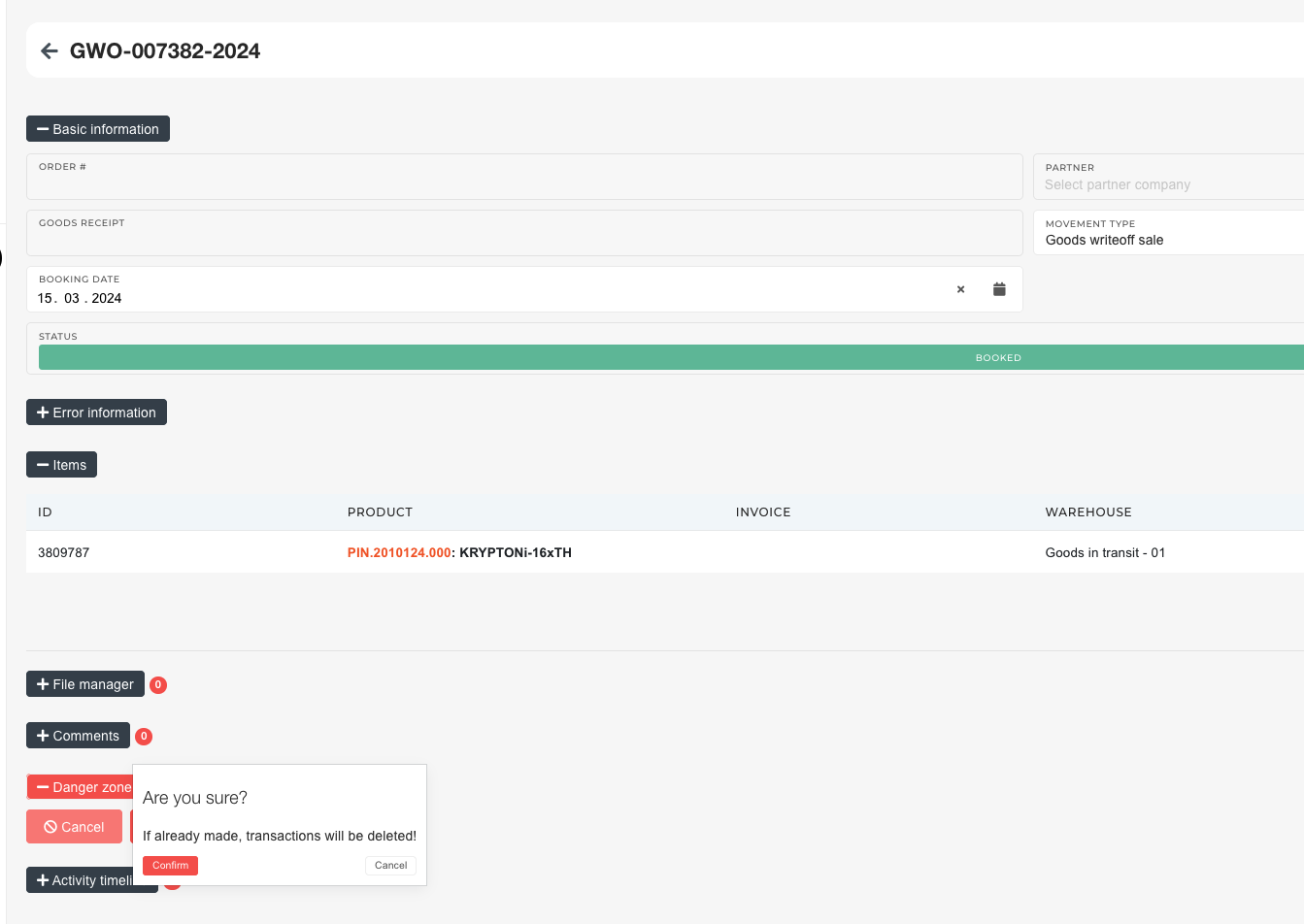](https://how-to-erp.dewesoft.com/uploads/images/gallery/2024-03/8P3image.png)
10. Material is now back on packing work order. Do with it what is necessary.
# Create an issued invoice for merch order
1. Open the **merch order** and check the partner and set it as **"checked"**
2. Copy partner's address onto the merch order (with the buttons)
3. Change the packing order status to **"closed"** and click the in "**+ Documents**" button for document generation:
[](https://how-to-erp.dewesoft.com/uploads/images/gallery/2024-03/0Azimage.png)
4. Select the packing list and press the **"create"** button on the modal form that appears.
[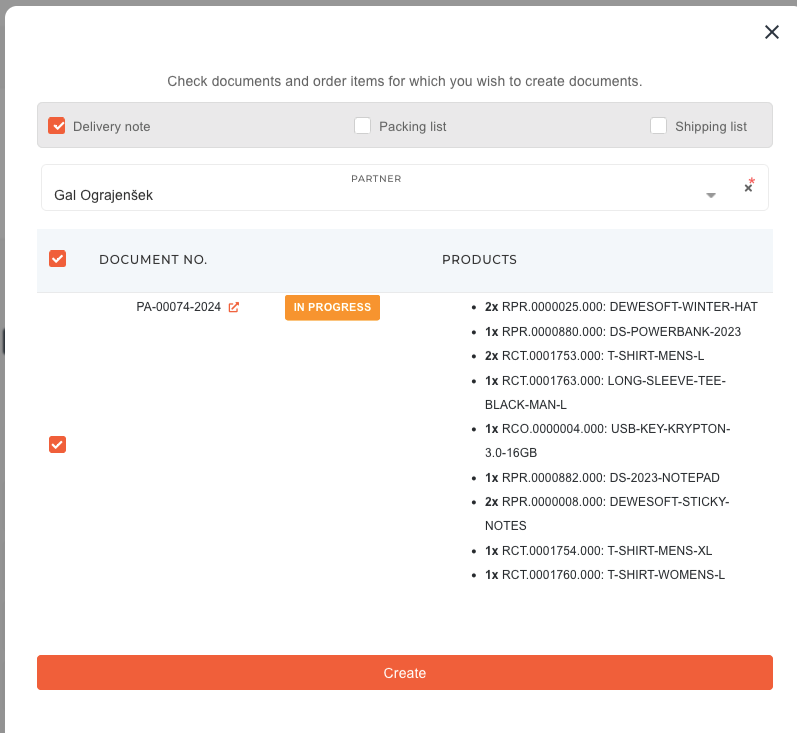](https://how-to-erp.dewesoft.com/uploads/images/gallery/2024-03/maEimage.png)
5. Next, press the **"Move to transit"** button.
[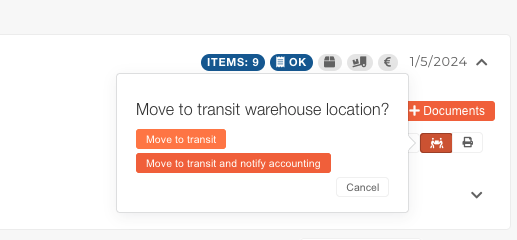](https://how-to-erp.dewesoft.com/uploads/images/gallery/2024-03/feTimage.png)
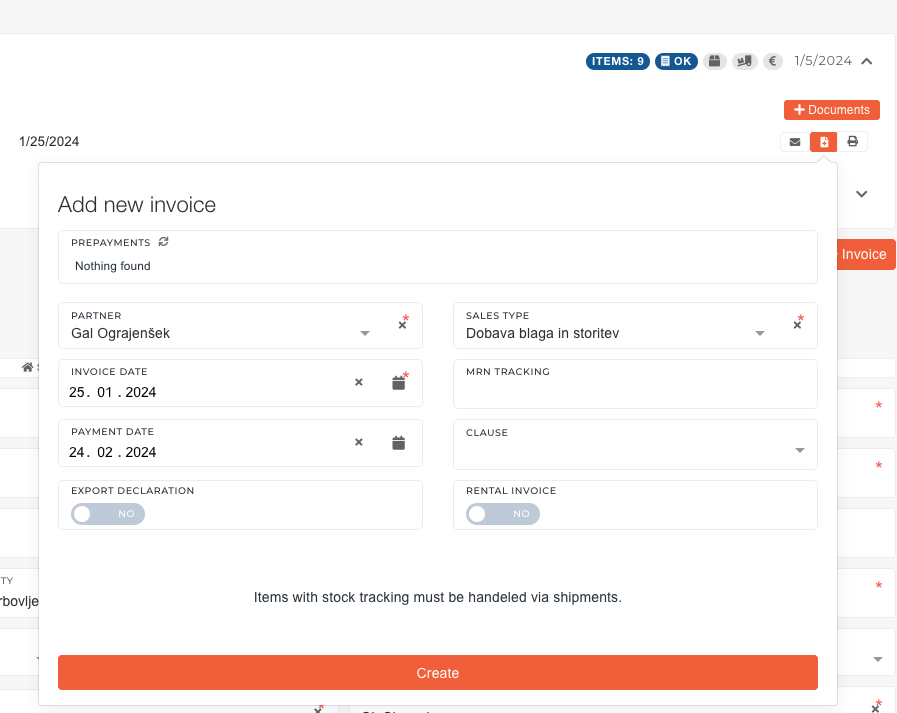
6. After that, create a new invoice for that packing list.
[](https://how-to-erp.dewesoft.com/uploads/images/gallery/2024-03/9ilimage.png)
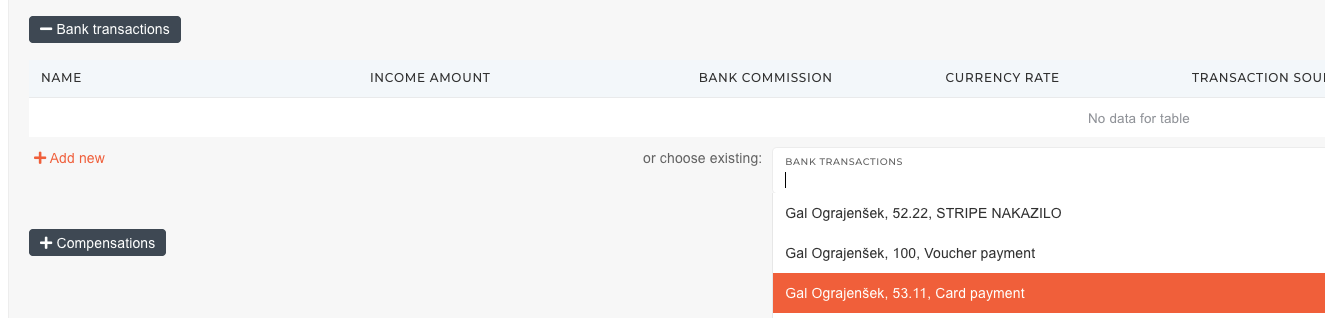
7. Once create, go to that invoice and select bank transactions that correspond to the invoice. Input customer's first and last name and select “Card payment” and “Voucher Payment”. These will together make up the amount of the invoice and the invoice will be automatically closed.
[](https://how-to-erp.dewesoft.com/uploads/images/gallery/2024-03/hYcimage.png)
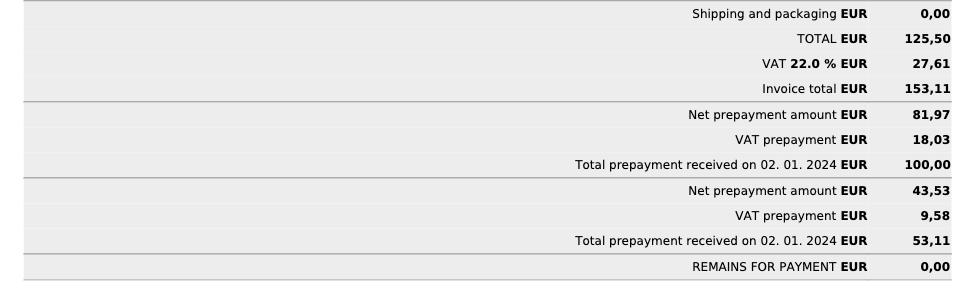
8. In the **"Bank transactions"** section, transaction source of the **voucher** **payment** must be set to "**Voucher**" and for **Card** **payment** the transaction source must be set to **prepayment** (this has to be done to ensure the invoice is properly structured).
[](https://how-to-erp.dewesoft.com/uploads/images/gallery/2024-03/Ydnimage.png)
[](https://how-to-erp.dewesoft.com/uploads/images/gallery/2024-03/Womimage.png)
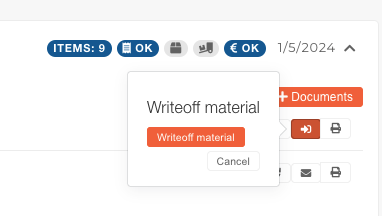
9. After that, return to the merch order, write off the material and send the invoice to the customer's email.l
[](https://how-to-erp.dewesoft.com/uploads/images/gallery/2024-03/adLimage.png)
10\. After the invoice was sent, update the status of order to **"shipped".**