Partner company must issue the invoice. **The invoice and the leader accounts** **must** already **be** **created** **in** the **ERP**.
#### **Received Invoice Information** 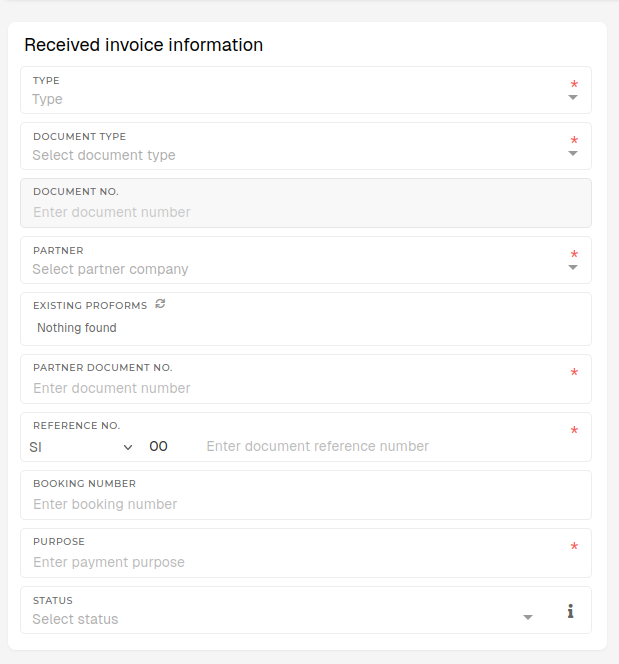 **Type** Select the invoice type (e.g., Purchase Invoice, Expense Invoice). This field is required. **Document Type** Choose the type of document (e.g. Invoice, Credit Note,...). This field is required. **Partner** Select the supplier or partner company issuing the invoice. Selected partner must already exist in ERP under the "Partners" section. This field is required. **Partner Document No.** Internal reference or invoice number from supplier (if different). This field is required. **Reference No.** Internal reference number for the invoice, used by your organization. This field is required. **Purpose** State the purpose of the payment (e.g., “Office Supplies”, “Consulting Fees”,...). This field is required. **Status** Choose the current document status (e.g., New, Paid,...). #### **Dates** Enter the appropriate dates using the calendar picker. 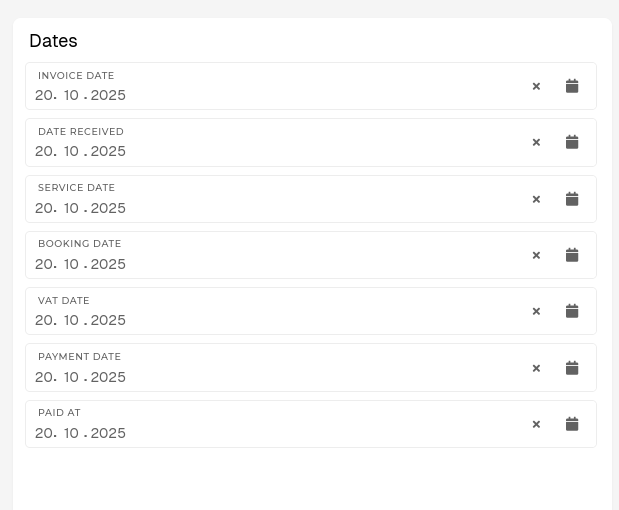 **Invoice Date** Date printed on the supplier’s invoice. **Date Received** Date your organization received the invoice. **Service Date** Date when goods or services were provided. **Booking Date** Date when the invoice is entered in your accounting records. **VAT Date** Date used for VAT/tax reporting purposes. **Payment Date** Planned date for payment to the supplier. **Paid At** Actual date when payment was completed. #### **Options** These switches and dropdowns define additional attributes of the invoice. [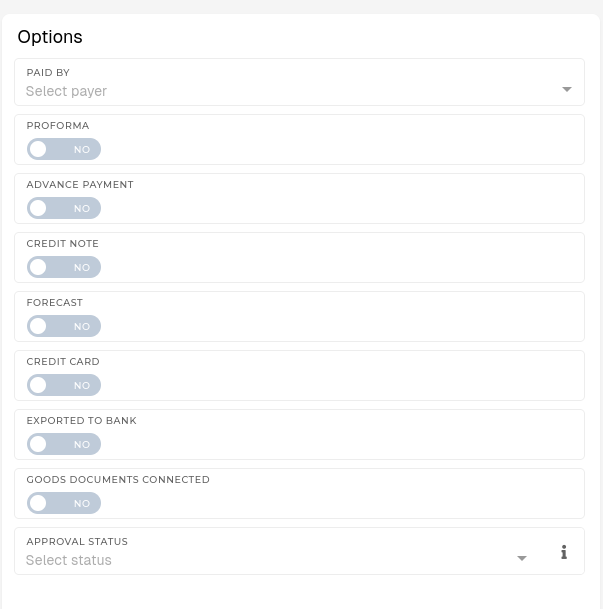](https://how-to-erp.dewesoft.com/uploads/images/gallery/2025-10/utvimage.png) **Paid By** Select, who is paying the invoice (department, cost center or account). **Proforma** Toggle ON, if the document is a proforma invoice. **Advance Payment** Toggle ON, if this is a prepayment invoice. **Credit Note** Toggle ON, if the invoice is a credit note (reduces balance). **Forecast** Toggle ON, if this invoice is part of a forecast, not an actual invoice record. **Credit Card** Toggle ON, if payment was made via credit card. **Exported to Bank** Toggle ON, if when this invoice has already been exported to a banking software. **Goods Documents Connected** Toggle ON, if invoice is connected to a delivery note or goods receipt. **Approval Status** Select invoice's current approval stage (Pending, Approved, Rejected,...). #### **Adding Items** Each row represents one invoice line item. You can add multiple items per invoice. New line items can be added with the **"Add New"** button.  **Ledger Account** Select the account where this cost will be booked. This field is required. **Product Posting Group** Choose the related product or service posting group. **Cost Centers** Assign the cost to a department, project or cost center. **Description** Describe the goods or services (e.g., “Printer Paper A4 500 sheets”). This field is required. **Amount** – **Net** Enter the net value (before tax). This field is required.**Tax Rate (%)** **Tax Rate (%)** Enter applicable TAX/VAT percentage. This field is required. **Quantity** Enter how many units were invoiced. This field is required. **Unit** Select the unit of measure (e.g., Piece, Hour, kg). This field is required. **Tax** Automatically calculated based on **Amount** – **Net** + **Tax Rate** values. **Amount** – **Gross** Enter the gross value (before tax). This field is required**.** **Reverse Charge VAT** Toggle this, if reverse charge rules apply for this invoice.**To book to specific campaign, the cost center must be set to that campaign.**