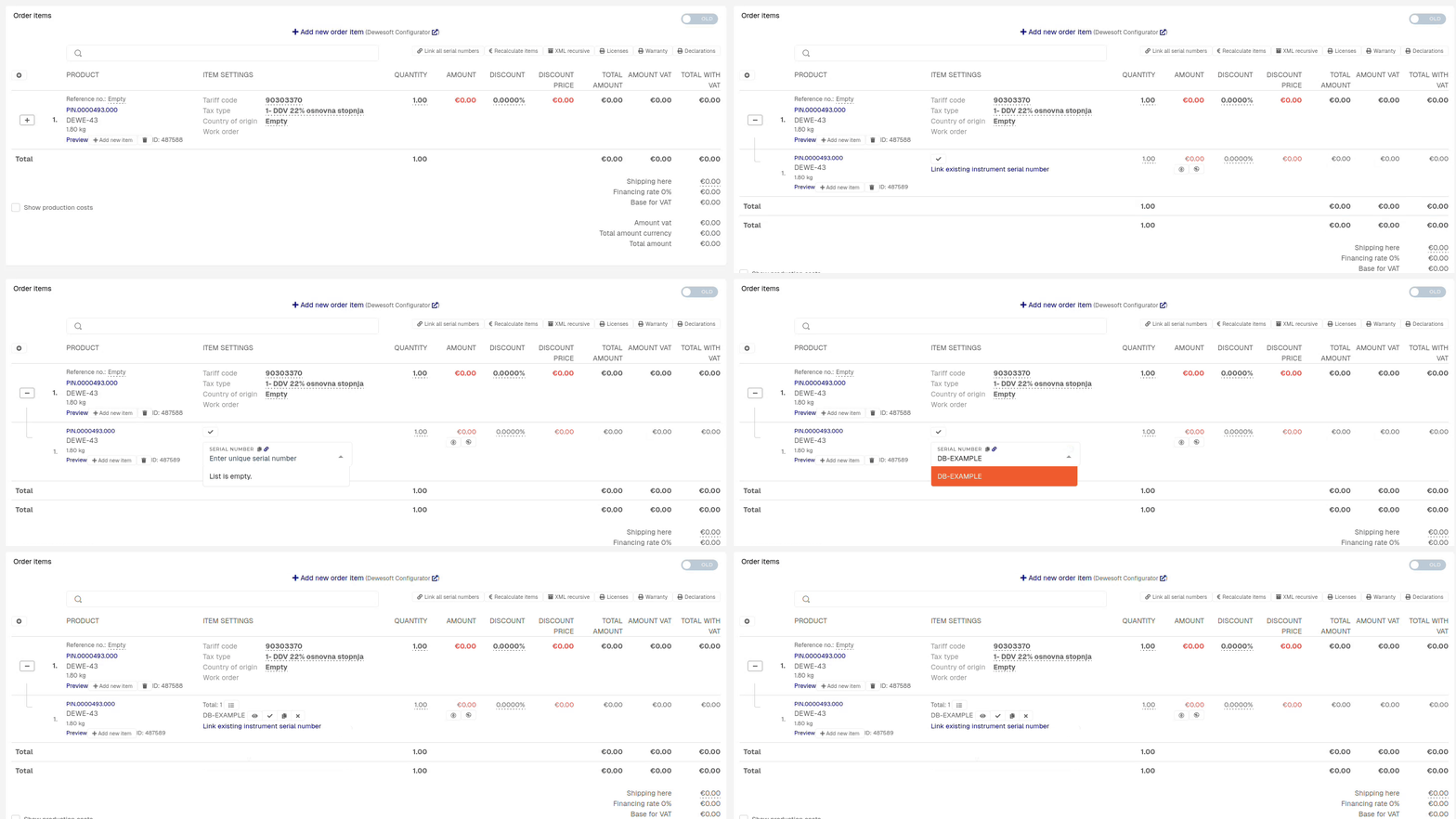
This action requires the **"view sales order"** and **"update sales order"** permissions.
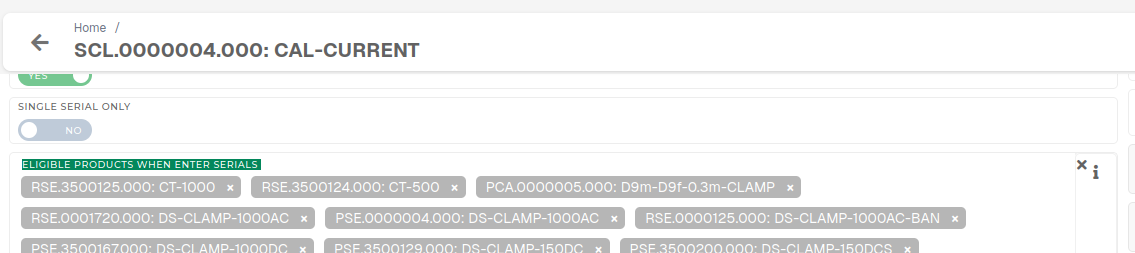
To attach a serial on order, find the serial's number and check its product and warehouse location. 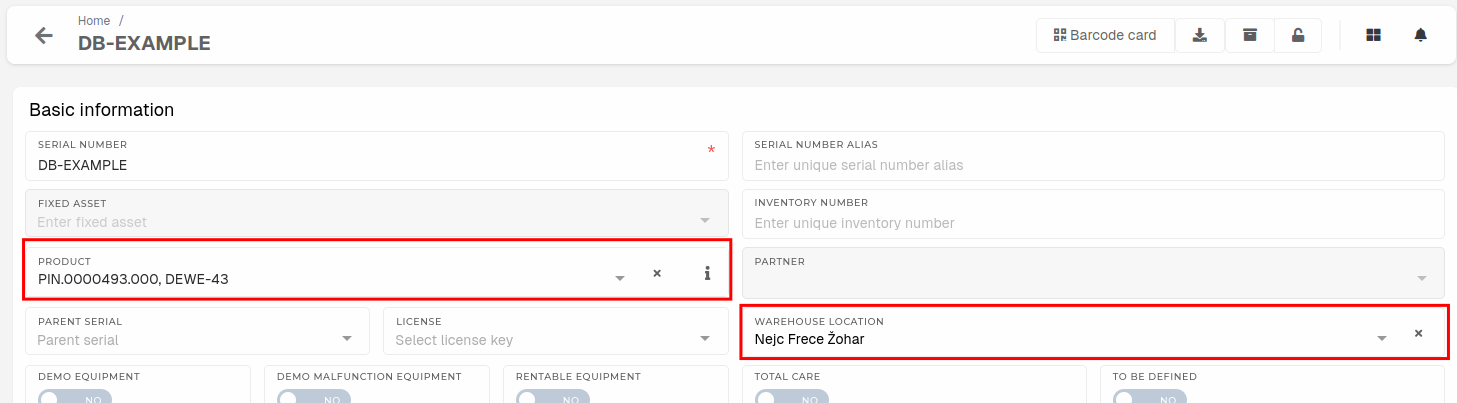 Open the order, where the serials should be attached and navigate to the **"order items"** section. 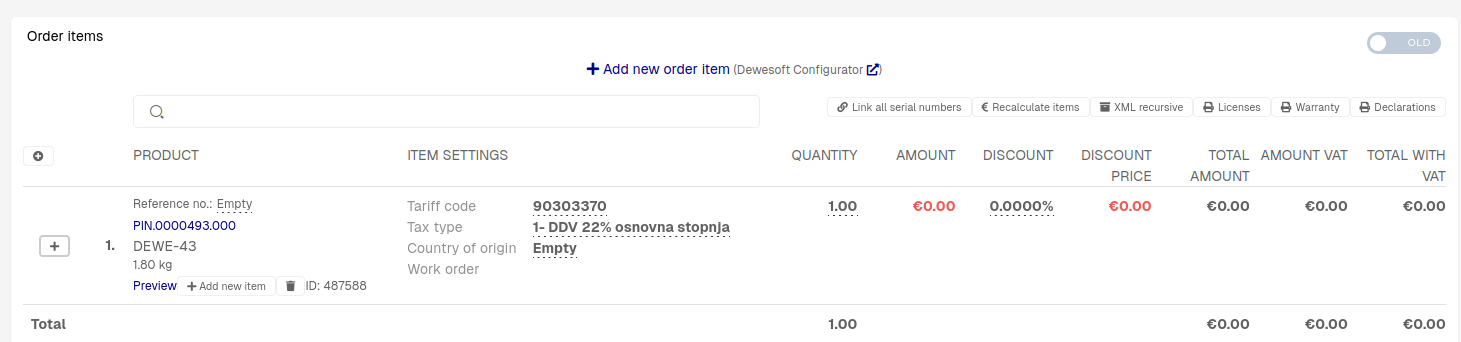 Click the "**+**" button to open order items sub-items (the serials should be attached to these).Serial should have the **same product** as the product of the order item. Exception to this rule are items with product type **Service** (e.g. SCL.0000004.000), where the serial should be any product on list of eligible products for that service.
The serial must also **be on your warehouse location** to appear in the dropdown.
Click the **"Link existing instrument serial number"** button to open a dropdown, where the serial can be selected. Once the serial is attached, click the **"Close"** button to hide the dropdown.