**Example:** DO-00027-2026
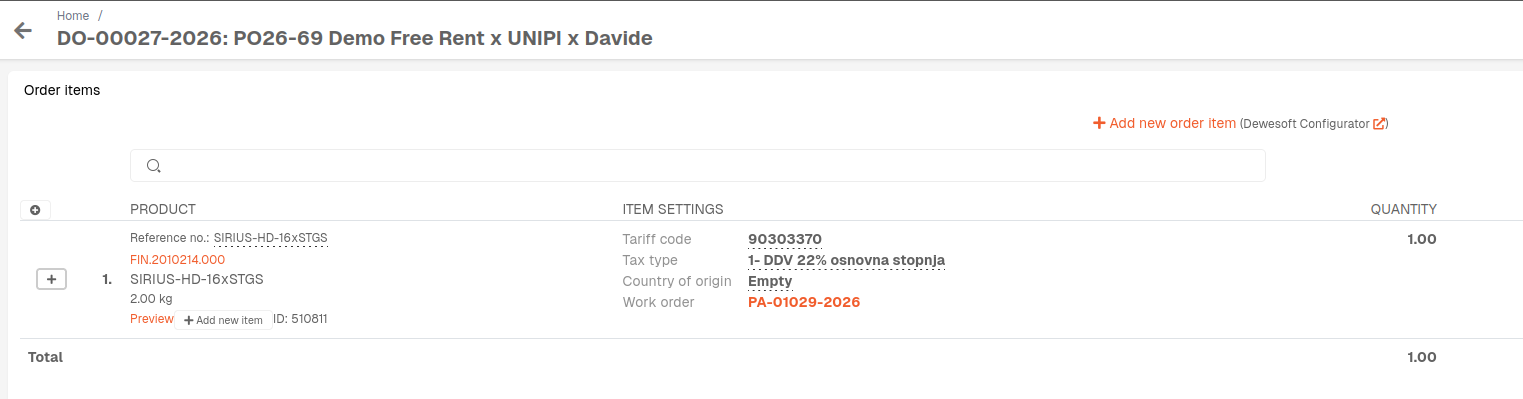 #### Summary - Create fixed asset equipment product(s) for every product on Demo order (if they don't exist yet). - Create a purchase order for the Demo order. - Receive all products from Demo order to stock as the fixed asset equipment products, created earlier. - Create a sale order of type Demo or Rental with all received products. - Create a packing work order for your new sale order, and create a shipping list. #### 1. Add fixed asset equipment product(s) If they don't exist already existing, create **product(s)** of type **fixed** **asset equipment** for the product(s) in the **Demo** **order**.Product type should be **"Fixed assets Equipment".**
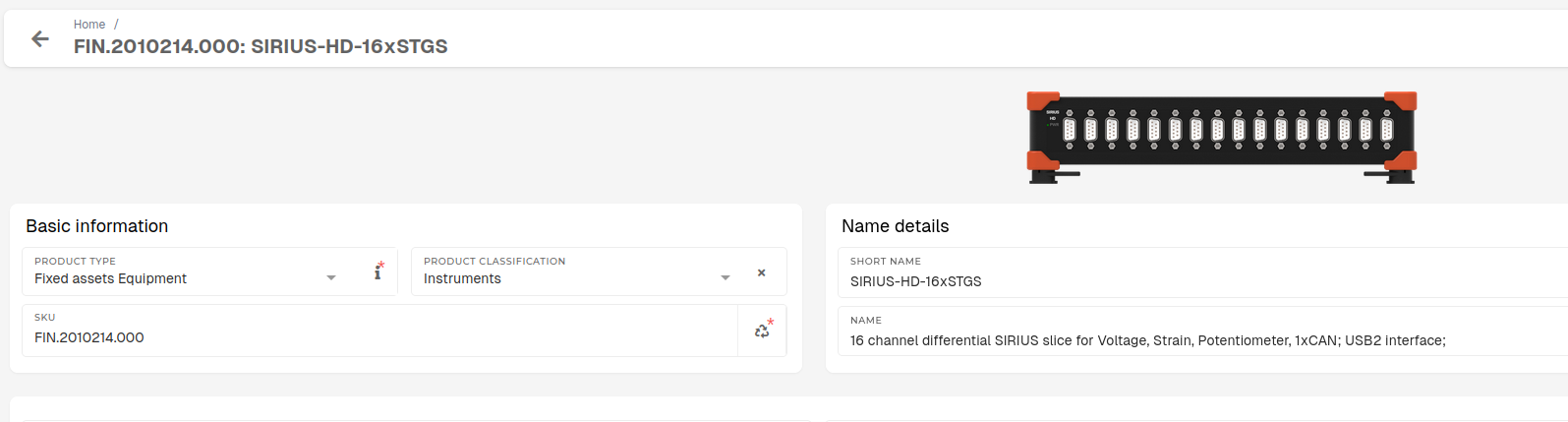 #### 2. Create a purchase order for the Demo order Once all fixed assets products are created, a purchase order must be created, in order to receive Demo products to stock.Products can be "received to stock" with rebooking of existing products to fixed asset equipment products, but creating a purchase order and receiving products with goods receipts is a safer way, stock-wise.
Create a new purchase order, input Demo order's document number as purchase order reference number and add fixed asset equipment products as order items. 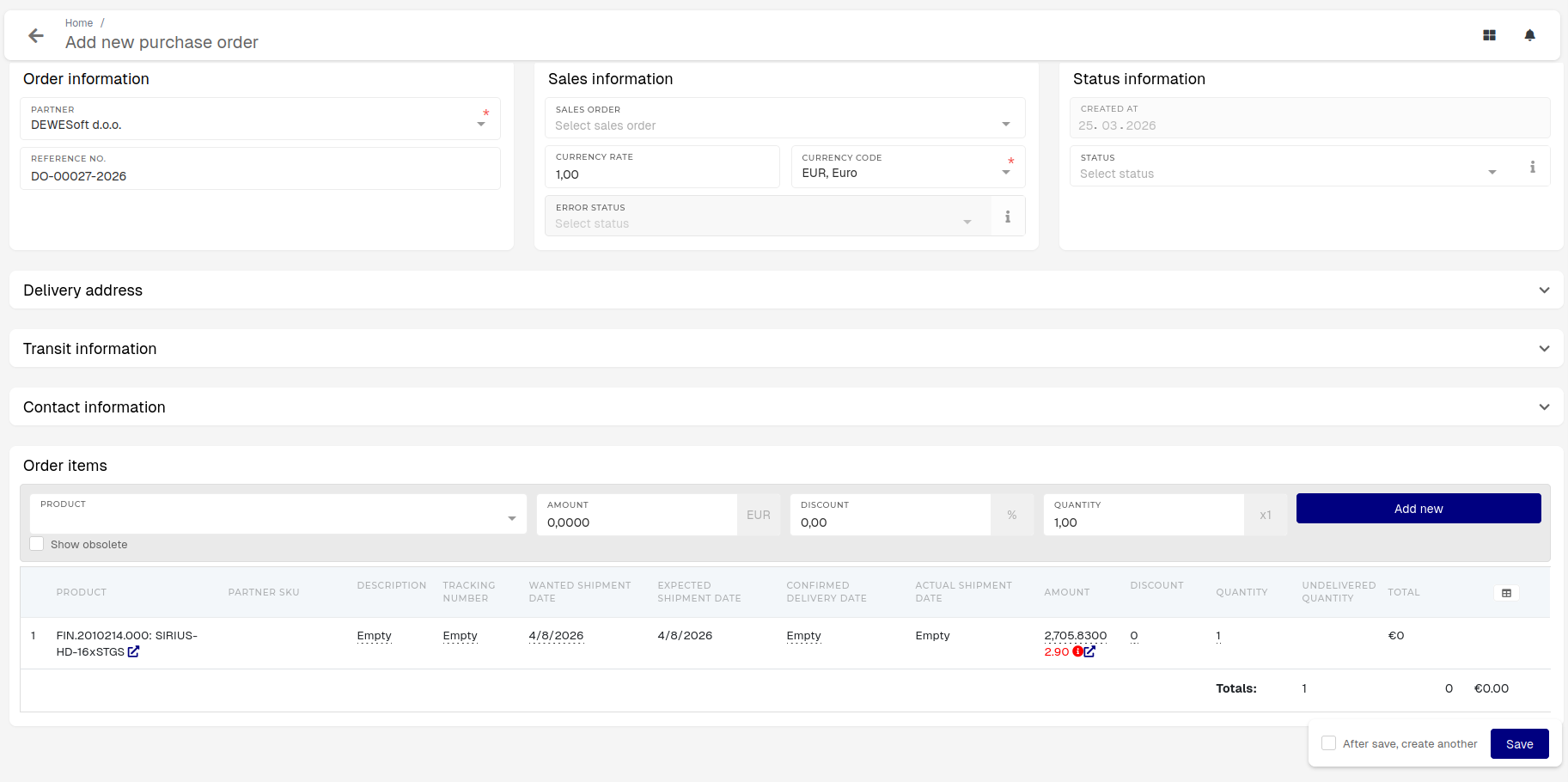 #### 3. Receive Demo order products to stock as fixed asset equipment products Create a goods receipt for all purchase order items (product from the Demo order). [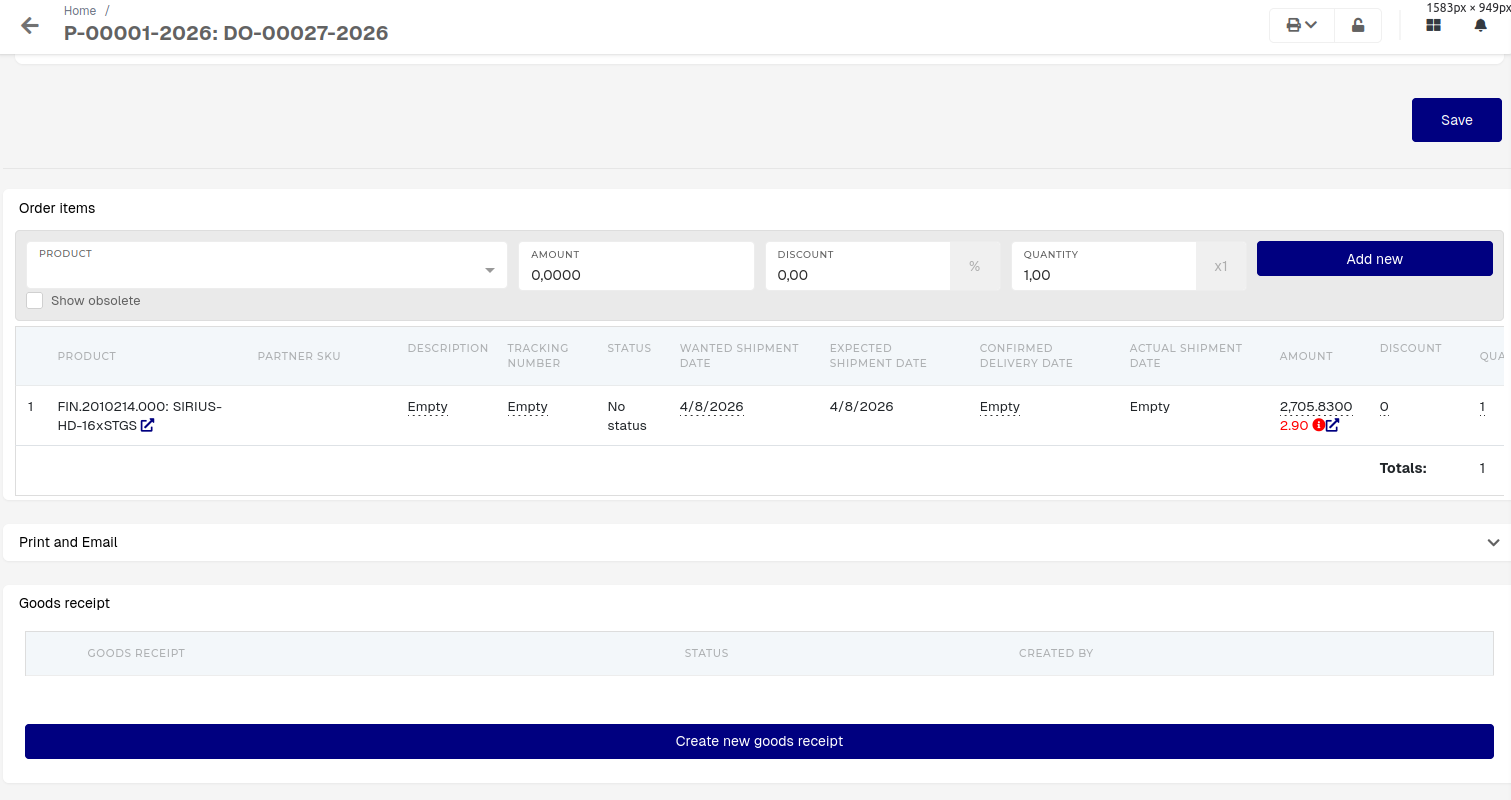](https://how-to-erp.dewesoft.com/uploads/images/gallery/2026-03/cz4image.png) Click **"Create new goods receipt",** fill out the **"New goods receipt for Order"** form for all purchase order items and book the receipt to stock. 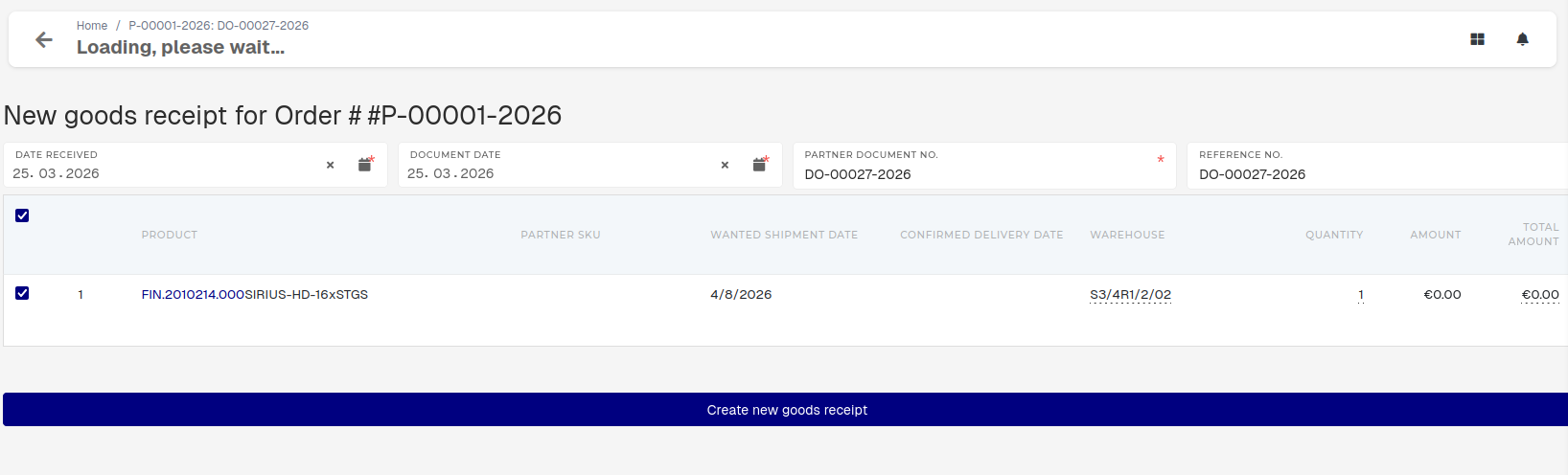 ***\#Q** What to do about counted quantity when product tracked by serials?* #### 4. Create a demo/rental sale order Create a new order with document type **"Rental Order"** or **"Demo Order"** and add the demo products as sale order items. 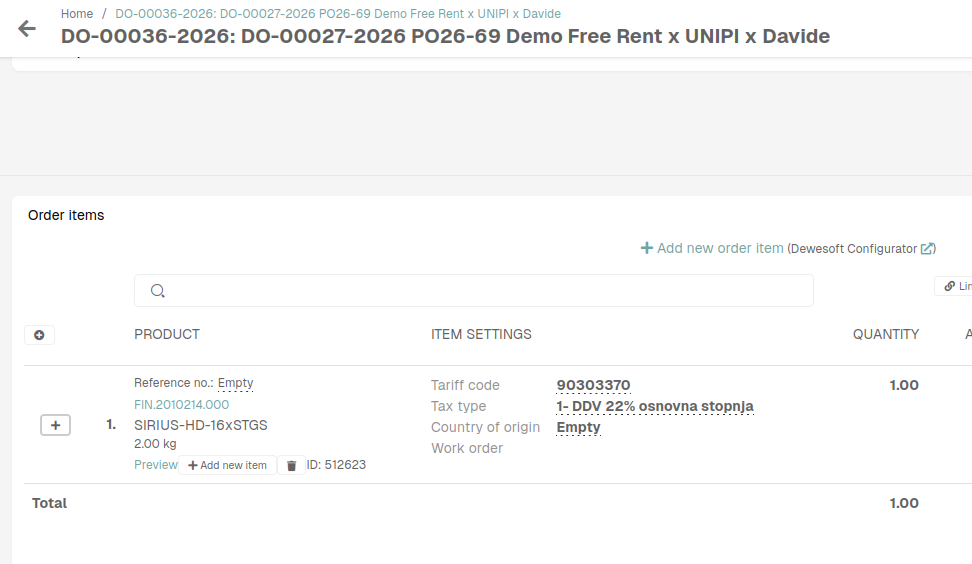Demo and Rental orders require information in the "**Rental and consignment information**" section.
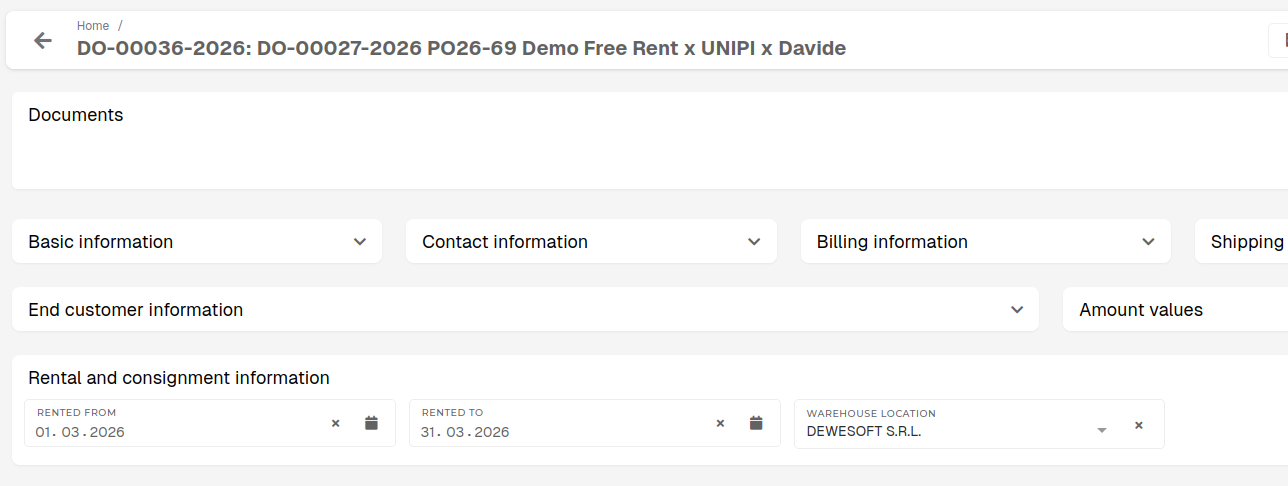 #### 5. Create a packing order and shipping list for Demo sale order To create a packing work order, click **"Create packing for selected order items"** in the **"Documents"** section. [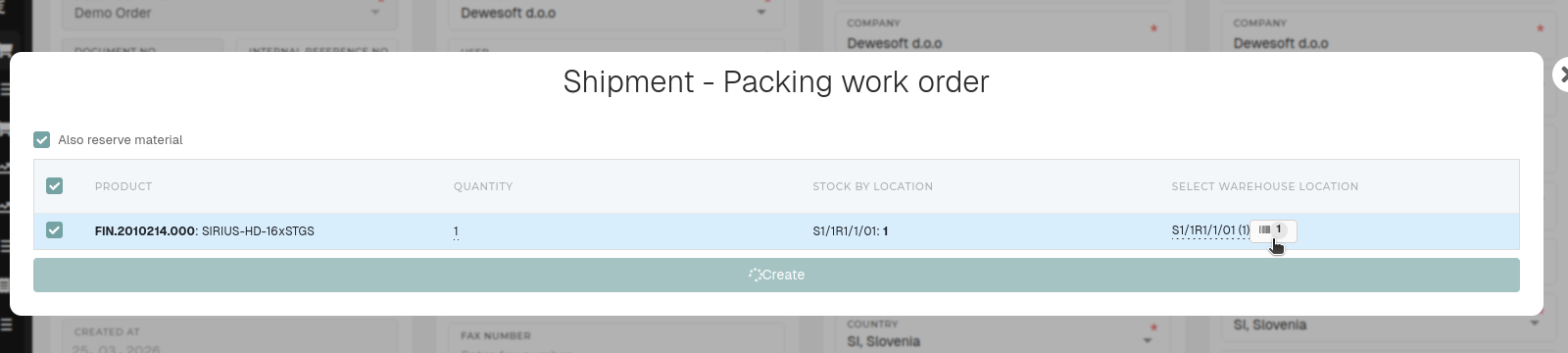](https://how-to-erp.dewesoft.com/uploads/images/gallery/2026-03/iH5image.png) Make sure that products are **"in stock"** and click on the item to enter product serials and and then click **"Create"** to make a new packing work order. After the packing work order is completed, click the "**+** **Documents"** button and add a shipping list for the packing work order. [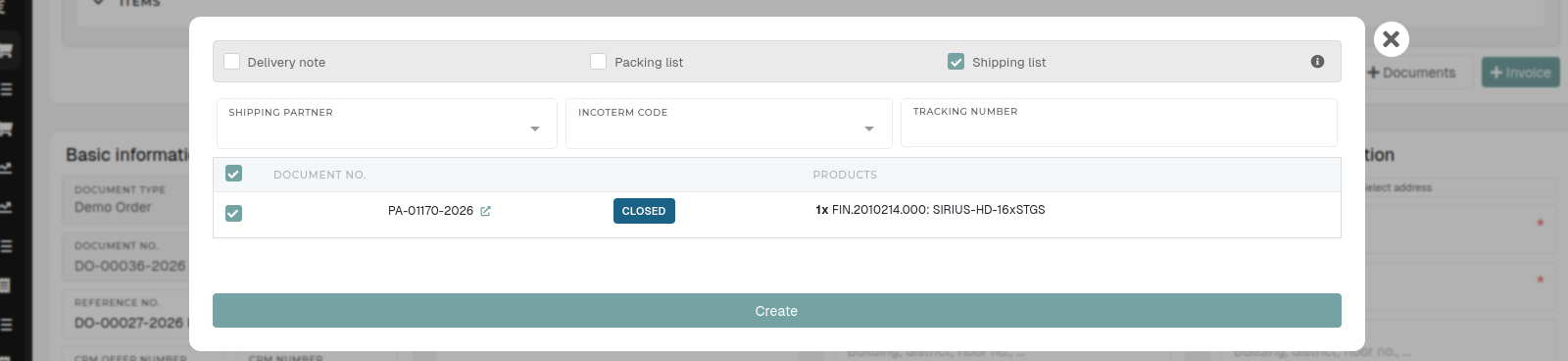](https://how-to-erp.dewesoft.com/uploads/images/gallery/2026-03/64Kimage.png) [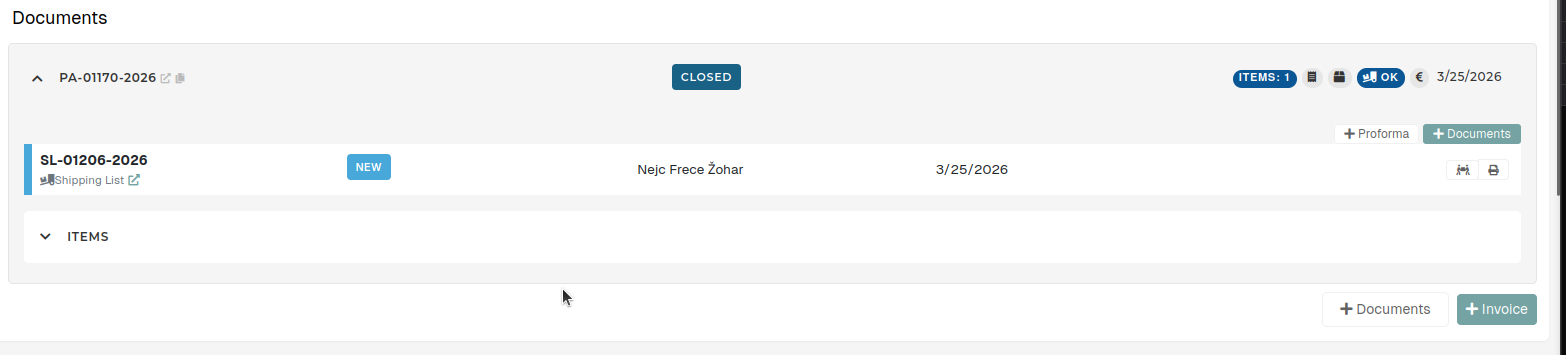](https://how-to-erp.dewesoft.com/uploads/images/gallery/2026-03/vUIimage.png)