User HR profiles
Overview
User HR profiles are the center of the HR module, as they are used to connect users to their work positions, departments, equipment, work locations...

Create new user hr profile
This action requires the "Create user hr profile" permission.
To create a user hr profile, you must click on the "+" icon on the top right corner. You will be redirected to the "Create new user HR profile form"

A user can have only one HR profile.
To create a new user hr profile, you need to select the user, for whom the hr profile is being created, select their gender and citizenship, and enter their birthday.
Certain form sections do not appear in the creation form, but are available in the updating form.
Update existing user hr profile
This action requires the "Update user hr profile" permission.
Updating the HR profile should be handled with care, as majority of the HR module depends on the HR profile and its information.
At the top of the form is a header, that displays employee's full name and photo, their current work position, current department and the type of their employment contract.

Basic information
The basic information section contains details about the employee. Their private contact information, gender, personal identification number (emso), birthday and education, among other.

This information is used, mainly, during contact generation. Depending on the contract that is being generated, this information may be required.
- User
- The user, to who the HR profile belongs.
- One user can have only one HR profile!
- Private email
- Employee's private email address.
- Intended for informative use by HR.
- Private phone
- Employee's private phone number.
- intended for informative use by HR.
- Gender
- Employee's physical gender
- Options Male and Female.
- Emšo
- Employee's UPIN (Unique Personal Identification Number)
- Citizenship
- Employee's citizenship country
- List contains all available countries.
- Cost center plain (Birokrat)
- Cost center of employee.
- This field is used in the Birokrat integration (if enabled).
- Tax number
- Employee's financial identification number.
- Partner
- A placeholder entity, used when employees create merch orders.
- Cost center (BC)
- Cost center of employee.
- This field is used in the Business Central integration (if enabled).
- Birthday
- Employee's birth date.
- Used for calculating age in salary exports.
- Used, when generating a birthday announcements.
- Birth location
- Employee's birth location.
- Credit amount
- Employee's "merch coupon" amount.
- This credit can be used up by employees when creating merch orders.
- Number of employee
- Employee's internal company identification number
- Birokrat ID
- ID of employee in Birokrat system.
- This field is used in the Birokrat integration (if enabled).
- Education
- Employee's education title
- Lists all education and their education level.
- Confection number
- Employee's confection number (SM, M, L, XL,...).
- Intended for distribution of confection to employees.
- Confection gender
- Employee's confection gender.
- Some employees may want i.e. a different shirt.
Workflow
The workflow section defines details for the employee's workflow, such as how many hours they are obligated to work per day, whether they can work from home, do overtime...

- Entry registration
- Defines, if the employee will have to register their arrival and departure times in the system. These "registrations" are, if enabled, necessary for correct salary calculation.
- Workday obligation
- This number defines how many hours, per day, the employee is obligated to work for.
- Normally, this number is 8. For students, this number should be 0.
- Has overtime
- -
- Allow work from home
- If this option is enabled, the employee is allowed to submit an attendance request of type "Work from Home"
- Allow shift work
- -
- Allow night work
- -
- Entry registration type
- This options is required, if "Entry registration" is disabled.
- The dropdown is used to set attendance event of which type will be automatically generated every workday.
- Currently available options are: Registration, Work from home, Unregistered attendance
Notifications
The notifications section contains switches, used to toggle notifications pertaining to users.

- Include in birthday announcement
- If this option is enabled, employee will be listed in the birthday announcement on their birthday.
Work positions
Work positions section contains the employment start date as well as lists all, past and present, work positions of the employee.
The information in this section is used in salary and vacation calculations, as well as requests approvals, as work position links the employee to a certain department.
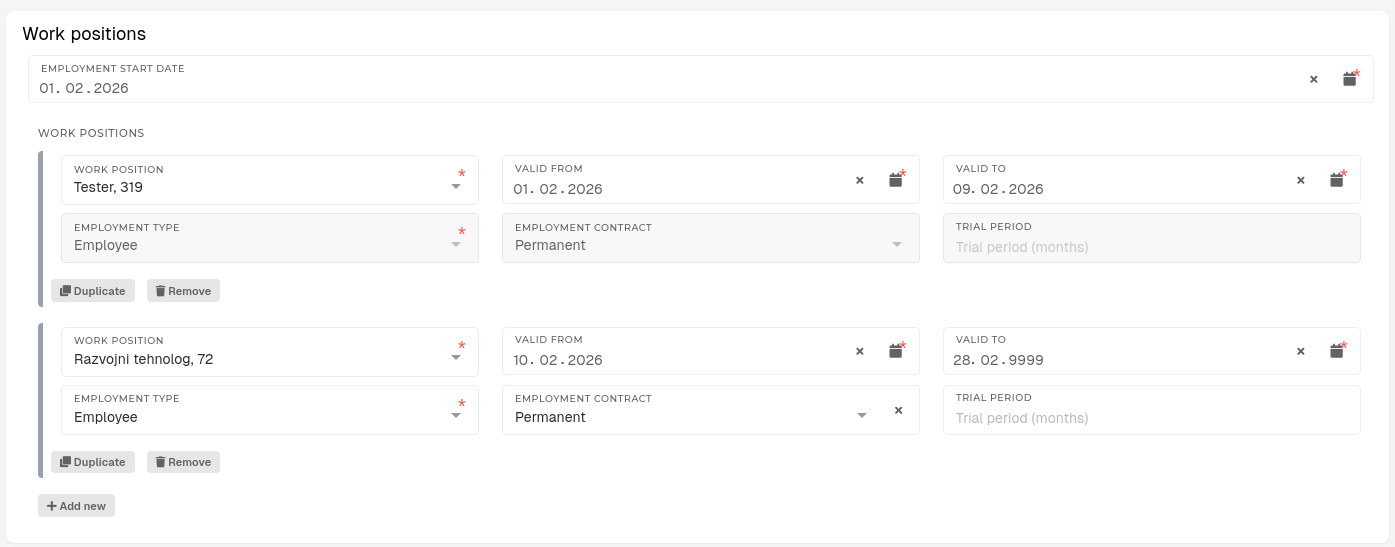
An employee's "Active" work positions is determined by the "Valid from" and "Valid to" dates.
- Work position
- The work position, assigned to employee for the set employment period.
- Only work positions with set HR department will appear in this list.
- Valid from
- The start date of employment period for selected work position.
- Valid to
- The end date of employment period for selected work position.
- The end date of employment period for selected work position.
- Employment type
- The type of employment for selected work position.
- Available options: Employee, Student, Contractor
- Employment contract
- Defines the employment's contract type.
- Available options: Temporary, Permanent
- This detail is applicable only for employees.
- Trial period
- Defines the length of trial period for a temporary employment contract.
- Student hourly rate
- A custom rate, that will be paid to students.
- This field appears only for employments of type student.
Past work positions, which are no longer active (with Valid to dates in the past), will be disabled.
Work conditions
Work conditions are used to add additional vacation days, depending on an employee's type of work.

These conditions are used during yearly vacation generation to add additional vacation days for employee.
Work conditions are split into 2 categories, "Work conditions referring to employee" and "Work conditions referring to family members"
- Work condition
- The work condition, that applies to the employee.
- Every work conditions grants a set amount of additional vacation days.
- Valid from
- The start date of period, during which the selected work condition applies.
- Valid to
- The end date of period, during which the selected work condition applies.
- Family member
- Selected family member, for whom the employee is eligible for additional vacation days.
- Only used in the Work conditions referring to family members section.
- Only family members of the current employee are listed.
Reward eligibilities
Reward eligibilities section lists reward eligibility periods for employee.
Reward eligibility is used to calculate an addition to employee's salary.
Like for work positions, the period of time, during which reward eligibilities are "active", is determined by From and To fields.

- Reward eligibility
- The reward eligibility, selected for the date period.
- Available options are:
- 0 - No reward
- 1 - Full reward
- 1/2 - Half of reward
- 1/3 - Third of reward
- 2/3 - Two thirds of reward
- 3/3 - Three thirds of reward
- From
- The start date of period, during which employee is eligible for the selected reward.
- To
- The end date of period, during which employee is eligible for the selected reward.
Addresses
The addresses section contains information of one or more addresses, linked to the employee.
An employee can have multiple addresses, but only one can be set as a primary address at any given time.

- Primary
- This switch sets the address as a primary address for the employee.
- Only one address can be set as primary at any given time.
- Address label
- A custom label for the address.
- Useful for finding a specific address, where multiple addresses exist.
- Address Line 1
- The first line of the address.
- The first line of the address.
- Address Line 2
- The second line of the address.
- Is optional, if needed.
- Postal code
- The postal code of address's city.
- City
- The city, where the address is located.
- State
- The state of the address's country.
- Is optional.
- Country
- The country of the address.
User residence history
The user residence history section contains details about employee's residential addresses and distances from work location(s) for those addresses.
Defining travel distances between work location(s) and employee's address(es) is required for correct salary calculation, primarily for calculation of employee's travel expenses.

- Address
- Employee's address, for which we are defining distances from work location(s)
- Lists all saved addresses of current employee.
- From
- The start date of period, during which selected address is set as active.
- Active residence address is used during travel expense calculation.
- To
- The end date of period, during which selected address is set as active.
- Active residence address is used during travel expense calculation.
- Work locations
- You can have one or more work locations defined for every address.
-
- Work location
- A work location, where the employee will work.
- Work location
-
- Distance
- The distance (in KM) that employee commutes to work location in one direction.
- Amount should be in kilometers
- Distance
-
- Default
- Mark the work location as default work location for the employee
- One residence can have only one default work location.
- Default
Work locations, defined for the active user residence, are listed when the employee wants to submit an attendance request to work on location.
Bank information
Bank information section lists bank accounts, connected to the employee.

- Name
- A custom name for the bank account.
- Useful for finding a specific account, where multiple accounts exist.
- Bank
- The bank, where the bank account exists.
- This list displays banks, already added in the system.
- Bank account
- The number of employee's bank account.
- Currency code
- The currency of employee's bank account.
- This list displays currencies and their abbreviations (e.g. EUR, Euro)
- Primary bank account
- A switch that sets the bank account as employee's primary bank account.
- Only one bank account can be set as primary at any given time.
- Transactional/Checking bank account
- -
- Saving bank account
- -
Family members
The family members section lists family members of the employee.
Employee's family members must be added in order to add any work conditions that refer to family members.

- First name
- The family member's first name.
- Last name
- The family member's last name.
- Gender
- The family member's gender.
- Date of birth
- The birthday of employee's family member.
- This date is used to grant additional vacation days to employees with kids, aged 15 or less.
- Type
- The family member's relation to the employee.
- Available options: Son, Daughter, Partner
- VAT ID
- The VAT identification number of the family member.
Past experiences
The past experiences members section lists past employments of the current employee.

- Company
- The name of the company of previous employment.
- From
- The start date of previous employment.
- To
- The end date of previous employment.
- The end date of previous employment.
- Work day obligation
- The amount of required work hours.
Contracts
In this section, contracts for the current employee can be generated.

- Contracts last confirm date
- The date and time, when employee's employment contract was last updated.
- Vacation contract
- This button generates a detailed vacation "contract", which denotes an employee's vacation leave.
- Generating this contract also updates an employee's available leave.
- When generating available vacation leave, employee's latest work position is taken into account. (If employee has a temporary work position, a proportional amount of vacation leave will be granted.)
- This button generates a detailed vacation "contract", which denotes an employee's vacation leave.
- Temporary employment contract
- This button generates a temporary employment contract in Google Docs.
- This document is generated from a Google Docs template.
- Temporary employment contract confirmation
- This button generates a temporary employment contract confirmation in Google Docs.
- This document is generated from a Google Docs template.
- Permanent employment contract
- This button generates a permanent employment contract in Google Docs.
- This document is generated from a Google Docs template.
- Permanent employment contract confirmation
- This button generates a permanent employment contract confirmation in Google Docs.
- This document is generated from a Google Docs template.
- NDA contract
- This button generates an NDA contract in Google Docs.
- This document is generated from a Google Docs template.
- Work location contract
- This button generates a work location contract in Google Docs.
- This document is generated from a Google Docs template.
- Residence distance statement
- This button generates a residence distance statement in Google Docs.
- This document is generated from a Google Docs template.
Vacations
This section lists vacation days counts for the employee.
Available leave in current year and Transferred leave days are not editable, as these fields should be filled by automated processes for vacation calculating.

- Available leave in current year
- Amount of vacation days, available in the current year.
- Transferred leave days
- Amount of unused vacation days from the previous year, available until the end of June.
- Leave days bonus
- A vacation bonus, awarded by leadership.
An employee's full amount of leave days is the result of adding together Available leave in current year days, Transferred leave days, Leave days bonus and additional vacation days from their active work position.
Delete user hr profile
This action requires the "Delete user hr profile" permission.
To delete a user hr profile, you can click the "Trash" icon on the row of the user hr profile.

Although user hr profiles can be deleted, this should generally be avoided, in order to maintain data traceability in the HR module.