This action requires the **"Create user"** permission.
To create a new user, click the "**+**" button in the top right corner above the table. You will be redirected to the "[Add new user](https://placeholder.erp/users/create)" form. To create a new user, you need at least: - A **unique email address** that is not yet assigned to any user. - The user's **first name** and **last name.** - The user **must be confirmed** in order to be able to access the ERP. 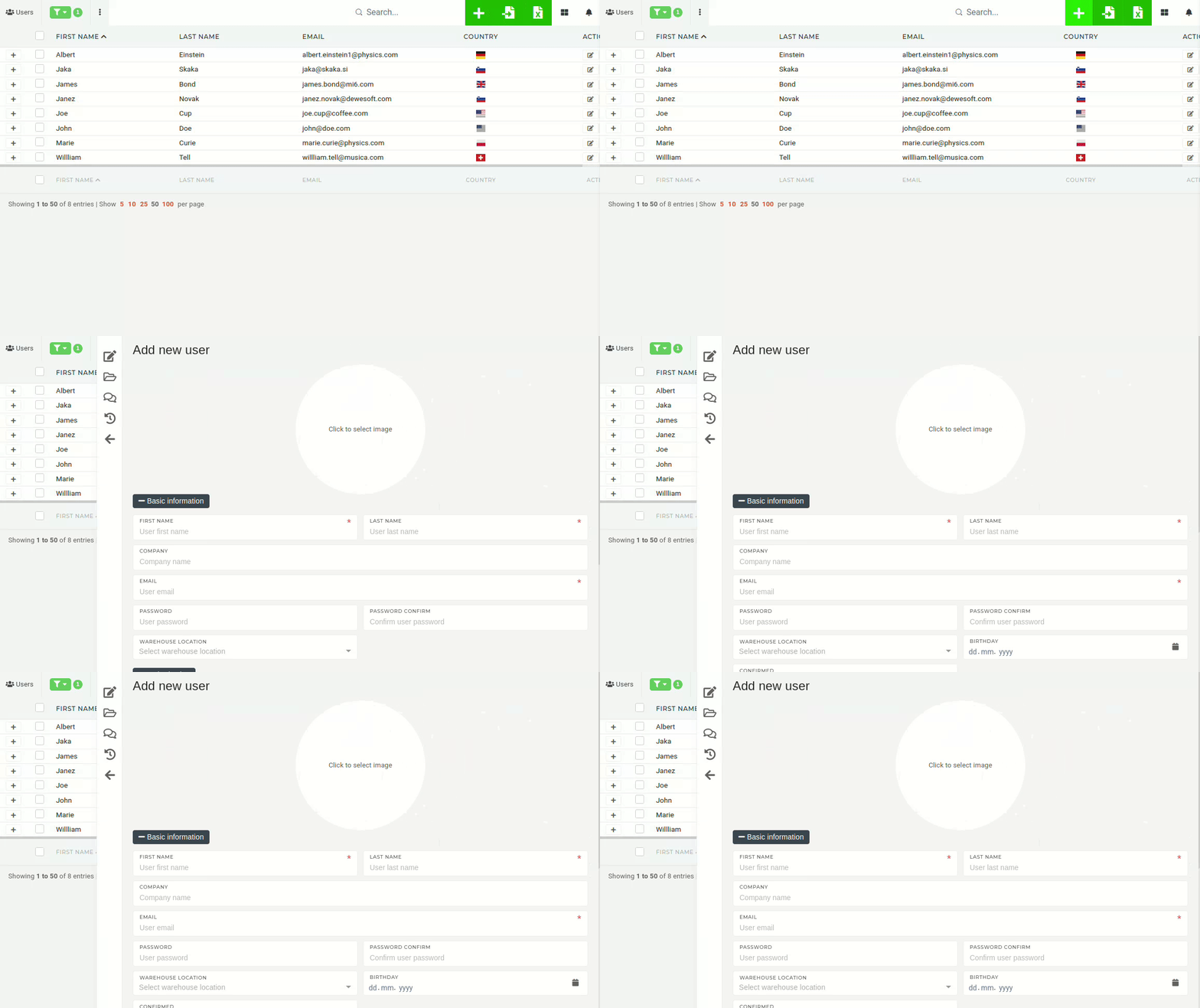 # Update an existing userThis action requires the **"Update users"** permission.
Updating the user is done by finding the user in the "[Users](https://placeholder.erp/users)" table and its clicking "Edit" icon.  This redirects you to the user's edit page, where you can update most of the user's basic information (photo, name, address, authorization, contact information...) or send a **"Password reset"** email to user. [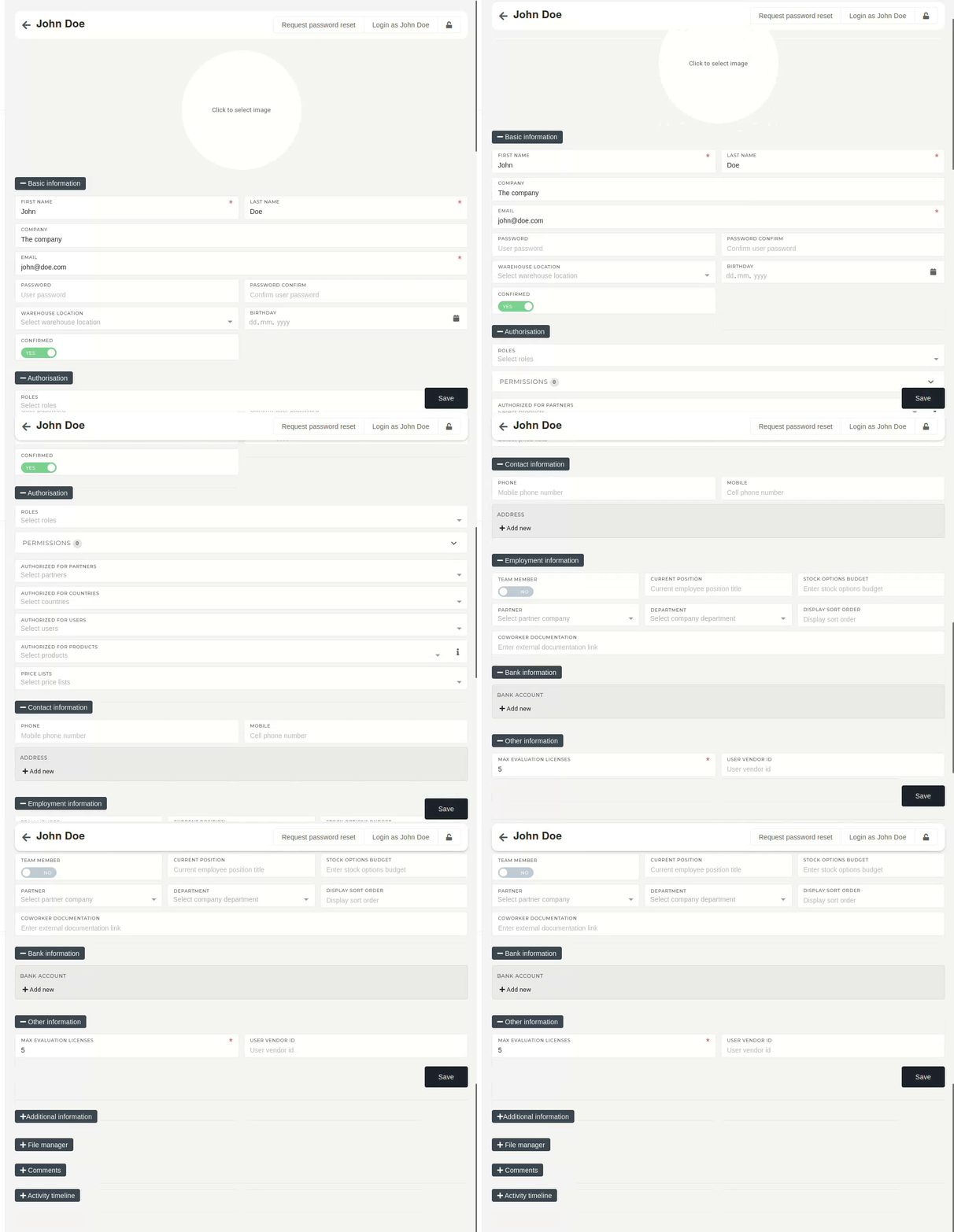](https://how-to-erp.dewesoft.com/uploads/images/gallery/2024-06/Yxyoutput.gif) # Delete user(s)This action requires the **"Delete users"** permission.