Products can be converted into other products by "**rebooking**" them with goods rebooks.
**Goods rebooks** are used to correct or adjust inventory records to address discrepancies or changes in stock management while preserving data integrity. Goods rebooks are commonly used to fix errors in inventory transactions, such as incorrect quantities or item codes, recorded during goods receipts or stock movements. Goods rebooks also enable the reallocation of inventory between locations, warehouses, or categories, such as reclassifying damaged goods or quality-assured stock. [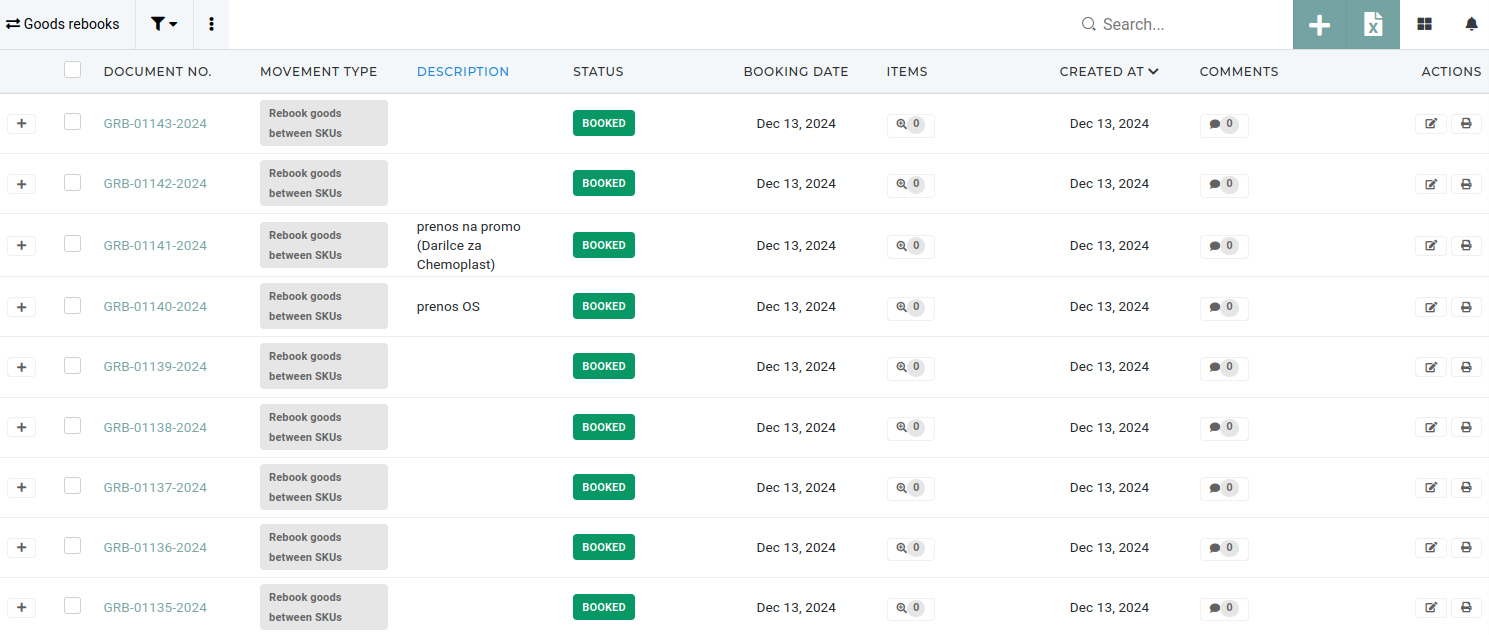](https://how-to-erp.dewesoft.com/uploads/images/gallery/2024-12/s5oimage.png) Additionally, they help align physical stock with financial records during audits, ensuring accurate inventory valuation. Rebooks are essential for reclassifying items due to changes in usability, such as converting defective goods into scrap or changing purchased work equipment into fixed assets. Most common use for goods rebooks is to rebook goods between different product codes (SKU-s). But not all product types can be rebooked to all other product types. This is managed through the **"rebook matrix".** # Create new goods rebookThis action requires the **"Create goods rebook"** permission.
New goods rebooks can be created in the **"[Create new goods rebook](https://placeholder.erp/goods-rebooks/create)"** form, or by clicking the "**+**" button above the **"Goods rebooks"** table. 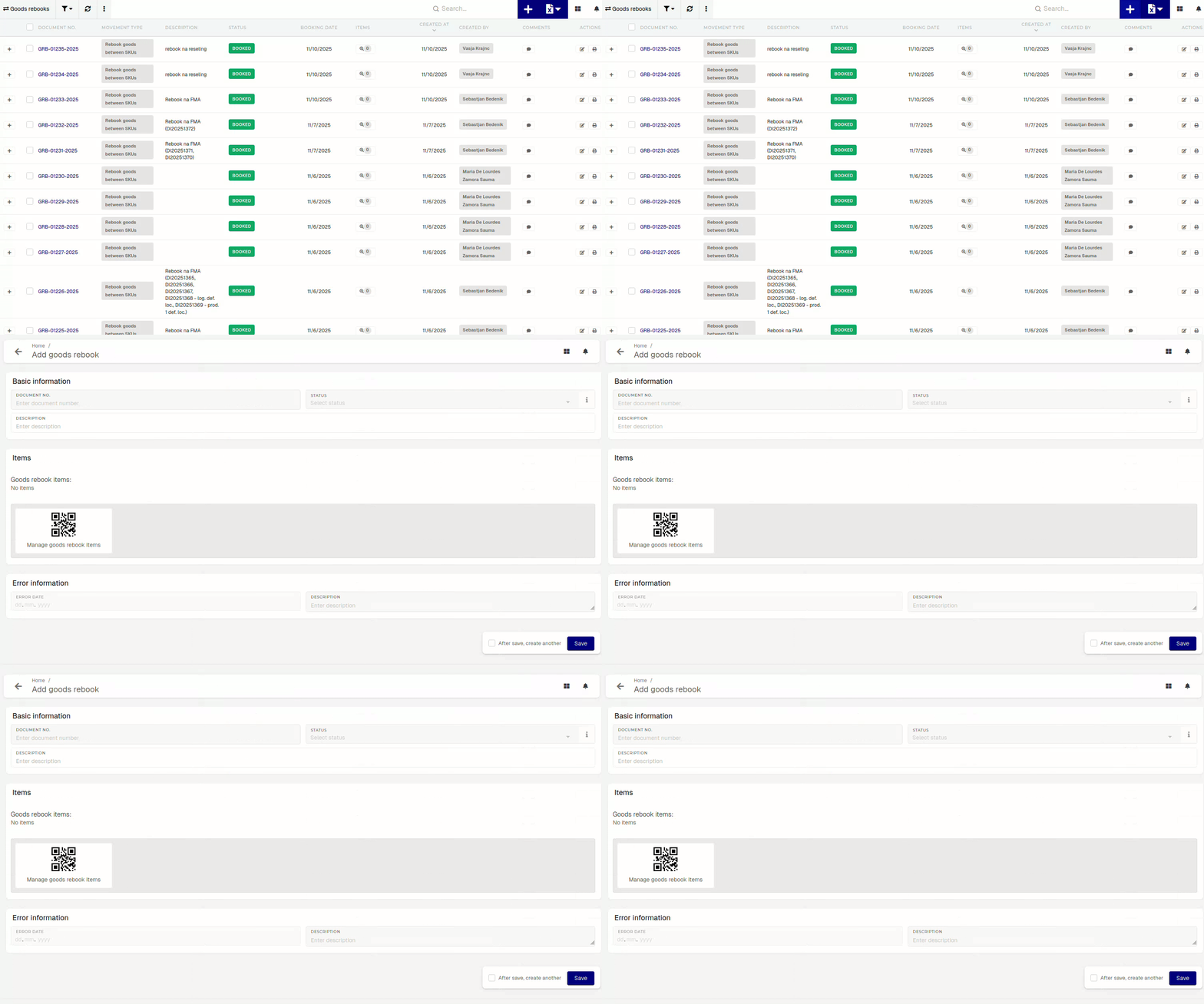To create a rebook, a description is required.
To add product(s) for rebooking, click/scan the **"Manage goods rebook items"** button. 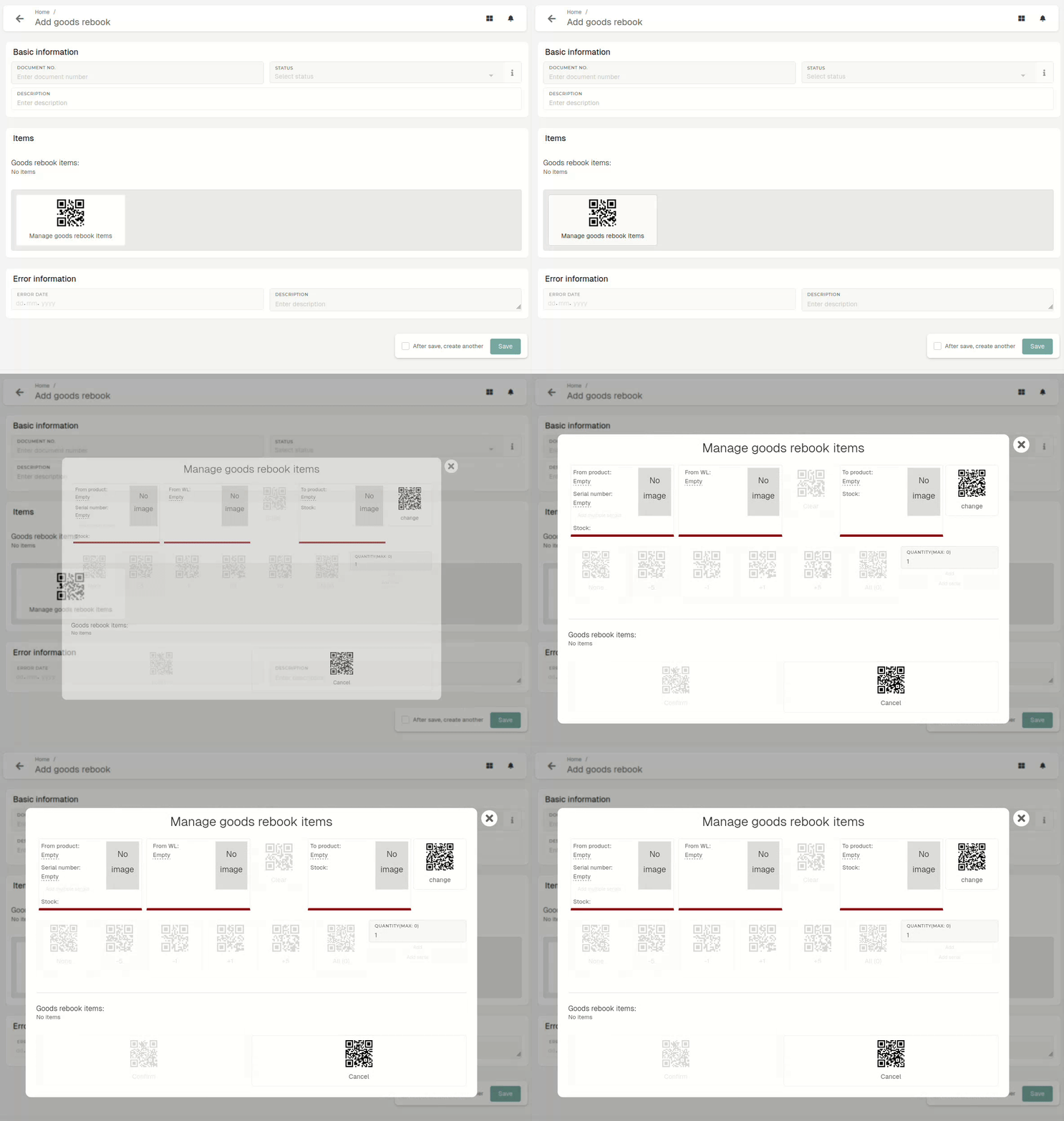 Select the product, whose stock you want to rebook (From product) and the product, which the stock should be rebooked to (To product). Selecting the warehouse location of the stock that will be rebooked is also required. Once the "From product" is selected, a list of warehouse locations with stock appears.If "From product" has stock tracking by enabled, serials need to be selected.
With the current and target product selected, enter rebook quantity, how much of source product's stock to rebook. With all data entered, click/scan the **"Confirm"** button, an [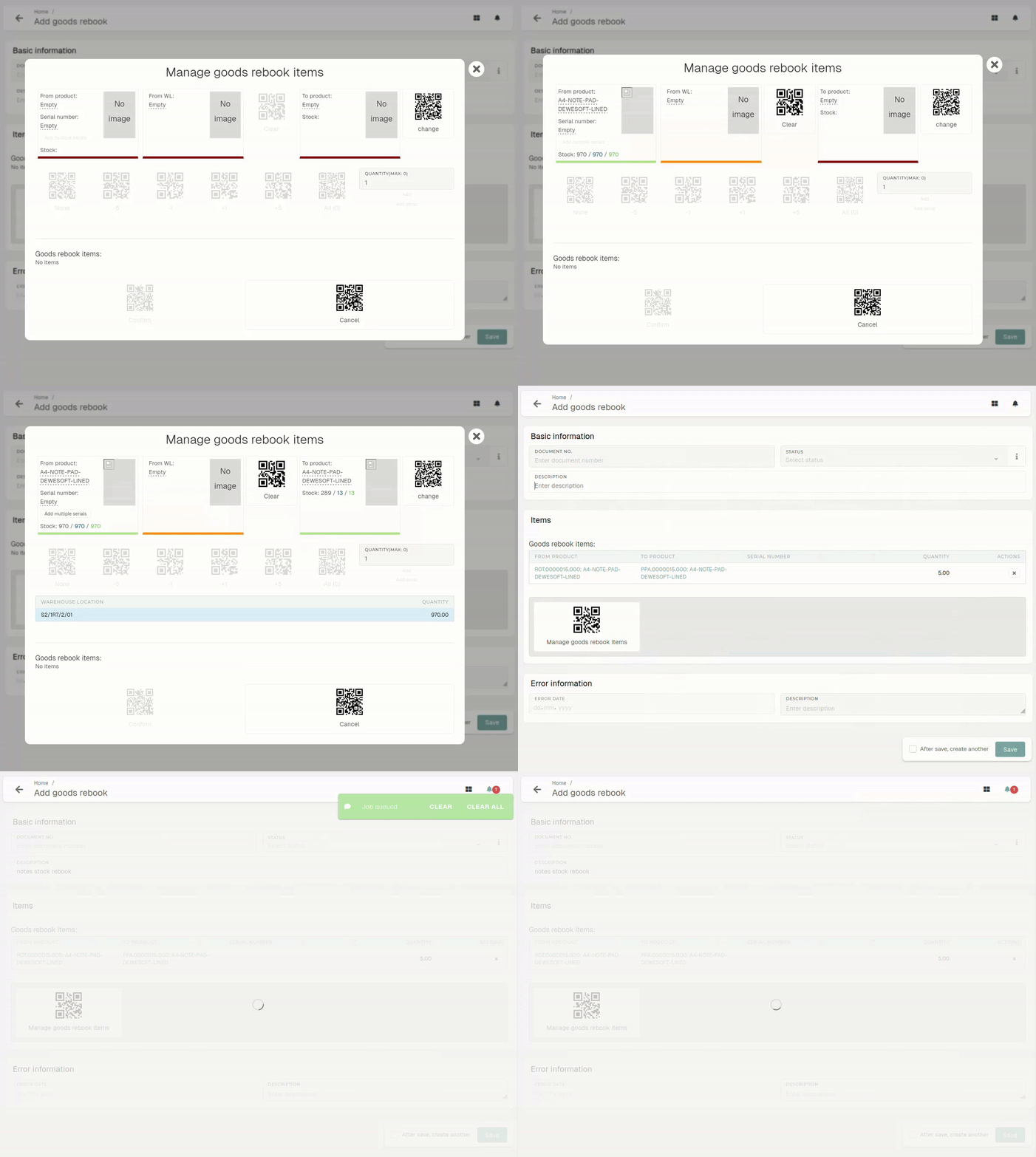](https://how-to-erp.dewesoft.com/uploads/images/gallery/2026-03/dKyoutput.gif)When doing a goods rebook, keep in mind that not every product can be rebooked into every other product. Rebookability is managed through the rebook matrix, which determines which product types can be rebooked in to which other product types.
# Update existing goods rebookThis action requires the **"Update** **goods** **rebook"** permission.
Goods rebooks are generally not editable, because their data is directly tied to stock transactions, which are critical for tracking, validating and maintaining accurate stock levels.Descriptions of goods rebooks can be changed, but all other information (e.g. status, items,...) is locked.
[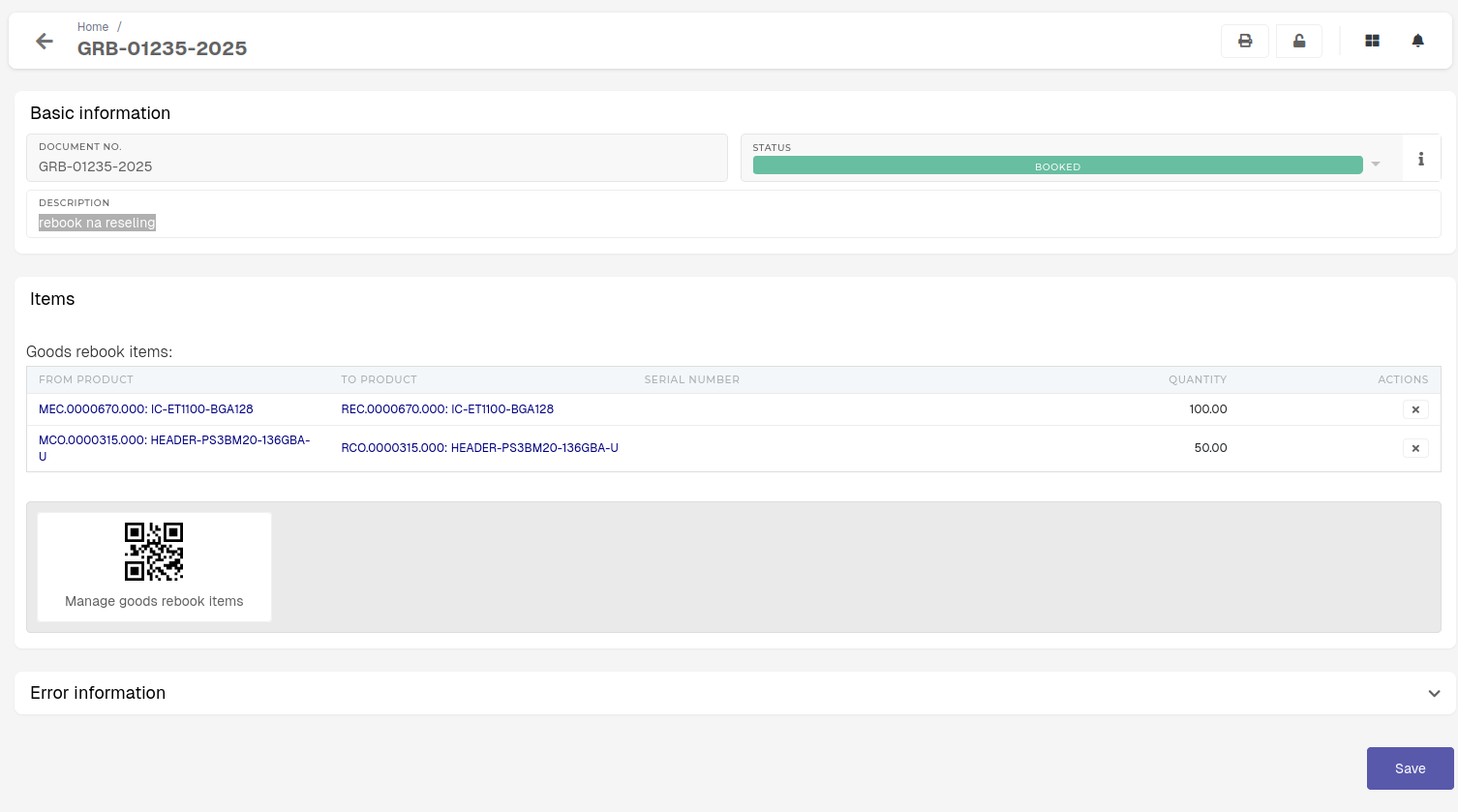](https://how-to-erp.dewesoft.com/uploads/images/gallery/2026-03/L03image.png)**Altering goods rebooks can disrupt the integrity of inventory records** and lead to discrepancies in stock validation processes. To ensure consistency and compliance, any changes to stock should be managed through proper adjustment or reversal procedures rather than editing existing records.
# Delete goods rebookThis action requires the **"Delete goods rebook"** permission.
Goods rebooks cannot be deleted directly, due to the stock transactions that are connected to them. Because of this, goods rebooks need to be canceled first.Goods rebooks with no stock transactions, such as "**Failed**" rebooks, can be deleted without being canceled first.
Once a goods rebook is "**canceled**" and there are no existing stock transactions tied to it, it can be deleted from the table. [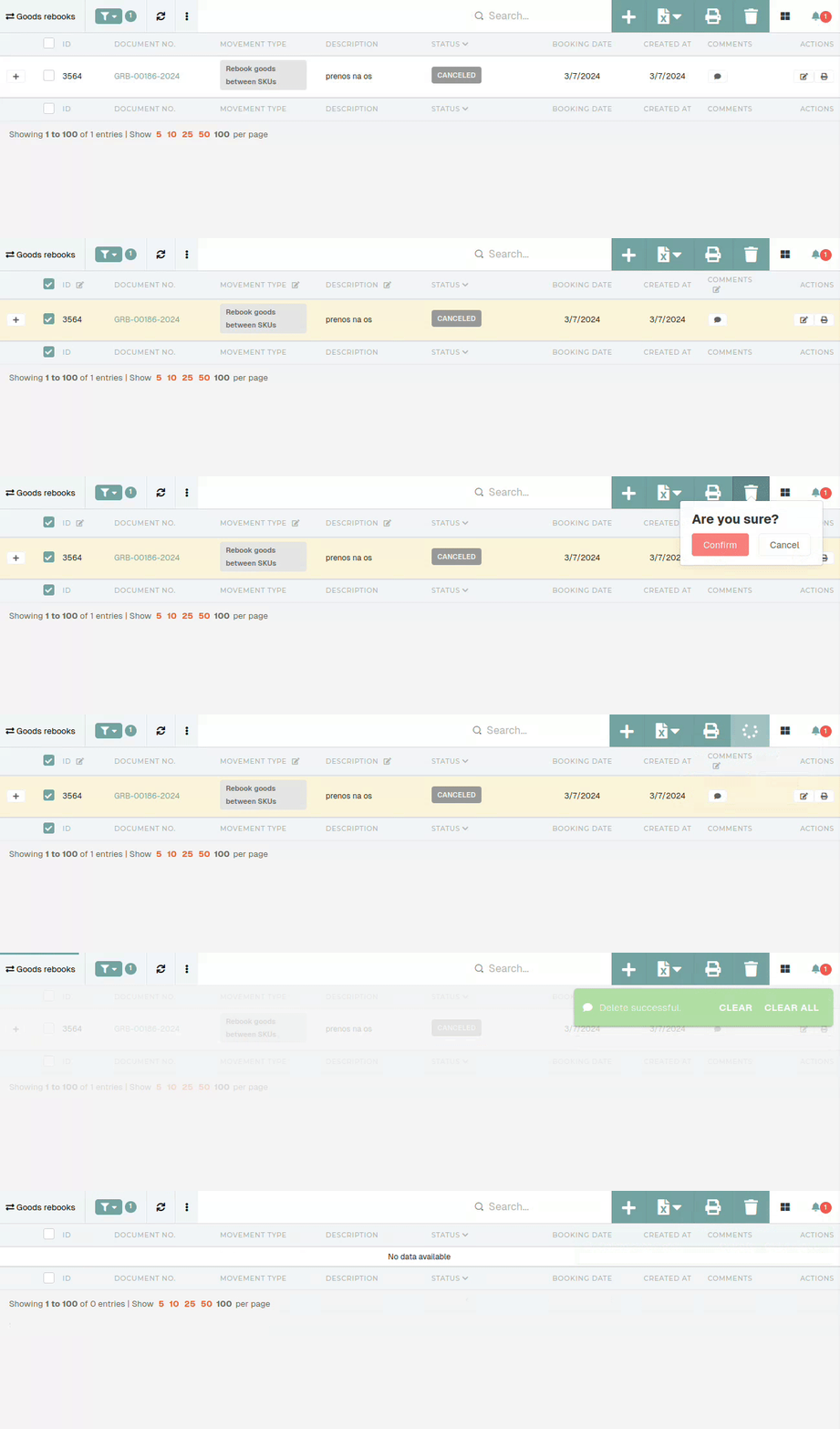](https://how-to-erp.dewesoft.com/uploads/images/gallery/2026-03/8Pdoutput.gif) # Cancel goods rebooksThis action requires the **"Cancel goods rebook"** permission.
Goods rebooks cannot be deleted directly, due to the stock transactions that are connected to them. Instead, they need to be "**canceled**" first. When canceling a goods rebook, make sure that it is the last transaction in product's lot. Trying to cancel a goods rebook, that is not last, will result in an error being shown. [](https://how-to-erp.dewesoft.com/uploads/images/gallery/2026-03/uzEimage.png) To cancel a goods rebook, go to the details page of the goods rebook and open the **"Danger zone"** section. [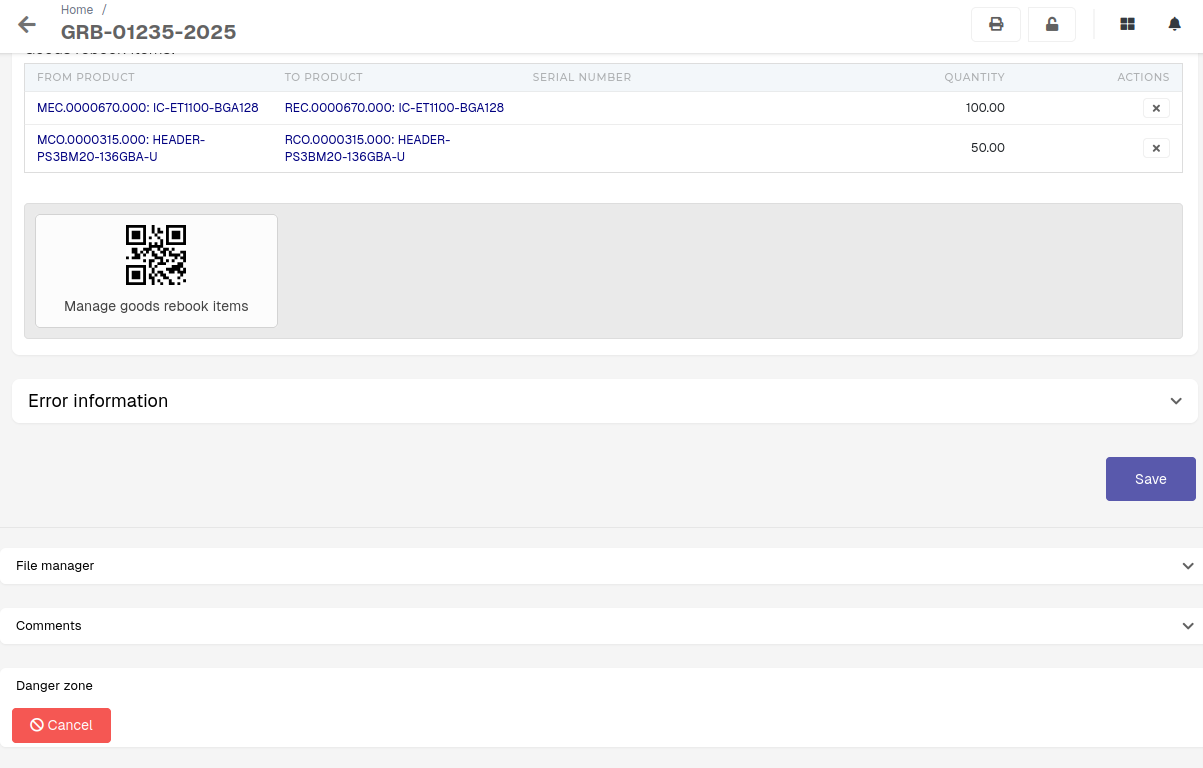](https://how-to-erp.dewesoft.com/uploads/images/gallery/2026-03/aclimage.png) You will see a button, labeled as **"Cancel".** Click and confirm the button to cancel the goods rebook. This will rollback any changes to the stock, done by the goods rebook, as well as delete any stock transactions, tied to this goods rebook.After the process in finished, the status of the goods rebook will then be updated to "**Canceled**".
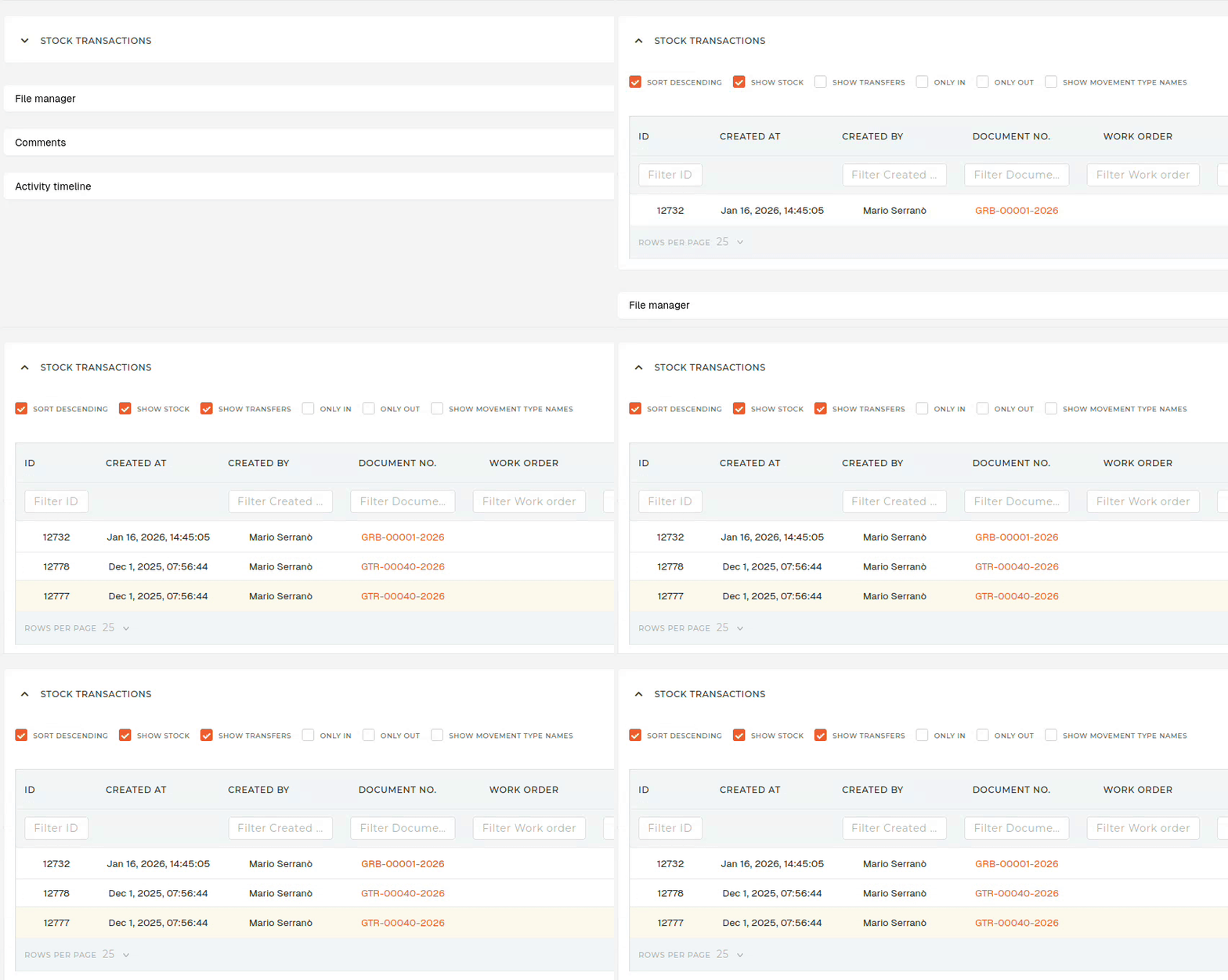
[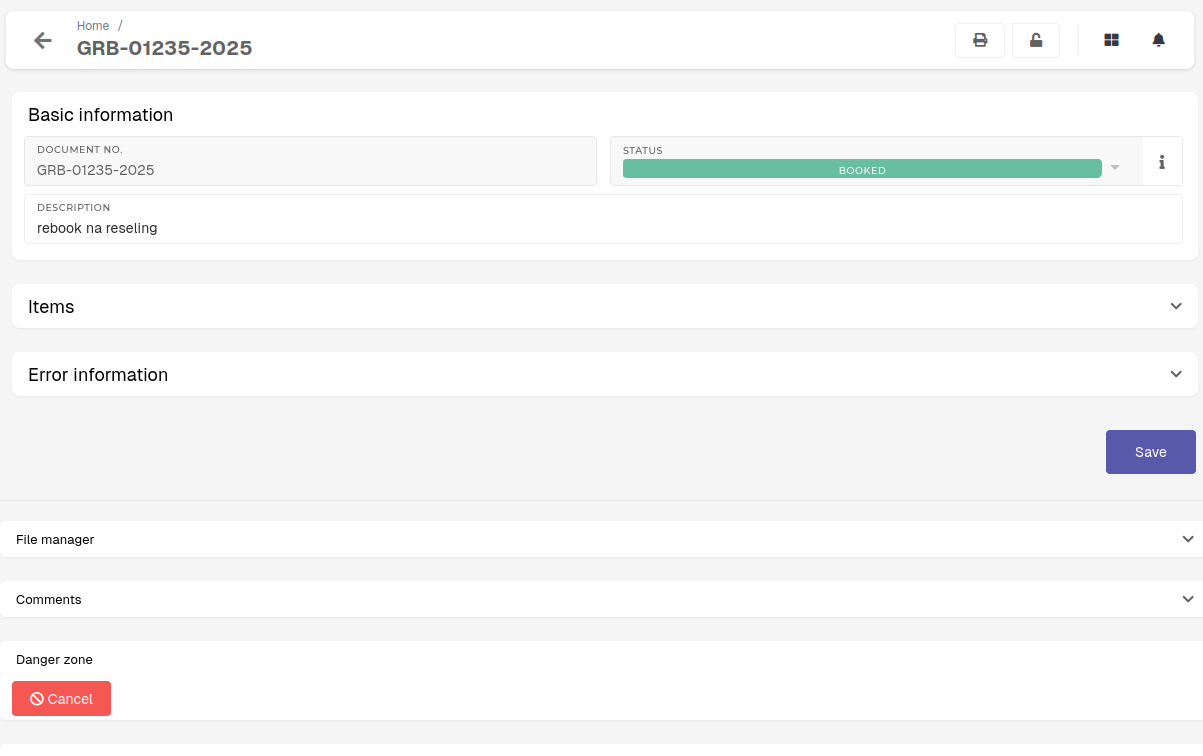](https://how-to-erp.dewesoft.com/uploads/images/gallery/2026-03/P3limage.png) When goods rebook cannot be cancelled (i.e. the error **"Transactions exist after this goods rebook."** appears), that usually means a transaction after this rebook has been created for one of the items on this rebook. To find the problematic item, list all items in the "[Goods rebook Items](https://placeholder.erp/goods-rebook-items)" table and open every item's **Lot (Lot ID)**. 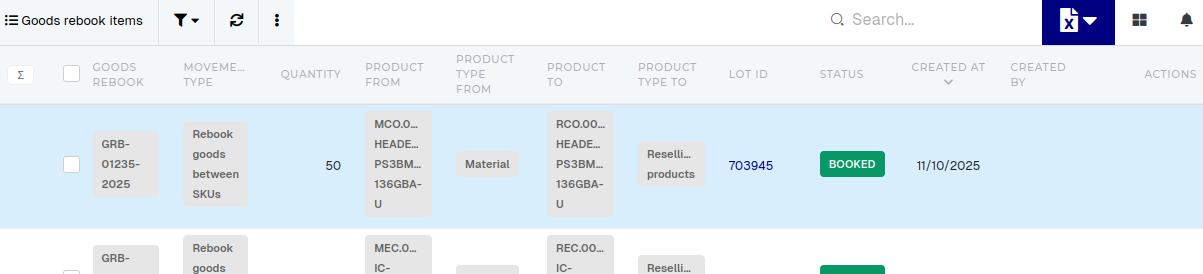 On the **"Lot"** page, open **"Stock transactions"** section, and check the **"Show goods transfers"** checkbox. All transactions, created after your goods goods rebook, are the reason, why the goods rebook cannot be canceled.