This action requires the **"Update** **goods** **writeoff"** permission.
Goods writeoffs are generally not editable, because their data is directly tied to stock transactions, which are critical for tracking, validating and maintaining accurate stock levels.Descriptions of goods writeoffs can be changed, but all other information (e.g. status, items,...) is locked.
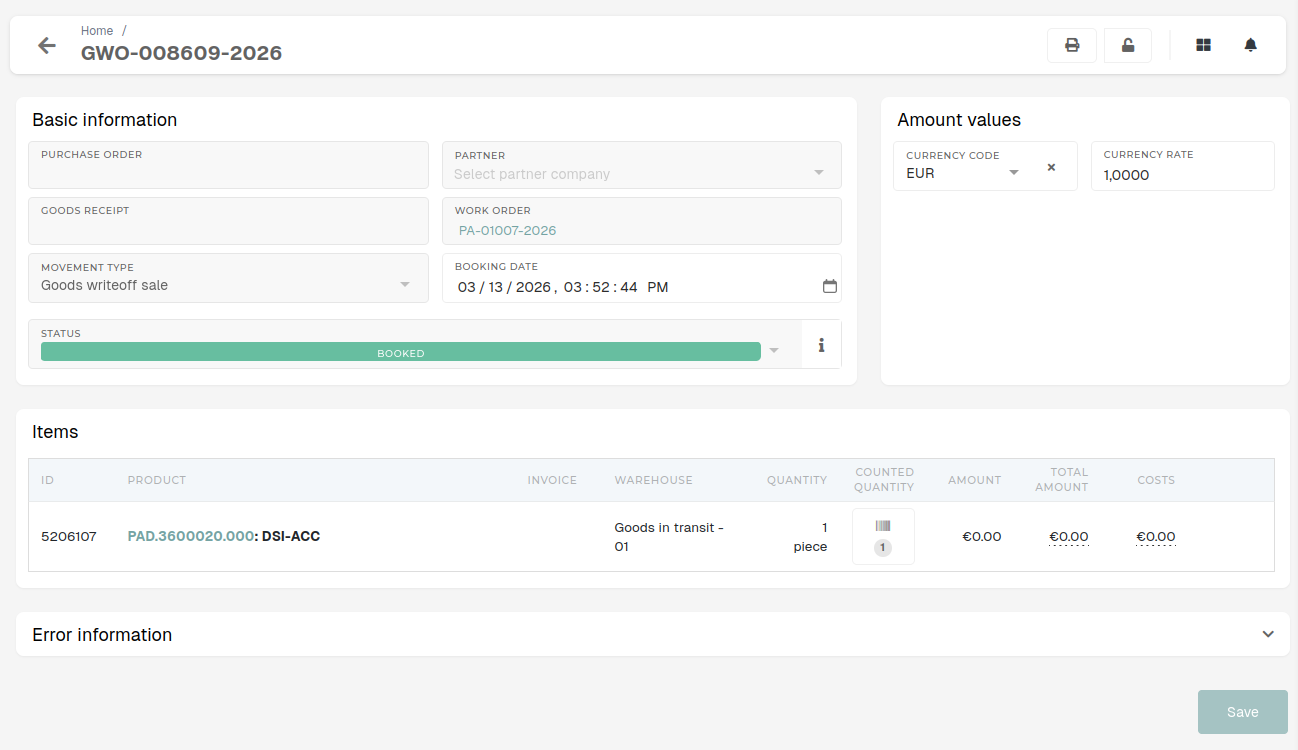**Altering goods writeoffs can disrupt the integrity of inventory records** and lead to discrepancies in stock validation processes. To ensure consistency and compliance, any changes to stock should be managed through proper adjustment or reversal procedures rather than editing existing records.
# Updating booking date on goods writeoffsThis can only be done by users with permission to update goods writeoffs.
To update booking date on goods writeoff, click the **"calendar"** icon in the **"booking date"** field. 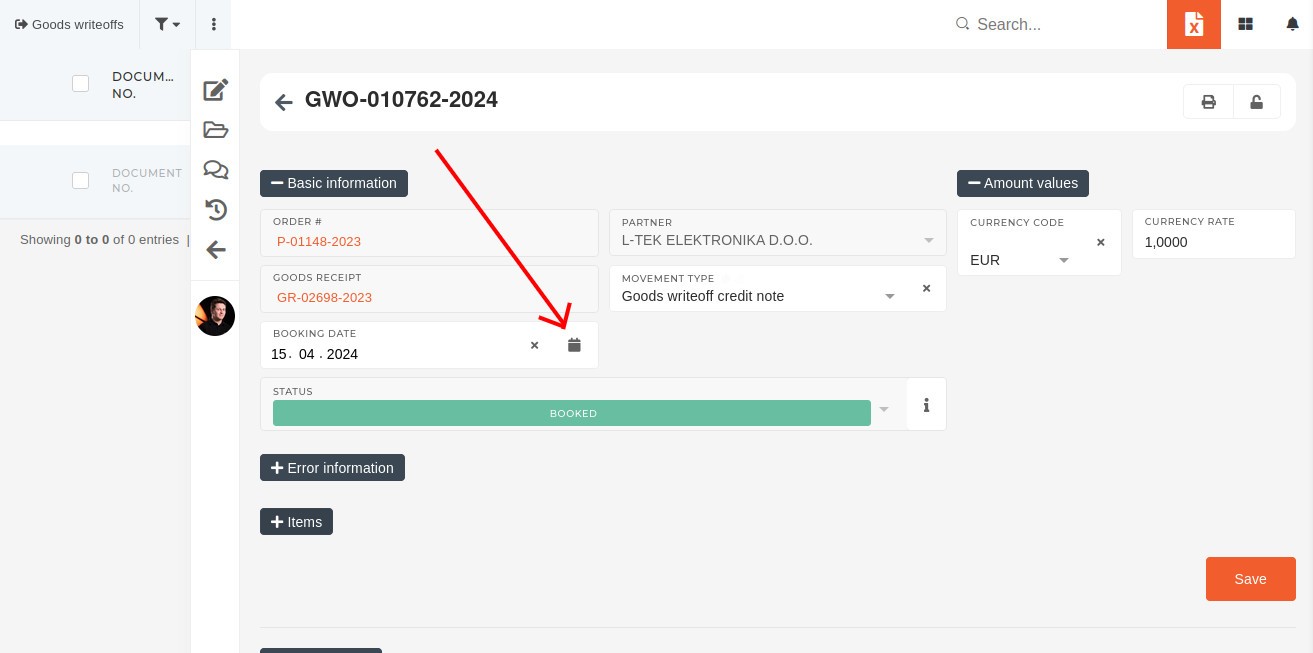 A calendar will appear, that provides an easy way to set a new date. Once the booking date has been updated, save the goods writeoff. 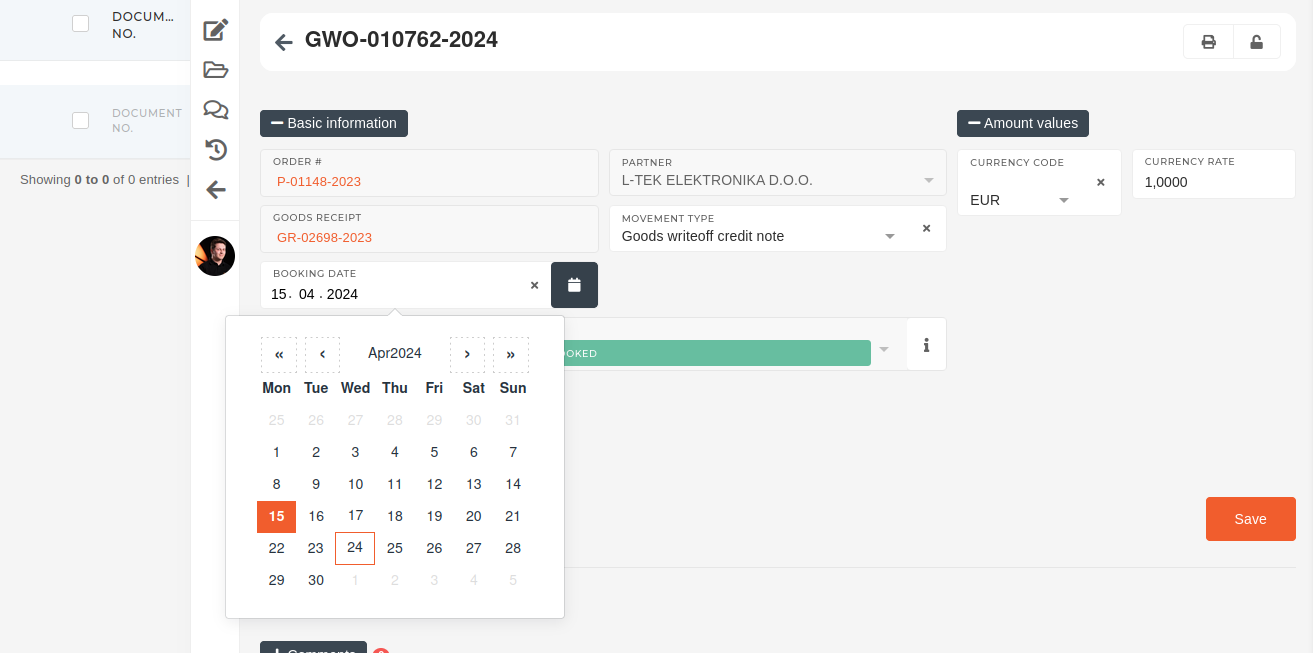If you get an error, refer to the section below.
If you get an error like the one below after saving the goods writeoff, there are transactions on the serial(s), connected to the goods writeoff item(s), preventing updating.Cannot change date booked to 2024-03-29 00:00:00. Transactions exists after that date.
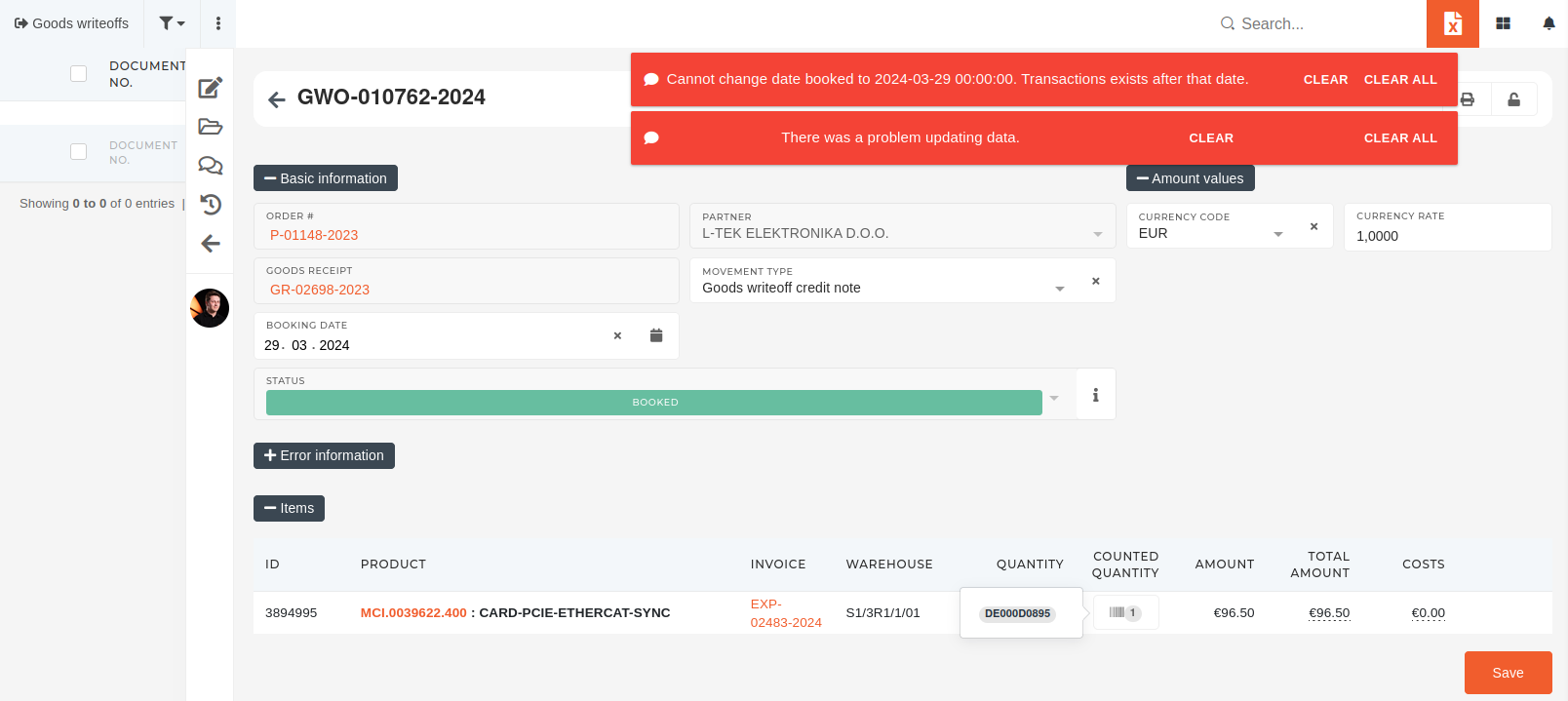 When **transactions** **after** **the** **new** **booking** **date** **exist**, that means those transactions have to be updated as well. To find all (serial) transactions after the new booking date, go to the page of the serial, linked to the goods writeoff item, and open the "**stock** **transactions**" section. Here, tick the **"show transfers"** checkbox. Transactions are sorted by the date of creation. [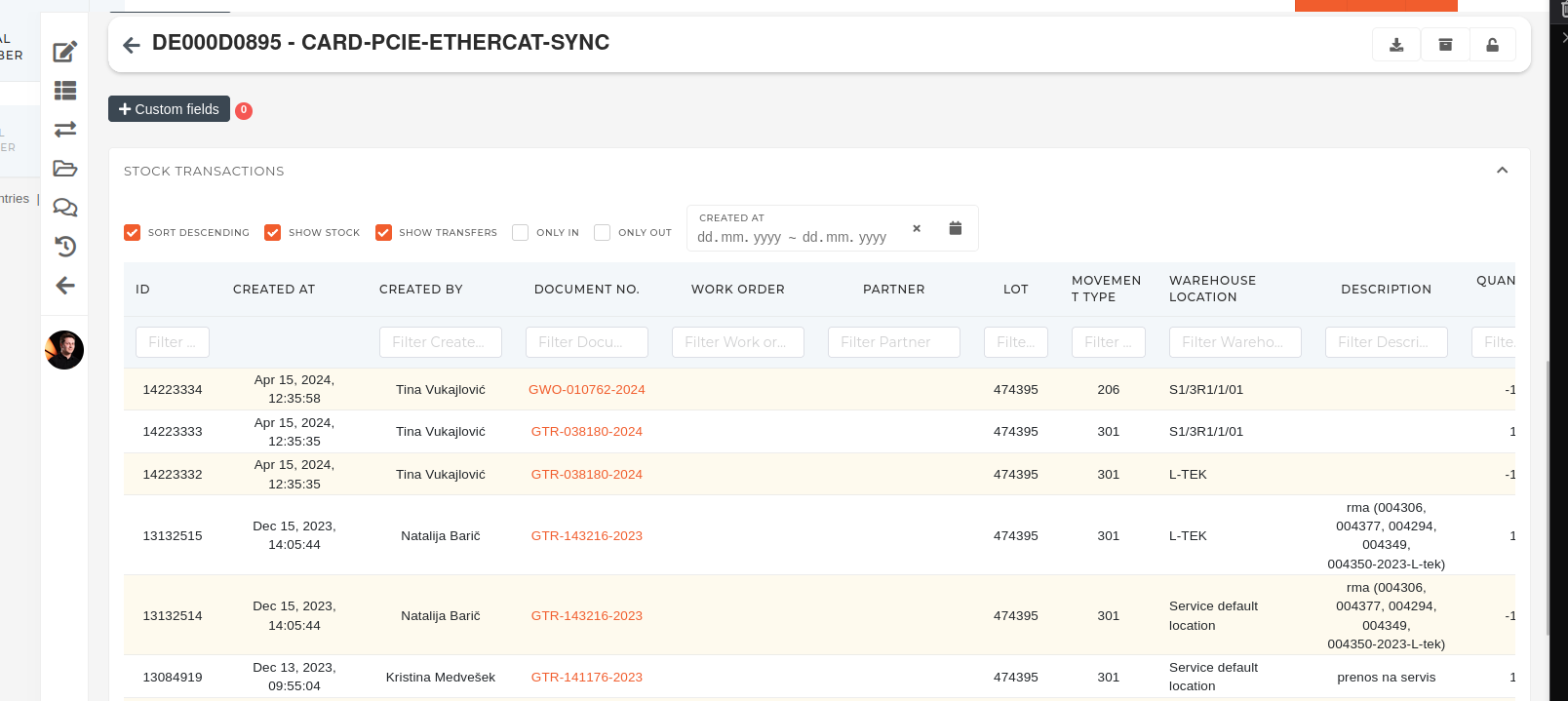](https://how-to-erp.dewesoft.com/uploads/images/gallery/2024-04/an0image.png) Look through the transactions and open goods transfers (GTR), created after the new goods writeoff booking date. 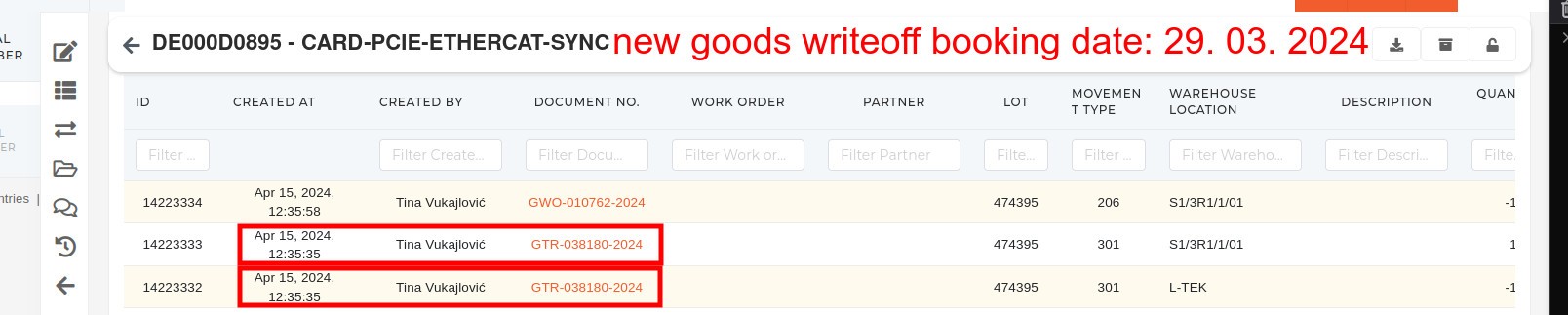 Open every goods transfer, that was made after the new goods writeoff booking date and update their **"booking date"** field to the new booking date. 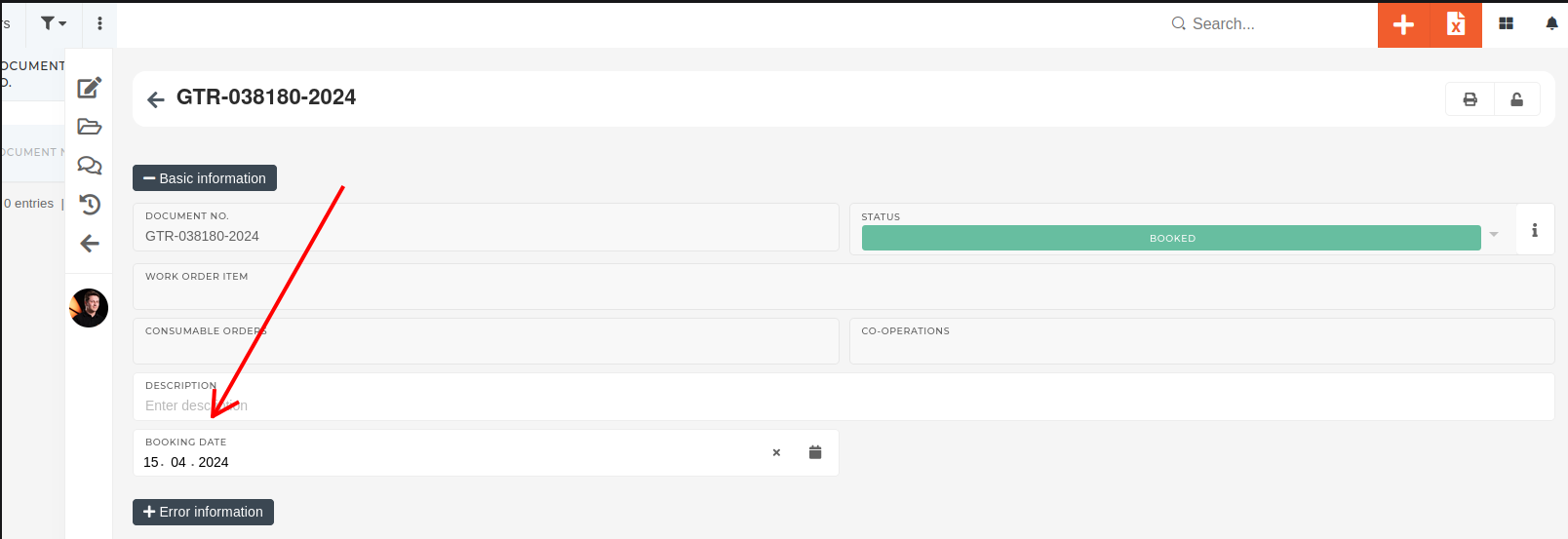 Once all goods transfers have new dates that are not set after the new writeoff date, update the date on the writeoff ans save again.  # Delete goods writeoff # Cancel goods writeoff