This method should only be used when no other method of stock management can resolve negative stock.
In the **"Drill down by"** section, select **Warehouse location, Product, Work Order** and **Lot. Serial numbers** should also **be included.** 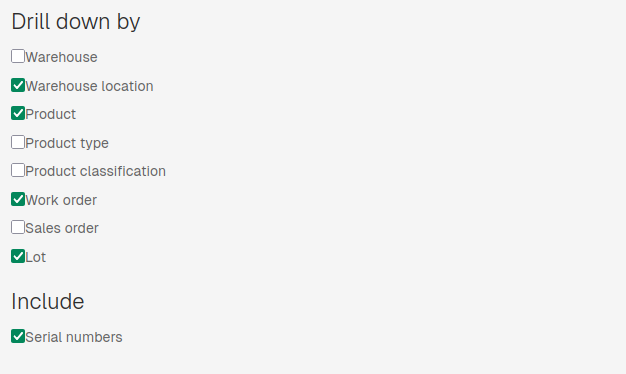 Once columns and includes are selected, click **"Apply filters".** Once the table with selected data loads, sort it by **"Quantity",** sorting ascending (`^` Quantity). 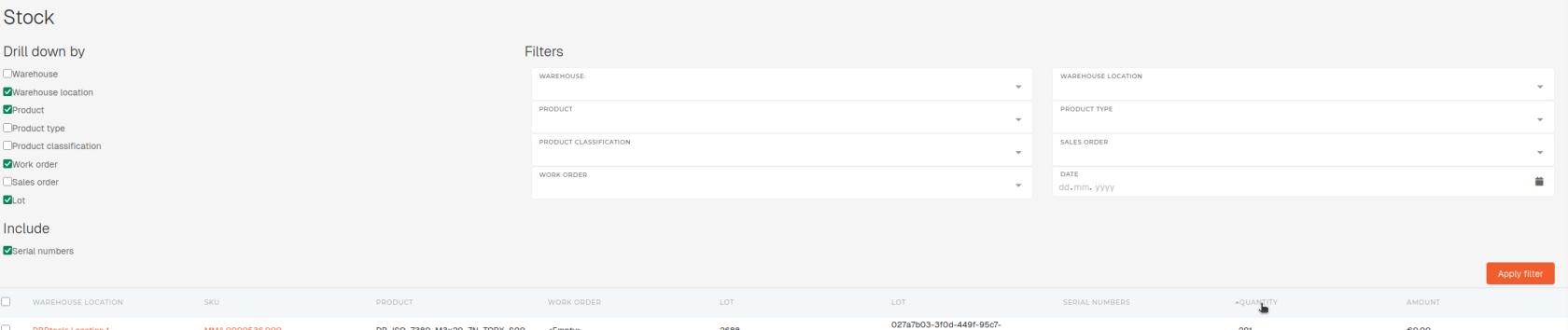 After the sorted table is loaded, tick the checkbox for all products with negative stock, that you want to nullify.When products are selected, the "**Make stock adjustment for checked items**" button appears under the table.
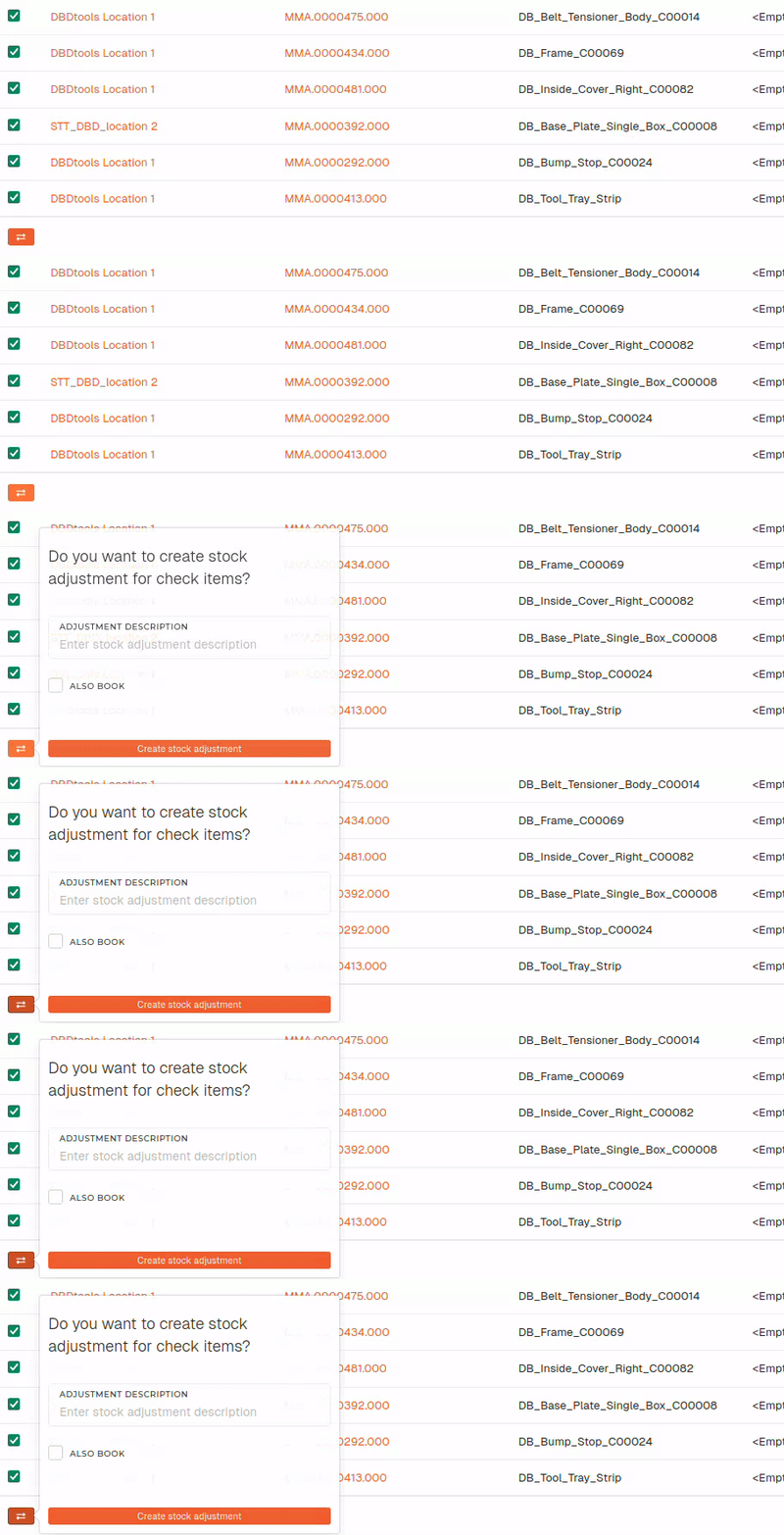 The button opens a tooltip, where you can create a **bulk stock adjustment** for all selected products (product lots). 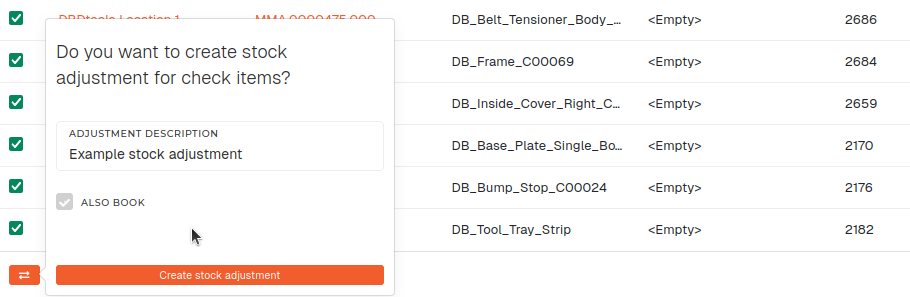Note that this only creates the stock adjustment. Booking can also be done automatically, by ticking the **"Also book"** checkbox, but checking items of the stock adjustment before booking is strongly recommended.
Find the newly created stock adjustment in the "[Stock adjustments](https://placeholder.erp/stock-adjustments)" table. It should be the last record, created, with a status of **"New".** 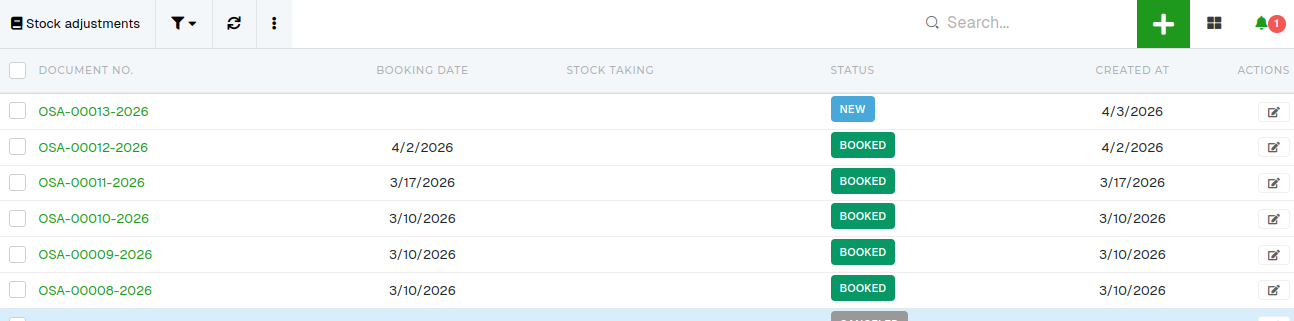 After the items have been checked (to make sure that correct stock values are being adjusted), clikc "Book to stock" to book the stock adjustment. 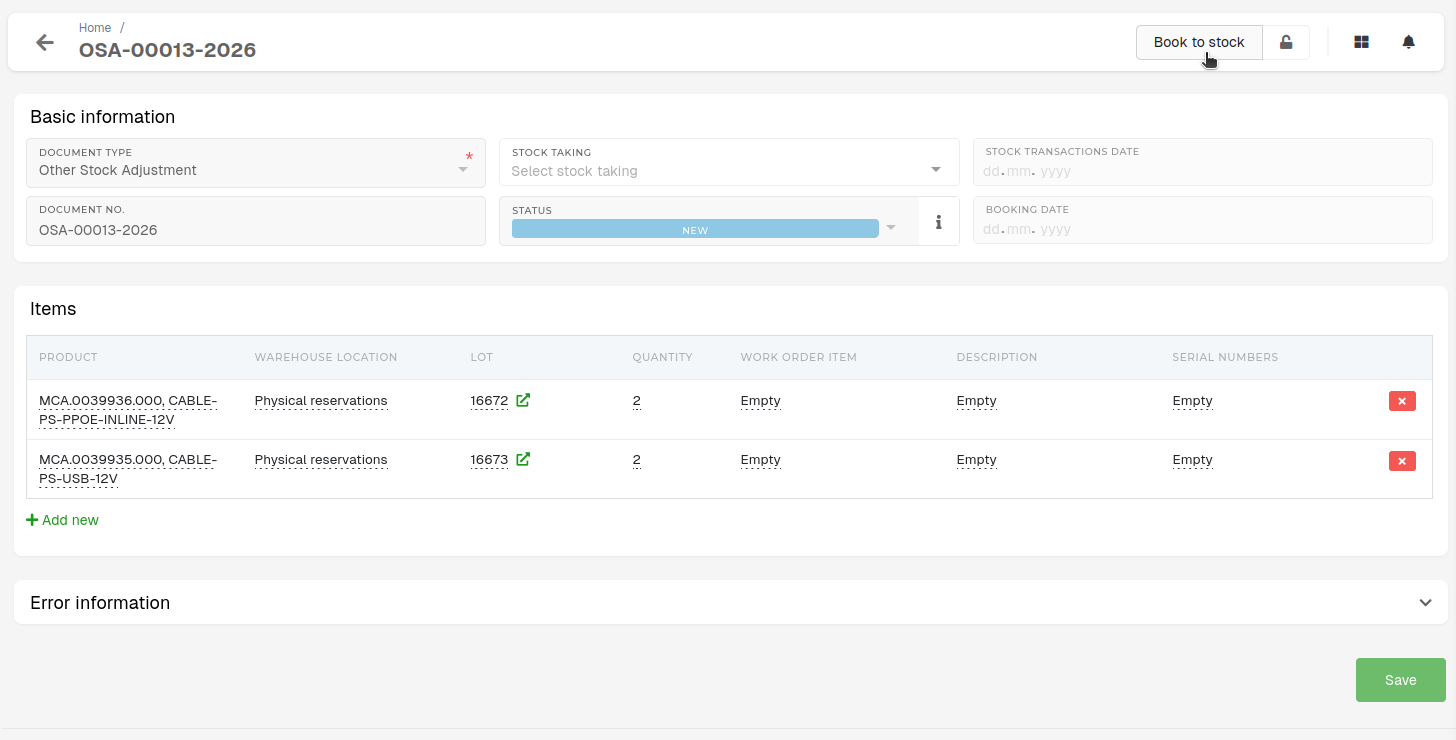A **successful stock adjustment** will go from **"New"** to **"Booked",** after the booking process is done.