This action requires the **"Create goods rebook"** permission.
New goods rebooks can be created in the **"[Create new goods rebook](https://placeholder.erp/goods-rebooks/create)"** form, or by clicking the "**+**" button above the **"Goods rebooks"** table. 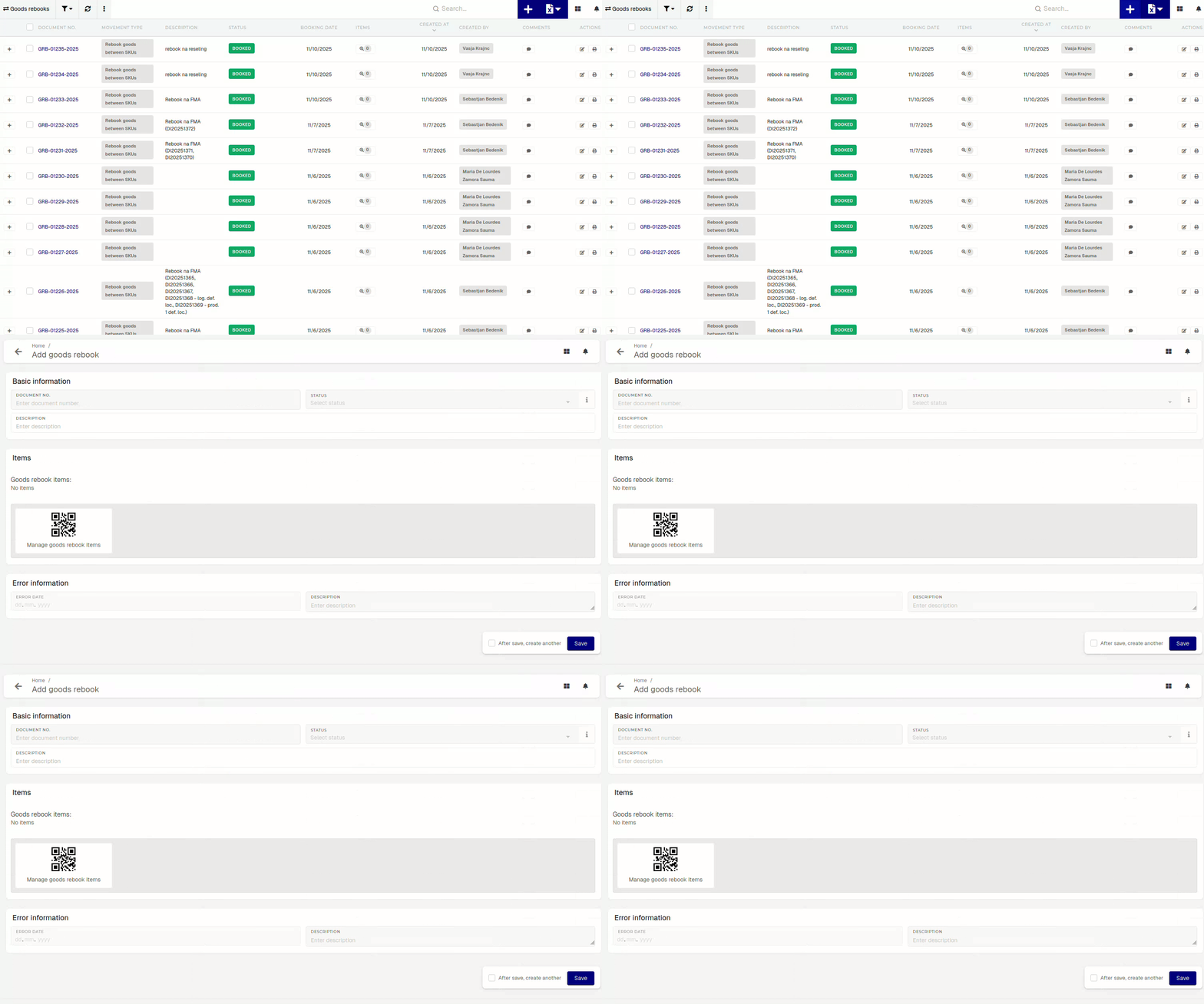To create a rebook, a description is required.
To add product(s) for rebooking, click/scan the **"Manage goods rebook items"** button. 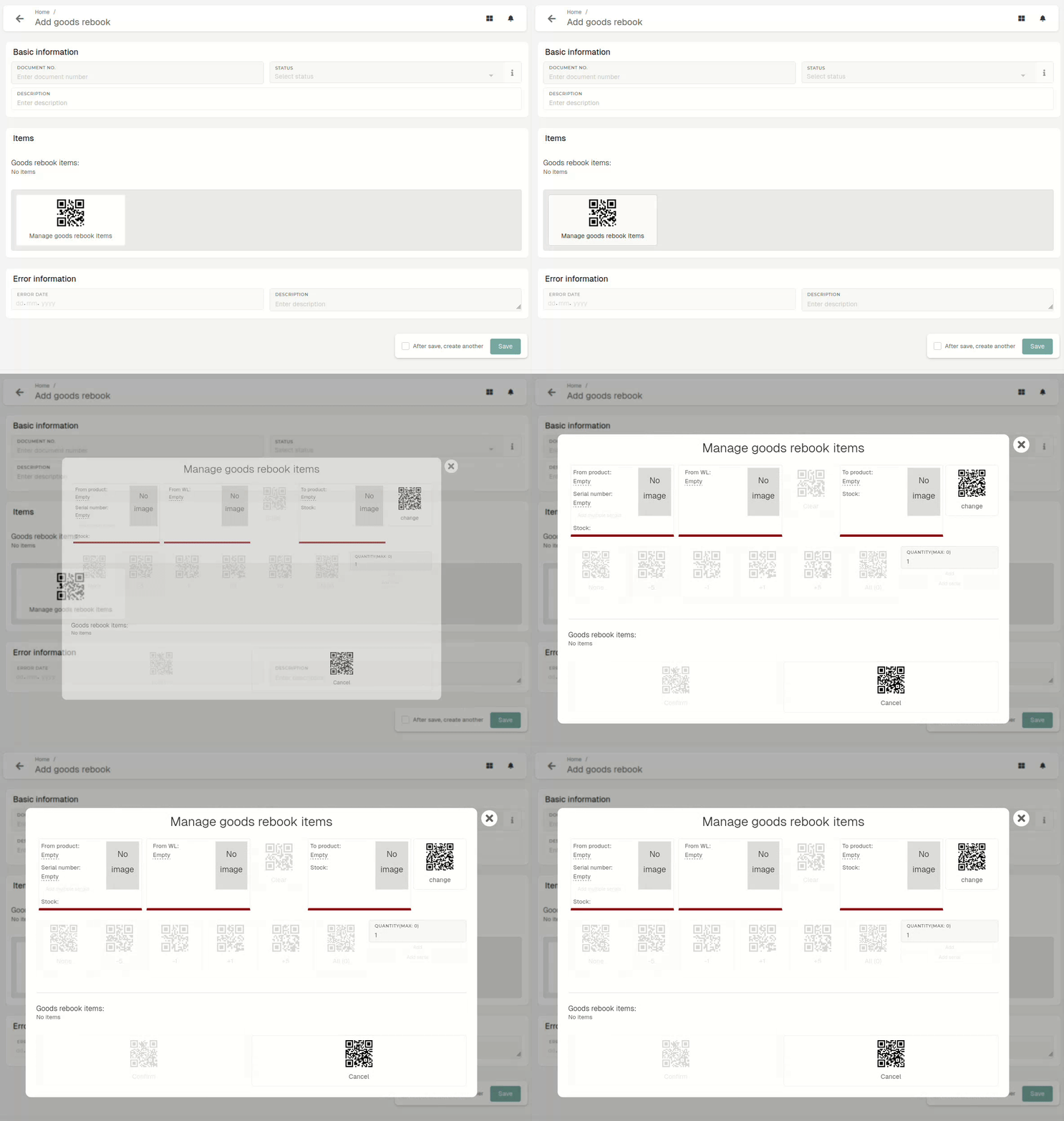 Select the product, whose stock you want to rebook (From product) and the product, which the stock should be rebooked to (To product). Selecting the warehouse location of the stock that will be rebooked is also required. Once the "From product" is selected, a list of warehouse locations with stock appears.If "From product" has stock tracking by enabled, serials need to be selected.
With the current and target product selected, enter rebook quantity, how much of source product's stock to rebook. With all data entered, click/scan the **"Confirm"** button, an [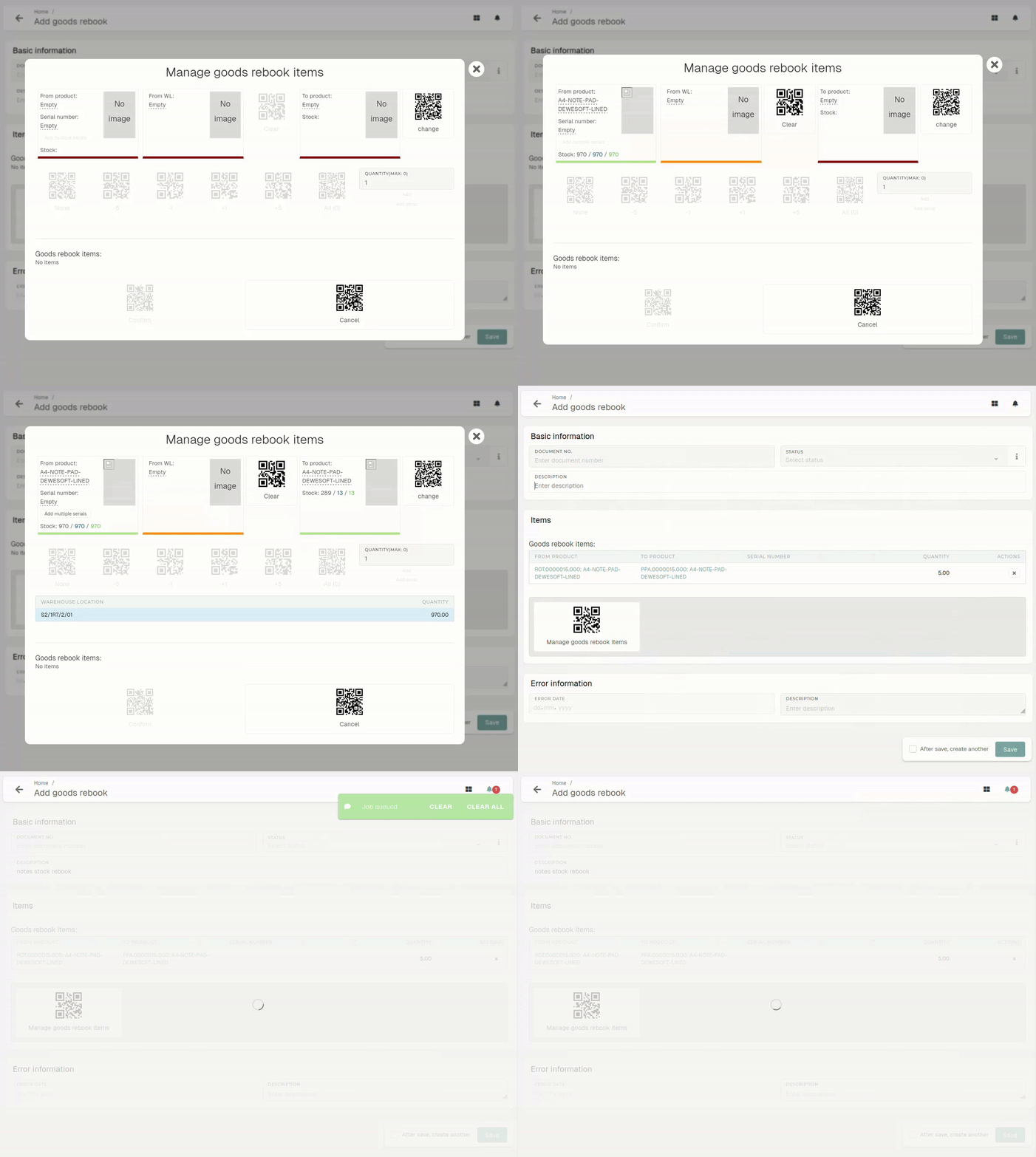](https://how-to-erp.dewesoft.com/uploads/images/gallery/2026-03/dKyoutput.gif)When doing a goods rebook, keep in mind that not every product can be rebooked into every other product. Rebookability is managed through the rebook matrix, which determines which product types can be rebooked in to which other product types.