# Workflow approvals

# Workflow approvals

<p class="callout danger">This page can only be accessed by **department** **leads**.</p>

The time management portal is used by leads of HR departments (i.e. team leads) to manage attendance events and approve/decline attendance requests of employees. It can be accessed from the HR module as "**Workflow** **approvals**" or from [**here**](https://placeholder.erp/workflow-approvals "Open page in new window").

![image.png](https://how-to-erp.dewesoft.com/uploads/images/gallery/2026-02/scaled-1680-/image.png)

Workflow approvals consists of several sections:

- **Coworkers workflow**
    - This section displays all of your employees, and their attendance events/requests for each day.
- **Workflow approvals**
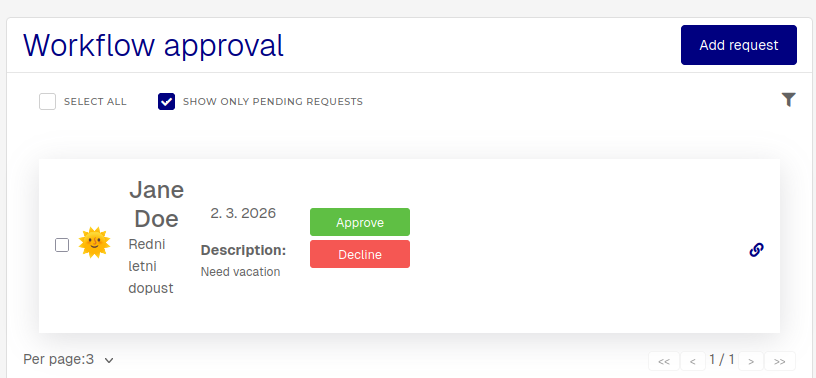
    - This section lists all attendance requests, submitted by your employees, that are waiting to be approved/declined.
- **Actions**
    - This section contains actions, that can be triggered for departments.
    - **Missing work equipment**: Creates purchase orders for all missing work equipment per employee within your department.

# Manage attendance requests

<div class="lRu31" dir="ltr" id="bkmrk-when-you-receive-a-n"><span class="HwtZe" lang="en"><span class="jCAhz ChMk0b"><span class="ryNqvb">When you receive a new attendance request, it will appear in the "**Workflow** **approvals**" section and in the "**Coworkers** **workflow**". </span></span></span><span class="HwtZe" lang="en"><span class="jCAhz ChMk0b"><span class="ryNqvb">Review it and approve/decline it accordingly. </span></span></span></div><div class="lRu31" dir="ltr" id="bkmrk-"></div><div class="lRu31" dir="ltr" id="bkmrk--1"></div><p class="callout info"><span class="HwtZe" lang="en"><span class="jCAhz ChMk0b"><span class="ryNqvb">When a new attendance request is submitted by your employees, the system will send you an email notification. LIke-wise, employee will be notified of your approval/rejection of their request with an email notification.</span></span></span></p>

![image.png](https://how-to-erp.dewesoft.com/uploads/images/gallery/2026-02/scaled-1680-/LOnimage.png)

<p class="callout info"><span class="HwtZe" lang="en"><span class="jCAhz ChMk0b"><span class="ryNqvb">If an attendance request is **declined,** a **commend** (rejection reason) is **required**.</span></span> </span></p>

<div class="lRu31" dir="ltr" id="bkmrk--3"></div>![image.png](https://how-to-erp.dewesoft.com/uploads/images/gallery/2026-02/scaled-1680-/yJnimage.png)

<div class="lRu31" dir="ltr" id="bkmrk-you-can-approve%2Freje"><span class="HwtZe" lang="en"><span class="jCAhz ChMk0b"><span class="ryNqvb">You can approve/decline a request by clicking the **Approve/Decline** buttons in the "Workflow approvals" section, or in the calendar, where the approve/decline buttons appear inside a tooltip.</span></span><span class="jCAhz ChMk0b"><span class="ryNqvb"> </span></span></span><div class="OvtS8d">  
</div></div>![output.gif](https://how-to-erp.dewesoft.com/uploads/images/gallery/2026-02/output.gif)

# Adding new attendance requests

<p class="callout info"><span class="HwtZe" lang="en"><span class="jCAhz ChMk0b"><span class="ryNqvb">In some cases, </span></span></span><span class="HwtZe" lang="en"><span class="jCAhz ChMk0b"><span class="ryNqvb">an employee is unable to submit a request due to certain exceptional reasons (e.g. illness). In those cases, you can submit one for them.</span></span> </span></p>

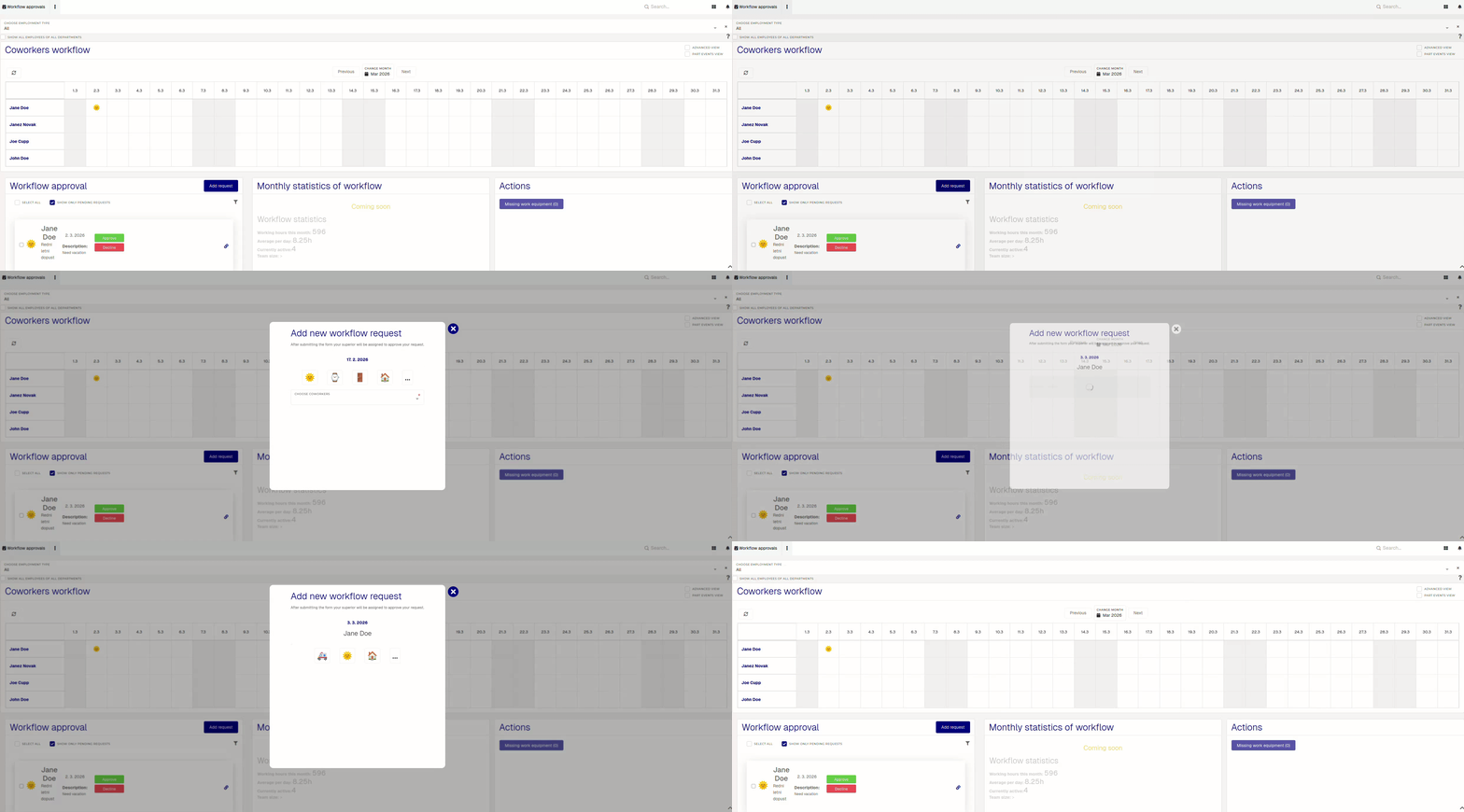
<span class="HwtZe" lang="en"><span class="jCAhz ChMk0b"><span class="ryNqvb">You can do this in two ways, directly by clicking on the calendar, or by selecting the **"Add request"** button and filling out the form - this method allows you to submit a request for several people at the same time.</span></span></span>

![output.gif](https://how-to-erp.dewesoft.com/uploads/images/gallery/2026-02/HGToutput.gif)

Once the "**Add new workflow request**" modal is open, select the type of the new attendance request, then fill out the form accordingly.
![output.gif](https://how-to-erp.dewesoft.com/uploads/images/gallery/2026-02/jWboutput.gif)

<span class="HwtZe" lang="en"><span class="jCAhz ChMk0b"><span class="ryNqvb">You can create (and receive) attendance requests of different types:</span></span></span>

- <span lang="en-us">**🌞 Annual** **leave**</span>
    - <span lang="en-us">Through this request, an employee can submit a request for annual leave</span>.
    - Employees need to have an available amount of leave days to submit this request.

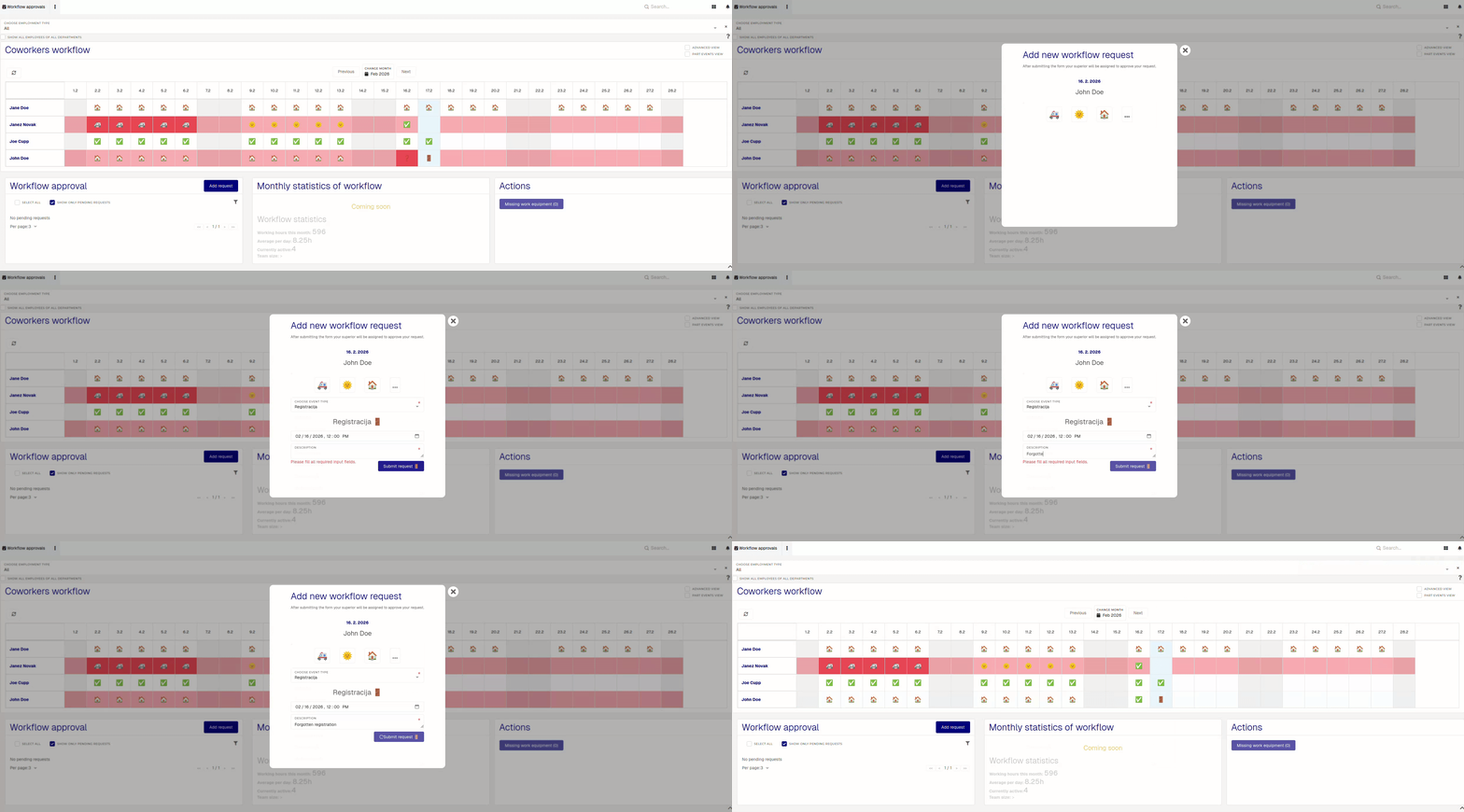
- <span lang="en-us"> **🚪Registration**</span>  
    
    - <span lang="en-us">This request is used to add a registration at a certain time for employees. </span>
    - <span lang="en-us">this request is usually used to insert (occasional) forgotten registrations.</span>

- <span lang="en-us">**🚗️ Business** **trip**</span>
    - <span lang="en-us">A request for for business trips (e.g. customer visits).</span>
    - <span lang="en-us">If the process manager is connected, the icon is **🚗️**. If not, the icon is **<span title="🚙">🚙</span>**.</span>
    - <span lang="en-us">If a business trip takes **longer than 6 days**, the ✈️ icon will be shown instead.</span>

- <span lang="en-us">**<span title="🏠">🏠</span> Work from home**</span>  
    
    - <span lang="en-us">Through this request, an employee can submit a request to work from home</span>.
    - <span lang="en-us"><span title="🏠">This attendance request is available only for employees, that have "Allow work from home" enabled.</span></span>

- <span lang="en-us"><span title="🏠">**<span title="🏢">🏢</span> Work on location**</span></span>  
    
    - <span lang="en-us"><span title="🏠"><span title="🏢">With this request, employees can request to work on a different work location.</span></span></span>
    - <span lang="en-us"><span title="🏠"><span title="🏢">This request is only available, if employees have more than one work locations set on their HR profiles.</span></span></span>

- **<span lang="en-us"><span title="🏠"><span title="🏢"><span title="⌚">⌚</span> Overtime</span></span></span>**  
    
    - <span lang="en-us"><span title="🏠"><span title="🏢"><span title="⌚">This request can be used, when employees want to do paid overtime (e.g. work on weekends)</span></span></span></span>

- **<span lang="en-us"><span title="🏠"><span title="🏢"><span title="⌚"><span title="🚑">🚑</span> Sick leave </span></span></span></span>**
    - <span lang="en-us"><span title="🏠"><span title="🏢"><span title="⌚"><span title="🚑">Employees can request sick leave, when needed. If unable, the lead my request sick leave for them,</span></span></span></span></span>
    - <span lang="en-us"><span title="🏠"><span title="🏢"><span title="⌚"><span title="🚑">If the system is connected to eBol, a sick leave request may be created automatically.</span></span></span></span></span>

<p class="callout info">There are other attendance request types, but (due to their more specific nature) those should be handled by the HR department.</p>

# Approving the month

<span class="HwtZe" lang="en"><span class="jCAhz ChMk0b"><span class="ryNqvb">At the end of the month, you will be responsible for confirming the entire monthly balance for every employee. </span></span></span><span class="HwtZe" lang="en"><span class="jCAhz ChMk0b"><span class="ryNqvb">Approving the month will also lock the monthly period. </span></span>Once a month is locked, corrections can no longer be made, as the data is sent inly salary calculation.</span>

<p class="callout info"><span class="HwtZe" lang="en"><span class="jCAhz ChMk0b"><span class="ryNqvb">The system will not allow you to confirm the monthly period until all employees have their attendance balances sorted and all requests have been confirmed.</span></span> </span></p>

<span class="HwtZe" lang="en">Employees with problematic attendance records will have their entire row colored red, with every problematic request having a red background as well. </span>

[![image.png](https://how-to-erp.dewesoft.com/uploads/images/gallery/2026-02/scaled-1680-/bznimage.png)](https://how-to-erp.dewesoft.com/uploads/images/gallery/2026-02/bznimage.png)

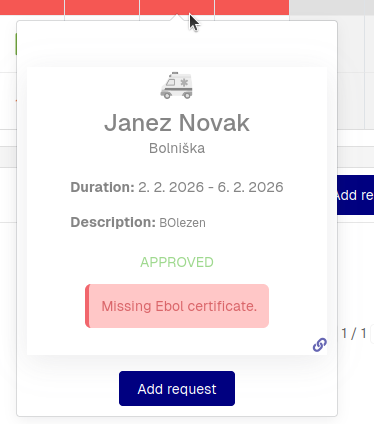
<span class="HwtZe" lang="en">To learn, why a request is problematic, you can click on its icon. This will open a tool-tip, where the problem cause will be written out plainly.</span>

![image.png](https://how-to-erp.dewesoft.com/uploads/images/gallery/2026-02/scaled-1680-/fuPimage.png)

To approve a month, click the "**Approve**" button at the end of the row. This will approve the entire month and lock the monthly period for that employee.
![image.png](https://how-to-erp.dewesoft.com/uploads/images/gallery/2026-02/scaled-1680-/qVTimage.png)![image.png](https://how-to-erp.dewesoft.com/uploads/images/gallery/2026-02/scaled-1680-/vuYimage.png)