# Manage attendance requests

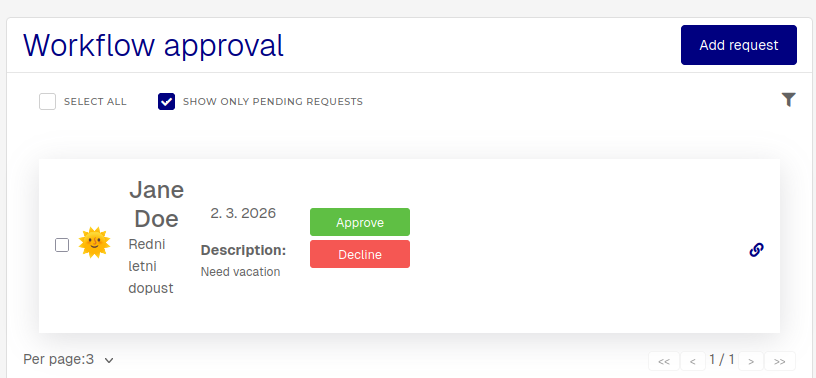
<div class="lRu31" dir="ltr" id="bkmrk-when-you-receive-a-n"><span class="HwtZe" lang="en"><span class="jCAhz ChMk0b"><span class="ryNqvb">When you receive a new attendance request, it will appear in the "**Workflow** **approvals**" section and in the "**Coworkers** **workflow**". </span></span></span><span class="HwtZe" lang="en"><span class="jCAhz ChMk0b"><span class="ryNqvb">Review it and approve/decline it accordingly. </span></span></span></div><div class="lRu31" dir="ltr" id="bkmrk-"></div><div class="lRu31" dir="ltr" id="bkmrk--1"></div><p class="callout info"><span class="HwtZe" lang="en"><span class="jCAhz ChMk0b"><span class="ryNqvb">When a new attendance request is submitted by your employees, the system will send you an email notification. LIke-wise, employee will be notified of your approval/rejection of their request with an email notification.</span></span></span></p>

![image.png](https://how-to-erp.dewesoft.com/uploads/images/gallery/2026-02/scaled-1680-/LOnimage.png)

<p class="callout info"><span class="HwtZe" lang="en"><span class="jCAhz ChMk0b"><span class="ryNqvb">If an attendance request is **declined,** a **commend** (rejection reason) is **required**.</span></span> </span></p>

<div class="lRu31" dir="ltr" id="bkmrk--3"></div>![image.png](https://how-to-erp.dewesoft.com/uploads/images/gallery/2026-02/scaled-1680-/yJnimage.png)

<div class="lRu31" dir="ltr" id="bkmrk-you-can-approve%2Freje"><span class="HwtZe" lang="en"><span class="jCAhz ChMk0b"><span class="ryNqvb">You can approve/decline a request by clicking the **Approve/Decline** buttons in the "Workflow approvals" section, or in the calendar, where the approve/decline buttons appear inside a tooltip.</span></span><span class="jCAhz ChMk0b"><span class="ryNqvb"> </span></span></span><div class="OvtS8d" jscontroller="msAMEf" jsname="yiB9Md">  
</div></div>![output.gif](https://how-to-erp.dewesoft.com/uploads/images/gallery/2026-02/output.gif)