
Step 2: Check
Begin packing
In this step, you have a quick overview of the packing order. If any issues are found in the packing work order, they are listed here.
If the work order has no problems, the "Everything OK" message is displayed.
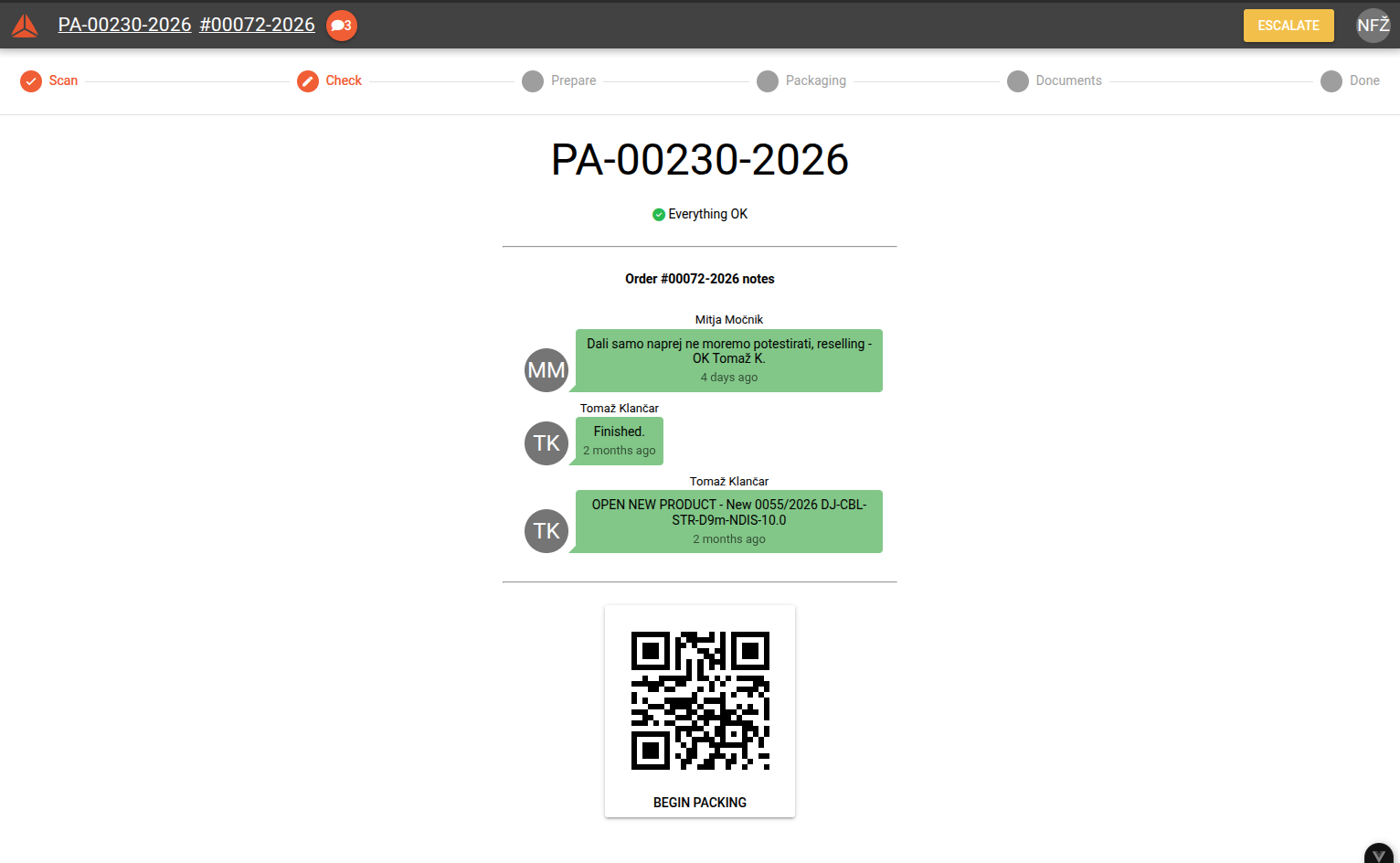
View Order comments
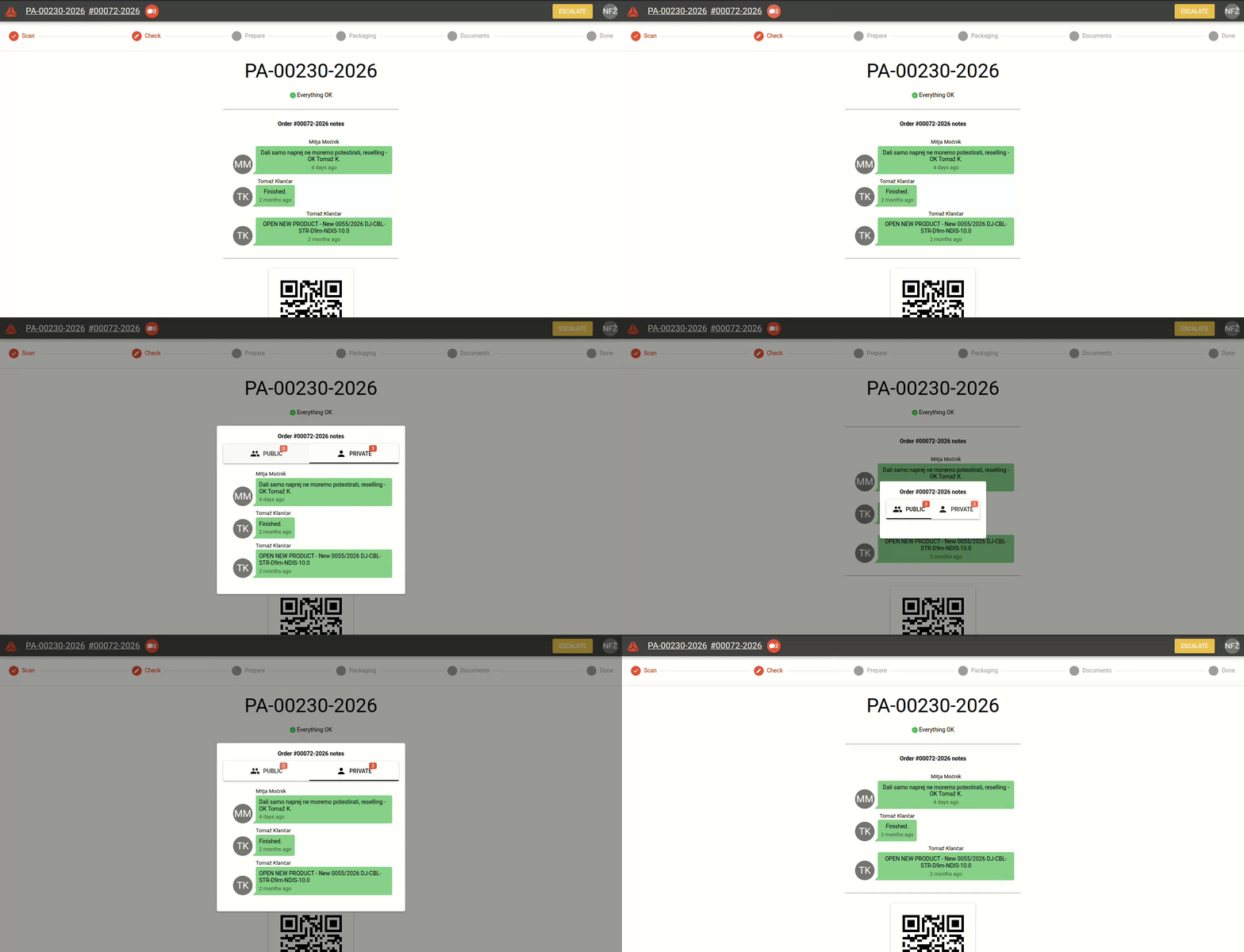
You can view public and private comments of the order that the packing work order belongs to. Private comments are show above the QR code by default.
To view all comments, click the "speech bubble" icon next to the order document number.
Escalate work order
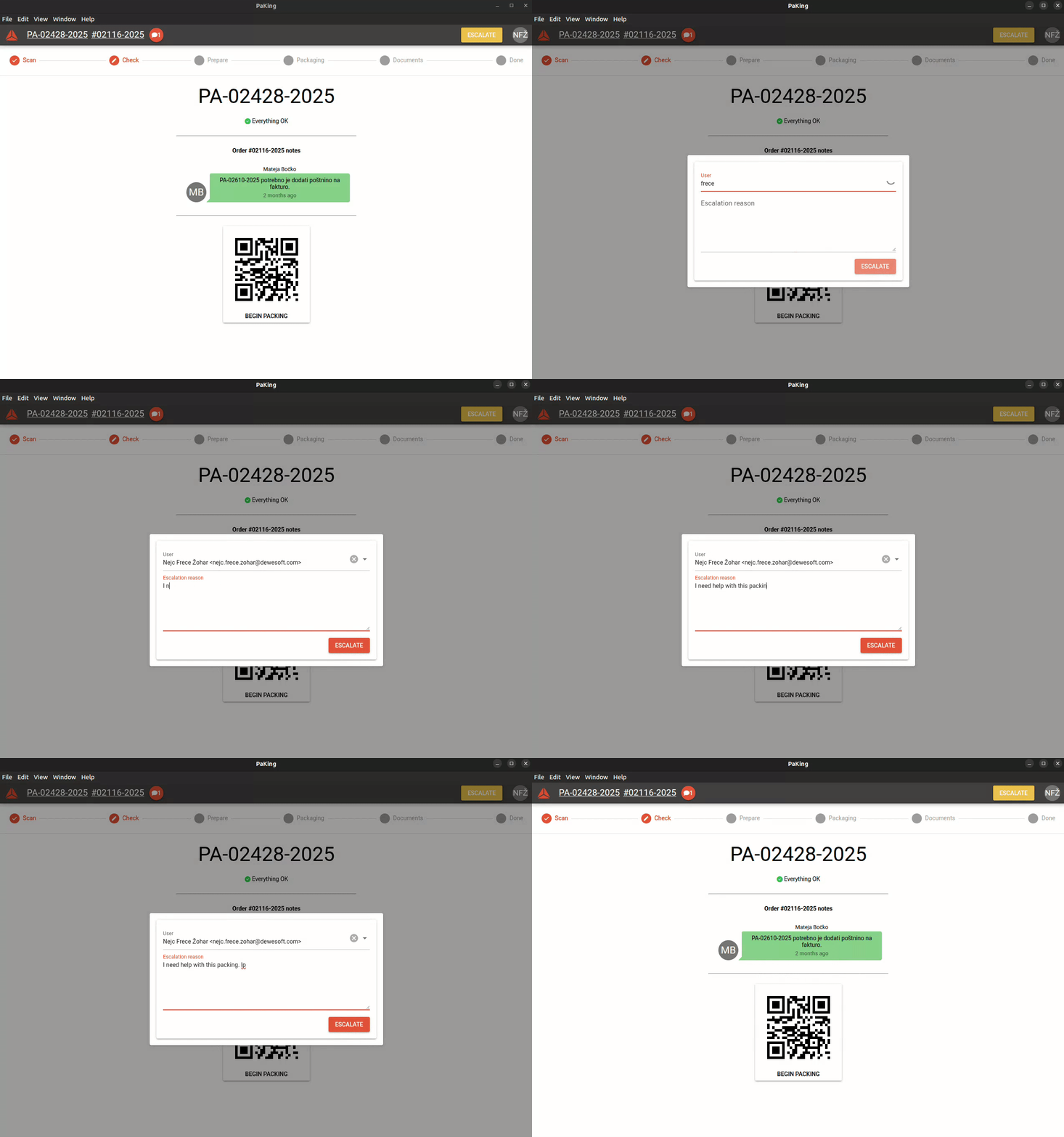
A packing work order can be escalated to a specialist, who can assist you with problematic packing work orders.
When you "escalate a packing work order", you notify a "specialist" to assist with a problematic packing work order.
To begin the packing process, click/scan the "Begin packing" QR code. This will move you to the next step.
Once you click "Begin packaging", reserved material that is reserved foron the packing work order,order will be transferred to your warehouse location.
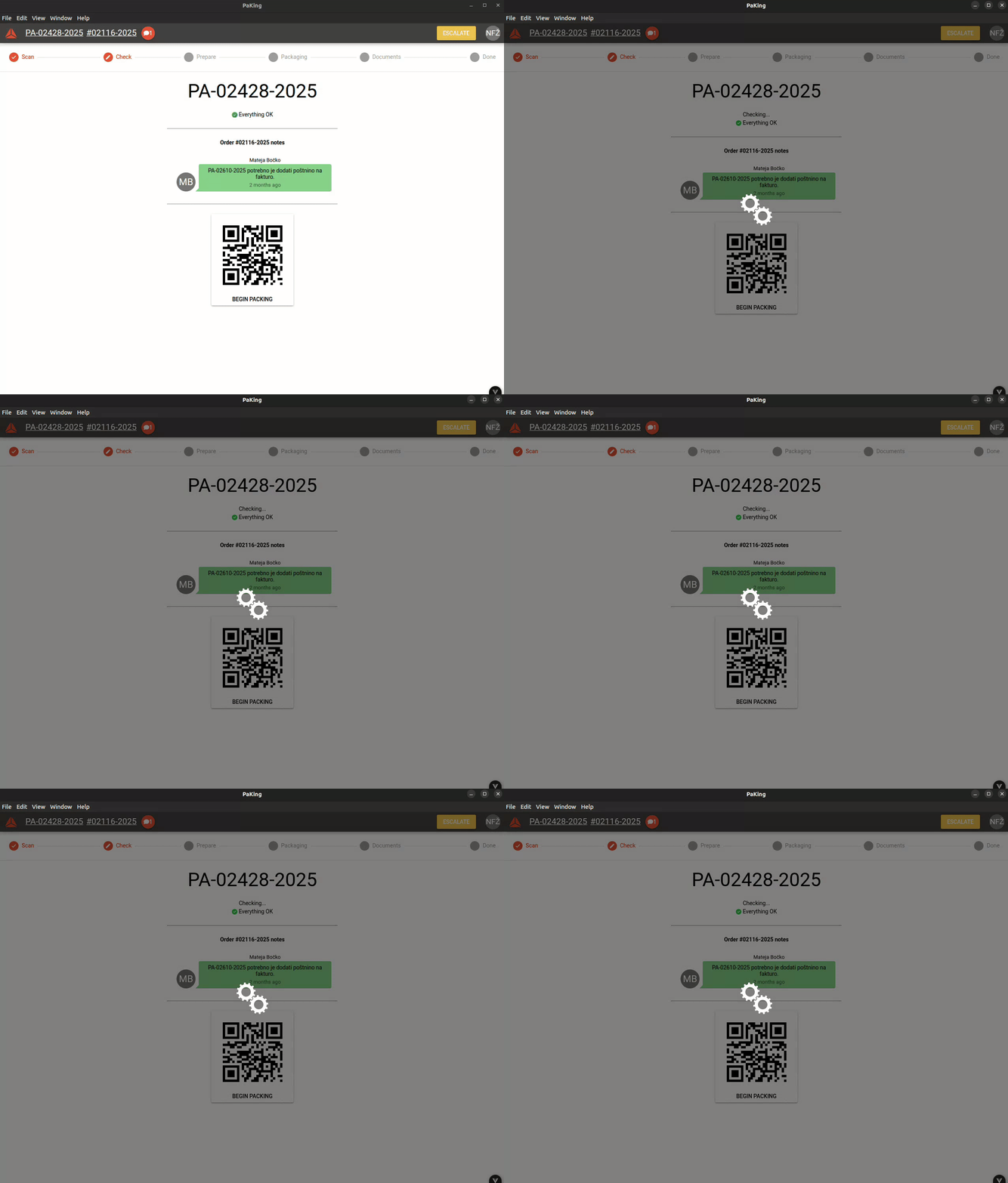
If a work order is already prepared, the app will skip the "Prepare" step and move on to the "Packaging" step.