
Edit product list

This required the Update price list versions permission.

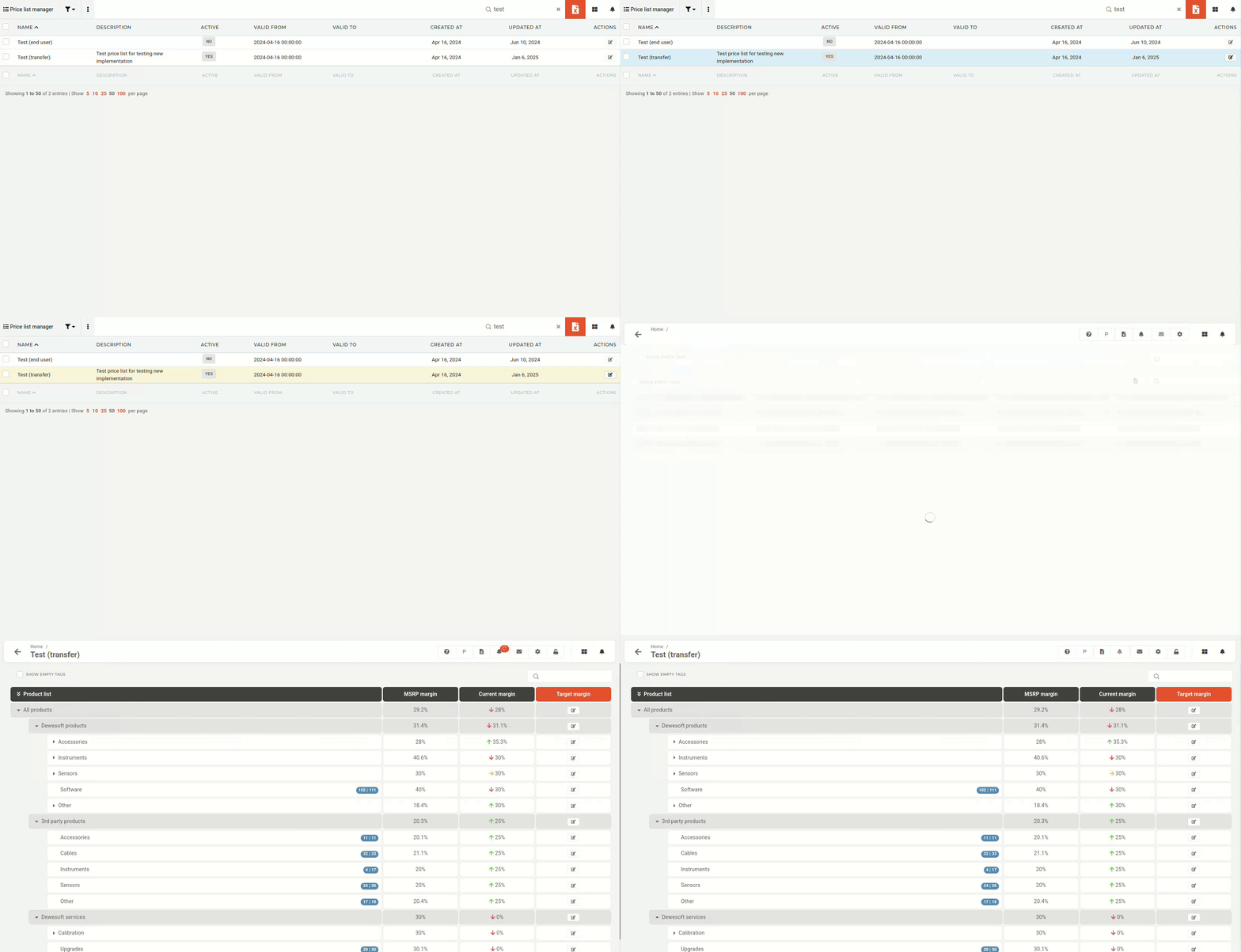
To edit a price list's products, you have to open the edit form from the table.
output.gif

The editing interface is color-coded for easier overview:

AGV_vUc0-Rapev3q2rG5QibSdQG4zykPZwqMCeJ0BBY2gKJV4LnJKLs0GbWkK5p18KYWhjP0xF9JhNDqNgzq1QG6Fveg-0i8F2bdxhLL0ZdSgoWuz9de7MtqI_CztaP5IgHB90Xy38QMWL-0_RFVkg_r4SriCdezuPY3=nw?key=sNkf8qANAryjmTQ2BoK9mg

    Blue:
      Blue indicators tell you how many products out of all available products in that category you have added to your price list. Yellow:
        Yellow plus icons allow you to add the entire product category to your price list (they only appear if you have no products from that category added). Red:
          Red notification bubbles are calls to action: they notify you of new products or price changes within the category.