
Overview

This section is available only for Price List Owners.

Price list manager section is used to manage versions of price lists, used in the ERP. It is located under the "Price lists" menu.

AGV_vUfPRvQvZWHkNH0EHtGOP0QA65_kqhfGkNaMr8wTzG43-yN0dAlhNk6DRpoqcq3ULt9_9pSPWa0lVPuSm6UpAYis8YkQHFJh-q7J0-aRsqo7gKg6MI6UezzHGg8iO1HG3uUxoN-m6I2nF3JRvGPy5wDF5ZVse2wq=nw?key=sNkf8qANAryjmTQ2BoK9mgAGV_vUfPRvQvZWHkNH0EHtGOP0QA65_kqhfGkNaMr8wTzG43-yN0dAlhNk6DRpoqcq3ULt9_9pSPWa0lVPuSm6UpAYis8YkQHFJh-q7J0-aRsqo7gKg6MI6UezzHGg8iO1HG3uUxoN-m6I2nF3JRvGPy5wDF5ZVse2wq=nw?key=sNkf8qANAryjmTQ2BoK9mg


To view a price list's products list, you have to open the edit form from the table.
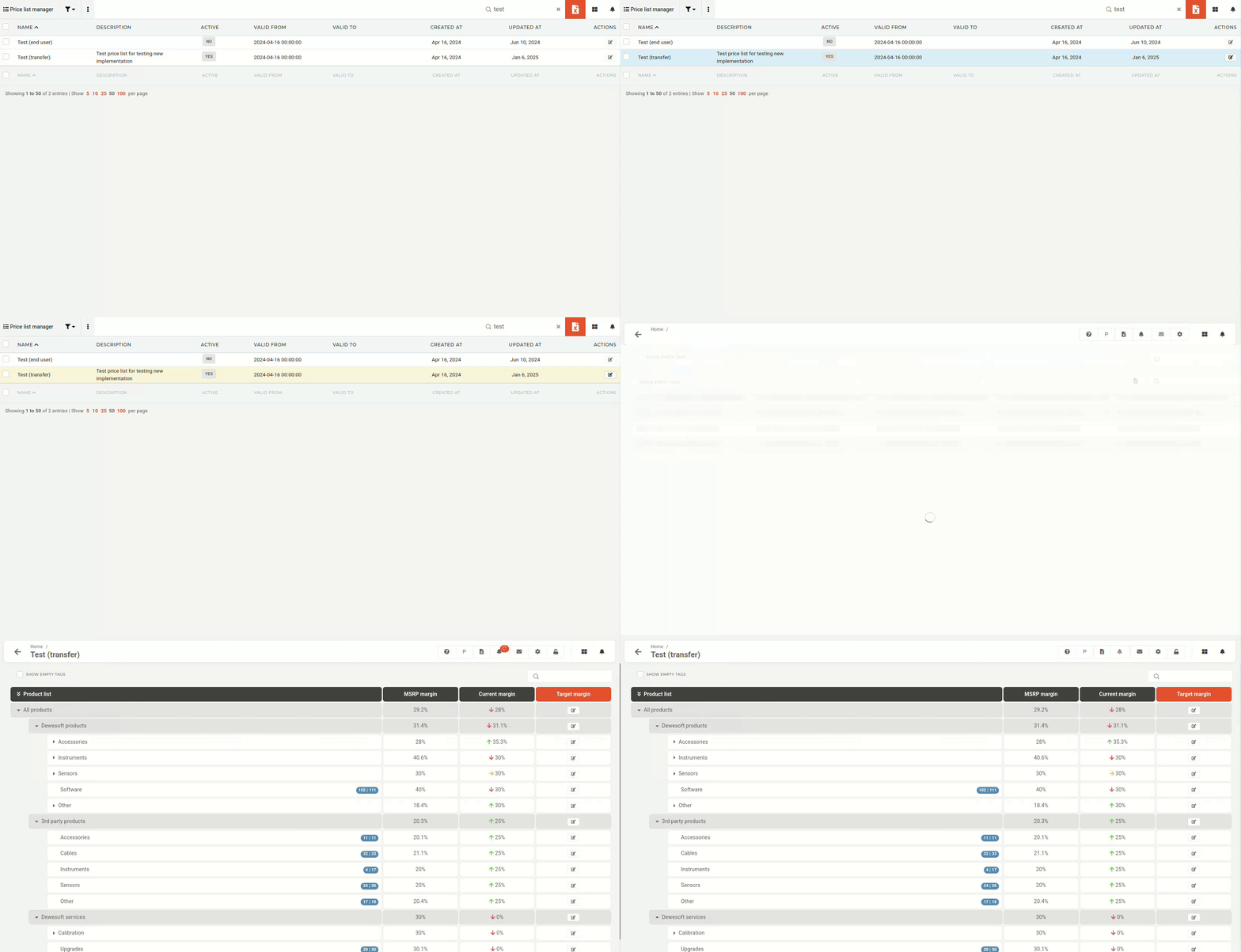

output.gif

The editing interface is color-coded for easier overview:

    Blue:
      Blue indicators tell you how many products out of all available products in that category you have added to your price list. Yellow:
        Yellow plus icons allow you to add the entire product category to your price list (they only appear if you have no products from that category added). Red:
          Red notification bubbles are calls to action: they notify you of new products or price changes within the category.

          AGV_vUc0-Rapev3q2rG5QibSdQG4zykPZwqMCeJ0BBY2gKJV4LnJKLs0GbWkK5p18KYWhjP0xF9JhNDqNgzq1QG6Fveg-0i8F2bdxhLL0ZdSgoWuz9de7MtqI_CztaP5IgHB90Xy38QMWL-0_RFVkg_r4SriCdezuPY3=nw?key=sNkf8qANAryjmTQ2BoK9mg

          Areas that can be edited are colored (e.g. Target margin ), while columns that are automatically calculated (e.g. MSRP margin and Current margin) are not.