
Adding new attendance requests
In some cases, an employee is unable to submit a request due to certain exceptional reasons (e.g. illness). In those cases, you can submit one for them.
You can do this in two ways, directly by clicking on the calendar, or by selecting the "Add request" button and filling out the form - this method allows you to submit a request for several people at the same time.
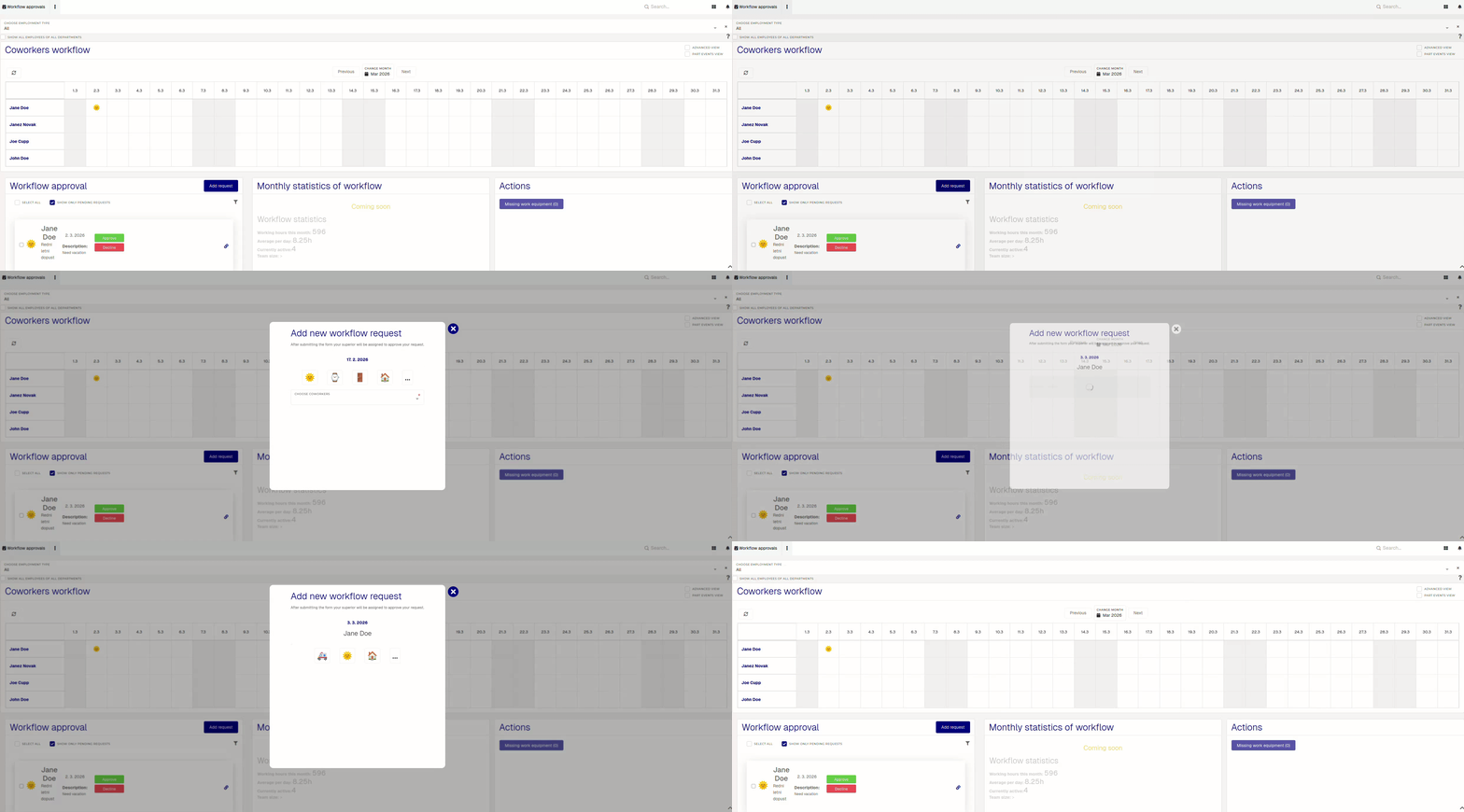
Once the "Add new workflow request" modal is open, select the type of the new attendance request, then fill out the form accordingly.
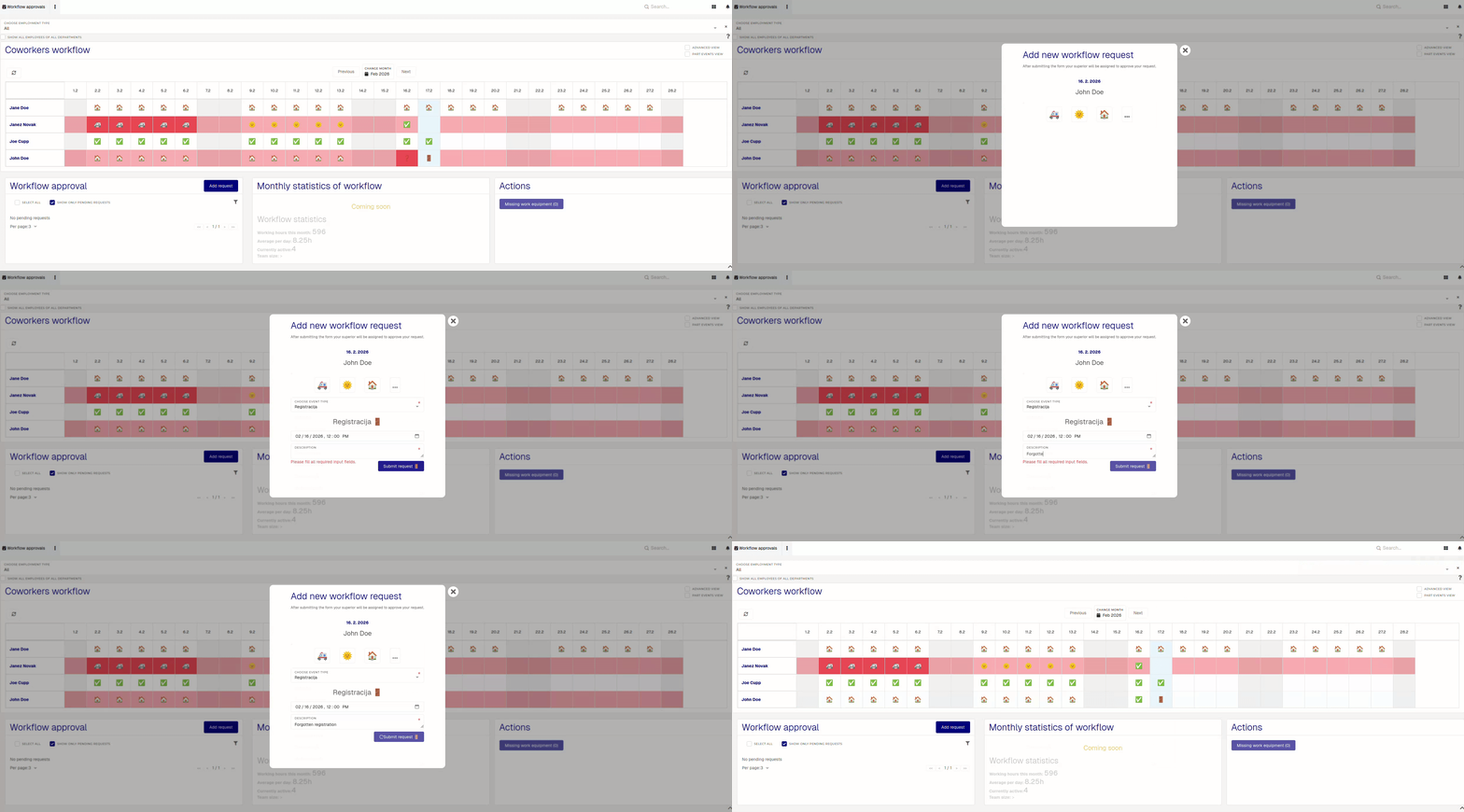
You can create (and receive) attendance requests of different types:
- 🌞 Annual leave
Icon:🌞-
Through this request, an employee can submit a request for annual leave.
- Employees need to have an available amount of leave days to submit this request.
- 🚪Registration
Icon:🚪- This request is used to add a registration at a certain time for employees.
- this request is usually used to insert (occasional) forgotten registrations.
- 🚗️ Business trip
Icon:🚗️ or🚙- A request for for business trips (e.g. customer visits).
- If the process manager is connected, the
caricon isred.🚗️. If not, thecaricon isblue.🚙.
- 🏠 Work from home
Icon:🏠- Through this request, an employee can submit a request to work from home.
- This attendance request is available only for employees, that have "Allow work from home" enabled.
- 🏢 Work on location
Icon:🏢- With this request, employees can request to work on a different work location.
- This request is only available, if employees have more than one work locations set on their HR profiles.
- ⌚ Overtime
Icon:⌚- This request can be used, when employees want to do paid overtime (e.g. work on weekends)
- 🚑 Sick leave
Icon:🚑- Employees can request sick leave, when needed. If unable, the lead my request sick leave for them,
- If the system is connected to eBol, a sick leave request may be created automatically.
There are other attendance request types, but (due to their inmundane nature) those must be handled by the HR department.