
Replace work order item's product
This action requires the "canview reserve"work order items" and "update work order items" permissionpermissions.
On work order's page in ERP, openOpen the "BillWork oforder materials"items" sectiontable. of work order's items.
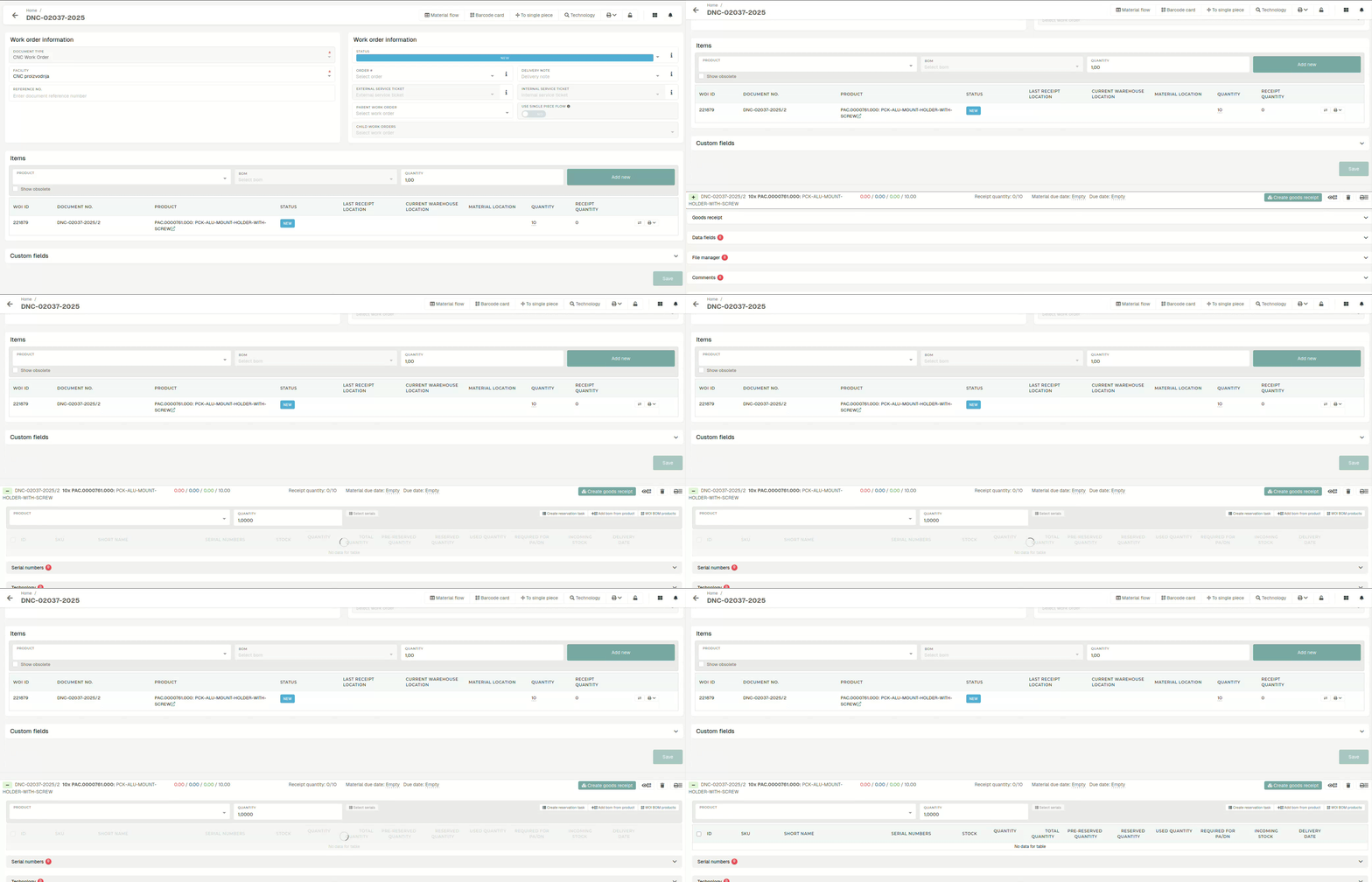
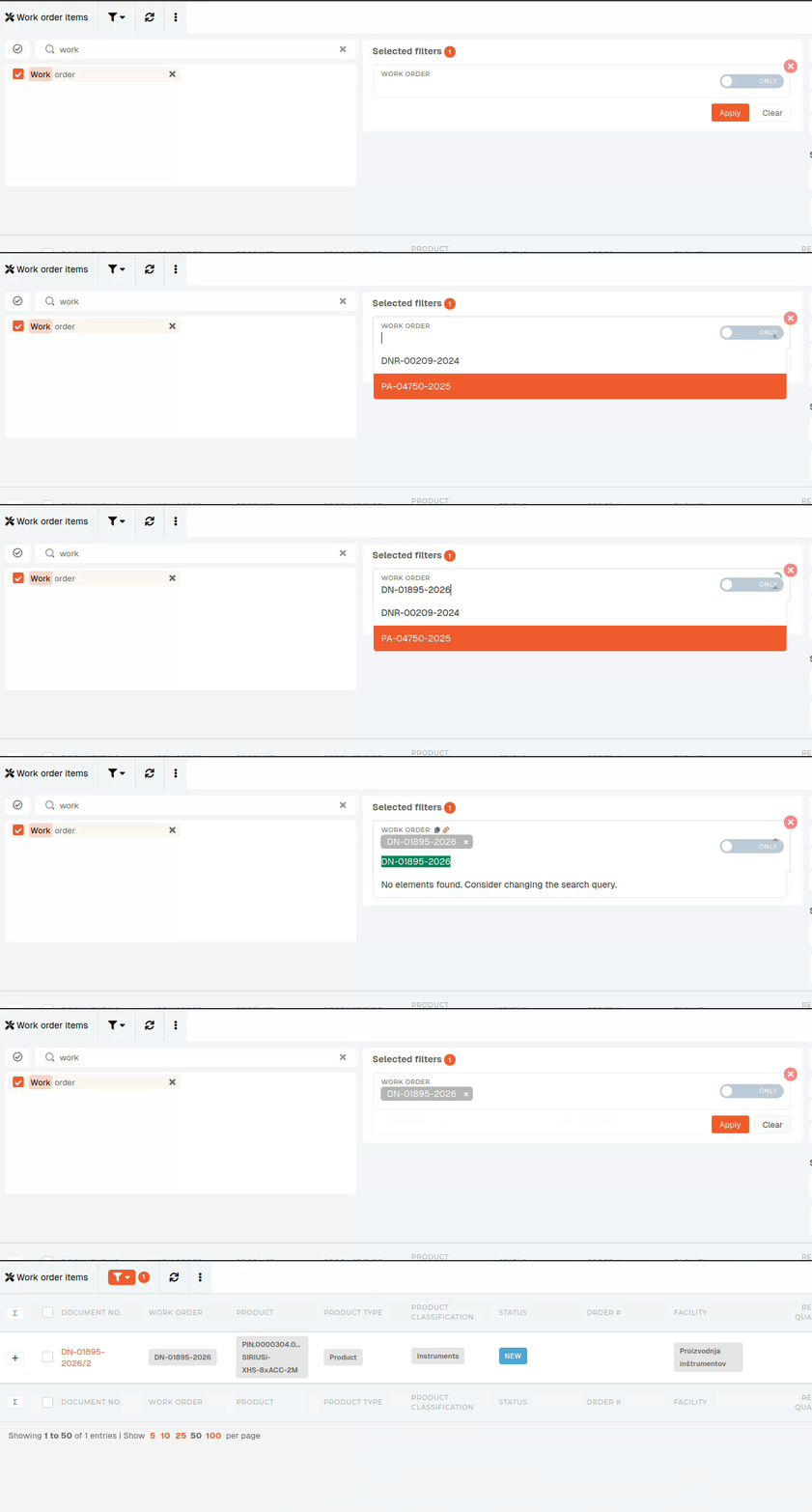
IfSet the bill"work oforder" materialsfilter isand empty, we need to add some material first.
In the "Product" select form, we find the material we want to add/reserve on thisfilter work order itemitems andtable enterby the quantity of material to add to theyour work order.
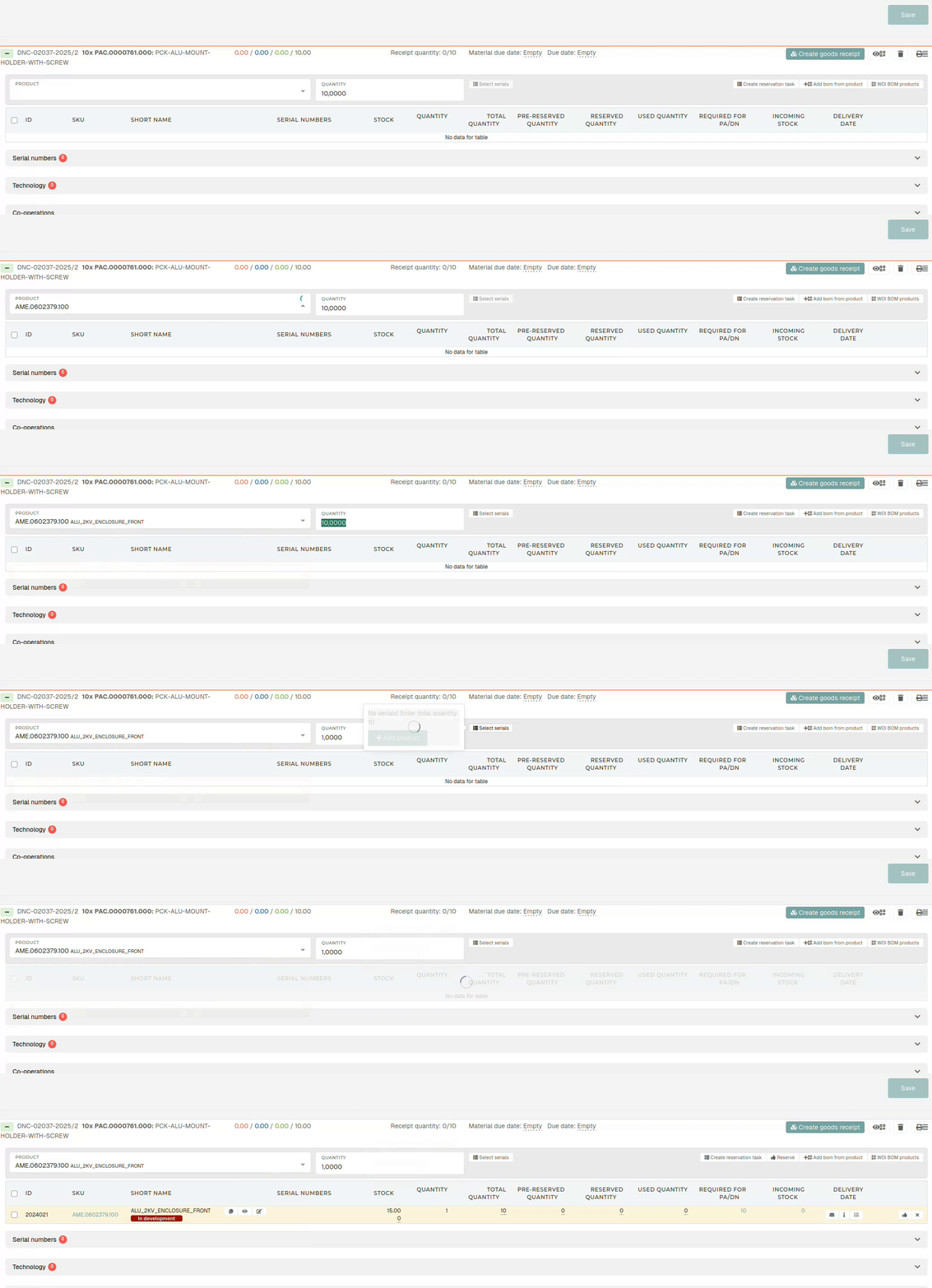
We then click the "Select serials" button, which opens a popup, depending on if the work order item is tracked by serials or not.
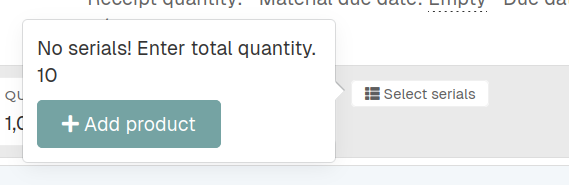
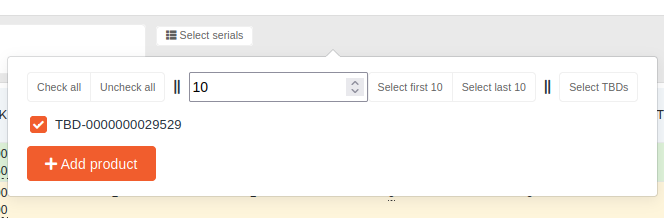
If work order product is tracked by serials, check the listed serials, you want to add this material to.
Click the "Add product" button. This addsfilter thewill materiallist toall the work order item's bill of materials. The material's background is then colored yellow if it is on stock or red, if it is not.
Products in the bill of materials are color-coded, depending on their current reservation state:
Not-yet-reserved material that has no stock is red.
Not-yet-reserved material on stock is yellow.
Virtually reserved material is blue.
Physically reserved material is green.
Before physical reservation, the added material needs to be virtually reserved. This "marks" someitems of the material on stock for this work order before the actual material reservation.
We can reserve one material at a time with the "thumbs up" button, or multiple by selecting their checkboxes and clicking the "Reserve" button.


Once the material is on-stock and virtually reserved, we can physically reserve it. To do this, we press the "Create reservation task" button on top right corner. This open a popup, where we select our user, set current date and then press the Create button.
For the task, other users can be selected, but then the task will be assigned to them. Likewise, a later date can be selected, but the task will not appear until the set date.
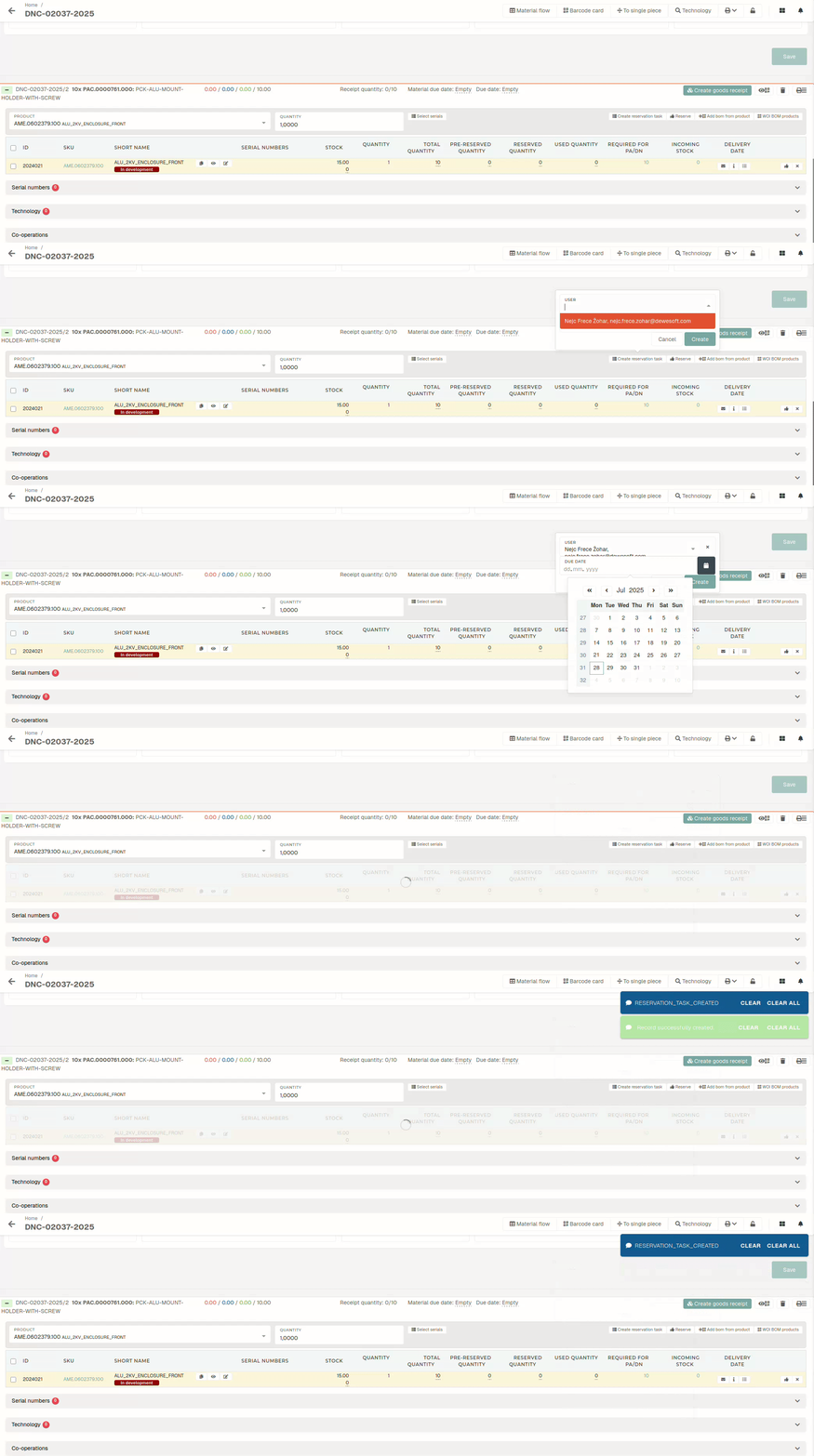
When the reservation task is created, navigate to the dashboard and start/open the reservation task, found under "My tasks".

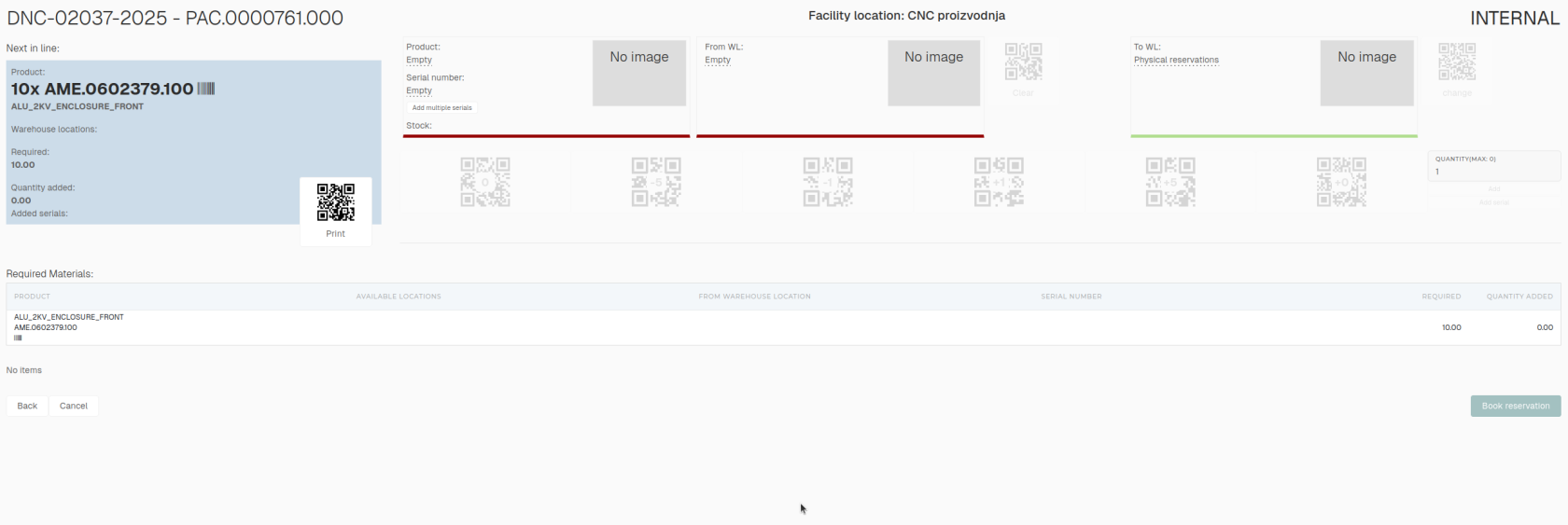
Once the task is competed, the material is physically reserved on theselected work order.