
Replace product of work order item
This action requires the "view work order items" and "update work order items" permissions.
Open the "Work order items" table. Set the "work order" filter and filter work order items by your work order (e.g. DN-01895-2026).
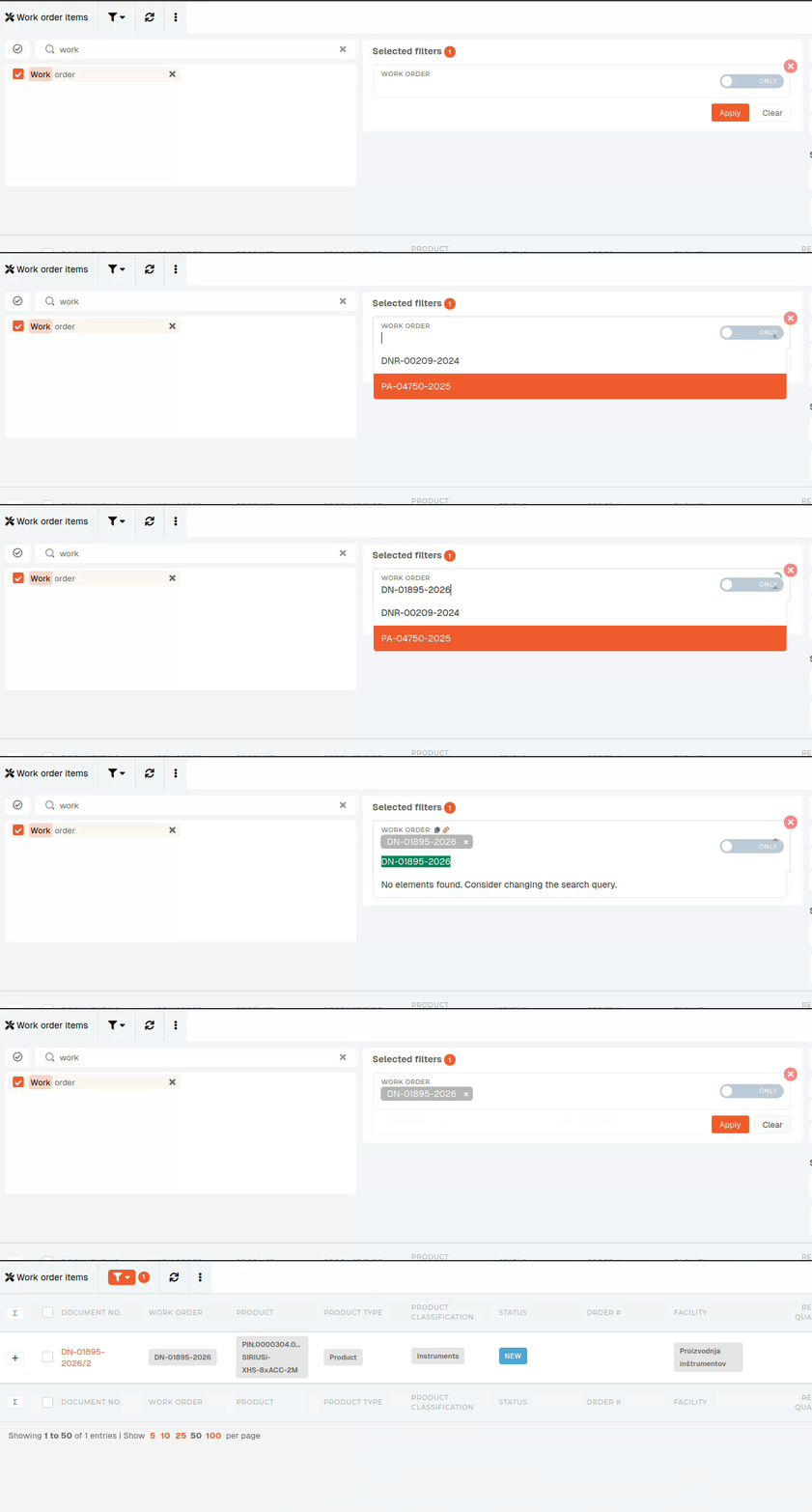
This filter will list all items of the selected work order.
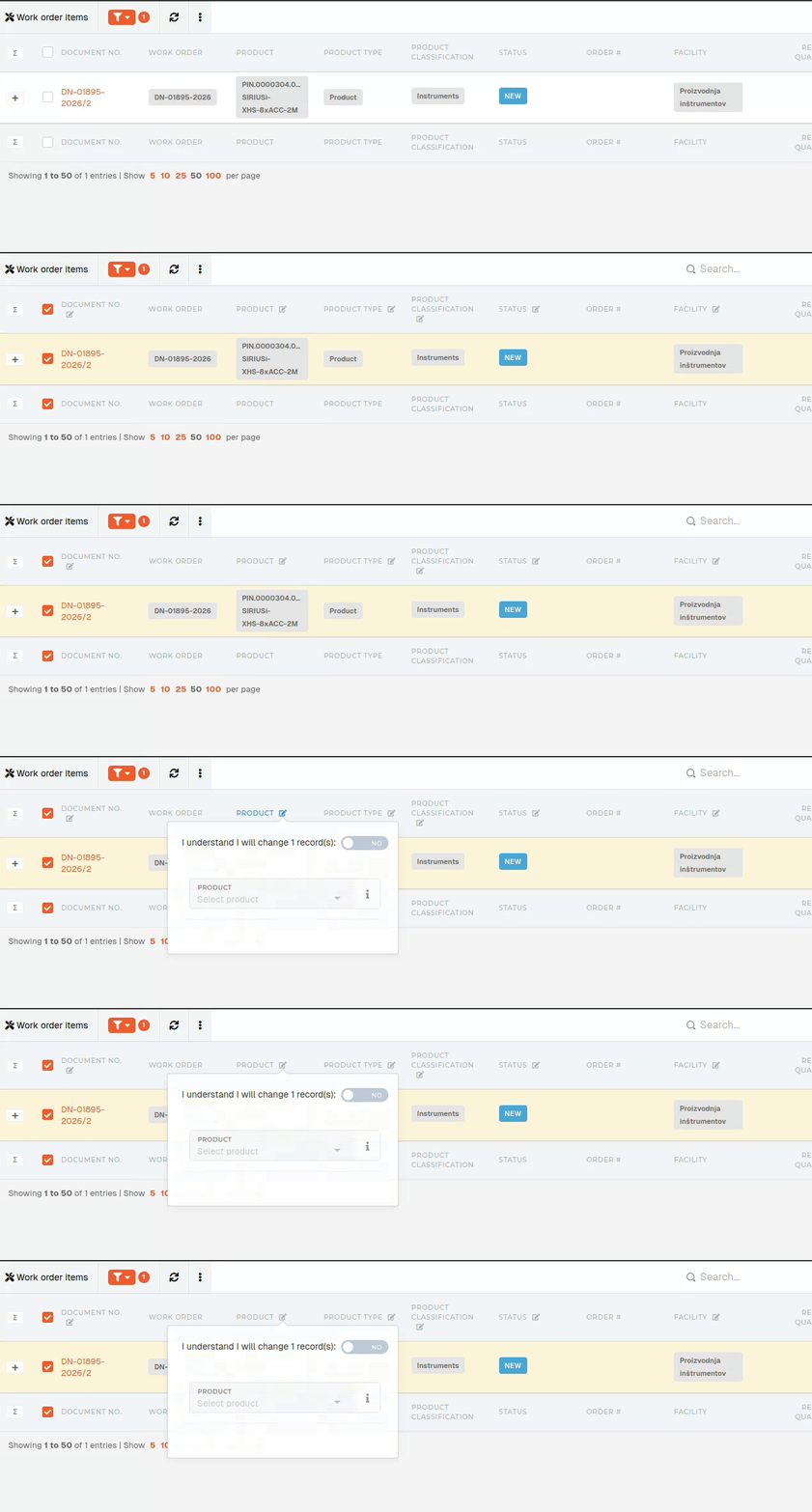
Once the filter is applied, and only items of the selected work order are shown, select the work order item, whose product you want to replace. The icon, which opens the edit form, will appear next to "Product" column name.
When at least one item is selected, the "edit" button appears next to "Product" column name. This edit form can be used to update several (up to a 100) work order items at once.
After agreeing, that you understand you are updating (multiple) items, you can set the new product of selected work order item(s). Clicking "Save" will update all selected work order items.
This example updates 1 work order item, but you can update multiple items (up to 100 at once).
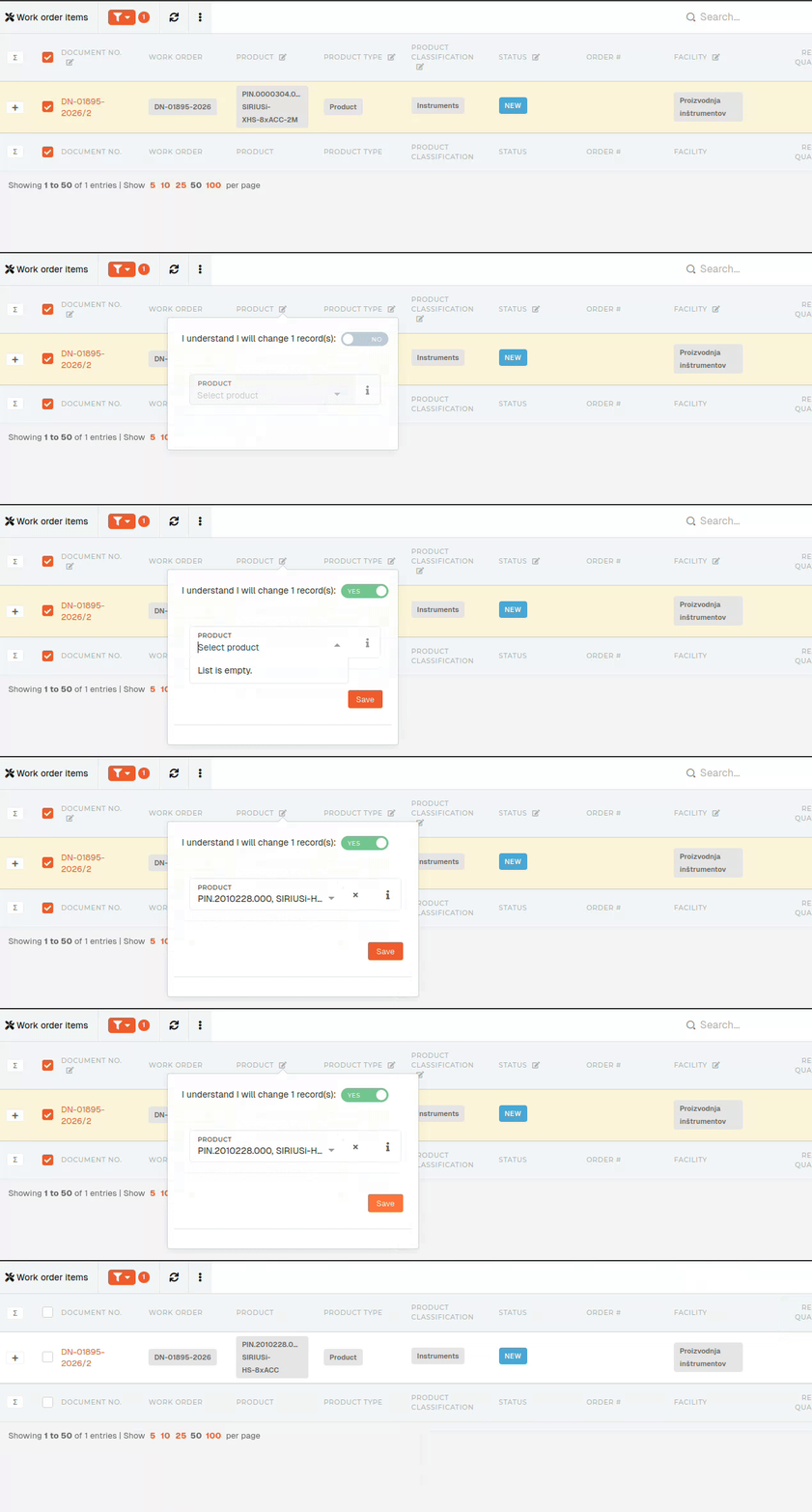
Keep in mind that this only replaces the product on the work order item. If the work order item has any serials, the product on those must be changes manually. Work order item's BOM (Bill of Materials) must be updated manually as well.