Delete goods rebook
This action requires the "Cancel goods rebook" permission.
Goods rebooks cannot be deleted directly, due to the stock transactions that are connected to them. Instead, they need to be "canceled" first.
When canceling a goods rebook, make sure that it is the last transaction in product's lot. Trying to cancel a goods rebook, that is not last, will result in an error being shown.

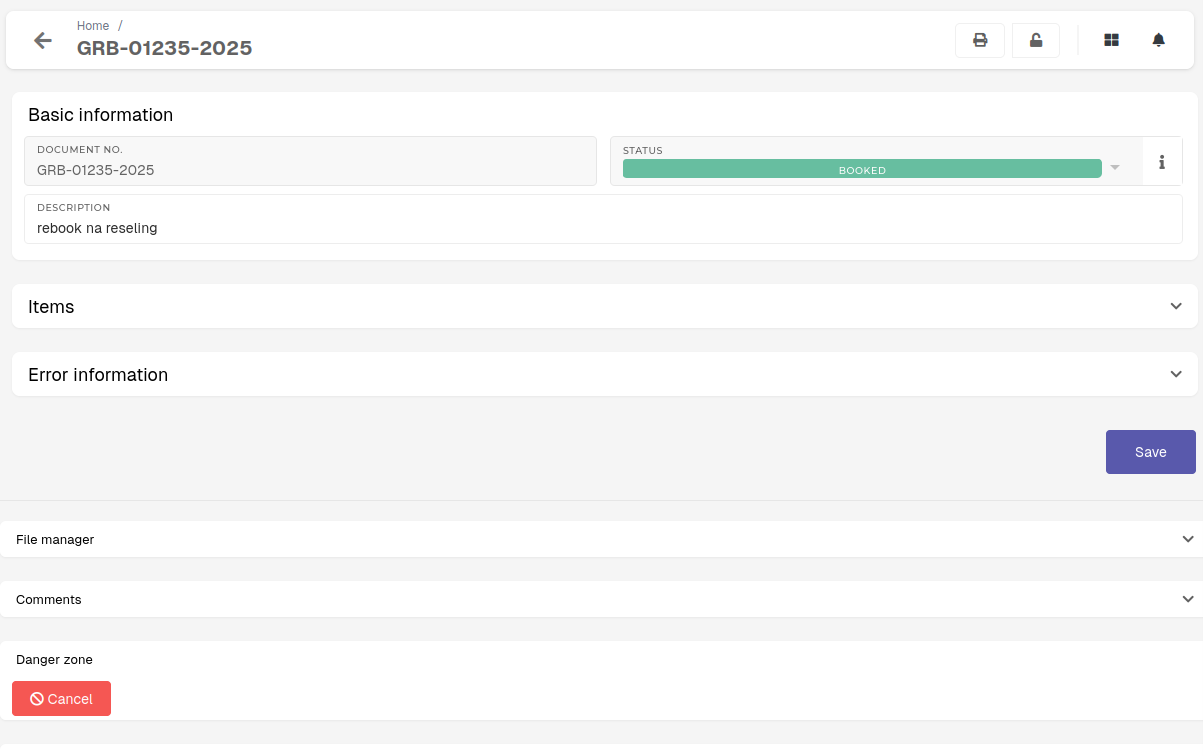
To cancel a goods rebook, go to the details page of the goods rebook and open the "Danger zone" section.
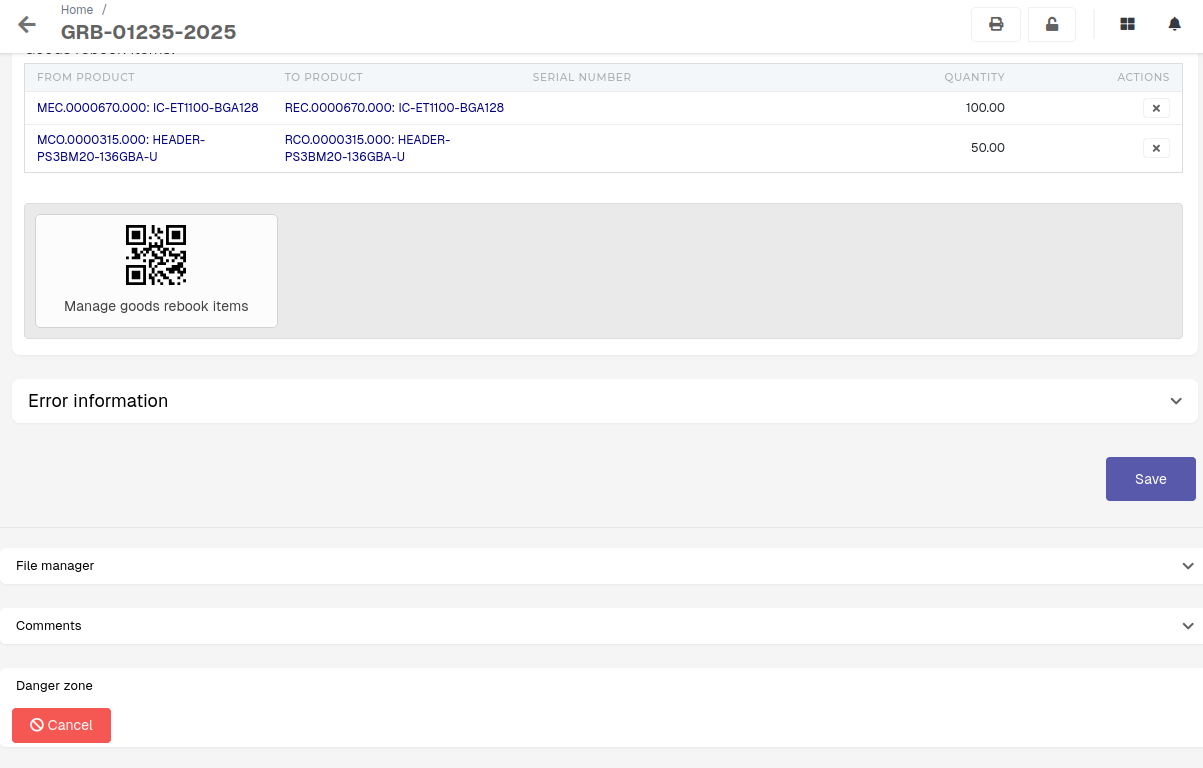
You will see a button, labeled as "Cancel". Click and confirm the button to cancel the goods rebook. This will rollback any changes to the stock, done by the goods rebook, as well as delete any stock transactions, tied to this goods rebook.
After the process in finished, the status of the goods rebook will then be updated to "Canceled".
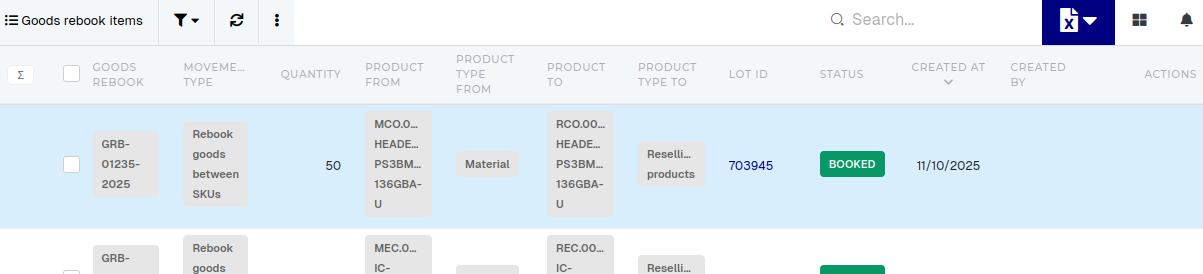
When goods rebook cannot be cancelled (i.e. the error "Transactions exist after this goods rebook." appears), that usually means a transaction after this rebook has been created for one of the items on this rebook. To find the problematic item, list all items in the "Goods rebook Items" table and open every item's Lot (Lot ID).
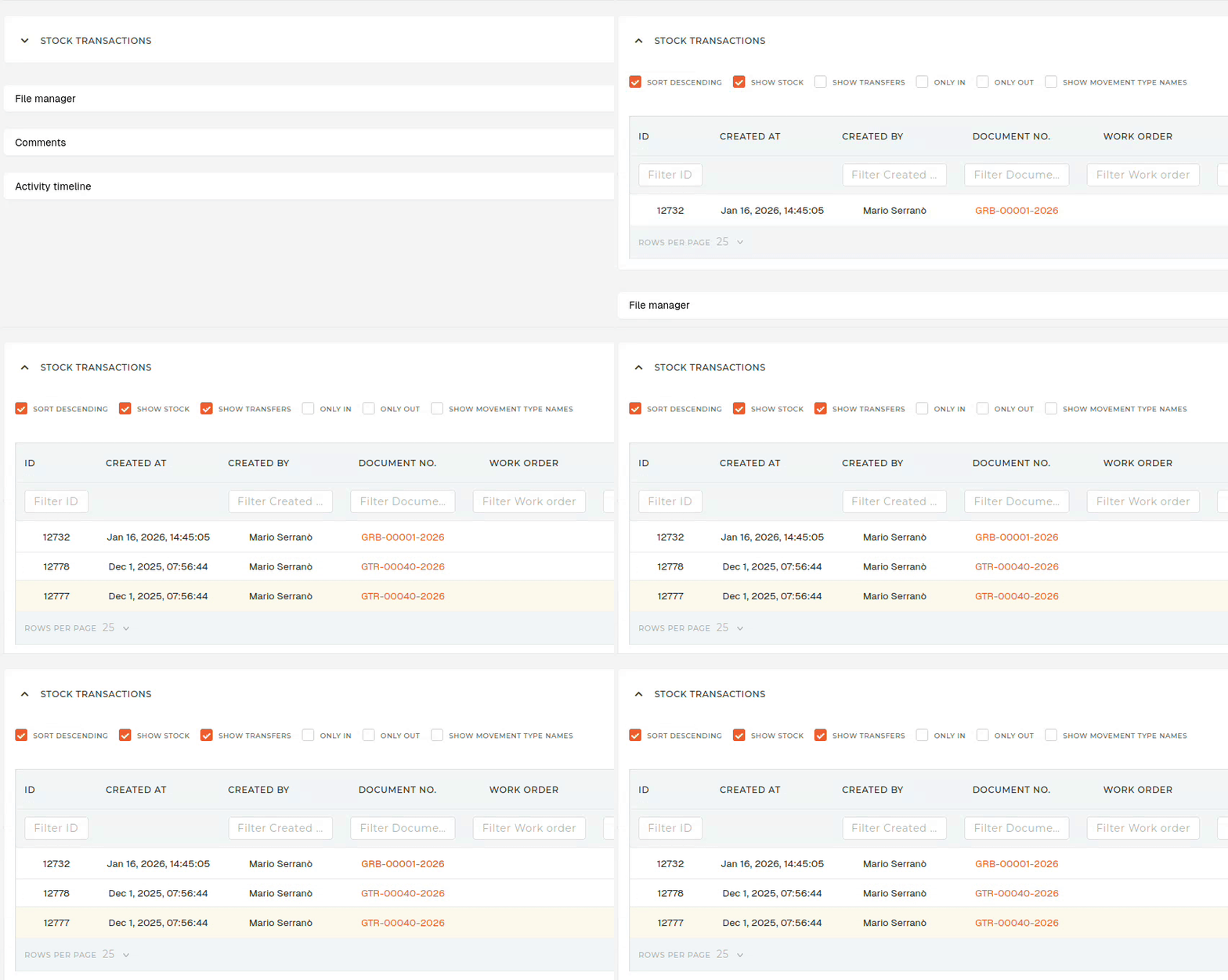
On the "Lot" page, open "Stock transactions" section, and check the "Show goods transfers" checkbox. All transactions, created after your goods goods rebook, are the reason, why the goods rebook cannot be canceled.