Attendance requests
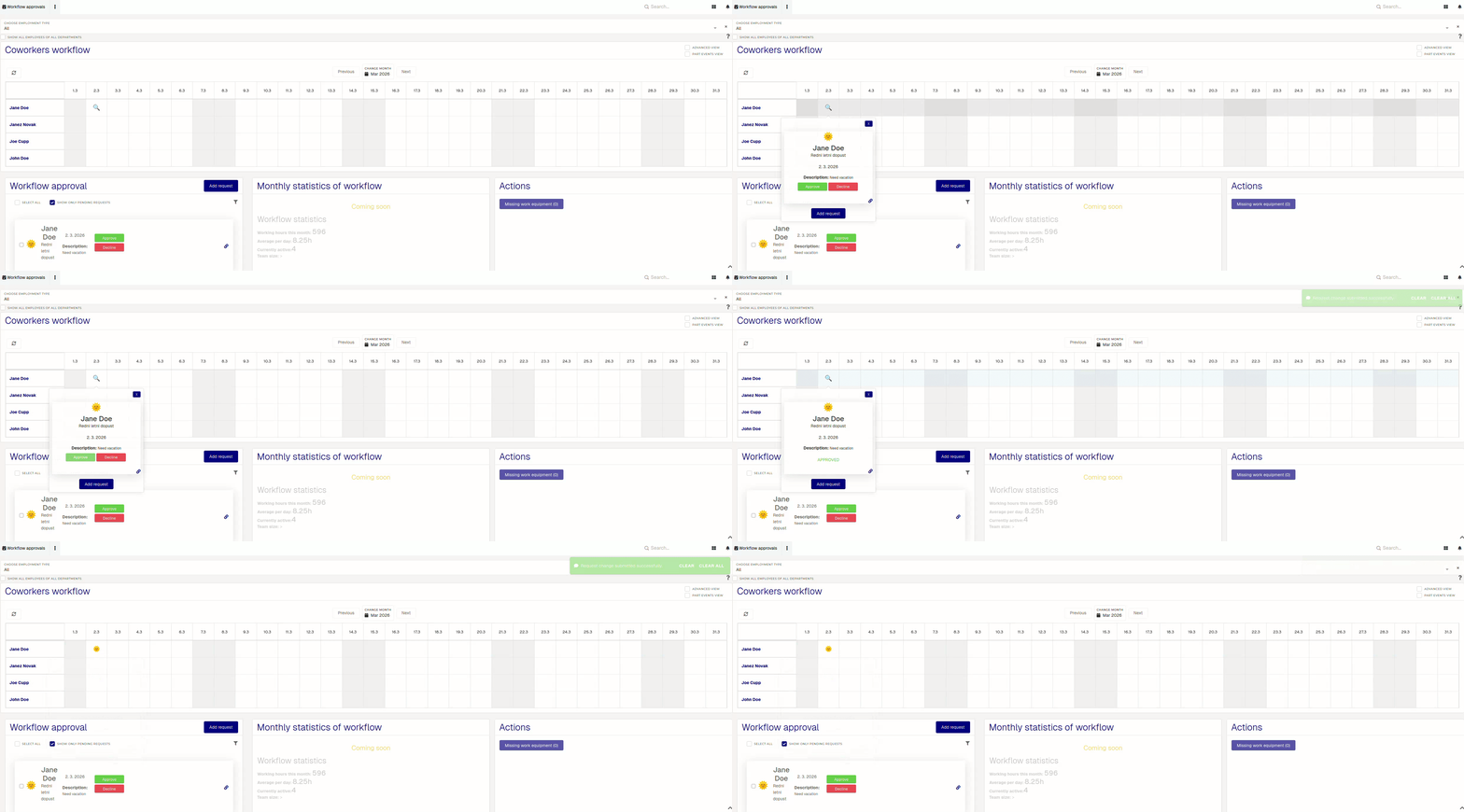
When you receive a new attendance request, it will appear in the "Workflow approvals" section.section and in the "Coworkers workflow". Review it and align it with the work plan, then approve/decline it accordingly.
When a new attendance request is submitted by your employees, the system will send you an email notification. LIke-wise, employee will be notified of your approval/rejection of their request with an email notification.
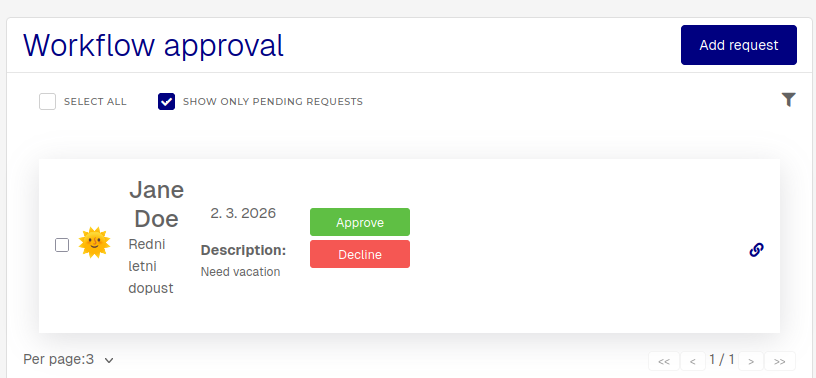

If an attendance request is declined, a commend (rejection reason) is required.
You can approve/rejectdecline thea request simply by clicking onthe Approve/Decline buttons in the calendar"Workflow approvals" section, or in the calendar, where the approve/decline buttons appear.appear inside a tooltip. You can also check and approve/reject multiple requests at once in the lower left part where all requests that will be submitted for approval will be visible. The employee will be notified of your approval/rejection by email.