
Salary export
The salary export tab displays the default salary export for month, custom export for month (changed salaries export, vacation report...). This export is used during salary calculation.
Salary export
Before this export is generated, some options can be changed in order to alter the generated export.
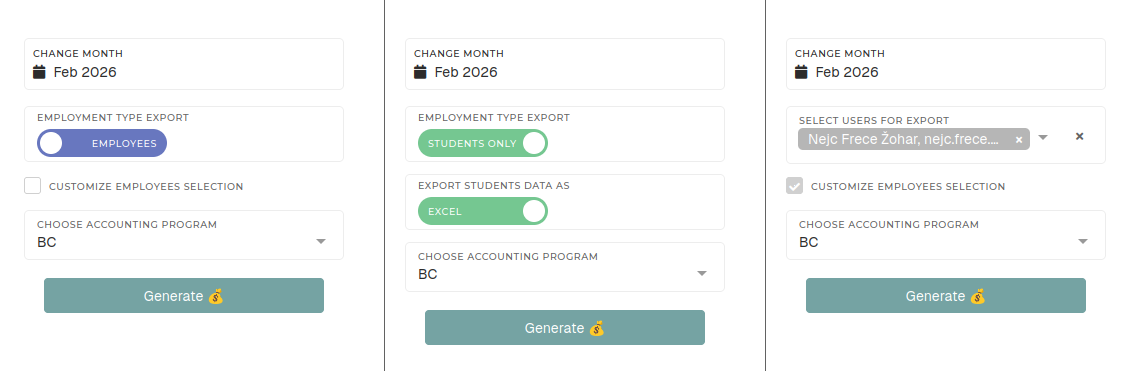
- Change month
- Select the month, for which you want to generate the salary export.
- By default, the current month is always selected.
- Employment type export
- Select user employment type to export.
- This switch determines, users of which type will be exported (employees or students).
- Export student data as
- This switch is only shown, when generating a salary export for students
- You can switch between exporting all students work data as an Excel sheet or a PDF file.
- Customize employee selection
- This toggle can be used to switch between employment type switch and custom employee selector.
- When on, "Select users for export" dropdown is shown instead of "Employment type export" switch.
- Select users for export
- You can limit the salary export to only a few select users.
- Choose accounting program
- Different exports are available., depending on your accounting software.
- Currently, available options are:
- BC (Business Central)
- Birokrat
- Opal
Custom export
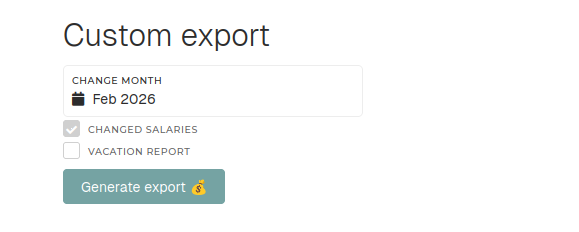
The custom export contains separate exports for:
- Salary changes
- Export of salary changes in the selected month for all employees.
- This export was designed for Birokrat.
- Vacation report
- Export of all employees and their vacation data (vacation days basis, bonus days, transferred days...)
Exports may take more time to generate. If an export generation takes too long, it will be generated in the background and sent to your email.
Master locking month
Month can be master-locked by accounting. In practice, this means attendance records (requests, events, month approval) for selected month can no longer be changed.
The month can also be unlocked, but this always requires a description with a reason for month unlocking.
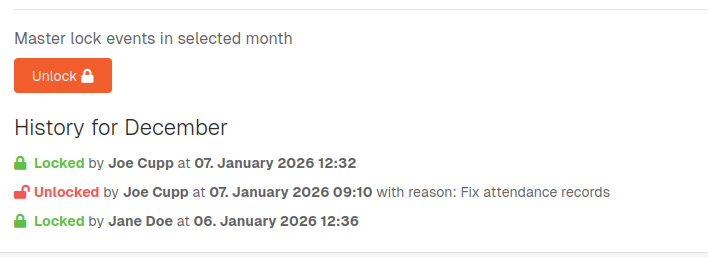
All locking/unlocking actions are listen under the Lock/Unlock button.